Markup Studio is a free browser workspace for cleaning copied HTML before moving it into a publishing editor. It places source, a visual editor, basic health warnings and a generic preview together. The useful question is not just whether the result looks tidier: it is what the cleanup removed, what still needs your judgment and which output belongs in the next editor.
We tested the English and Korean interfaces on November 7, 2026 (Asia/Seoul), using clearly marked editorial samples. A 518-byte sample became 303 bytes after cleanup, while its internal health score rose from 52 to 68. Repairing its headings and link placeholders and removing its unverified image placeholder brought the basic score to 100. These are observed sample results, not a Google SEO score, a security certification or a promise of complete HTML validity.
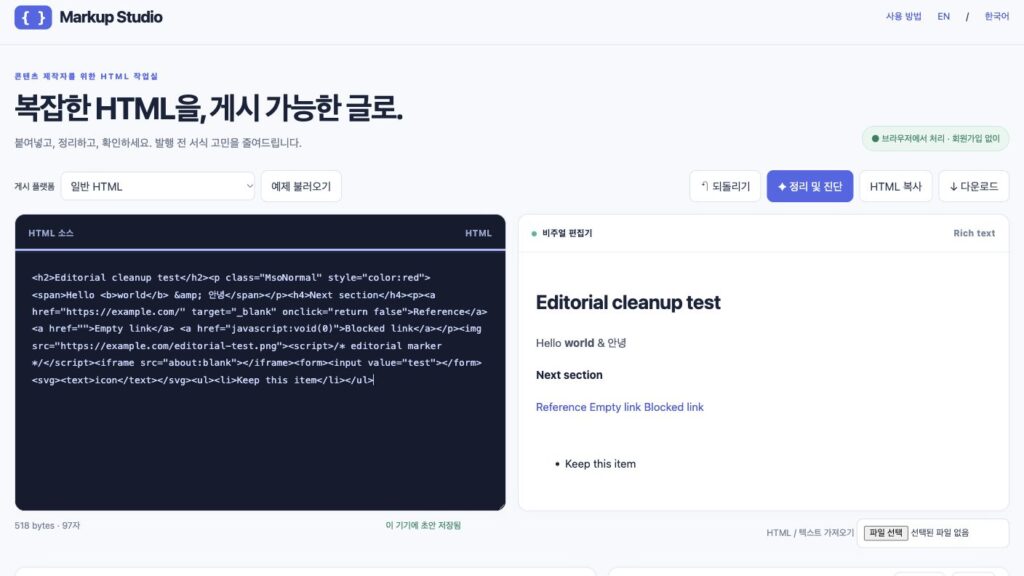
Markup Studio cleans copied HTML and checks basic issues before publishing. See our 52→68→100 test, WordPress/Blogger/Shopify copy differences, component builder and local-draft limits.
- Brand
- Markup Studio
- Tool languages
- en, ko
- Verified date
- 2026-11-06
Key takeaways
- Cleanup simplified the marked sample and removed scripts, event attributes and unsupported embeds, but did not decide its heading hierarchy, image meaning or missing link destinations.
- The WordPress clipboard result added wp:html block comments. Blogger and Shopify returned the same body markup in our copy tests; selecting a destination did not automatically publish anything.
- Our opt-in sample survived reload and Korean navigation. An immediate later reload after edits/import recovered earlier saved text, so keep a checked external copy before leaving.
- FAQ and comparison-table builders generated actual details/summary and table markup. Their presence does not establish rich-result eligibility or compatibility with every theme.
- The app’s 375px preview and our 390px fresh-load browser check are different tests. Neither reproduces your destination’s styles or proves physical-phone behavior.
On this page
When this HTML cleaner solves a real problem
Copied article content can carry formatting decisions from its previous home. A paragraph may have a Word-specific class and an inline font setting, while nested spans add little meaning. A publishing theme then has to compete with those decisions. Markup Studio offers a short inspection route: put the HTML beside a readable view, simplify it and inspect the changes before transferring it.
A practical example is moving a small draft into a site that already supplies typography. You may want the headings, emphasis, lists and ordinary links while discarding copied colors and classes. That is different from migrating a complete page design. If the source depends on custom CSS, forms, SVG or embedded applications, automatic cleanup may remove exactly the elements that make the design work.
Treat the workspace as an intermediate editing station. It is not a theme simulator, a live-link crawler or an automatic publishing integration. The source explicitly says it does not check HTTP 404 responses and cannot understand image content. It also says HTML parsing may repair malformed structure without understanding the author’s intent. Those limits determine which review steps remain yours.
Prepare an original copy and a destination
- Keep the unmodified original outside the workspace. A text file or your drafting application gives you a comparison point if cleanup discards an intentional class, embed or layout.
- Choose a small representative section first. Include a heading, a paragraph with emphasis, a list and a link so you can see what survives without scanning an entire manuscript.
- Decide whether the next editor needs body HTML or a WordPress block representation. The selected platform changes the copied/exported packaging; it is not an account connection.
- Use non-sensitive test content. The source says processing is local, but also acknowledges hosting and advertising data processing and warns against confidential input.
- Identify image and link decisions in advance. The cleaner cannot invent an accurate description of an image or choose a missing destination for you.
For our marked sample, the image URL was deliberately a placeholder, not a real image we evaluated. We therefore removed it in the manual repair instead of inventing an ALT description to earn points. Apply the same discipline to real content: decide whether an image is meaningful or decorative and review its actual purpose before addressing the warning.
Seven checks for a Markup Studio publishing pass
1. Put the input in the right surface. Use HTML SOURCE for markup or the visual editor for readable content. HTML/text import is available; our UTF-8 HTML file imported its Korean text, ampersand entity and list exactly into the source field. DOCX import is not supported according to the FAQ. Copying content from an opened document is the stated alternative, not uploading the DOCX file.
2. Read the warnings before cleaning. Our source contained a Word-style class, inline color, a span, an h2→h4 jump, an image without ALT, two unusable link destinations and unsupported elements. The app reported 52/100, including heading, image, link, formatting and removed-preview-item warnings. This baseline helps distinguish problems that cleanup resolves from problems that need editorial repair.
3. Run Clean & check and compare. The source became 303 bytes from 518, a displayed 41.5% reduction. The paragraph’s class, inline style and span disappeared. A harmless script marker, iframe, form/input and SVG disappeared from the output. The ordinary heading, list, bold text and “안녕” remained. This verifies the marked input only; it is not an exhaustive adversarial sanitizer test.
4. Repair meaning yourself. Cleanup left the h4 heading, the image without ALT and anchor elements with no usable destination. The score was 68 rather than 100. We changed h4 to h3, turned the two placeholder anchors into ordinary text and removed the unverified placeholder image. The resulting basic check reached 100. An editor still has to decide the right structure and content.
5. Use preview as a comparison surface. Desktop and Mobile are available in Preview lab. Mobile set our iframe to 375px; the iframe had an empty sandbox attribute. The source says external resources are blocked in preview and removed from the visual editing surface. We checked the surface and sandbox setting, not every possible external-resource route or every browser’s isolation behavior.
6. Choose the packaging, then inspect the copied text. With WordPress selected, Copy HTML placed the body between opening and closing wp:html comments. With Blogger and Shopify selected, the copies matched our repaired body without those comments. The source textarea itself stayed as body markup. Inspect the clipboard result rather than assuming a platform selection must rewrite the visible source.
7. Keep a checked copy and preview the destination. Copy the result into the intended editing context and inspect the final theme before publishing. Do not treat a browser save message as your only archive. Our download button reported that a download started, but the file contents were not independently verified in this session. Clipboard contents were directly read and compared; download availability is a narrower observation.
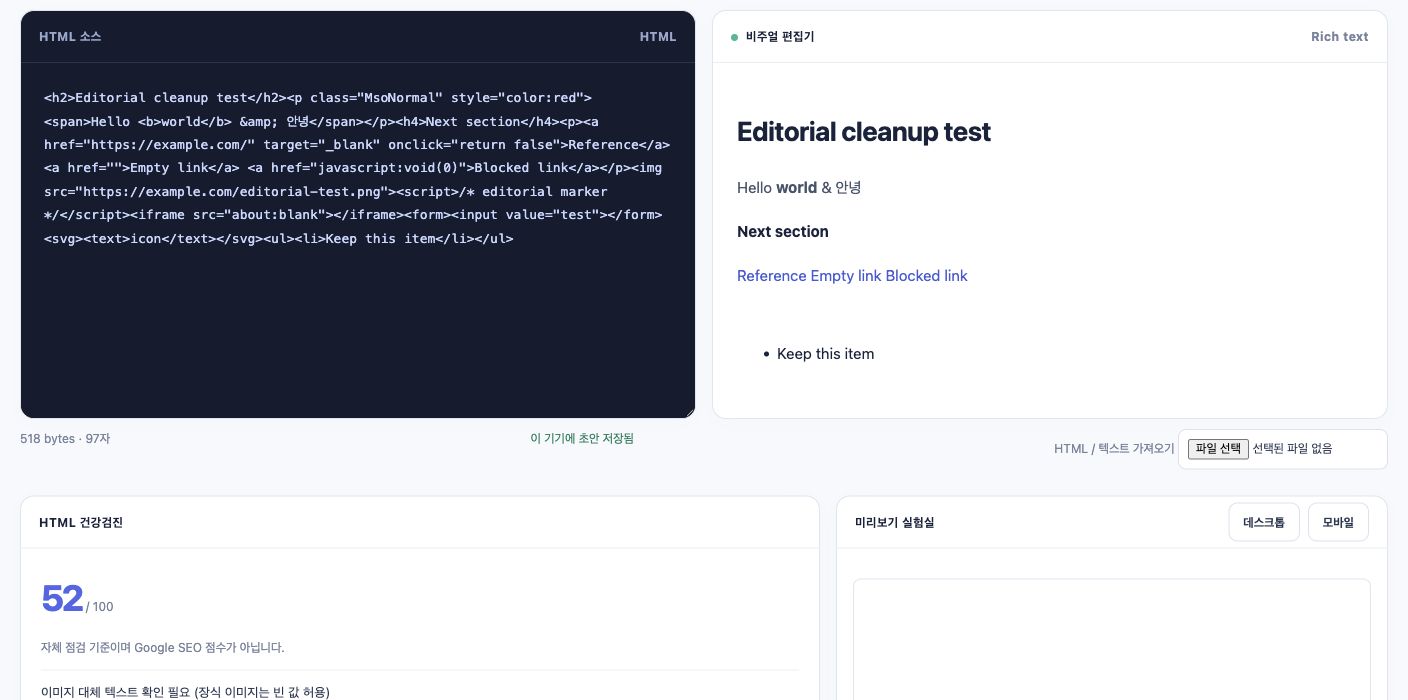
The exact changes in our cleanup test
| Input or action | Observed output | What still needs review |
|---|---|---|
| Word class, inline color, span | Formatting wrapper and attributes removed | Any styling you intended to keep |
| Script marker, iframe, form/input, SVG | Absent from cleaned source | Unsupported functionality is lost, not migrated |
| Allowed https link with target blank | Destination kept; rel noopener noreferrer added | Whether that destination is appropriate and live |
| Empty and javascript destinations | href removed; anchor text retained | Replace with a real reviewed link or plain text |
| h2 followed by h4 | Still h2 followed by h4 after cleanup | Choose hierarchy manually |
| Image without ALT | Image source retained; warning remained | Inspect real image purpose and destination behavior |
| 518-byte marked source | 303 bytes; health 52→68 | Smaller markup is not automatically better content |
| Manual repair | 239 bytes; basic health 100 | Final theme, meaning and broader validation remain |
The first paragraph illustrates the scope well. Markup Studio kept the words and emphasis while removing the formatting shell. This short excerpt is from our actual before/after source; it is not an example of a whole article migration.
Before:
<p class="MsoNormal" style="color:red"><span>Hello <b>world</b> & 안녕</span></p>
After:
<p>Hello <b>world</b> & 안녕</p>Undo restored the exact original sample string in our test. The before-cleanup field also displayed the original, while version buttons were available in the expanded history. We did not test every possible sequence of repeated Undo and version restoration. Keep a copy outside the tool when the difference matters more than one reversible trial.
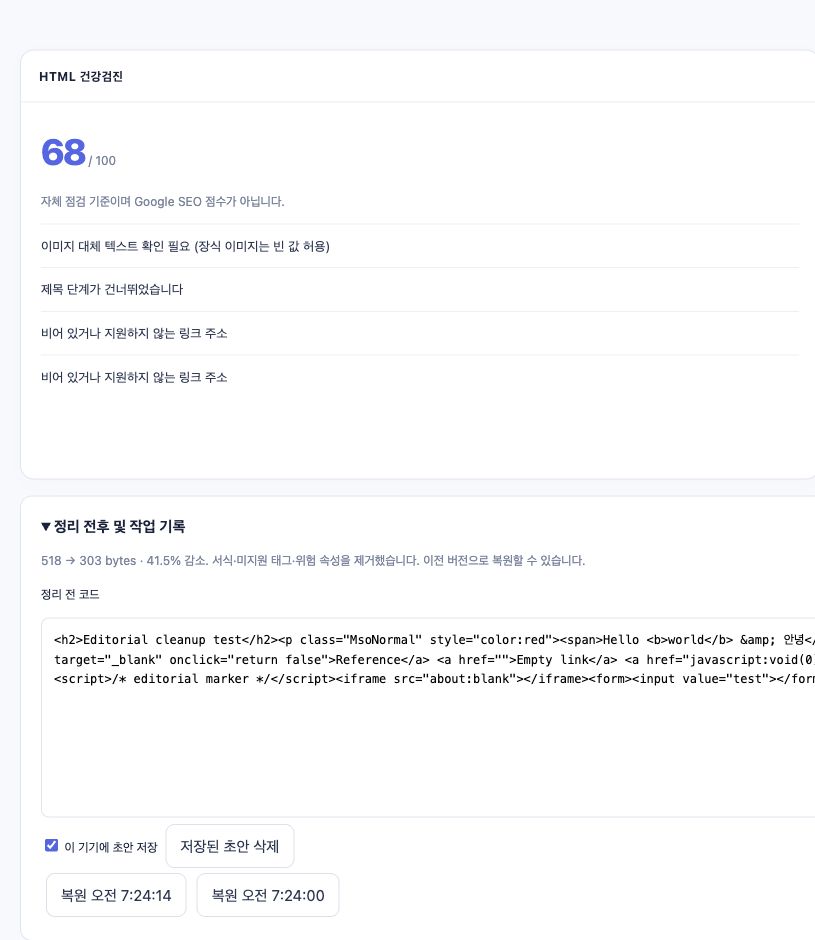
WordPress, Blogger and Shopify outputs
The destination selector describes where the markup will go; it does not sign in to that platform. In our tests the WordPress result used the following wrapper. The ellipsis below is explanatory, not text you should paste as a finished article. The actual clipboard comparison used the full repaired sample.
<!-- wp:html -->
<h2>Editorial cleanup test</h2>
...body markup...
<!-- /wp:html -->
Distinguish a WordPress block representation from the HTML body inside a block. If you already have a Custom HTML editing field, inspect which part you need rather than blindly nesting block comments. If you move the complete wrapped result through a block/code workflow, return to the visual editor and check the resulting block and frontend. We verified the generated clipboard format, not every receiving WordPress configuration.
Blogger and Shopify copies contained body HTML without the WordPress wrapper. We compared the actual clipboard strings and they were equal to the repaired body. We did not publish the sample to either platform, test every allowed element in their editors or verify a store theme. Their filtering and the site’s CSS remain separate checks after transfer.
The tool’s preview uses generic styles. A table that fits there can still need work in a narrow destination column; a component with details/summary can inherit different spacing from a theme. Review heading sizes, list indentation, link appearance, table width and image behavior in the actual preview. The cleaner prepares markup; it does not reproduce a site’s design system.
Component builders and visual editing limits
The component menu offered FAQ, Comparison table, Checklist and Notice box. We directly tested FAQ and Comparison table. Two question|answer lines appended two details elements, each with summary and paragraph content. Three pipe-separated table lines produced a header row with th scope=”col” and two body rows. Checklist and Notice box were observed options rather than completed tests.
These are content structures, not new knowledge. Write the questions and answers yourself, check table headings and inspect the generated source. A FAQ component is not evidence that FAQ structured data was generated or that a search engine will show a rich result. We did not verify JSON-LD generation or search eligibility from the builder.
Visual editing also needs source review. Our Korean text appeared in the source, but one contenteditable replacement produced a paragraph nested inside an h2 while the basic health display still showed 100. That observation is enough to reject the idea that 100 means a complete structural validator. It does not establish that every normal paste produces the same structure. Review a representative edit in source before replacing a large draft.
Local drafts, privacy and a recovery habit
Draft saving is opt-in through Save drafts on this device. After enabling it, our FAQ/table sample survived a reload and appeared on the Korean page in the same browser. The destination selector returned to Clean HTML. Later, reloading immediately after edits/import showed earlier saved text rather than the most recently visible source. We did not establish the exact save timing or a zero-loss recovery guarantee.
A practical habit is to copy the current source to an external file before navigating away, then check the recovered text when you return. Compare a distinctive final sentence, not just the title or a saved-status label. This makes it easier to notice an older recovered version without assuming the tool has lost every draft or that every save is instantaneous.
The source’s Privacy panel says input is processed in the browser and not uploaded by the tool. It describes optional browser-local drafts and user-requested clipboard/download exports. It separately notes that hosting and enabled advertising services may process request data and use cookies. Ads and an interstitial were visible during our visit. We did not perform a complete network, storage or privacy audit, so local processing is an attributed statement, not a claim that the visit makes no outside requests.
Avoid confidential input and do not rely on a shared browser as a private archive. A Delete saved drafts control exists, but we did not test deletion. We restored the optional-save checkbox to its initial off state after testing. A content-cleanup feature and the handling of all website visit data are different scopes of review.
Mobile use and common mistakes
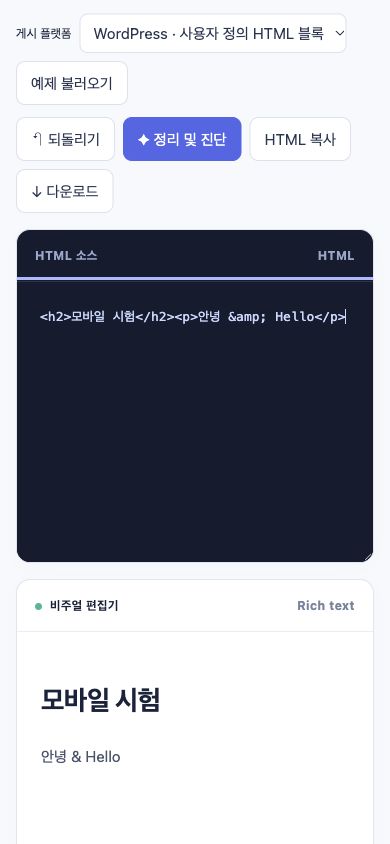
Our 390px browser emulation kept document width at 390px. We entered a Korean heading and mixed Korean/English paragraph, ran cleanup and copied the WordPress result. The copied text retained “모바일 시험”, “안녕” and the escaped ampersand inside the expected block wrapper. This is a direct input/copy check, distinct from pressing the tool’s own 375px preview button.
| Symptom | Useful next check |
|---|---|
| The design lost its colors | Compare removed classes/styles against the original; intentional simplification can discard design |
| A link still fails on the real site | Open the intended destination yourself; the basic check does not fetch HTTP status |
| A warning remains after cleanup | Read the specific heading/image/link issue instead of repeatedly pressing Clean |
| Reload shows older text | Compare the last sentence with your external copy; do not assume instant persistence |
| The preview differs from the theme | Check the receiving page’s styles and mobile width |
| Health 100 but structure looks odd | Inspect source and meaning; the internal score has limited coverage |
Long source snippets can be awkward to edit on a small screen even when the document does not overflow. Use a small sample for a mobile check and make larger structural edits where the source and readable view are easier to compare. We did not test physical touch accuracy, screen readers, every browser or a large production manuscript.
Alternatives and a related drafting route
A plain text editor preserves a deliberate source copy; a publishing editor lets you work inside the destination’s native blocks. Markup Studio adds a side-by-side cleanup pass and a small warning list between those steps. Choose it when removing copied formatting is the job. If you need a page builder, exact CSS preservation or complete conformance/security analysis, the tested feature set does not establish those capabilities.
Our published FinishDraft writing guide provides a natural earlier step: finish a small draft, review it and export a copy. If you choose its HTML route, inspect the text and heading decisions in Markup Studio before moving to a publishing editor. These are separate tools without a verified automatic integration. Keep the original export so cleanup remains a choice you can compare.
Frequently asked questions
Is Markup Studio free and bilingual? The source advertises free browser-based use without an account. The tested controls required no sign-in. English is at the root and Korean at /p/korean.html. Availability and terms can change; this describes our verification date.
Does it automatically fix all problems? No. Our cleanup left heading, image and destination warnings. The tool cannot choose an accurate ALT description, infer the author’s heading intent or confirm an HTTP 404 response.
Does 100 mean SEO-ready or safe? It means the tool found no issues in its own basic checks for that state. Our visual-edit observation demonstrates that a 100 display can coexist with source that still deserves structural review. No comprehensive security audit was performed.
Can I upload a DOCX? The FAQ says this version supports HTML/text files and rich-text paste. We directly imported one UTF-8 HTML sample; DOCX upload and arbitrary rich-document compatibility were not tested.
Did Download work in the test? The page reported “HTML download started” after the click, but we could not independently inspect the downloaded file’s contents in this session. We did verify the actual clipboard output for all three named platform modes.
Will saved work follow me to another device? The source describes browser-local optional storage. We verified same-browser reload and language navigation for one sample, with the later immediate-reload caveat. Cross-device sync and guaranteed recovery were not established.
Verification record and final action
Verified November 7, 2026 in Asia/Seoul; the administration record uses the corresponding November 6 UTC date. Evidence includes the marked input and cleaned strings, exact Undo comparison, platform clipboard strings, generated FAQ/table source, HTML-file import, screenshots, reload observations and 390px input/copy. Not verified: downloaded file content, live-link status, every sanitizer boundary, all theme integrations, physical phones or a complete privacy audit.
Start with one small section and an external original. Clean it once, resolve the remaining decisions, inspect the copied packaging and preview the receiving page. That sequence makes the result reviewable before you publish.
A RELEVANT NEXT STEP
Tools with a useful connection
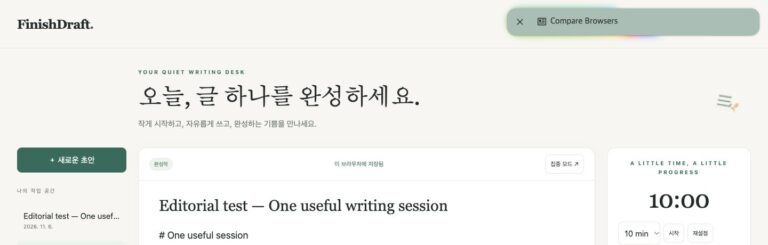
FinishDraft Studio
FinishDraft: 7 Essential Steps for a Better Writing Session
FinishDraft Studio helps you finish a small draft with local saving, writing prompts and timed sprints. See tested counters, finish checks, exports and the important difference between draft export and full backup.
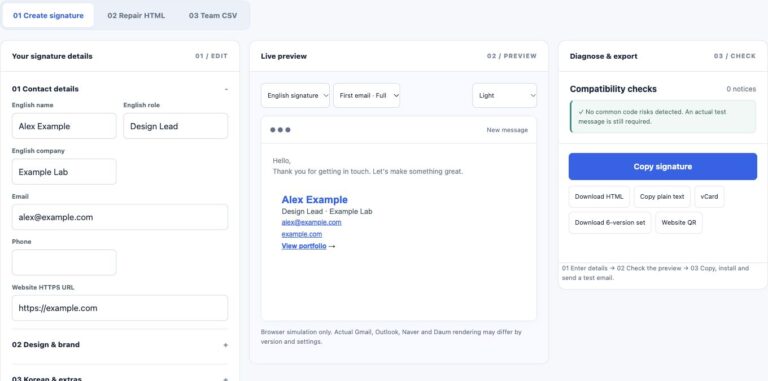
SignatureRescue Studio
Email Signature: 7 Smart Checks for Better Setup
Build an email signature with SignatureRescue Studio. Actual bilingual, repair, CSV-status, copied-text and saving tests explain what is verified before a manual inbox check.
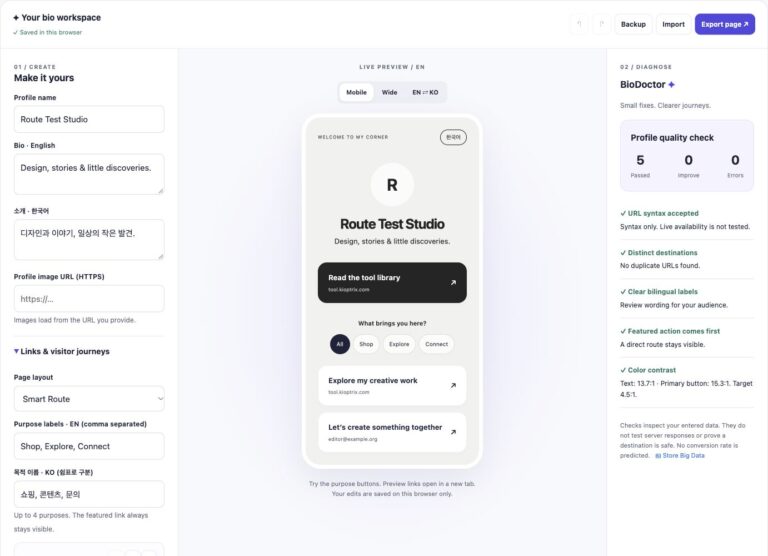
BioRoute Studio
Link in Bio: 7 Smart BioRoute Studio Checks
Build an English/Korean link in bio page with BioRoute Studio. Real tests explain purpose filters, URL diagnosis, UTM edits, HTML export and JSON backup without confusing editing with public hosting.