Tea Ripple Piano turns a virtual cup of tea into a small musical instrument. Touch the water or focus the cup and use A S D F G H J, then record a short take. These seven checks explain how to keep a playable idea, when a picture is enough, and why a live loop is different from the take you export.
Hands-on review: November 8, 2026, Korea time (November 7 UTC). We tested keyboard input, recording, local save/load, replay-link restoration, leaf movement, a two-layer loop, the three-input haiku and a fresh 390px Korean layout in Chrome. We verified interface feedback and note records, not speaker output or subjective sound quality. Downloaded WAV, PNG and JSON files were not independently inspected. This library and the original tool share a creator.
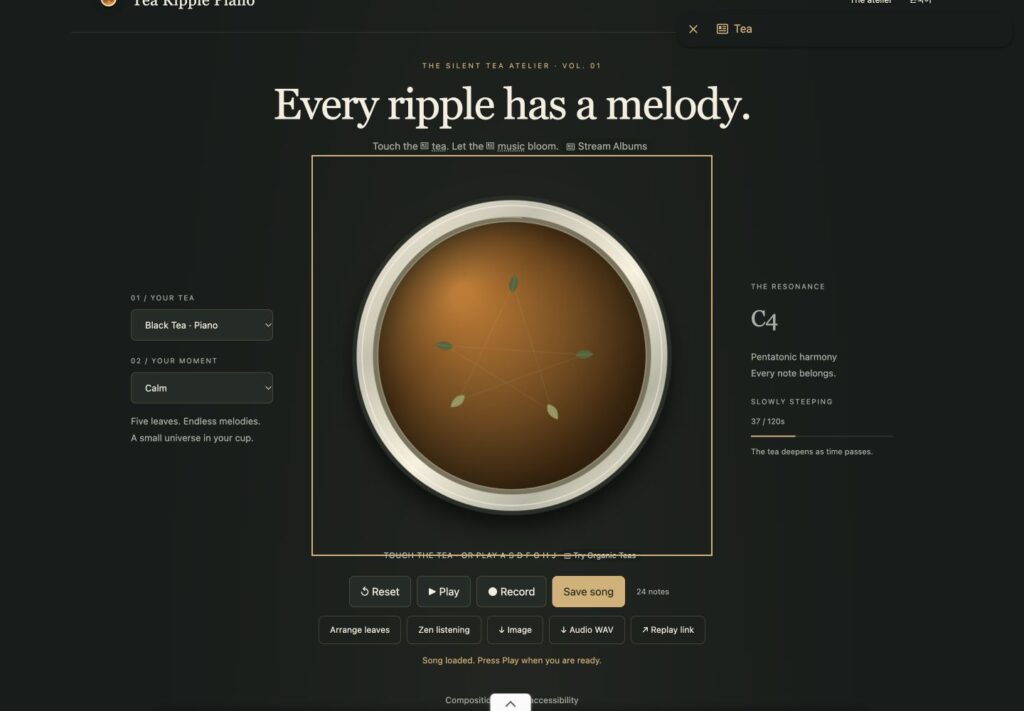
Create short melodies by playing a virtual tea cup. This guide tests recording, local restoration, replay links and live layers, and explains which output preserves your next idea.
- Brand
- Tea Ripple Piano
- Tool languages
- en, ko
- Verified date
- 2026-11-07
On this page
Key takeaways
- Play an idea rather than a conventional keyboard lesson. Position maps to a pentatonic note system, and ripple encounters can add musical responses. The displayed note count is not simply a count of key presses.
- Record replaces the working take. Save or export a useful phrase before beginning another recording or a new haiku.
- Keep three outputs separate. Image is a visual constellation, WAV is the documented sound export, and JSON or a replay link preserves a restorable take.
- Loops are for live combination. The source limits them to four phrases and explicitly says exports contain the current take. We confirmed a second layer, not a four-layer mix export.
- Local and linked are different. Save song keeps one take in the browser; a full replay URL includes the take data and can be opened by someone who has it.
What Tea Ripple Piano does and who it suits
The official name is Tea Ripple Piano. It is a free browser musical-art experiment built around a cup, five movable leaves, animated rings and synthesized timbres. The default pairing is Black Tea with a piano-inspired sound. Other tea choices are Green Tea / Bell, Matcha / Marimba, Jasmine / Glass and Oolong / Synth. The page explicitly describes these as original synthesized timbres rather than sampled instrument recordings.
It solves the blank-page problem for a very short musical gesture. Instead of opening a large sequencer, choosing an instrument library and entering a score, you make a few movements and observe their consequences. A touch can be followed by a leaf response or a harmony from crossing ripples. The attraction is the relationship between gesture, timing and a visible composition, not precise imitation of a concert piano.
Use it for a brief creative break, a sketch of a tiny motif, or a visual-and-musical experiment with the same cup layout. It does not provide a verified piano curriculum, notation editor, MIDI workflow or full production arrangement. Nor did we test any improvement in attention, sleep or wellbeing. Calm and Focus are mood labels in the interface, not evidence of measured effects.
Prepare the browser, volume and a safe working copy
Use a browser that supports Canvas and Web Audio, as the instrument requests. The source says an initial cup interaction or Play action unlocks audio and that leaving the tab pauses audio. Keep device volume modest to begin, and locate Volume and Mute under Composition tools & accessibility. No microphone or account prompt appeared in our tested workflow; this is note-event recording, not a recording of your room.
Start with Black Tea and Calm so you can learn one setting before switching. The five mood choices are Calm, Rainy, Dream, Focus and Midnight. We changed to Green Tea and Rainy and later restored the saved Black Tea / Calm take. We did not characterize every mood’s synthesis parameters or compare all five timbres by listening, so the names should guide exploration rather than a technical sound specification.
Before replacing anything, decide what you need to keep. A browser save is convenient for the next visit, while a replay link is useful for restoring a take in another tab. The source recommends JSON as a portable backup, especially if a messaging app truncates a long URL. Use a non-private title: the title is included in the shared link, not merely attached to your local screen.
Controls and outputs at a glance
| Control | Use it for | Important boundary |
|---|---|---|
| Cup / A S D F G H J | Trigger note events and visible ripples | Focus the cup; letters are not a standard piano keyboard layout. |
| Tea and moment menus | Choose a synthesized timbre and mood | Mood names do not establish a health benefit. |
| Arrange leaves | Move a leaf or tap to move the nearest one | Turn arrangement mode off before ordinary playing. |
| Record / Stop | Capture a short current take | Source limit: up to 16 seconds; another recording replaces it. |
| Save song / Load saved song | Keep and restore one browser-local take | Not an account-based library of many projects. |
| Loop and Add layer | Combine phrases for live listening | Up to four documented layers; exports use the current take. |
| Image / Audio WAV | Request a still constellation or sound file | We activated the controls but did not validate downloaded files. |
| Replay link / JSON | Preserve restorable note and setting data | Full links carry data; JSON export/import files were not independently tested. |
How to use the piano artwork: 7 practical checks
1. Start with one cup and one mood
Open the English page or select 한국어 for the dedicated Korean page. Leave Black Tea / Calm selected for the first attempt. Make the browser window large enough to reach the recording buttons and the expandable composition panel. On mobile the tea menus sit below the cup, so the desktop sidebar arrangement is not a reliable guide to their position.
2. Give the instrument focus and make a small input
Click or tap inside the cup, or focus its keyboard application area and press one of A S D F G H J. We observed the resonance display change from its initial C4 to D4 after an A input. That is evidence of interface response, not an acoustic pitch measurement. If letters appear in Song name instead, move focus out of the text field and back to the cup.
3. Decide whether to play or arrange
Choose Arrange leaves when you want to change where responses may occur. The status instructs you to drag a leaf or tap to move the nearest one. We dragged a visible right-side leaf and saw it move within the cup. Turn this mode off to return to playing; otherwise a gesture intended to start a ripple can instead edit the constellation.
4. Record a short phrase and stop deliberately
Press Record, make a few spaced inputs and press Stop. The source permits takes up to 16 seconds, but you do not need to fill that window. Our first A/D/G recording displayed 2.4 seconds and 24 notes after stopping. Ripple responses make the result more than a literal three-key log. Leave room between gestures if you want to understand the following responses.
5. Replay, name and save the take
Use Play to request playback, open Composition tools & accessibility and enter a meaningful title. Choose Save song when the working take is the one you want to keep. Our title Editorial tea / 검증 멜로디 was saved with the take. After a reset, Load saved song restored 24 notes and the Black Tea / Calm selections. Loading after a normal reload worked too.
6. Choose a preservation method for the next task
Choose Image for the constellation, Audio WAV for the documented audio output, or JSON for a portable editable-data copy. Replay link copies a URL that can restore the take. We opened that copied URL in a new tab and saw 24 notes, the same title and Song loaded. Press Play when you are ready. A copied-link message alone would not have established restoration; opening it did.
7. Try layering only after keeping the first phrase
Start Loop on / off with the current phrase. Then record another phrase, stop and choose Add layer. Our second phrase was added with the message Layer added. 2/4. The working take displayed 2.1 seconds and 15 notes. Stop the loop when finished. Do not assume a WAV, image or replay link contains the whole live combination: the interface states that exports contain the current take.
What the actual tests established
| Test | Observed result | Interpretation |
|---|---|---|
| Keyboard and recording | A/D/G take displayed 2.4s · 24 notes | Count refers to captured musical events, not only direct gestures. |
| Local restoration | Reset cleared the working take; Load restored title, 24 notes, Black Tea and Calm | The saved slot survived; a normal reload followed by Load also worked. |
| Replay restoration | Copied URL opened in a new tab with the same title and 24 notes | Restorable test data, not a verified rendered audio file. |
| Leaf arrangement | Visible right-side leaf moved after a drag | One pointer interaction, not every physical touch implementation. |
| Loop | Started layer 1/4; a second recorded phrase produced Layer added. 2/4 | Two layers tested; maximum capacity was read from the interface. |
| Haiku | Three keyboard inputs reached Tea haiku: 3/3; stopped take showed 3 notes | One three-input exercise, not verification of the daily theme schedule. |
| Accessibility controls | Mute became Unmute; Reduce motion checked | Control states verified, not a full assistive-technology audit. |
| Korean at 390px | Document 390px, canvas 366px; saved take loaded and recording/stop worked | Chrome responsive emulation, not physical-phone certification. |
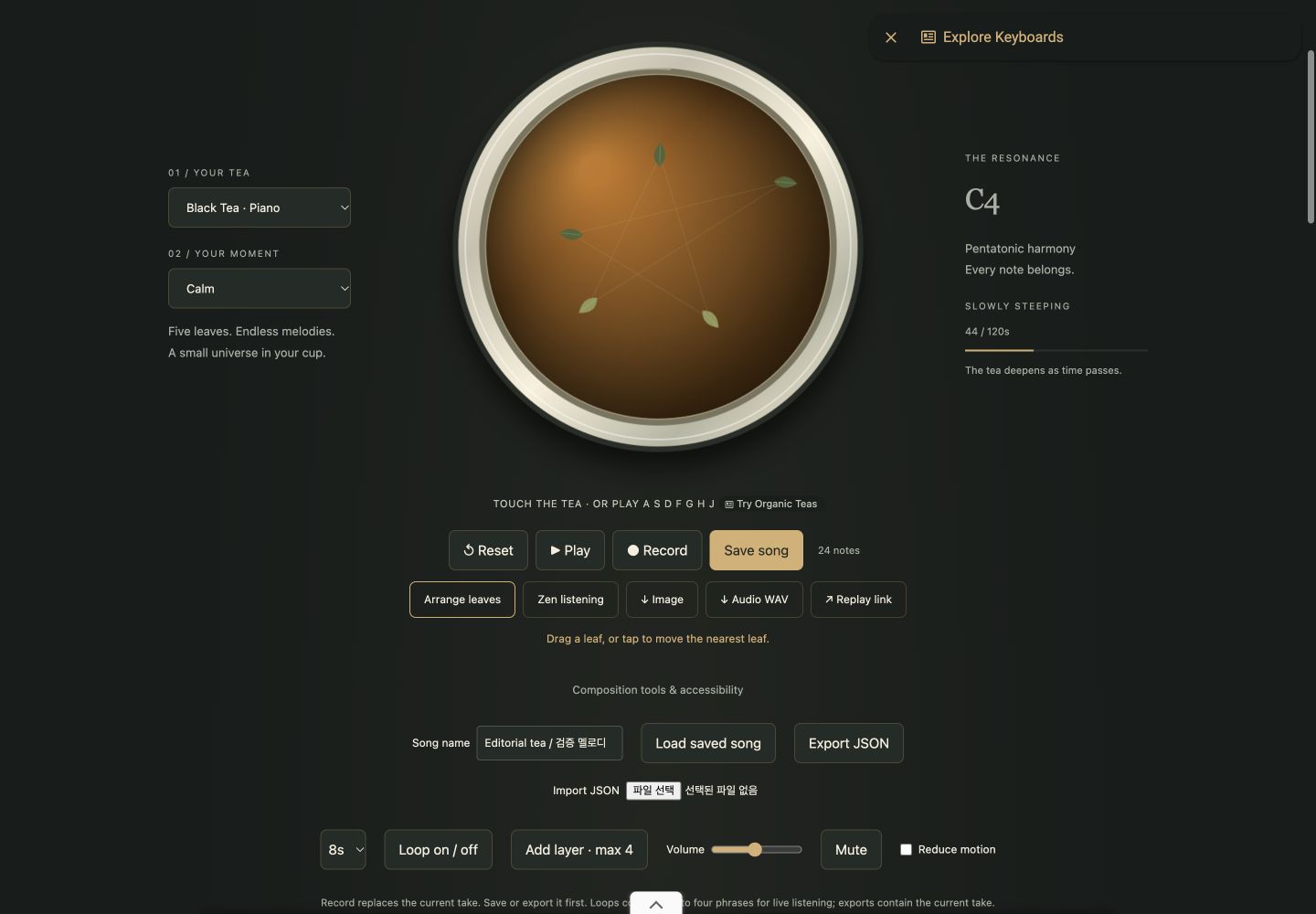
These tests establish that the instrument accepts input, records note data and restores a meaningful test take. They do not establish that every export is identical to live playback. We did not perform a listening evaluation, a microphone capture, a speaker-output measurement or an audio-engine audit. The PNG, WAV and JSON buttons were present and activated, but the download workflow did not provide an inspectable file in the automation session. Export JSON also reached a download wait timeout. Treat file output as offered functionality with that verification limit.
Save, image, WAV, JSON and replay link are different
Use Save song for convenience in the same browser. The source says it keeps one take, and our reset/reload tests support restoration of that slot. A new browser profile or cleared site data should not be treated as the same storage location. We also loaded the saved English-titled test from the Korean page in the same browser, which is useful for changing interface language without renaming the piece.
Use Image when the leaf constellation is the result you want to show. A still picture cannot carry note timings in the way a take can. Use WAV when you need a conventional audio file, then verify that the file opens and contains the phrase you expected before relying on it elsewhere. We did not inspect a downloaded WAV, so we make no promise about its duration, sample rate, bit depth or equivalence to every live layer.
Use JSON when the next task is restoring editable song data and the full replay URL is inconvenient. The import control is a file picker; the visible documentation identifies JSON as a backup. We did not complete a JSON file round trip, and there is no reason to describe it as tested merely because the control exists. Keep the original until you have loaded your own backup successfully.
Use Replay link for a take you are comfortable exposing to anyone who receives the complete URL. The FAQ says the URL fragment includes notes, tea settings, leaf positions and title. Our reopened test confirmed note count and title, but we did not exhaustively compare every encoded field. Long links can be truncated by sharing applications. The source’s no-separate-upload explanation does not make the link secret or revoke copies already passed on.
Live loops, Zen listening and the three-input haiku
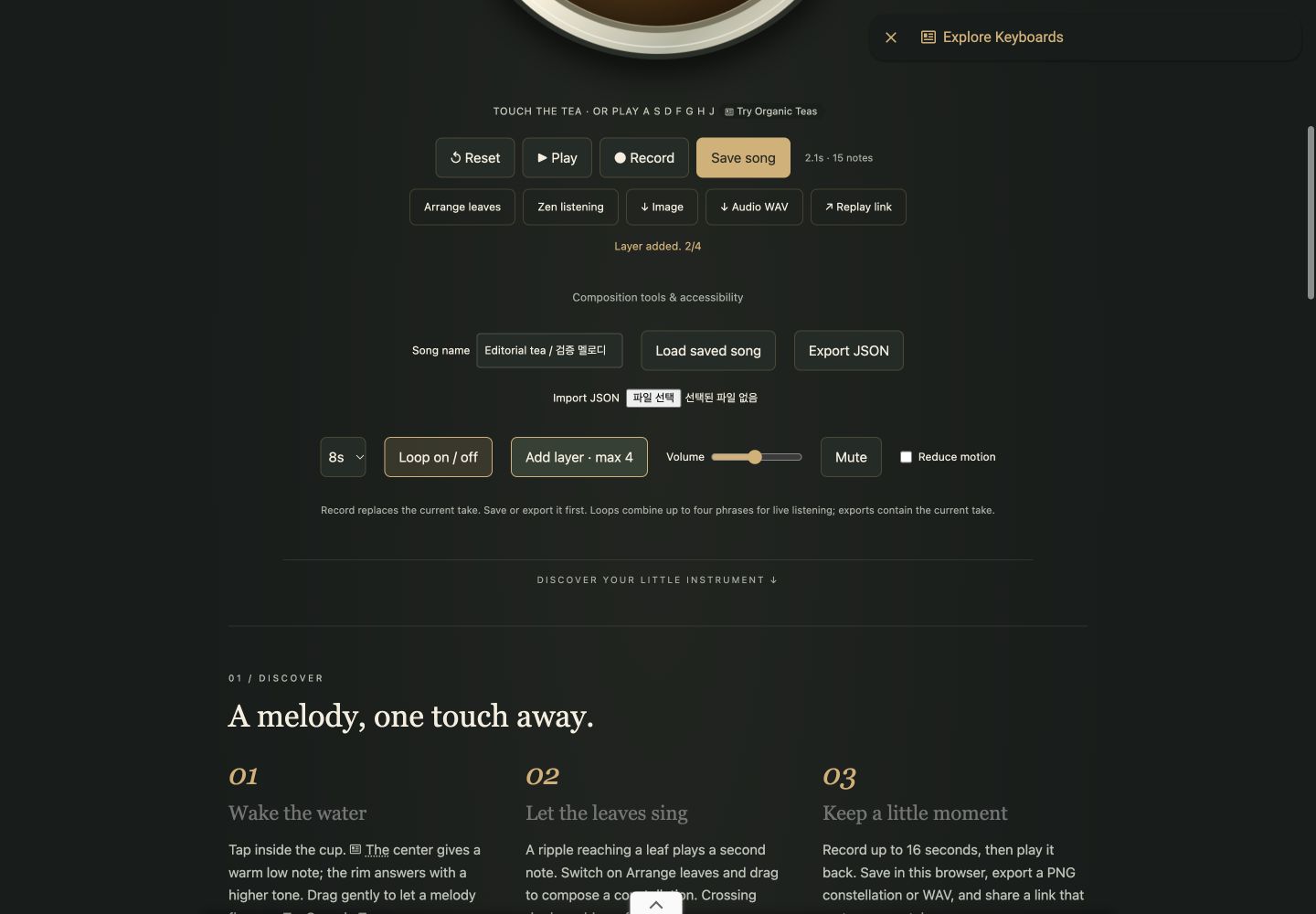
Loops are useful when you want a second phrase to answer the first in live listening. The loop-length menu offers 8s and 16s. We used the default 8s, started one layer, recorded a second phrase and added it. Pressing Add layer before starting a loop produced an instruction to start a loop and record another phrase. That feedback is more useful than treating every button as an independent export command.
Zen listening is a separate automatic-listening control. It entered the pressed state and displayed Zen listening. Tap Zen again to stop. We stopped it again rather than treating an unattended session as a recorded composition. Its presence does not establish a therapeutic outcome or an offline, background or screen-lock guarantee.
Begin haiku starts a three-input exercise and can replace the working take. In our test A, D and G reached 3/3 and the finished take showed three notes. The page presents a daily theme, but we did not test its date boundary or claim it uses UTC. If the previous phrase matters, save it before starting. The constraint can be a useful prompt: three deliberate gestures rather than filling the entire recording window.
A useful practice session and common mistakes
For a small experiment, keep the tea and mood fixed and place the leaves in one recognizable pattern. Record three spaced gestures, save the result and write down what you intended to hear after each one. Then change one leaf position and try a new phrase. This is a suggested exercise, not a controlled listening comparison we completed. A simple sketch can help you remember relative positions without assuming the canvas offers numeric coordinates.
Compare a restored take before you compare two different improvisations. Open your replay URL and verify title, settings and note count, then request playback. If those data do not match your intended version, generating another recording will not repair the old link. It creates a different working take. Name versions by purpose, such as “wide leaves / sparse phrase,” rather than calling every draft “final.”
- No sound: interact with the cup or Play, check device volume and Mute, and return to the active tab. These are the source’s troubleshooting steps, not a guarantee about every device.
- Keys type into the title: move focus back to the cup before using A S D F G H J.
- A drag edits instead of plays: switch Arrange leaves off.
- The old take disappeared: recording or a haiku can replace it; try Load saved song if you previously saved the intended version.
- The export lacks the whole loop: the interface distinguishes current-take export from live layers. Use a recording workflow designed for a full mix if that is your requirement.
- A copied link will not restore: check whether the complete URL survived the sharing application and use a verified JSON backup when available.
Mobile, privacy and model limitations
The Korean page fitted a fresh 390px viewport with a 366px square canvas and no document overflow. Recording/Stop, saved-song loading and Reduce motion were reachable. Menus and tools move below the cup, while the desktop resonance sidebar is not presented in the same way. Advertisements sometimes covered lower controls and injected promotional text links. Use an explicit close or collapse control when available; advertisement content is not part of the instrument’s workflow.
This was responsive Chrome testing, not a survey of iPhone, Android, multitouch or all screen-lock behaviours. The interface states that browser audio pauses after leaving the tab. Do not plan an unattended background session without testing your own device. Likewise, a reduced-motion checkbox is useful but does not substitute for a complete accessibility evaluation.
The source describes on-device song processing, local browser saving, no microphone request and song data inside replay links. Our observed workflow required neither an account nor microphone permission. We did not audit all network traffic. Blogger, Google services and advertising can process usage data according to consent and policies. Read the source’s privacy explanation and Google advertising-data explanation alongside the local-save description.
Finally, the circular wave animation is not a complete fluid simulation. The page uses a creative rule connecting distance, leaf encounters and crossing rings with notes; real tea does not naturally make piano tones. The 120-second steeping display is part of the artwork, not a validated brewing timer, temperature sensor or measurement of an actual cup.
Related tools and alternatives for the next step
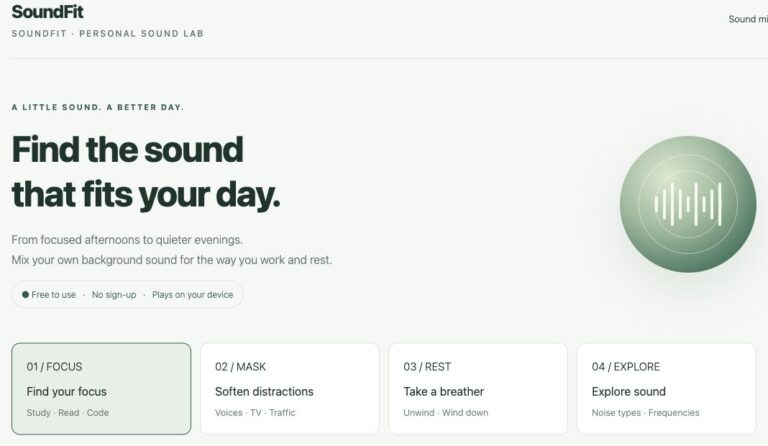
Choose Ice Crack Studio for another gesture-to-image-and-sound artwork. Its replay tests illustrate why you should verify exactly what a reconstruction link restores. Choose SoundFit when you want a background noise mix and timer instead of a short performed melody. Neither is a file integration with this instrument.
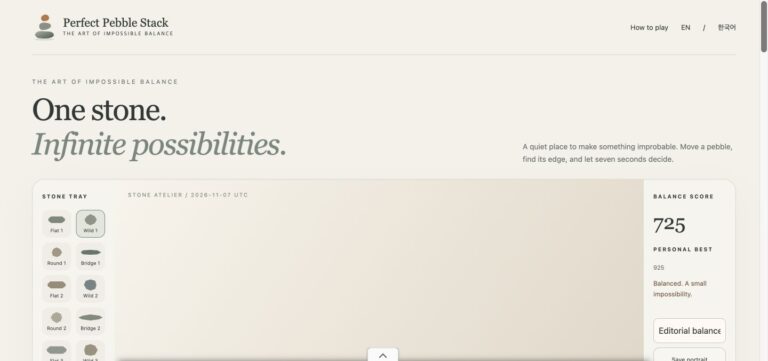
For a quiet visual composition without a musical take, Perfect Pebble Stack offers a different constraint: build a supported digital sculpture and preserve a portrait. Use a conventional sequencer or audio workstation if you need notation, precise track editing, a long arrangement or a full layered mix. Choose by the output you need, not by the word piano in the domain.
Tea Ripple Piano FAQ
Is this an online piano with conventional keys?
It is a musical artwork with a pentatonic mapping and A S D F G H J input. It is not presented as a conventional full keyboard or a piano lesson. The five tea sounds are synthesized instrument-inspired timbres.
Does recording require microphone access?
The source says no, and the tested note-input workflow did not request it. It records the instrument’s take rather than your voice or the room. We did not make an external audio capture.
Why did three inputs produce 24 notes?
That was the displayed count in our first recorded take. The instrument can add responses from leaves and ripples, so the event count should not be read as a finger-tap counter. It does not measure playing skill.
Does Save song preserve all my versions?
The FAQ describes one browser-local take. Save a useful version, and verify a separate backup before replacing it. We restored one saved test after reset and reload, not a multi-project library.
Will a replay link automatically play sound?
Our reopened link showed Song loaded. Press Play when you are ready. It restored data rather than proving automatic audible playback. A first interaction and browser audio restrictions still matter.
Can I export the four-layer loop as one finished song?
The interface says exports contain the current take. We verified a two-layer live loop and did not validate a complete mix file. Use a different production workflow if a combined layered export is essential.
Keep one clear phrase before starting another
Choose a tea, make a few deliberate inputs and record a short take. Name it, save it and open its replay link once before relying on it. That small restoration check turns a passing improvisation into an idea you can return to.
A RELEVANT NEXT STEP
Tools with a useful connection
Ice Crack Studio
Ice Crack Studio: 7 Creative Steps for Beautiful Patterns
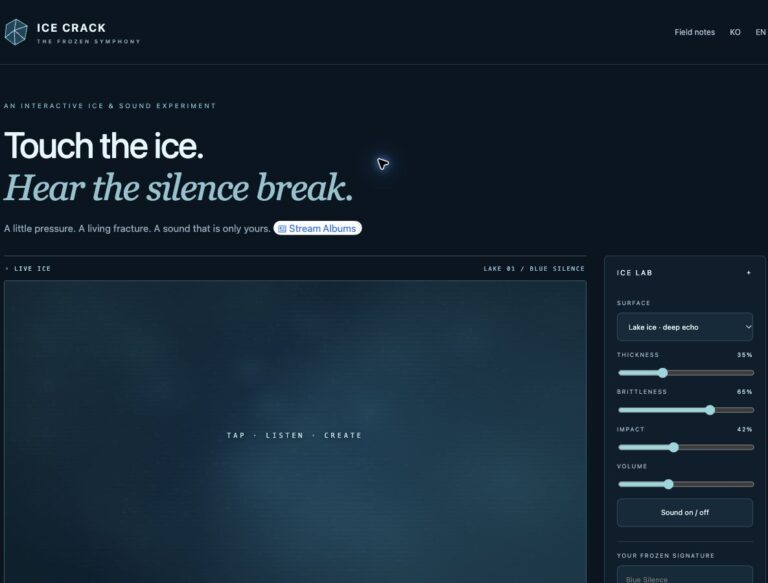
Ice Crack Studio turns touches into branching virtual ice and synthesized sound. See our Composer, Daily Fracture and replay tests, plus the settings a shared pattern does not restore.
SoundFit / 소리핏
SoundFit: 7 Essential Noise Mixer Tips for Better Sessions
SoundFit mixes brown, pink and white noise with focus timers and a tone lab. Read our playback, saved-setting and mobile tests before building a background sound routine.
Perfect Pebble Stack
Perfect Pebble Stack: 7 Smart Balance Checks
Build a digital stone sculpture with preview placement, 1° rotation and three modes. Our hands-on guide explains settling, Undo, local portrait storage and the limits of this artistic physics game.