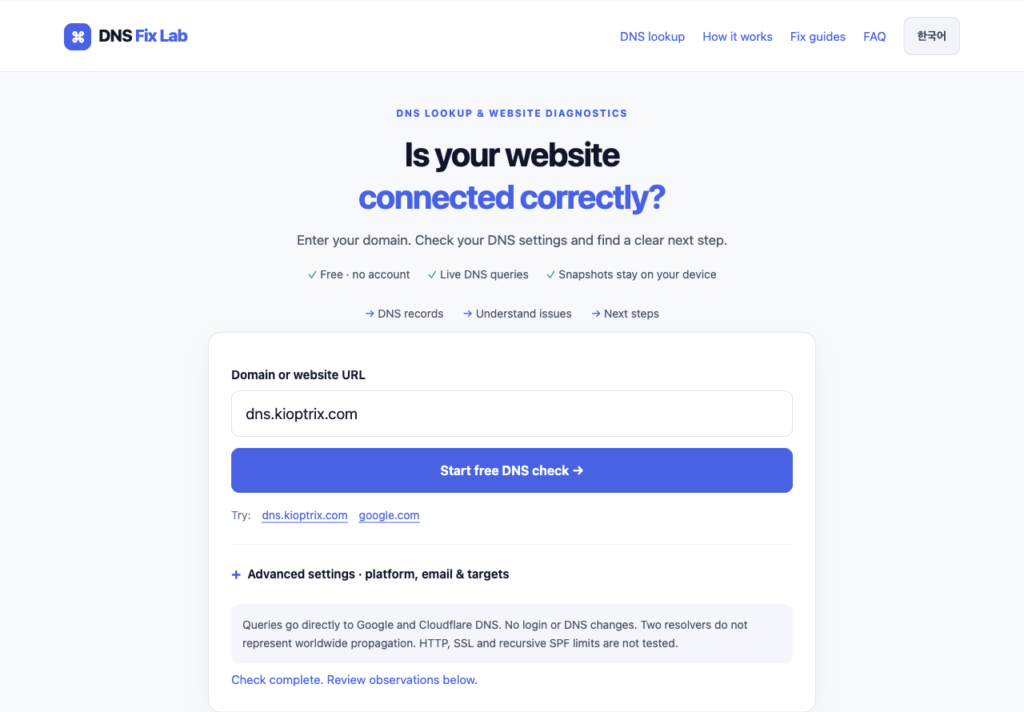
Read public DNS with Google and Cloudflare, compare a local baseline and inspect expected targets. Our real tests show what DNS Fix Lab can establish—and what requires a separate check.
- Brand
- DNS Fix Lab
- Tool languages
- en, ko
- Verified date
- 2026-11-05
DNS Fix Lab is a DNS lookup tool for checking public records, comparing Google and Cloudflare answers and deciding what to investigate next. It helps turn a confusing domain connection into specific observations without automatically changing your settings.
Run a DNS lookup in DNS Fix Lab ↗ · English and Korean are available through the tool’s language button.
Hands-on verification: November 5, 2026. We queried a real public host in both languages, tested expected-value matching, saved and compared a baseline, completed a JSON download and checked invalid input. This library and the original tool share a creator; this is a documented first-party walkthrough, not an independent endorsement.
On this page
Key takeaways
- A DNS lookup observes published answers. It does not change your records or prove that a website, certificate or mailbox works.
- Start with the exact hostname, then choose the email/zone domain deliberately. A subdomain and its parent answer different questions.
- Google and Cloudflare returned different A and AAAA addresses in our test while both exposed the Blogger CNAME. Difference alone did not establish a fault.
- Save a baseline before troubleshooting, but treat added and removed values as observations—not proof that somebody edited DNS.
- Queries leave the browser for Google and Cloudflare. Local snapshot storage does not make this an offline or zero-data-transfer service.
What DNS Fix Lab can—and cannot—tell you
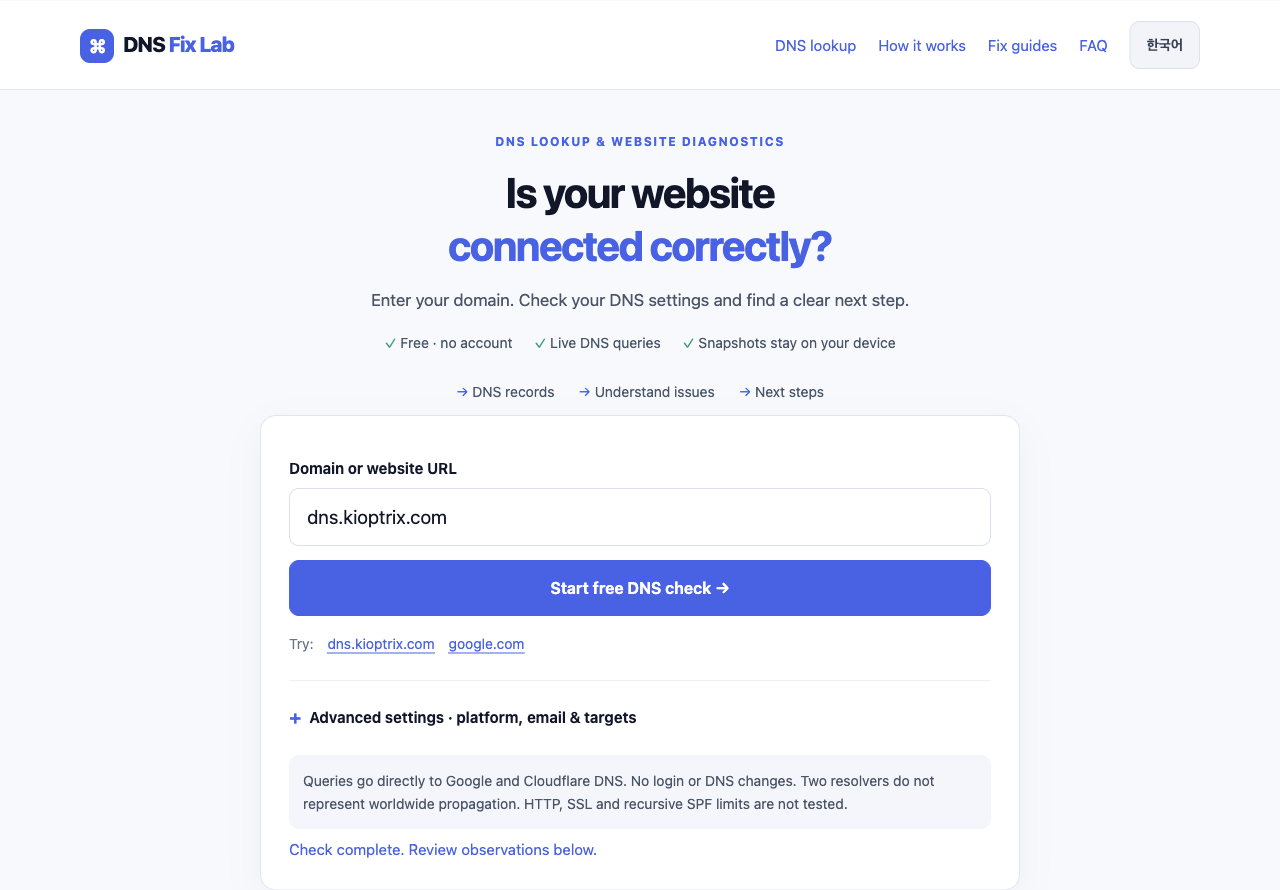
DNS Fix Lab brings two public resolver responses into one browser report. Its stated record coverage is A, AAAA, CNAME, NS, MX, TXT, CAA and DMARC; an optional selector supports a DKIM query. A simple view explains observations, while Expert view exposes resolver, host, record type, response status, published value and remaining TTL. The value is the path from an answer to a question worth checking next.
Use this DNS lookup when a new custom domain points somewhere unexpected, a migration needs a before-and-after record, or you need readable evidence for a hosting support request. It is less useful when the real problem is an expired certificate, a web application error or a local connectivity issue. A green response badge describes the observation it names; it is not a complete website health certificate.
The tool is free to use without an account in the tested workflow. We did not give it access to a registrar, hosting panel or DNS zone. It provides explanations and expected-value comparisons rather than an automatic repair button. Actual changes still belong in the relevant provider dashboard, with that provider’s exact instructions and an appropriate backup.
Prepare the host, zone and expected value
Before opening a DNS lookup, write down the hostname that actually fails. For example, a blog at dns.kioptrix.com is not the same target as kioptrix.com or www.kioptrix.com. A path such as /example is an HTTP location, not a separate DNS name. In our first test, entering https://dns.kioptrix.com/example?test=1 produced a report headed dns.kioptrix.com; it did not test the example page.
Advanced settings separates the website host from the email/zone domain. The field defaults to the entered host, so a subdomain owner should deliberately supply the domain relevant to email and zone-level checks. We used kioptrix.com for that field while inspecting dns.kioptrix.com. Do not interpret a missing mailbox record at a website-only subdomain as evidence that all mail for its parent domain is broken.
Choose General/Other, Blogger, WordPress or Cloudflare to match the question. Enter an expected A, AAAA or CNAME value only when it comes from a trusted hosting or platform instruction. A familiar IP from another site is not a suitable substitute. Leave DKIM, Search Console and Blogger security fields blank until you know the exact values; a blank field means that particular comparison was not supplied.
DNS lookup workflow: 7 essential checks
- 1. Pick the interface language. The English/Korean button changes the page. In our session, some existing result labels retained their earlier language until we ran the check again, so rerun after switching before reading or exporting a localized report.
- 2. Enter the exact host. Use a domain or website URL. An invalid string, not a domain, was rejected with a Korean message asking for a valid public domain rather than an IP.
- 3. Set the platform and zone. Expand Advanced settings. Confirm which host is being queried and which domain supplies email/zone records.
- 4. Add a known target if relevant. For our Blogger example, ghs.google.com was a documented target. Do not invent an ownership token or replace account-specific values with this general target.
- 5. Run and read individual observations. Separate Issue found, Review needed, Response verified and Unable to check. Counts summarize those observations; they do not measure uptime.
- 6. Inspect the resolver evidence. Open Expert view and the full-record section. Check the queried name and type, response status and answer together before acting on a warning.
- 7. Preserve evidence, then verify separately. Save a baseline or download JSON. If you later change settings through your provider, rerun and compare. Open the website, test HTTPS and use the relevant service dashboard for checks DNS does not perform.
A useful first session ends with one clear next action, not with a requirement to make every badge green. If the host already returns the expected CNAME and the site opens, the next question may be HTTPS or application configuration. Repeatedly changing a working record simply to silence a general warning can create a new problem.
Our actual DNS lookup tests
| Test | Observed result | What it establishes |
|---|---|---|
| English URL input | Path/query URL became report host dns.kioptrix.com | Hostname extraction, not an HTTP page test |
| Blogger, parent zone | Both resolvers returned ghs.google.com CNAME; A/AAAA sets differed | Public answers were obtained; ownership and HTTPS were not proven |
| Baseline then same report | No record-value changes; TTL changes ignored | The unchanged-report comparison path worked |
| Reload, Korean, expected target | ghs.google.com matched at least one response; report said inspect each resolver | Expected-value comparison worked for this example |
| Compare after another query | Cloudflare A and AAAA values were added/removed despite no DNS edits | Resolver answer changes can occur without a configuration change |
| Export and validation | JSON download completed; invalid input rejected | Actual file export and basic validation worked |
The first report was timestamped 2026-11-05T11:48:13.318Z. It showed zero Issue found, two Review needed, two Response verified and zero Unable to check, excluding a separate guidance card. Adding an expected target in the later query introduced another verified observation. These are dated results for this host and input combination, not a permanent rating of kioptrix.com.
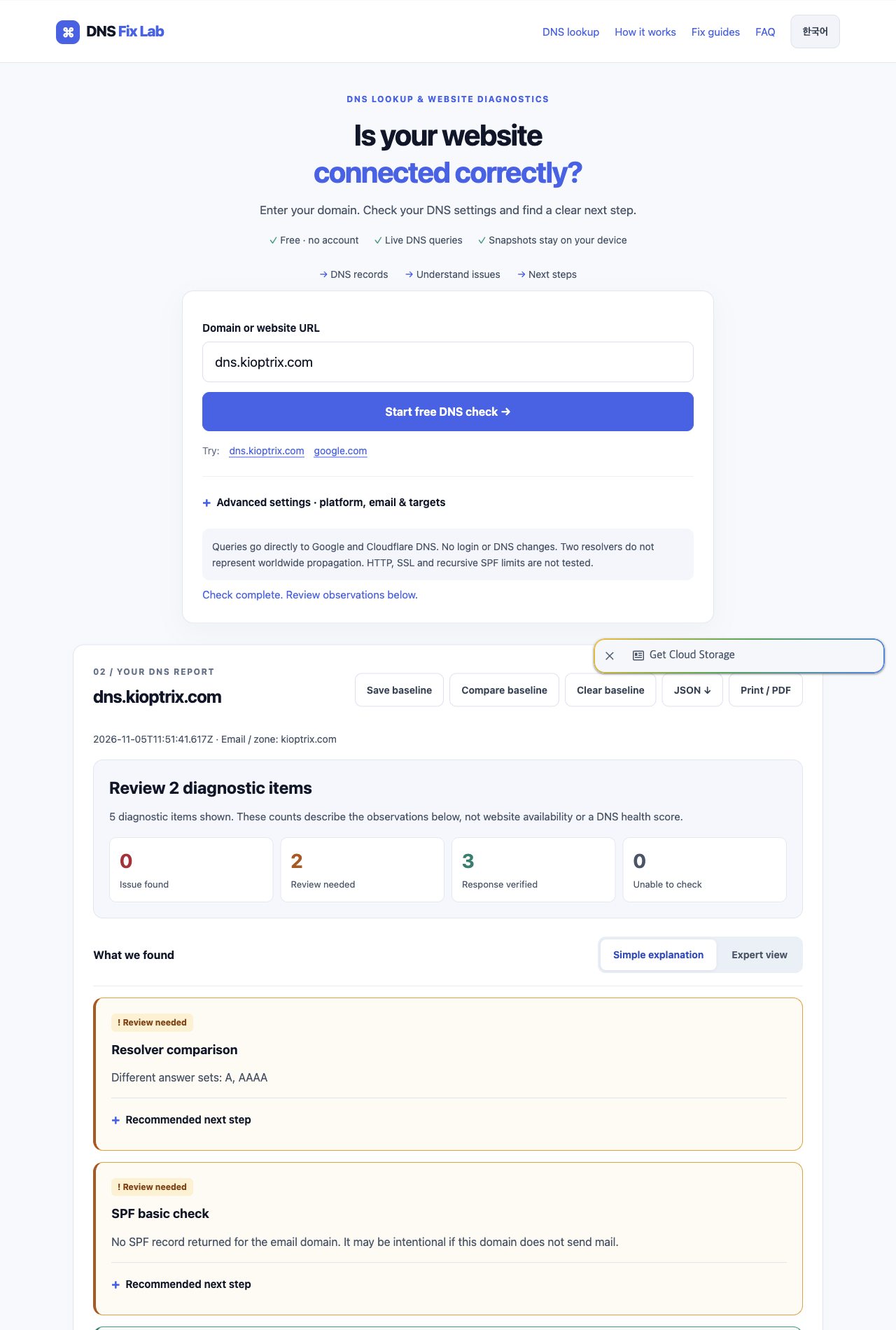
We did not edit any DNS record during this investigation. After reloading the page and querying in Korean, Compare baseline found a different Cloudflare A and AAAA pair. That is a useful practical warning: the comparison tells you which returned values changed. It does not tell you who changed a zone, whether a provider deployment occurred, or whether a CDN answer is faulty.
Read status, TTL and resolver differences carefully
A DNS lookup result has several layers. First ask whether the query completed; then read its DNS status; then inspect whether the requested record type has an answer. A successful request with no matching record is different from a network failure. The interface’s full-record table provides the context; the tested missing MX result was NOERROR with no matching answer, not a demonstrated DNS transport outage.
A and AAAA are address records, while CNAME names an alias target. In our first report, Google and Cloudflare gave different addresses, but both exposed ghs.google.com for CNAME. This was sufficient to investigate the difference without declaring the Blogger connection broken. We did not independently determine the exact cause of the address variation. The tool itself notes that geographic and CDN answers can differ legitimately.
Remaining TTL is a cache-lifetime observation, not a promise that all users will see your next edit at that moment. The baseline comparison explicitly ignores TTL changes. Two public resolvers are useful checkpoints, but they do not sample every network, authoritative server or local cache. “Both agree” and “worldwide propagation complete” are different conclusions.
The report also cautions against treating AD=false as proof that DNSSEC is broken. We did not run a separate DNSSEC validation audit. Keep the narrow observation separate from a broad security judgment, and escalate an unresolved status to your DNS provider with the queried name, record type, resolver and timestamp.
Blogger, WordPress and Cloudflare: choose the right next step
For Blogger, a visible general CNAME is only part of setup. The official Blogger custom-domain guide distinguishes the blog CNAME from a security CNAME specific to the blog and account. Its apex-domain redirect instructions are separate from a working subdomain. Do not copy apex redirect records onto every subdomain just because the site uses Blogger.
The same official guide discusses CAA authorization for certificate issuance. DNS Fix Lab explicitly says it does not resolve inherited CAA policy. Therefore an empty CAA answer in one row is not a complete certificate-policy decision, and a public CNAME match does not prove that SSL issuance or renewal will succeed. Follow the platform’s current instructions for the actual domain.
WordPress hosting has no universal expected IP to paste into every DNS lookup. Retrieve the exact target from your host. For a Cloudflare-proxied record, the official proxy-status documentation explains that public queries can return Cloudflare addresses rather than the origin. A different public IP may be intended. Review the proxy configuration and origin in the provider dashboard rather than changing records to force a public match.
Use baselines and exports as evidence, not as a zone backup
Save baseline stores a comparison snapshot in the current browser according to the privacy notice. We saved one, compared it immediately, reloaded the page and later compared a new query against the retained baseline. That confirmed persistence across this reload in this browser. It does not guarantee retention after clearing browser data, switching devices, private browsing or storage restrictions.
The JSON button produced a real downloaded file in our test. We confirmed completion of that download; Print/PDF was visible but was not tested through a complete saved-PDF workflow. Keep exports in an appropriate folder and review their content before sending them to support. They can contain the input host, public answers and diagnostic input context.
A resolver snapshot is not a full authoritative zone export or a rollback procedure. It may omit records not queried by this workflow, and it cannot restore your provider settings automatically. Before a real migration, retain the provider’s own zone export or documented configuration as appropriate. Use the DNS lookup report alongside that backup, not in place of it.
Email and ownership checks have a limited scope
The SPF observation in our report said no SPF record was returned for the selected email domain and noted that this may be intentional if the domain sends no mail. It did not establish whether a particular message would pass authentication. Recursive SPF limits are outside the stated test scope. Do not publish an aggressive mail policy merely to remove a review badge.
Likewise, the report displayed a DMARC quarantine policy while warning that full syntax, alignment and inherited organizational policy were not validated. A policy string is useful evidence, but it is not a complete deliverability or anti-spoofing audit. Our test sent no email and did not measure inbox placement, DKIM signatures or authentication alignment.
The optional DKIM selector, Search Console TXT value and Blogger security-CNAME fields are comparison inputs. We inspected these controls but did not submit private account details or complete those account-specific tests. Finding a public ownership record is different from confirming that the Google account you use has the intended Search Console property and permissions.
Privacy, mobile use and practical limitations
The privacy panel states that the browser sends the hostname and the user’s IP is visible to Google and Cloudflare over HTTPS, while the baseline remains in browser local storage until cleared. No DNS credentials were requested in our tests. This DNS lookup is not an offline tool, and HTTPS does not mean that its resolver providers receive no query information. We did not independently audit all network requests or provider retention policies.
Use public hostnames you are comfortable querying through those providers. Avoid pasting passwords, private URLs, session tokens or internal hostnames into troubleshooting fields. Exported reports deserve a quick review before sharing, particularly when optional ownership or diagnostic values have been supplied. Blogger hosting and visible advertising can also process service data separately from the snapshot.
At a simulated 390px viewport, the page had no document-wide horizontal overflow and the report-view control responded. This is a browser-size test, not coverage of every phone or assistive technology. An advertising interstitial and a side panel interrupted parts of our session; those controls are not DNS repair actions. We closed or reloaded the view without changing advertising settings. Screen-reader operation, every error branch, baseline clearing and a saved PDF remain unverified.
A practical troubleshooting path and useful internal links
Consider a hypothetical new Blogger subdomain that shows the wrong website. First verify the exact hostname; next compare the general CNAME with the value supplied by Blogger; then check the account-specific setup in Blogger itself. If the DNS answer is plausible but HTTPS fails, move to certificate and platform checks. This scenario explains a workflow; it is not a claim that we repaired a customer’s domain.
For a support request, a compact note is often more helpful than a screenshot labeled “DNS broken”: record the failing URL, the host actually queried, the selected zone, expected value, resolver observations and timestamp, plus what happens when you open the website. Change one relevant setting at a time through the provider and preserve your original configuration. A fresh DNS lookup can then answer a specific follow-up question.
We have not linked an unrelated game or calculator as a DNS alternative. Read how this library verifies tools, our editorial standards or the published tool library for other verified tasks. DNS Fix Lab’s Google DNS JSON API reference is useful if you need to understand the response format behind the observations.
DNS lookup FAQ and final checklist
Does DNS Fix Lab fix records automatically? No. The tested workflow reads public answers and explains next steps. It never changed our zone.
Are different resolver answers always a fault? No. We observed differing addresses alongside matching Blogger CNAME targets. Investigate the host, record type and expected architecture before acting.
Does a successful result prove HTTPS works? No. Open the website and examine the certificate and platform configuration separately; HTTP redirects and SSL are excluded from this tool’s checks.
Can I use it for a subdomain? Yes, our test used dns.kioptrix.com. Deliberately set the email/zone field when the parent domain is relevant.
Is my query only stored on my device? The baseline is described as local, but public DNS queries go to Google and Cloudflare. Hosting and advertising are separate data-processing contexts.
What should I do first? Run one DNS lookup for the exact host, read the observation-specific evidence and decide what separate check is needed. Save a baseline before a deliberate configuration change.
Open DNS Fix Lab and inspect a public domain ↗
A RELEVANT NEXT STEP
Tools with a useful connection
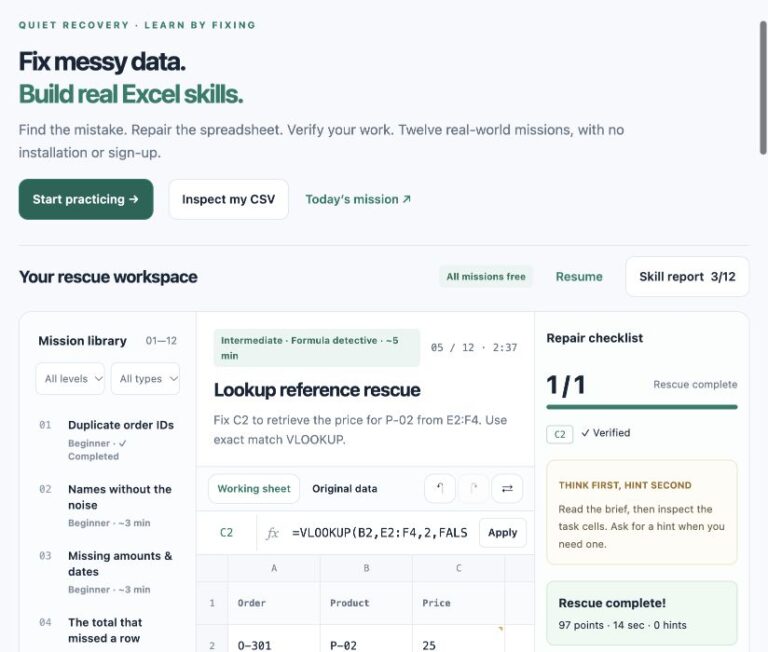
SheetRescue Studio
SheetRescue Studio: 7 Essential Repair Checks & Smart CSV Tips
Learn to repair spreadsheet mistakes with 12 missions, then inspect a small CSV. Includes a verified VLOOKUP example and a reproducible cleanup test.
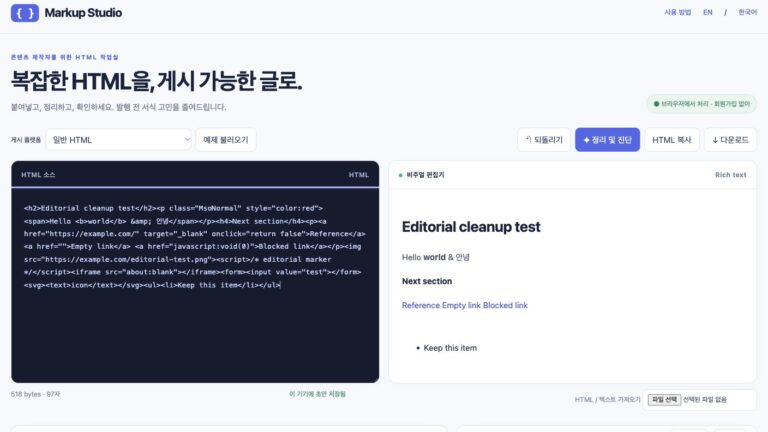
Markup Studio
Markup Studio: 7 Essential Checks for Better HTML
Markup Studio cleans copied HTML and checks basic issues before publishing. See our 52→68→100 test, WordPress/Blogger/Shopify copy differences, component builder and local-draft limits.
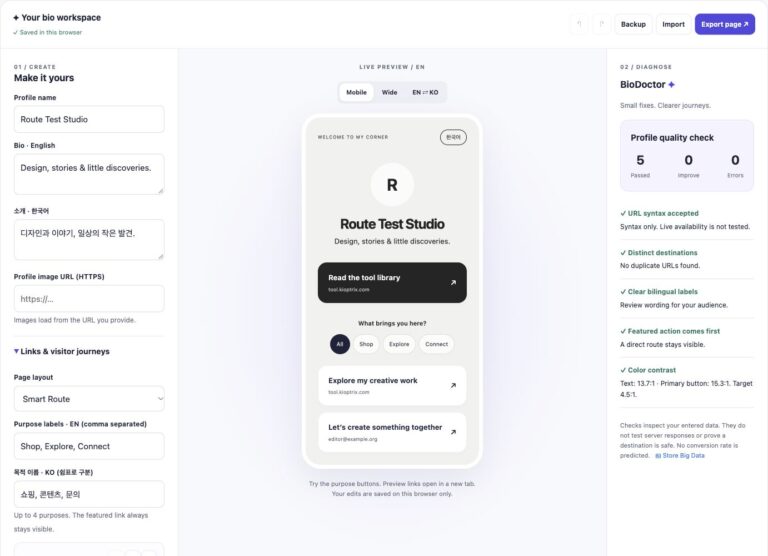
BioRoute Studio
Link in Bio: 7 Smart BioRoute Studio Checks
Build an English/Korean link in bio page with BioRoute Studio. Real tests explain purpose filters, URL diagnosis, UTM edits, HTML export and JSON backup without confusing editing with public hosting.