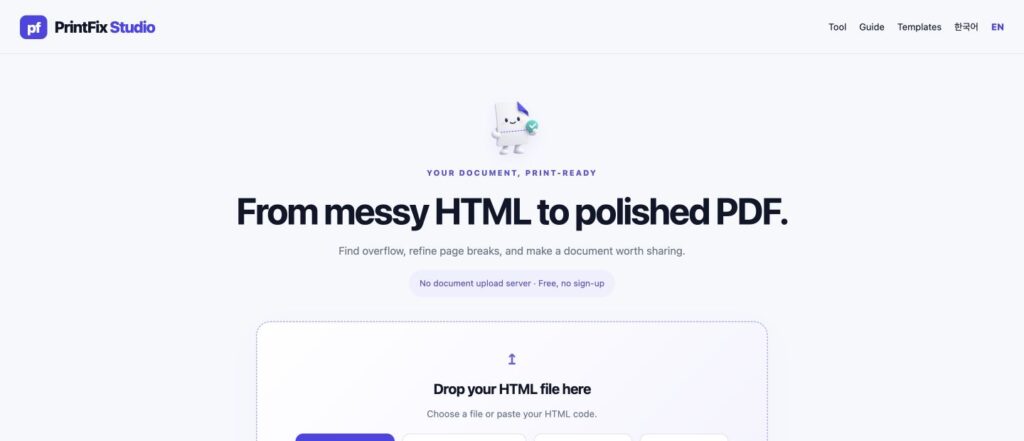
PrintFix Studio prepares basic HTML for printing by checking overflow, applying layout repairs and letting you place page breaks. It also merges CSV records into document templates. Use it when a simple report, checklist or batch document needs a deliberate print layout. PDF saving is through the browser’s print workflow.
Hands-on review: November 8, 2026, Korea Standard Time (November 7 UTC), in Chrome. We tested the sample report, repair and undo, a manual page break, local save and restore, bilingual CSV merging and a missing-field counterexample. The print button was attempted, but our browser automation became unresponsive; we did not complete or inspect the print dialog, a saved PDF, embedded fonts or a physical print. The results below concern the actual HTML previews and controls. This library and the original tool share a creator.
Prepare basic HTML for printing with overflow checks, repairs, page breaks and CSV document batches. Our hands-on tests show why 100 readiness does not catch a missing field and what remains to verify in the actual print output.
- Brand
- PrintFix Studio
- Tool languages
- en, ko
- Verified date
- 2026-11-07
On this page
Key takeaways
- The A4 portrait sample’s overflow warning changed from 88 to 100 after repairs. Undo restored the warning; the score is a basic layout indicator, not a PDF certification.
- Adding a break before Next steps changed the sample from one preview page to two. Paper, margins and content structure belong before final pagination.
- Two fictional CSV records produced two pages, including a quoted Korean name containing a comma. The template’s static document number and date initially repeated.
- A missing amount field left the literal {{amount}} in the document while readiness stayed at 100. Proofread content separately from layout.
- An explicitly saved project restored the portrait setting and two-page arrangement. Browser storage remains a local working copy, not a portable archive.
What PrintFix Studio actually does
The official name is PrintFix Studio. Its workspace puts HTML input, page preview and a layout diagnosis panel together. You can choose A4 or Letter, portrait or landscape, margins in millimeters and a font size in points. The preview then shows the document as basic paginated blocks, with navigation buttons for individual pages.
Its useful problem is the gap between content that looks acceptable on a scrolling screen and content that fits a printed page. A table can extend beyond the printable width; a section can start awkwardly near the end of a page. The tool offers a place to identify those issues and experiment with repairs before entering the browser print workflow.
This is not an existing-PDF editor or a service that reproduces an arbitrary website from its URL. The source describes support for basic document HTML and limited inline formatting. It explicitly excludes importing original stylesheets, source scripts, external images and fonts. A complex web page may need substantial simplification rather than one automatic fix.
The main site and dedicated English page provide the English workspace; a Korean interface is also available. The publisher currently describes all available features as free without registration, and says URL conversion APIs and subscriptions are not offered.
Prepare the document before repairing its pages
Start with an unchanged copy of the original HTML. Identify which elements the printed document actually needs: headings, paragraphs, lists and a manageable table are a better starting point than an application interface full of navigation and interactive widgets. Changing a file extension is not a conversion method; this tool’s upload control lists HTML and HTM files, with a one-megabyte maximum.
Decide on the receiving paper before adjusting breaks. A4 and Letter have different proportions, and a change in orientation or margin changes the available area. A document that fits in landscape can still overflow in portrait. In the Korean interface we explicitly selected portrait before checking the sample warning, so the test was not simply relying on an inherited setting.
For a batch, keep the template and CSV as separate source materials. List every field that should vary between records, including a document number if one is required. A repeated fixed value can be entirely valid for a checklist title but inappropriate for an individual invoice number. The generator cannot decide that business rule for you.
Features and the decisions they support
| Control | Practical use |
|---|---|
| Paper and typography | A4/Letter, portrait/landscape, margins and font size define the layout you are trying to fit. Set these before judging page breaks. |
| Preview and diagnosis | Run the preview, read the issue description and inspect the affected block. An issue can link the document and source position. |
| Repairs and undo | Apply recommended repairs or an individual fix, then compare the result. Undo and change history help evaluate a recent adjustment. |
| Selected-block breaks | Select a heading or paragraph in the preview, then add a break before it. We moved Next steps onto a second page. |
| Before/after and zoom | The comparison control exposes an unrepaired view; preview zoom offers fit-to-width and percentage choices. Zoom is a viewing aid, not an output scale setting. |
| Templates and CSV | Invoice, certificate and checklist starters are offered. CSV field values replace matching placeholders; the displayed batch limit is 50 records. |
| Saving and output controls | Save on this device and Restore project support local continuation. Fixed HTML and Print CSS buttons are offered separately from browser printing. |
How to use PrintFix: 7 essential checks
1. Choose an input you can review
Use a sample, select an HTML file or open the paste-code route. Our detailed tests used the built-in report and invoice template, with clearly fictional editorial CSV values. We did not test the file-size boundary or an imported production document. If an imported layout is complicated, review a small representative section before investing time in a full batch.
2. Fix the target paper settings first
Choose the paper, orientation, margin and font size you intend to use. Keep a note of them for the later print dialog. Increasing the available width can change a warning, but rotating every document is not necessarily the right editorial choice. Preserve a comfortable reading size rather than shrinking text merely to remove a diagnostic flag.
3. Read the diagnosis before applying a repair
Run Preview & diagnose and inspect each reported issue. The supplied report contains a table declared at 1,000 CSS pixels and produced a page-width warning in our A4 portrait test. The initial readiness result was 88 out of 100. This is a reproducible test of the sample, not an assertion that all wide tables will be repaired successfully.
4. Apply a repair and compare what changed
Apply print repairs moved the sample to 100 with no current review item. Undo last change returned the warning and 88. We also enabled the before/after control and observed the unrepaired and current document views. Check the actual table and text after a repair; a lower warning count is useful evidence about a rule, not permission to skip reading.
5. Place deliberate section breaks
Click a block in the preview to select it, then use Break before selected block. Selecting Next steps and adding the break changed our sample from one preview page to two. Confirm that the new page begins at the intended section. Do not confuse selecting a block with already inserting a break, and do not assume a preview page count proves the final PDF page count.
6. Validate a small CSV batch
Choose a template, make its placeholders match the CSV headers and apply the data. Our two-row invoice test used Editorial Alpha at 120.00 and a Korean test name containing a comma at 250.00. Both appeared on separate preview pages. The comma-containing value was enclosed in CSV quotes. Before processing a larger list, check the first and last record, all varying fields and every unchanged template detail.
7. Save the working copy, then verify the actual output
Use Save on this device if you want local continuation, and preserve the original template and CSV independently. The source says Save PDF / Print opens browser printing, where you choose Save as PDF. It instructs users to match the paper, use zero browser margins and 100% scale, and disable browser headers and footers. Those are the publisher’s instructions; our automated print attempt did not complete the dialog or produce a verified file.
Treat app margins and browser margins as separate layers. The app’s margin setting remains part of the prepared document even when browser margins are zero. Inspect the actual print preview and saved file for page count, clipping, text and fonts before distributing it. The Fixed HTML and Print CSS controls are additional output options, but we did not inspect their downloaded contents.
What our actual layout tests established
| Test | Observed result |
|---|---|
| Sample repair | A4 portrait report: 88 and one width warning; repair: 100 and no review item; undo: warning and 88 returned. |
| Manual pagination | Selecting Next steps and adding a break changed one preview page to two. |
| Local continuation | The save slot was empty before our test. After saving, changing orientation and restoring, the portrait setting and two-page arrangement returned. A fresh tab also restored our saved sample. |
| Bilingual CSV | Two fictional records generated separate invoice pages. The quoted Korean value retained its comma, and amounts appeared as 120.00 and 250.00. |
| Missing field | Using a CSV column called total instead of amount left {{amount}} visibly unresolved, even with readiness at 100. |
| Custom document number | Replacing the static number with {{invoice_id}} and adding that CSV header produced ED-001 and ED-002 in the two previews. |
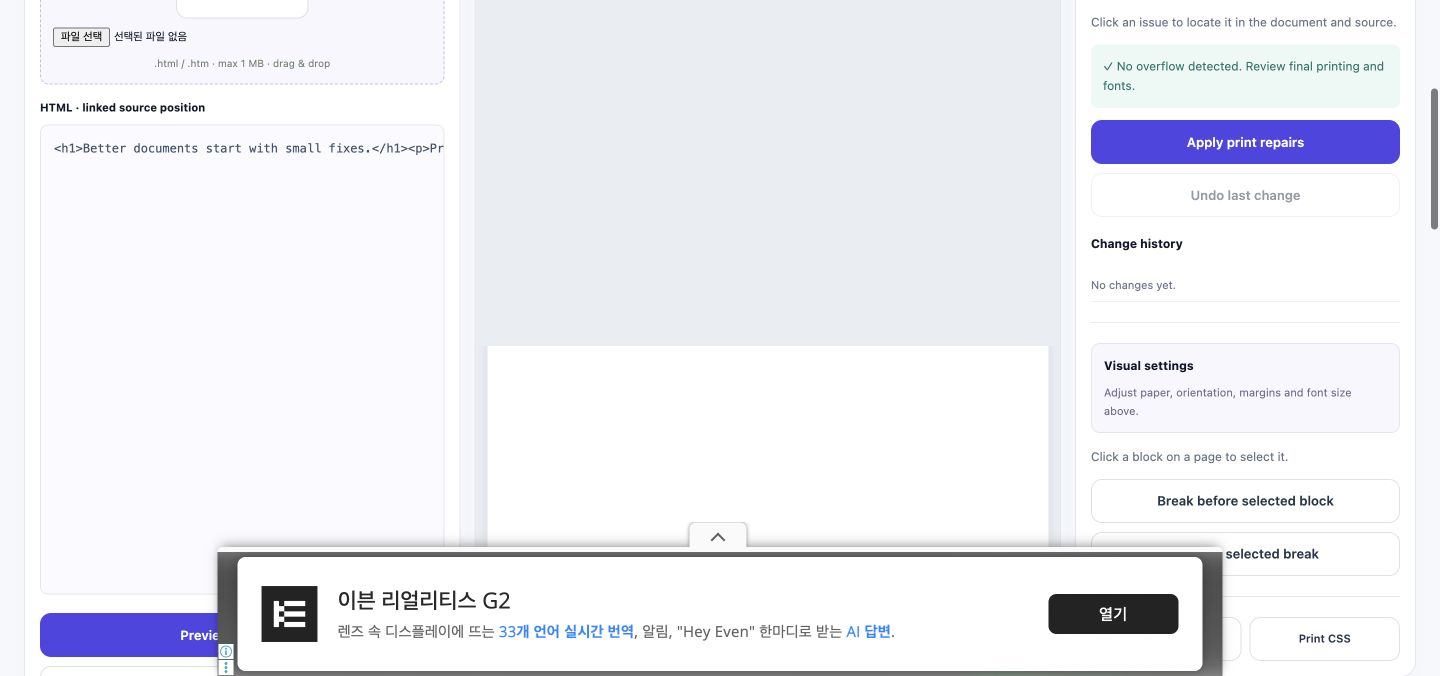
The missing-field test is the most useful counterexample to over-trusting the score. There was no overflow, but the document still contained a placeholder instead of a payable amount. Layout readiness and content completeness are different checks. The same distinction applies to an old template date or a repeated fixed number: neither necessarily creates a width warning.
A reproducible CSV document example
Begin with the Invoice template and the standard name and amount headers. Our first two-record test produced the correct recipients and amounts but retained the template’s identical INV-2026-001 number and October 21 date on both pages. Those fixed fields were not calculated or automatically made unique.
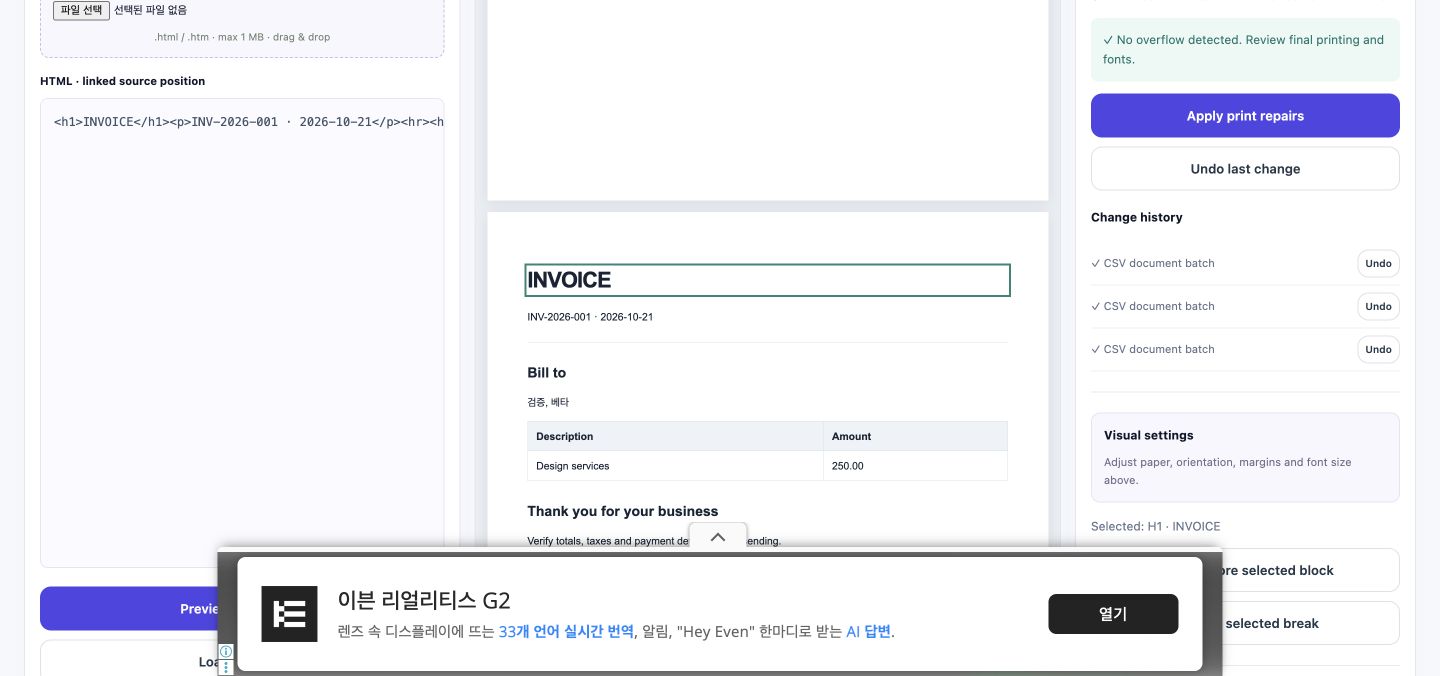
We then replaced the literal document number in the HTML source with {{invoice_id}}, previewed the template and supplied a third CSV column. The resulting pages showed ED-001 and ED-002. This directly verifies a custom placeholder in our example; it does not establish an automatic invoice-numbering system.
| name | amount | invoice_id |
|---|---|---|
| Editorial Alpha | 120.00 | ED-001 |
| 검증, 베타 | 250.00 | ED-002 |
In a CSV file the second name needs quotes because it includes a comma: "검증, 베타",250.00,ED-002. Keep a header row and inspect the merged document for literal brace placeholders. If you change a column label from amount to total, update the template too; our mismatched-label test showed why that review matters.
The template is a layout starter. It does not establish tax treatment, payment validity, arithmetic correctness or legal acceptance of an invoice or certificate. Review dates, identifiers, descriptions and amounts for your own use. We tested two records, not the advertised 50-record limit or a complex CSV collection.
Advanced tips for maintainable print documents
- Use a heading as a stable break target. A deliberate section boundary is easier to understand than inserting blank paragraphs until the next page happens to begin.
- Recheck breaks after changing paper or font size. Earlier pagination decisions depend on the available space.
- Keep CSV field names and template placeholders together in your notes. A field that looks similar to a person can still be a different key to a merger.
- Keep a known good template before experimenting with broad repairs. Undo is for recent editing, while saved source materials support a repeatable workflow.
- Review the print dialog separately from fit-to-width zoom. A smaller on-screen preview does not mean the final page will print at that scale.
For a recurring checklist, give the source, data and final output clear roles. The HTML describes structure, CSV provides per-record values, the local project supports browser continuation and the final PDF is the deliverable you must inspect. Keeping those roles separate prevents a saved-message notification from becoming an untested assumption that every part of the job is safely archived.
Limitations, privacy and mobile behavior
The publisher limits the tool to basic document elements and some inline formatting. Original stylesheets, scripts, remote images and fonts are not imported, and merged tables or large complex blocks need manual review. This can make a printed document simpler than its source. We did not test a complex application page, accessibility tagging, PDF/A, embedded font coverage or a physical printer.
Document handling is described as local, with optional project saving in browser local storage. The source says document contents are not sent to analytics or advertising services, while Blogger, Google and advertising services can make ordinary connections and process cookies or device information. We did not perform an independent network or security audit. Local document handling should not be expanded into a claim that a visit makes no network requests.
Avoid treating a browser save as cloud synchronization. Our saved sample restored in another tab on the same site and browser, but we did not test another device, a separate profile or clearing storage. We checked that the slot was empty before saving our fictional work; do not casually overwrite someone else’s saved project on a shared computer.
At a fresh 390px width, the Korean page stayed within the viewport and provided Input, Preview and Diagnosis tabs. We switched the mobile diagnosis view, selected portrait and exercised the repair control. The document preview is scaled down on a narrow screen, so a wide display is preferable for close text review. This was desktop-browser emulation, not a physical touchscreen test. Host advertisements could cover controls or interrupt a click; use their visible close or collapse action and distinguish them from the workspace.
Our print-button attempt caused the automation to stop responding, after which we continued in a fresh research tab and restored the saved sample. That observation does not diagnose a failure for ordinary users. It does mean we cannot report a successfully saved PDF or independently verified print-dialog settings from this session.
Related tools: writing, cleanup and CSV review
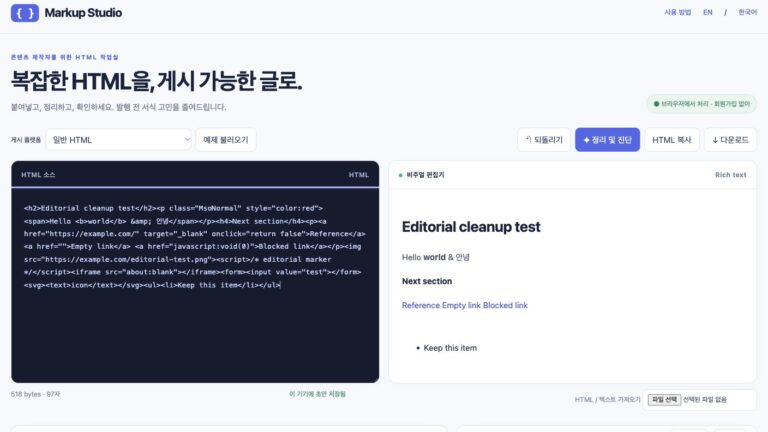
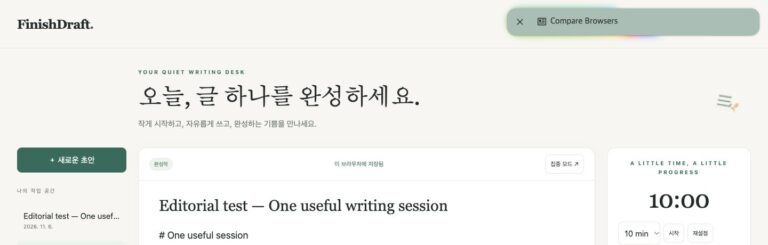
For the content stage, FinishDraft can help finish a short draft before preparing its print layout. For copied markup, Markup Studio offers HTML cleanup and basic health checks. Its generic preview and PrintFix’s page-oriented preview serve different review stages; neither should be assumed to preserve an original website exactly.
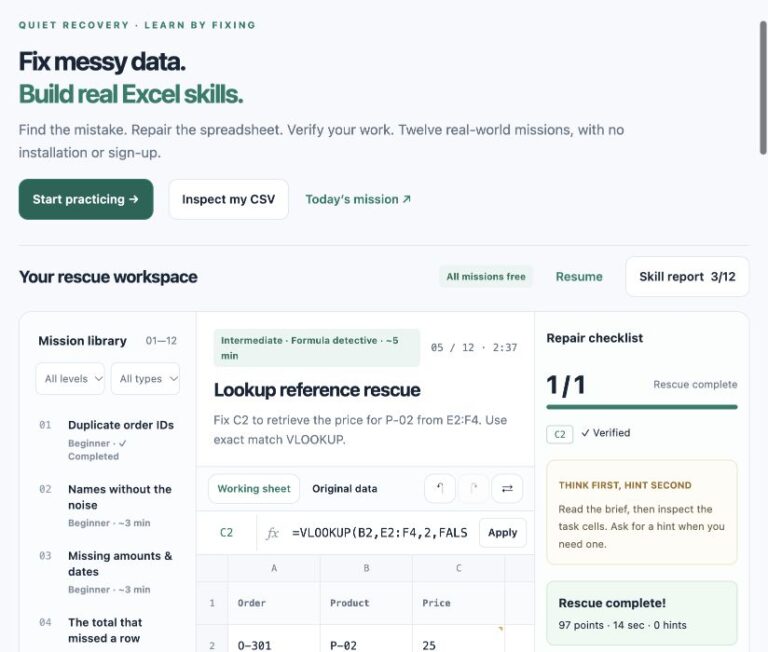
For practice with CSV structure and warnings, see SheetRescue Studio. It is a small inspection and learning route, not an automatic connection. Preserve the exact fields needed by the template and do not blindly remove repeated records. Other document workflows are listed in Image, Documents & Files.
PrintFix HTML printing FAQ
Does the PDF button directly download a converted file?
The source says it opens the browser print workflow, where you choose Save as PDF. It is not a server conversion API. We attempted the control but did not complete or inspect the final dialog or saved PDF.
Does 100 readiness mean the document is finished?
No. Our CSV missing-field test left {{amount}} in the preview at 100. The indicator is about its current layout rules, not correctness, completeness or a final PDF quality guarantee.
Can every CSV record get a different document number?
Our custom {{invoice_id}} placeholder and matching CSV column produced ED-001 and ED-002. The default static number repeated until we changed the template. The tool did not invent or validate those identifiers for us.
Will the original fonts, images and website design remain?
Not necessarily. The publisher says external resources, scripts and original stylesheets are not imported. Basic content is the intended use; merged tables and complex page designs need separate review.
Is a saved local project a backup I can move elsewhere?
We verified same-browser restoration of our saved sample. We did not verify a portable project export or cross-device continuation. Keep source HTML and CSV separately and inspect any exported files before relying on them.
Prepare one reviewed page before a batch
Start with a small document, settle its paper settings, inspect a repair and place a deliberate break. Then try two CSV records and check every field. Save the working materials and verify the actual browser print result before treating a document as ready to share.
A RELEVANT NEXT STEP
Tools with a useful connection
Markup Studio
Markup Studio: 7 Essential Checks for Better HTML
Markup Studio cleans copied HTML and checks basic issues before publishing. See our 52→68→100 test, WordPress/Blogger/Shopify copy differences, component builder and local-draft limits.
FinishDraft Studio
FinishDraft: 7 Essential Steps for a Better Writing Session
FinishDraft Studio helps you finish a small draft with local saving, writing prompts and timed sprints. See tested counters, finish checks, exports and the important difference between draft export and full backup.
SheetRescue Studio
SheetRescue Studio: 7 Essential Repair Checks & Smart CSV Tips
Learn to repair spreadsheet mistakes with 12 missions, then inspect a small CSV. Includes a verified VLOOKUP example and a reproducible cleanup test.