StatementProof converts bank statement PDFs into editable CSV tables with source-page proof and balance checks. Use it for PDF-only records, then review the rows before importing them elsewhere. Prefer your bank’s original CSV when available.
Reviewed November 8, 2026, Korea Standard Time (November 7 UTC), in Chrome. We used only the tool’s fictional workspace, digital PDF sample and scanned PDF sample. We checked sign repair, a count discrepancy, an intentionally wrong date, OCR review flags, five generated CSV previews and session loss on reload. No real customer statement was used. Generated text was inspected on screen; downloaded file bytes, an actual Excel BOM and imports into accounting products were not verified. This library and StatementProof share a creator.
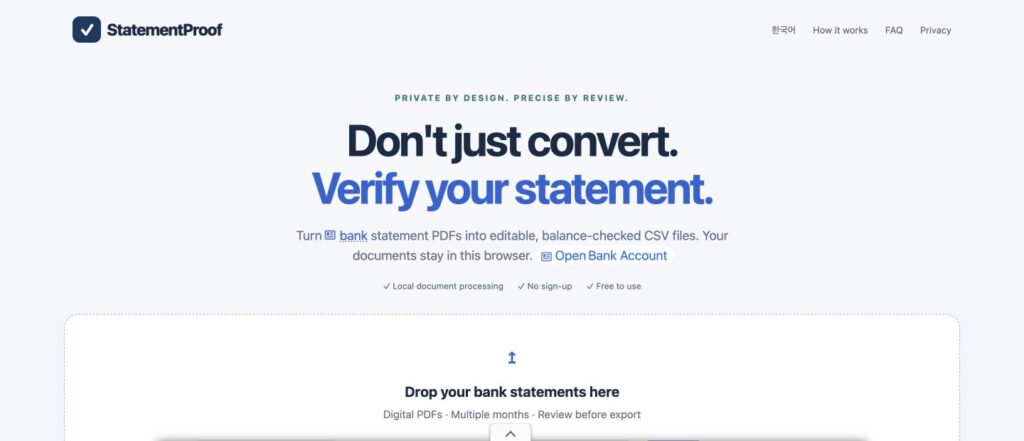
Convert statement PDFs into an editable, source-linked table. Our fictional digital and OCR tests explain sign repair, count warnings, the limits of Matched and five CSV preview layouts.
- Brand
- StatementProof
- Tool languages
- en, ko
- Verified date
- 2026-11-07
On this page
Key takeaways
- Treat extraction, arithmetic checks and human source review as three different jobs. A green balance result cannot establish that a date or description is correct.
- Our digital PDF sample produced three transactions. The separate demonstration workspace deliberately starts with a sign error; it is not an example of PDF extraction failing.
- The scanned sample also produced three transactions, each flagged for OCR review. Confirming one row reduced the review count from three to two.
- Export before leaving. Reloading returned our session to the empty starting state, and the extraction-rules file is not a transaction backup.
What this statement converter does
The official name is StatementProof. Its main purpose is converting bank statement documents into a table that can be checked and edited, then generating CSV text in a chosen structure. It is not a general PDF editor, a bank connection, a tax filing system or a promise of compatibility with every institution.
The source view and editable table are its useful pairing. A number in a spreadsheet is difficult to trust when you cannot find its origin. Here, a row’s Proof control selects the associated page and highlights the source line. You can compare the date, description, signed amount and running balance without treating the extraction as final.
The main page is English, with a dedicated Korean workspace. The publisher currently describes the utility as free and requiring no account. The Korean page localizes controls; it does not certify all Korean bank formats. The source explicitly warns about integer won amounts and Korean date notation.
Decide whether your PDF is a good candidate
First look for the bank’s original spreadsheet or CSV download. If that is unavailable, open the PDF and establish whether its transaction text can be selected. A text-based statement follows the normal extraction route; a scan needs the optional OCR setting. Our successful samples establish that those example routes work, not that an arbitrary institution’s layout will extract cleanly.
The publisher describes an extractor oriented toward numeric dates at the start of a printed transaction line and amounts with two decimal places. Month names, unusual column arrangements, credit-card layouts and wrapped headers may need corrections. Integer amounts, including common KRW presentations, can be missed. A readable-looking document is not sufficient evidence of parser compatibility.
Use one account and currency per session. When combining consecutive months, establish the full period’s opening and closing balances and look for overlapping statements. The displayed limits are twelve PDFs, twenty megabytes per file and one hundred pages overall. We did not test those boundaries, multi-file merging, encrypted PDFs or an annual statement collection.
Prepare a separate working copy and keep the original PDFs unchanged. Record the intended date order and number convention before importing. A value such as 03/04 has two plausible interpretations; neither a balanced total nor a clean table can tell you which one the bank meant. Source review must settle that question.
Features that support a reviewable workflow
| Feature | What it helps you check |
|---|---|
| Extraction rules | Date order, year for yearless dates, decimal convention and signed versus separate debit/credit layouts. Column positions are percentages of page width. |
| Original beside rows | Proof selects a source page and highlights a line. We directly observed this on the digital sample. |
| Editable transactions | Date, description, amount and balance fields can be changed. The ± control flips the amount sign; Add missing row is available for omissions. |
| Review flags | OCR, running-balance and duplicate-candidate warnings can direct attention. A warning-free row still needs comparison with its source. |
| Reconciliation | Opening and closing balances enable a total check; an expected transaction count adds a separate completeness clue. |
| Generated CSV preview | After export, a text preview provides a copy fallback and lets you inspect headers, signs and dates before a separate import. |
For separate debit, credit and balance columns, the settings expose three horizontal positions. Match them to the printed column centers, rather than leaving default percentages because the page happens to look tidy. This is a configurable extraction aid; we did not validate separate-column parsing against a bank-specific document.
How to convert a statement PDF: 7 smart checks
1. Separate a workspace demo from a PDF test
Try sample workspace opens a prebuilt fictional table with an intentionally incorrect transfer sign. Test with sample PDF instead runs a digital or scanned example through the document route. We used both. Choose the latter when you want to see a rendered source PDF, and do not describe the former as evidence that a bank document was parsed.
2. Choose rules before adding your document
Open Extraction settings and set the printed date order, the year for dates that omit it, and the number format. Choose either a signed amount layout or separate debit/credit columns. If the PDF is scanned, choose an appropriate OCR language. English and Korean-plus-English options appear, but we tested only the English scanned sample.
3. Inspect the first extracted rows against Proof
After loading, check the reported file/page count and candidate transactions. On the digital example we saw one PDF, one page and three rows. Select Proof on a representative debit and compare its source line. Also review the first and last transactions, repeated headers and any continuation text. A successful load is only the start of the review.
4. Correct the row and confirm the edit persists
Compare each date, description, sign, amount and running balance. Use ± when an amount has the right magnitude but the wrong direction. For typed edits, finish the field change and revisit the row before exporting. We used actual keyboard input to change the first date and then reopened its source proof; the changed value persisted in the table and regenerated CSV.
5. Reconcile totals and expected count separately
Enter opening and closing balances for the whole selected period and press Recheck balances. If the statement supplies a transaction count, enter it too. Our fictional example balances at 1,000 − 52 + 2,500 − 80 = 3,368. Asking for four transactions while only three were extracted added a count warning even though the balance badge remained Matched. Read the explanatory message, not just the badge.
6. Resolve flags without treating a tick as an audit
Review only narrows the table to rows needing attention. On the OCR example, ticking the first verified row reduced the flagged count from three to two, and the filter hid that row. A tick is a review action; it does not independently prove the amount. Likewise, zero flagged rows means no current detected flags, not a guarantee that every source transaction is present or correct.
7. Generate, inspect and retain the right CSV
Choose a CSV layout, activate Download CSV, then inspect Generated CSV. Check the header, signs, dates, row count and sample descriptions. Retain a reviewed output before closing the page. In the destination software, inspect its import preview before confirming anything. A CSV layout choice does not establish that an accounting import succeeded, and the tool is not directly sending transactions to a bank or ledger.
What our hands-on statement tests showed
| Test | Observed result |
|---|---|
| Workspace sign repair | The demonstration used +80 for a transfer that its displayed source listed as −80. The difference was 160. Flipping the sign produced Matched. |
| Digital sample PDF | One page produced three rows: −52, +2,500 and −80, with running balances 948, 3,448 and 3,368. Proof highlighted a source line. |
| Expected count | With the balances matching, expected count 4 produced a message that only 3 were extracted. The green total badge stayed Matched. |
| Deliberately wrong date | We changed the first date from October 12 to October 11. It persisted after Proof and appeared in regenerated CSV while totals still matched. |
| Scanned sample | The English OCR example produced the same three amounts; all three rows initially carried an OCR review flag. |
| Review filter and reload | Ticking one OCR row left two to review. Reloading the separate digital workspace removed its documents and edits. |
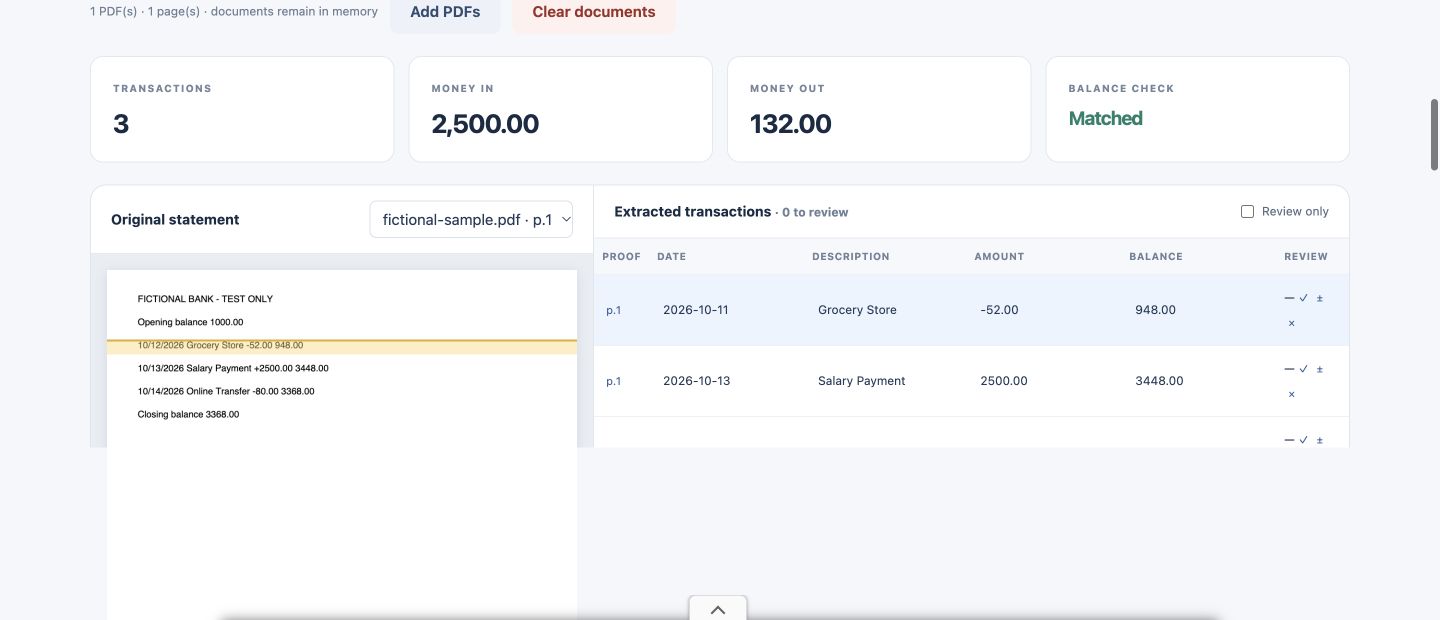
The 160 discrepancy is worth understanding: changing a withdrawal of 80 into a deposit of 80 shifts the total by 160, not 80. That is a practical reason to inspect direction before searching for a missing transaction of the displayed difference. It is an explanation of this fictional test, not a diagnosis of a real account.
The wrong-date experiment is equally important. Arithmetic cannot identify a date error that leaves the amounts unchanged. Our test also had no remaining automatic review flag on that digital row. The source page, rather than the total badge, was the evidence needed to see the disagreement.
Choose a CSV layout by the next task
| Option | Observed preview structure |
|---|---|
| Standard CSV | Date, Description, Amount, Balance, Account, Source page. Dates appeared as YYYY-MM-DD and debits were negative. |
| Excel CSV | The same visible six columns. The UI promises a UTF-8 BOM in the downloaded file; preview text alone cannot verify the file bytes. |
| QuickBooks, three columns | Date, Description, Amount. In our selected date-order test the preview used MM/DD/YYYY and signed amounts. |
| QuickBooks, four columns | Date, Description, Credit, Debit. The salary appeared as credit 2,500; the grocery and transfer appeared as debits 52 and 80. |
| Xero mapping CSV | Date, Amount, Payee, Description, Reference. Our preview left Payee blank and supplied a page reference. This needs destination mapping. |
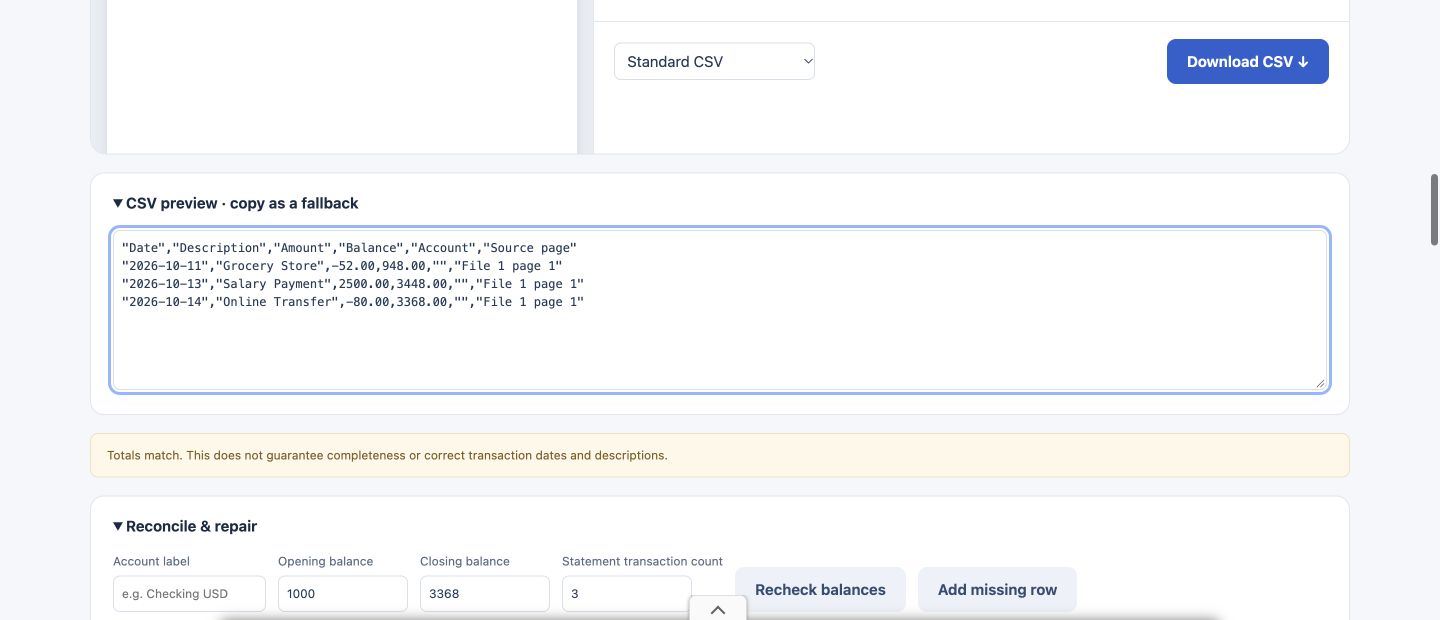
These are CSV structures, not QBO, OFX or live bank-feed connections. Account and source-page columns present in the standard format are absent from some destination layouts. Keep the reviewed standard output alongside the destination file if you need that additional traceability. Verify the actual files yourself; we inspected the five on-screen previews and activated downloads, but our browser workflow did not capture the downloaded files.
A rules download has another role entirely. The source says its JSON stores extraction settings without documents or transactions. We activated that control but did not inspect its file. It cannot be treated as a saved review session merely because it uses a structured file format.
A practical handoff with an audit trail
Consider an older, text-based statement that a colleague needs as a working spreadsheet. This is a suggested process, not an additional live-customer test. Keep the original PDF, extract one account and currency, and compare the first rows before processing the entire period. Set an expected count when the document provides one, then resolve every flagged or suspicious row.
After review, retain the standard CSV for its source references and generate the destination layout separately. A small handoff note can identify the period, chosen date interpretation, number of rows and any manually corrected transactions. Do not put account credentials or unnecessary personal information into that note. The aim is reproducibility: another reviewer should know what was changed and which source to consult.
Avoid immediately cleaning the only export in a spreadsheet. An automatic date conversion can change the meaning of an ambiguous value; a duplicate-removal command can remove two genuinely separate payments. Work on a copy and verify the downstream import preview against the retained source. A duplicate flag is a candidate for investigation, not permission to delete a row.
Advanced review tips and common mistakes
- Check both boundaries of a multi-month period. Using one month’s opening balance and another incomplete set of transactions creates a mismatch that row editing cannot safely solve.
- When a difference resembles twice an amount, inspect a possible sign reversal first. Do not change a value merely to force the total to match.
- A running balance and a period total answer different questions. Read row-level warnings even when the summary is green.
- If an OCR result looks plausible, still compare digits, decimal separators and signs. Our clean scan is a demonstration, not an accuracy benchmark for photographed documents.
- Export after the last edit. The generated text should be refreshed; an earlier preview may represent an earlier version of the table.
Limitations, privacy and mobile use
No bank-specific format is certified. The source’s stated pattern requirements can miss unsupported lines rather than reliably flagging each omission. We did not test real banking documents, malformed or encrypted files, Korean OCR, integer KRW extraction, limit boundaries, multi-file duplicates or account-software imports. The examples are small and controlled.
The publisher states that document processing occurs locally in an isolated browser workspace without uploading statement contents to a processing server. The host page is on Blogger, and PDF.js, Tesseract and OCR language resources load from external CDNs. Those connections and any host advertising can involve connection metadata or cookies. We did not audit network traffic or the isolation implementation. Local document processing should not be broadened into a claim that the entire visit makes no network requests or collects no data.
The source privacy and responsible-use policy is relevant before selecting a sensitive document. Do not send statements or account details to the operator for support. Keep exported financial data under the same care as the originals. Full offline operation is not promised because external code and language resources need to load.
At an emulated 390px width, the Korean host page stayed within 390px and its workspace within 350px. The transaction table was wider than its inner panel and used horizontal scrolling inside that panel. There was no whole-page horizontal overflow, but a wider screen is preferable for simultaneous date, amount and review checks. We did not test a physical touchscreen. Host advertisements can also cover part of a page; use their visible close or collapse control without mistaking an advertisement for an export action.
Related tools and alternatives
For practice before handling a live export, read our SheetRescue Studio spreadsheet repair guide. Its fictional exercises and small CSV lab can help you recognize date, number and duplicate warnings. It is a training route, not an automatic integration or a recommendation to remove duplicate financial transactions blindly.
Browse Image, Documents & Files tools for adjacent document tasks. For the conversion itself, an original bank CSV avoids PDF parsing; a spreadsheet can review an already structured file; a bank-specific export service may fit a layout this general parser cannot read. Choose according to the actual input, not simply the number of supported output labels.
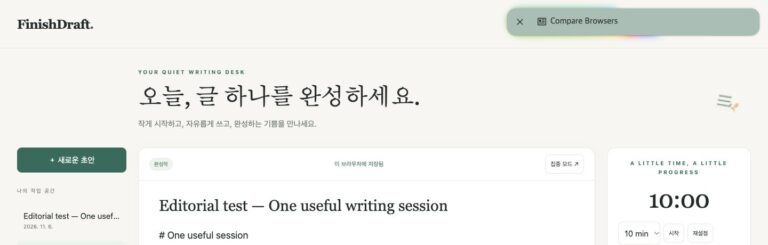
For the next review skill, Afterwork Excel’s formula exercises offer fictional calculation practice. For the written handoff, FinishDraft can help draft a short review note or checklist. These are separate learning and writing steps, not accounting imports. Keep real statements and private transaction details out of a practice exercise or an unnecessary handoff note.
Statement PDF-to-CSV FAQ
Does Matched mean the extraction is correct?
It means the entered balance arithmetic matches. Our intentionally wrong date still produced Matched, and an expected-count discrepancy appeared beside a matching total. Dates, descriptions, omissions and offsetting errors require separate review.
Does zero to review mean a person checked every row?
No. The digital sample had no remaining detected flags while our deliberately wrong date persisted. Use the original source for each row, rather than treating a flag count as a certification.
Can I convert scans or Korean statements?
An English scanned sample worked in our test. Korean-plus-English OCR is offered but was not tested. Korean controls do not guarantee Korean bank compatibility; integer won amounts and Korean date strings are specifically identified as limitations.
Can I restore the session from downloaded rules?
The source says rules contain settings, not documents or transaction edits. Reloading cleared our session. Save your reviewed CSV before leaving and keep the source PDFs; do not treat rules JSON as a full project backup.
Are QuickBooks and Xero imports verified here?
No. We inspected their generated CSV previews, including credit/debit separation in the four-column option. We did not confirm an import inside either product or inspect downloaded file bytes. Review the current destination requirements and its import preview yourself.
Start with one fictional statement
Use the sample PDF, compare a source row, try the reconciliation controls and inspect the generated CSV. Then decide whether your own document’s dates, numbers and layout fit the tool. A useful conversion is one you can explain and verify, not just one that produces a download button.
A RELEVANT NEXT STEP
Tools with a useful connection
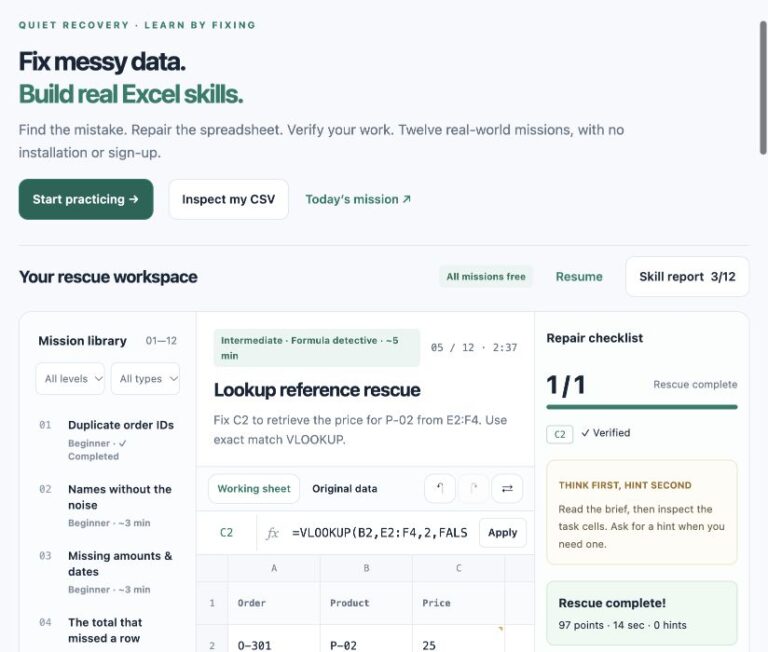
SheetRescue Studio
SheetRescue Studio: 7 Essential Repair Checks & Smart CSV Tips
Learn to repair spreadsheet mistakes with 12 missions, then inspect a small CSV. Includes a verified VLOOKUP example and a reproducible cleanup test.

퇴근엑셀 | Afterwork Excel
Excel Formula Practice: 7 Smart Afterwork Excel Checks
Practice Excel formulas with Afterwork Excel’s short fictional work missions. See tested SUMIF, exact lookup and TRIM examples, changed-data feedback and CSV limits.
FinishDraft Studio
FinishDraft: 7 Essential Steps for a Better Writing Session
FinishDraft Studio helps you finish a small draft with local saving, writing prompts and timed sprints. See tested counters, finish checks, exports and the important difference between draft export and full backup.