
Practice Excel formulas with Afterwork Excel’s short fictional work missions. See tested SUMIF, exact lookup and TRIM examples, changed-data feedback and CSV limits.
- Brand
- 퇴근엑셀 | Afterwork Excel
- Tool languages
- en, ko
- Verified date
- 2026-11-06
Excel formula practice is more useful when the question sounds like an actual request from a colleague: “Exclude cancelled orders,” “Find this product’s price,” or “Clean these names.” Afterwork Excel, branded 퇴근엑셀 in Korean, turns those small requests into short browser exercises with a table, a formula box and immediate feedback.
The most useful behavior in our test was its refusal to accept =70000. That number matched the first visible sales table, but the tool warned that it would fail when data changed. A conditional SUMIF formula passed instead. This guide shows the reasoning behind that difference, the exact examples we operated and the limits to remember before applying a lesson to a work file.
On this page
Key takeaways
- The site lists 30 beginner missions across sales, order cleanup, inventory, lookups and contact cleanup. We directly exercised missions 1, 19 and 25, not every mission.
- Write the business rule before the formula. A correct number on four rows does not establish a reusable method.
- Use the language of the displayed data: the English status is
Paid, while the Korean table uses결제완료. - The practice engine supports a defined subset of functions and A1:D5 references. It is not a full Excel workbook environment.
- Downloaded examples are CSV files. We inspected one file’s data and formula rows; we did not execute it in a desktop spreadsheet application.
What this Excel formula practice tool does
Afterwork Excel presents a small fictional work task, an intentionally unsuitable starter formula and buttons for functions, ranges and punctuation. Enter a correction and use Check answer, or press Enter. Successful feedback shows the result, an explanation, an example formula and a download button.
The five mission groups keep the entry point close to a job rather than a textbook chapter. Sales tasks ask which orders belong in a total. Order-cleanup tasks distinguish counts and statuses. Inventory tasks introduce thresholds and stock values. Lookup tasks connect product codes to names or prices. Contact-cleanup tasks handle text and staff-code fragments.
There is an English/Korean switch, a category filter, a new-data button, hints and a browser-based completion checklist. No company workbook upload was part of the workflow we tested. The visible data is synthetic, so you can investigate a mistake without exposing an employer’s records.

This Excel formula practice guide is for someone who can recognize a cell address but wants more confidence choosing the right condition. It can also help a team reviewer explain why a plausible total is wrong. It does not measure professional proficiency, issue a certification or establish that a learner can maintain a complex workbook.
1. Start with the business rule, not a function name
Read the task before touching the function buttons. For the first mission, the important rule is “sum paid orders only.” That is an inclusion rule. It is not the same as “sum every amount except the one cancellation row I can see today.” A new return or an unpaid order can make a row-specific shortcut fail.
- What is the unit: money, number of orders, a name or a price?
- Which column decides whether a record belongs in the answer?
- Which column contains the value to return or add?
- What should happen if a code is absent or an input contains extra spaces?
Answer those questions in plain language, then choose the formula. The site’s Hint button is a useful next step when you know the task but cannot remember the syntax. It should not replace explaining what the formula is supposed to do. After a hint, close the gap by saying why that function fits this request.
A five-minute label is a session suggestion, not an observed promise that every learner will finish every mission in five minutes. Choose one task that resembles your next work request. It is reasonable to repeat the same task with changed data instead of collecting completion marks as quickly as possible.
2. Check the rows your total should include
Mission 1 starts with amounts of 30000, 20000, 40000 and 15000. The first and third orders are paid; the other two are cancelled or returned. The initial SUM produces 105000. The intended paid-order total is 70000, so the all-row sum overstates that fictional result by 35000.
| Order | English status | Amount |
|---|---|---|
| ORD-101 | Paid | 30000 |
| ORD-102 | Cancelled | 20000 |
| ORD-103 | Paid | 40000 |
| ORD-104 | Returned | 15000 |
In the English interface, use the status column as the criterion range and the amount column as the sum range:
=SUMIF(B2:B5,"Paid",C2:C5)In the Korean interface, the corresponding tested formula was:
=SUMIF(B2:B5,"결제완료",C2:C5)The first range answers “which rows?” and the final range answers “add what?” Keeping those questions separate helps prevent a common error: summing the status column or checking a criterion against the amount column. Microsoft’s SUMIF reference describes this range, criterion and optional sum-range structure.
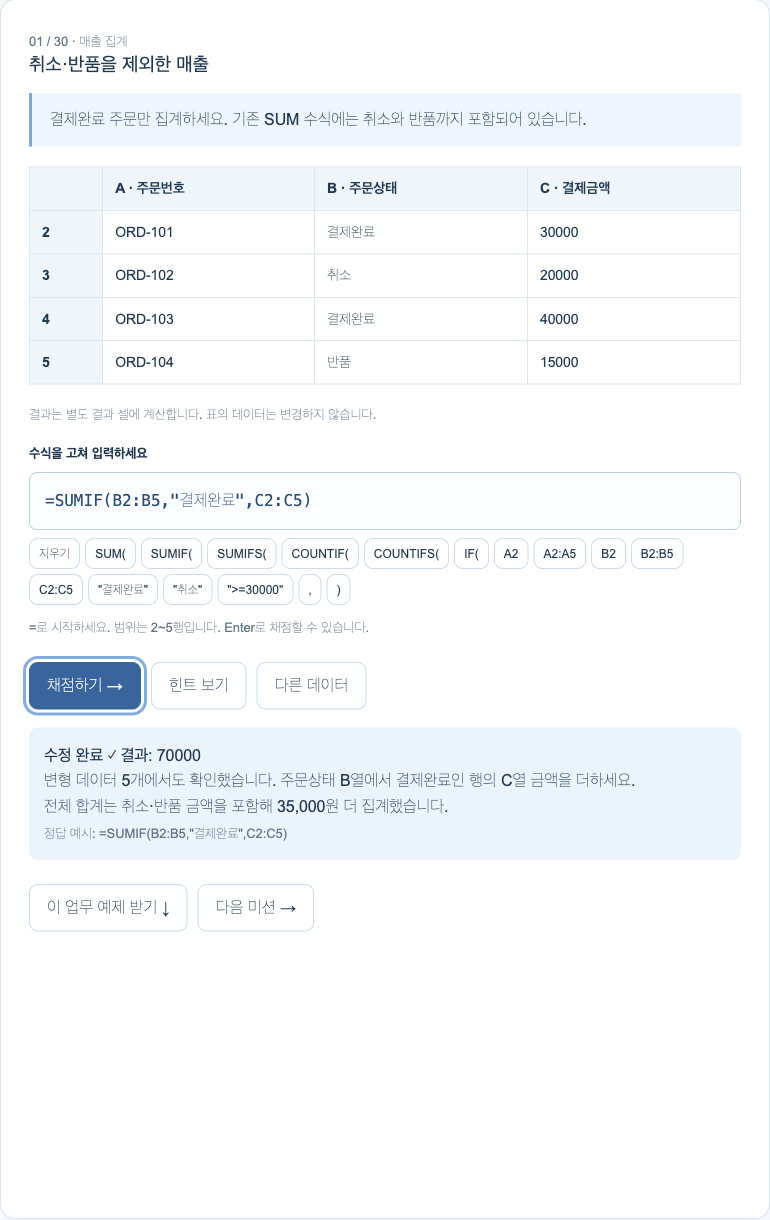
A useful review habit is to calculate this tiny answer manually once. In this case, 30000 + 40000 gives 70000. That hand check establishes the intended result before you inspect the formula. In a real file, also check date boundaries, duplicate records and whether “paid” is actually the business’s recognized revenue rule.
3. Make your Excel formula practice survive changed data
Our first negative test submitted the unchanged =SUM(C2:C5). The tool reported 105000 and said the work condition was not met. Our second submitted =70000. Although that matched the visible table, the response warned that a fixed answer or fixed rows would not remain correct after data changes.
The conditional formula was accepted at 70000. Successful feedback also reported passing five changed datasets. We observed that message; we did not independently inspect all of the checker’s internal datasets. To add a separate visible test, we used New data and read the changed table ourselves.
That visible variant contained amounts 23466, 47555, 26644 and 35733, with only the second displayed record paid. The Korean SUMIF using semicolon separators returned 47555 and was accepted. After switching to English, an equivalent SUMIFS expression also returned 47555:
=SUMIFS(C2:C5,B2:B5,"Paid")Notice the argument order: SUMIFS puts the sum range first. Do not take a SUMIF expression, add an S to its name and assume the remaining arguments stay in place. The official SUMIFS documentation explains that difference.
This is the central Excel formula practice habit to keep: change the records, not the business rule, then see whether the method still works. A useful test changes both values and which rows qualify. Testing only a larger amount on the same paid row would leave a fixed-row shortcut looking more reliable than it is.
4. Ask for an exact product-code match
Mission 19 asks for the unit price associated with the code in D2. The displayed code is P-103, and its matching row has a price of 2500. The tested exact-match formula was:
=VLOOKUP(D2,A2:C5,3,FALSE)Afterwork Excel accepted 2500 and explained the exact-match flag. When we changed the final argument to TRUE, the tool did not silently pretend to implement approximate lookup: it explicitly reported that approximate VLOOKUP was unsupported. That limitation matters when comparing this engine with Excel itself.
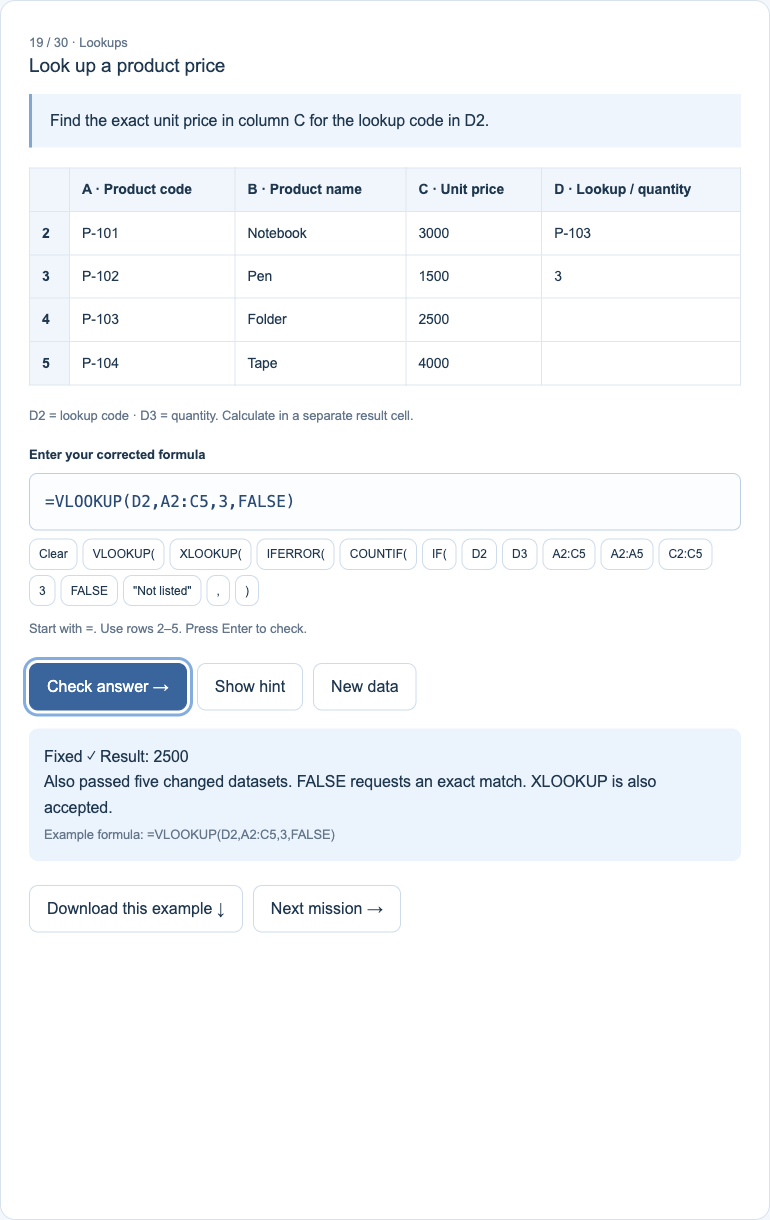
Think of a product code as an identity, not a nearby number. Ask whether you want the specific item or an approximate band. Microsoft’s VLOOKUP documentation distinguishes the FALSE/0 exact-match and TRUE/1 approximate-match options. This practice tool only advertises and accepts the exact-match form in the tested path.
Before transferring the idea into a company sheet, identify the actual lookup column and return column. Confirm that identifiers use consistent types and that the requested column exists inside the lookup range. A green training result does not validate an unrelated workbook’s structure or missing-code policy.
5. Inspect the spaces you are cleaning
Mission 25 is a useful counterweight to numeric exercises. Its first English name contains ordinary spaces before and after the text and repeated spaces between the words. The rendered table can make that raw spacing less obvious, so do not rely on a quick visual glance alone.
=TRIM(A2)That expression returned Hanbit Trading and passed in the English exercise. The corresponding Korean test returned 한빛 상사. The hint and success message explicitly said that this mission contains ordinary spaces, not special whitespace.
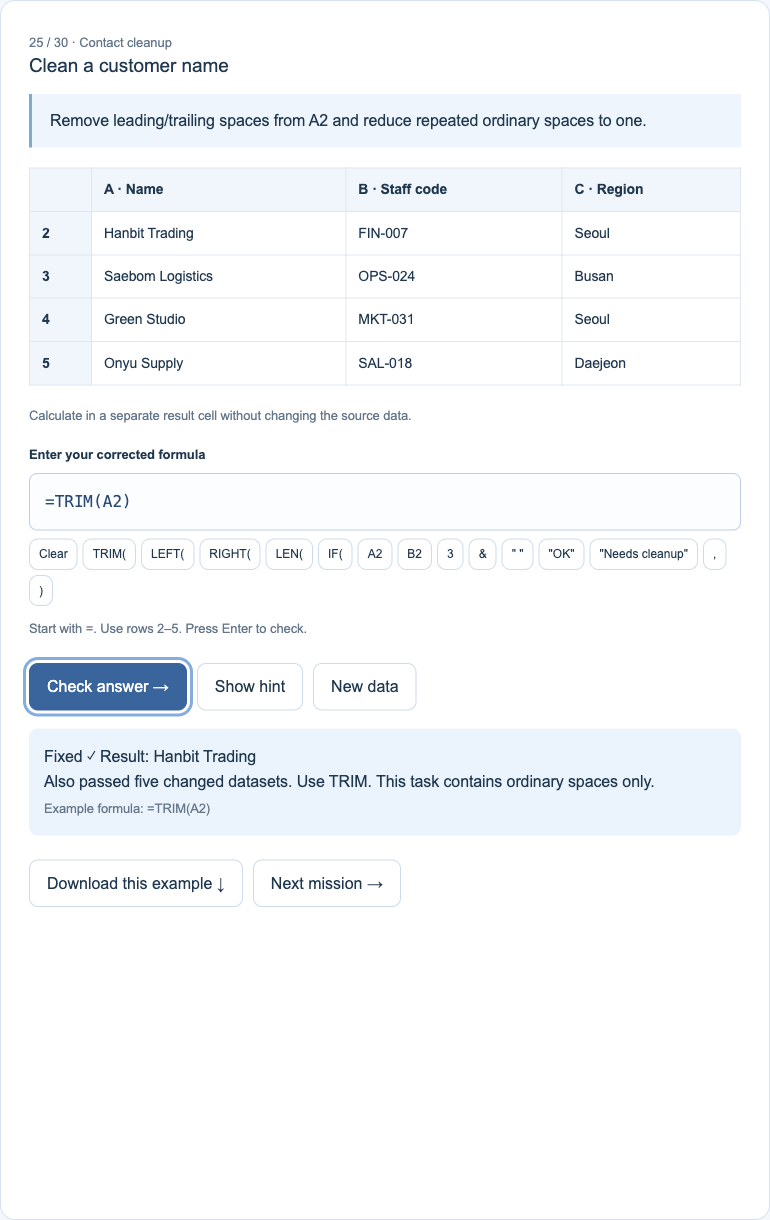
That qualification should carry into your Excel formula practice notes. Microsoft’s TRIM reference explains that Excel’s function targets ordinary ASCII spaces and does not by itself remove the nonbreaking space character 160. We did not test those special characters inside this tool.
For a real list, first decide whether spaces are errors. A code, fixed-width record or intentionally spaced label may have meaningful formatting. Work in a separate result column, compare the original and cleaned forms, and keep the source until you have reviewed the change. The mission itself likewise asks for a separate result rather than altering the displayed data.
6. Take the CSV example into a separate workbook
After the successful Korean sales exercise, we used Download this example and inspected the actual CSV file. It contained the four original rows, the mission name, a completed formula, a text explanation of the formula, the work condition and an educational-data notice. It was not an XLSX workbook with multiple sheets and formatting.
The completed formula row contained =SUMIF(B2:B5,"결제완료",C2:C5). The file also included a separate text-oriented formula explanation. The data and the calculation are useful review materials, but a downloaded string is not proof that every spreadsheet program will parse and evaluate it identically.
- Keep the downloaded fictional example separate from a production workbook.
- Check that the data lands in the expected columns and rows after import.
- Use the argument separator and function conventions supported by your actual application.
- Recalculate the small example and compare it with the hand-checked answer.
- Only then adapt the condition and range to the real task; do not overwrite the only copy of a work file.
We inspected the file’s contents but did not open it in Microsoft Excel, Google Sheets, Numbers or LibreOffice. That execution step remains untested in this review. CSV also does not preserve the lesson interface, your completion checklist or all the presentation details visible in the browser.
7. Use short mobile sessions, then review on desktop
At a 390px viewport, we switched to Korean, entered =TRIM(A2) and received the accepted Korean result. The page did not exceed the viewport width in that test. The function and reference buttons offer an alternative to repeatedly typing punctuation, although a phone keyboard can still make longer formulas awkward.
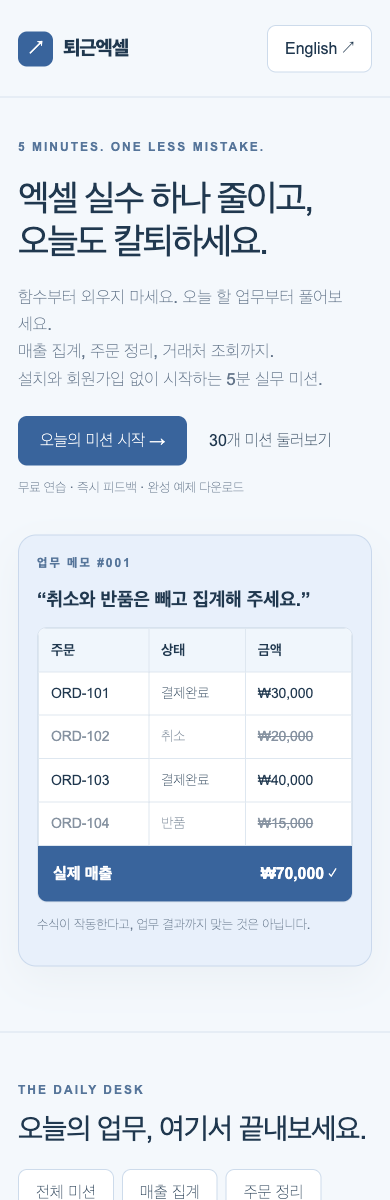
For mobile Excel formula practice, use one mission and one reasoned correction. Confirm the column labels before entering a range, keep straight quotation marks around text conditions and inspect the feedback below the controls. Move to a larger screen when you want to compare several formulas or inspect the downloaded CSV.
The checklist says completion stays in the same browser, without cross-device sync. We observed it increase after the directly tested missions. We did not reset existing progress or test storage clearing. Do not treat the count as a transferable learning record, or assume that finishing an exercise on your phone will mark it complete on a laptop.
An Excel formula practice routine you can repeat
A good session ends with a rule you can explain. Use this compact routine instead of working through the list mechanically:
- Read: restate the requested output and inclusion condition in one sentence.
- Predict: hand-check a tiny answer before looking for a function.
- Write: enter a formula that refers to the condition and the appropriate range.
- Challenge: use changed data, then explain why the same rule should still hold.
- Keep: save the synthetic example and a short note about what would differ in your real file.
For a reviewer, ask a learner to explain why a fixed number failed and why the criteria range belongs to column B. Those questions reveal more than asking for the correct function name. For self-study, return to an unfinished task or redo a completed one without the hint; neither approach requires rushing to all 30 marks.
Connect the lesson to a realistic next step. A paid-order exercise can help you think about which sales enter a report, but it is not an accounting policy. A product lookup can establish a price reference, but it does not check tax, inventory availability or the validity of a quote. Keep the training rule appropriately narrow.
Limitations, privacy and progress
The listed supported functions include SUM, SUMIF, SUMIFS, COUNTIF, COUNTIFS, IF, exact VLOOKUP, XLOOKUP, TRIM, LEFT, RIGHT, LEN, AND, OR and IFERROR, together with a defined set of operators. That is the source’s advertised subset, not a claim that we validated every function. The guide specifies A1:D5 references and English function names with comma or semicolon separators.
This Excel formula practice environment does not reproduce workbook collaboration, large data, pivot tables, Power Query, macros or the full Excel calculation engine. Unsupported syntax is a different outcome from an incorrect business answer. A finite set of test cases can catch a hardcoded answer without proving every possible equivalent expression correct.
The source states that formulas are processed in the browser without server submission and that progress is browser-local. We read those disclosures and operated synthetic inputs; we did not conduct a complete network or storage security audit. The site also discloses Google AdSense cookies and advertising partners. Local formula processing therefore does not establish a tracking-free visit. Avoid putting customer names, private identifiers or confidential formulas into a public practice tool.
Related tools for the next real task
- For a maker deciding what remains after selling costs, read our CraftMargin Etsy profit calculator guide. It addresses pricing assumptions; it is separate from learning spreadsheet syntax.
- If a report needs an allowance for paid AI services, the AI cost calculator helps distinguish assumed allocation from cash outlay. Use the figures only with a consistent cost model.
- After checking a table, VoiceCraft Studio can organize your own notes into communication drafts. Recheck every number and statement before sharing.
Afterwork Excel and these linked tools belong to the same creator’s project. The related introductions are internal library pages; the launch button opens the separate original practice site. We recommend a connection only where the next task fits your workflow, not because another click is inherently useful.
Frequently asked questions
Is this Excel formula practice suitable for beginners?
It is aimed at small introductory work tasks. Knowing rows, columns and cell references helps. Use the hint when syntax blocks you, then explain the business condition yourself rather than memorizing the supplied answer.
Do I need to upload my company workbook?
No workbook upload was required in our tested path. Exercises supply fictional tables. Keep real work data out of the practice field.
Why did the right number fail in Excel formula practice?
A fixed number can match the current rows but fail the same task after values or statuses change. In our first mission, 70000 was rejected as a hardcoded answer while the conditional SUMIF was accepted.
Can I copy an English answer into the Korean exercise?
Not blindly. The function name remains English, but text criteria must match the displayed values. Paid and 결제완료 are different strings. Switching language also changed the active exercise display during our test; recheck the formula field afterward.
Does passing mean I have mastered Excel?
No. The checklist records accepted exercises in one browser. It is not a certificate, an assessment of all Excel features or evidence that an unrelated workbook is correct.
Will the CSV run correctly on my computer?
We verified its contents, not execution in your application. Import it into a separate workbook and check the small expected result with your own version and regional settings.
Verification and references
Verified November 6, 2026. We directly tested wrong SUM, a hardcoded constant, Korean SUMIF, changed data with semicolon separators, English SUMIFS, exact and unsupported approximate VLOOKUP, ordinary-space TRIM in both languages, category filtering, CSV download and a 390px Korean interaction. We did not complete all 30 missions or independently audit every internal variant.
The Microsoft SUMIF, SUMIFS, VLOOKUP and TRIM references linked above support the function explanations; the tool-specific results come from our own synthetic browser tests. The site is independent of Microsoft. Read our Editorial Standards for how claims and untested paths are handled.
Try one task before your next spreadsheet request. Open Afterwork Excel for Excel formula practice ↗, select the interface language, choose a mission and test a rule that survives new data.
A RELEVANT NEXT STEP
Tools with a useful connection
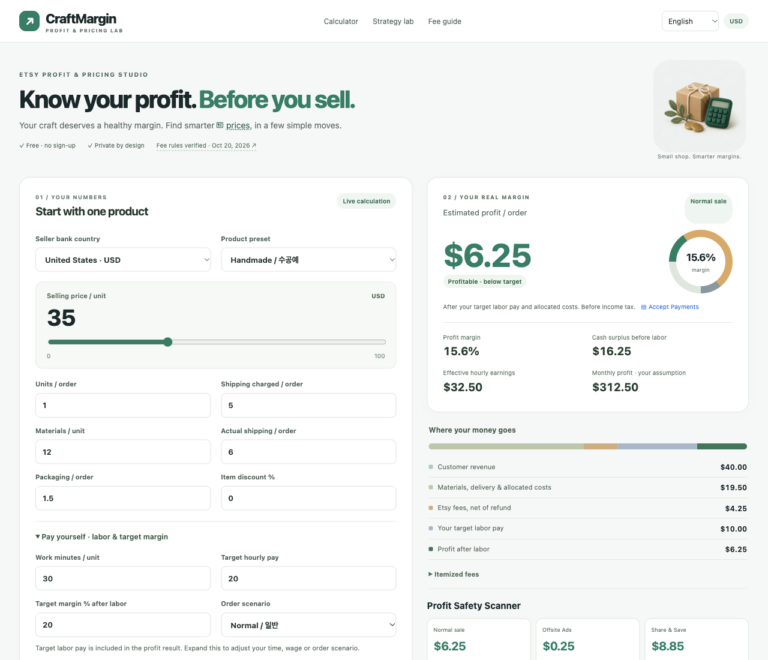
CraftMargin
Etsy Profit Calculator: 7 Smart CraftMargin Checks
Use CraftMargin to estimate Etsy profit after fees and labor. Tested examples explain discounts, free shipping, country rates and target pricing before you sell.
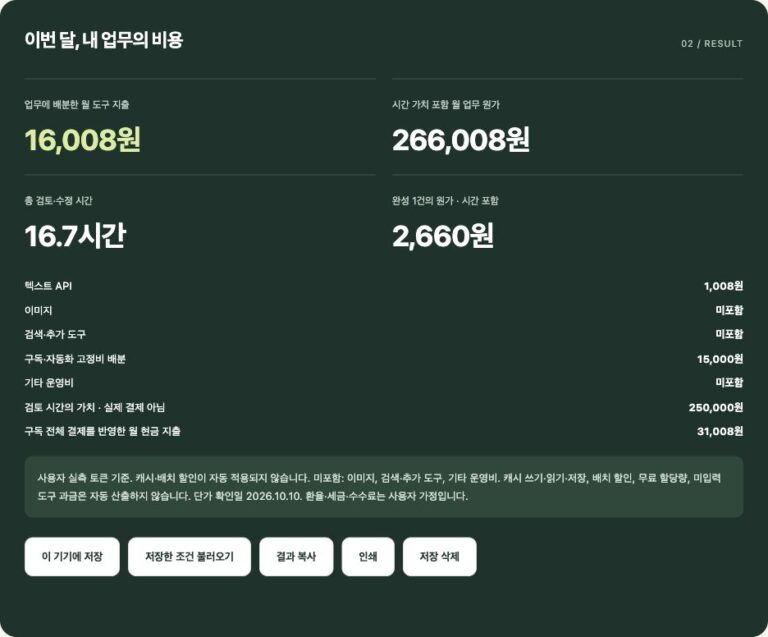
AI·SaaS 비용계산소
AI Cost Calculator: 7 Smart Checks Before You Budget
Plan AI workflow costs in Korean won with AI·SaaS 비용계산소. Compare token assumptions, allocated subscriptions, cash outlay and review-time value using documented synthetic tests.
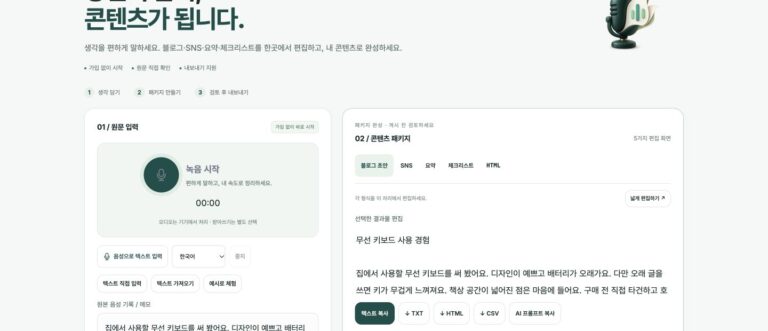
VoiceCraft Studio
Content Package Generator: 7 Smart VoiceCraft Checks
Use VoiceCraft Studio as a content package generator for editable blog, social, summary, checklist and HTML drafts. See actual text tests and SourceGuard’s limits.