Spreadsheet repair practice is most useful when you can explain what broke, change the right cell and verify the result. SheetRescue Studio gives you 12 fictional workplace incidents plus a small CSV inspection lab. Use it before a spreadsheet task to practise diagnosis without using a company workbook.
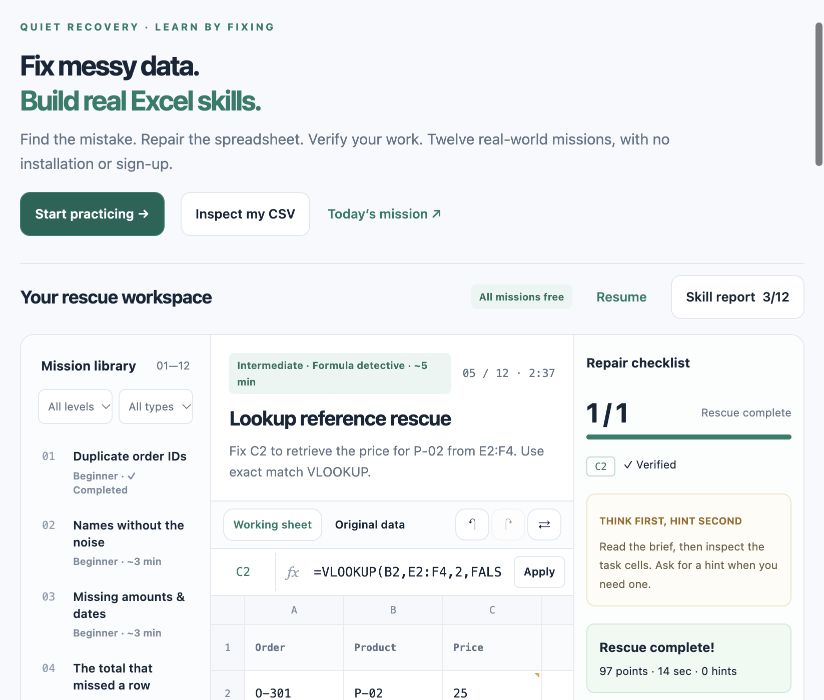
Learn to repair spreadsheet mistakes with 12 missions, then inspect a small CSV. Includes a verified VLOOKUP example and a reproducible cleanup test.
- Brand
- SheetRescue Studio
- Tool languages
- en, ko
- Verified date
- 2026-11-06
Key takeaways
- Twelve missions cover cleanup, formulas, office work, reporting and interview practice. We directly verified a lookup repair and the CSV cleanup path, not all twelve answers.
- The tested exact-match VLOOKUP returned 25 and received a Verified result. Enter the formula through the formula bar and use Apply before checking.
- A four-row synthetic CSV produced one warning in each of five categories. Whitespace cleanup and duplicate removal worked; date and number warnings still needed review.
- UTF-8 CSV is limited to 2 MB, 1,000 data rows and 26 columns. The first row becomes headers. This is a limited training engine, not a complete Excel replacement.
On this page
What this spreadsheet repair practice tool does
SheetRescue Studio puts the task brief beside an editable grid. Gold corners identify task cells. You can switch between the working sheet and original data, edit through a formula bar, undo or redo changes, ask for hints and inspect a before/after comparison. Verification adds feedback; the skill report groups completed work by skill area.
That arrangement addresses a familiar office problem: a total or lookup looks plausible, yet nobody has checked the evidence behind it. A fictional dispatch log, product table or expense rule provides a source of truth. The useful habit is to connect that evidence to a specific edit, rather than replace a suspicious number with another plausible number.
The separate Private Data Lab imports your own CSV for inspection. It reports blank cells, exact duplicate rows, extra whitespace, invalid ISO dates and comma-formatted numbers. In the path we operated, the automatic cleanup controls were whitespace trimming and exact duplicate removal. The remaining warnings were diagnostic information, not promises of automatic repair.
Seven checks for a reliable spreadsheet repair
1. Pick the right mode. Choose Practice for fictional exercises. Choose My CSV only when you have a suitable copy of a small CSV. For a first visit, use a built-in mission; you do not need to supply real records. Difficulty and mission-type filters help narrow the twelve-item library.
2. Read the repair boundary. In mission 05, Lookup reference rescue, the brief asks you to repair C2 using the price table E2:F4 and the product code P-02. It explicitly asks for exact-match VLOOKUP. Identify the lookup value, lookup table and return column before entering a function. Changing the source table to make an answer pass would defeat the exercise.
3. Select the target cell. Click C2, then use the formula bar. The visible result may be a number while the bar contains the formula that produced it. Looking only at the grid is therefore insufficient when reviewing whether a method meets the task. We found the formula-bar route reliable for replacing the complete expression.
4. Apply the complete formula. For this tested table, enter =VLOOKUP(B2,E2:F4,2,FALSE) and select Apply. B2 supplies P-02; E2:F4 contains the lookup and price columns; 2 selects the second column of that range. FALSE requests an exact match. The displayed price was 25.
5. Verify separately. Select Verify repair. Our successful attempt showed C2 verified and a 1/1 checklist. The first successful English result showed 97 points, 14 seconds and zero hints; those are session feedback, not a benchmark or a guarantee of what another learner will receive.
6. Inspect the change. Use Original data or Before / after to distinguish the initial problem from your correction. A green checklist is useful feedback, but you should still be able to explain which reference or condition changed. Hints and the worked answer can help a stalled learner; the worked-answer button displays a 30-point penalty.
7. Keep the appropriate output. The interface offers Save result CSV, Formula CSV and Learning report controls. We downloaded and inspected the separate lab’s cleaned CSV. We did not execute a mission formula CSV in Excel or verify every report-export format. Treat exported examples as review material and test them in a separate workbook before adapting them.
A reproducible CSV cleaning test
Our test used invented names and three columns: Name, Date and Amount. It contained four data rows: Mina with leading/trailing spaces, an impossible date of 2026-02-30 and an amount written as “1,200”; two identical Alex rows; and Sam with an empty date. The comma-containing amount was quoted in the CSV so it remained one field. The row counts above exclude the header row; keep that convention consistent when reviewing exports.
The first scan reported Rows: 4, Blank: 1, Whitespace: 1, Duplicate rows: 1, Invalid ISO dates: 1 and Comma numbers: 1. We previewed the whitespace change before applying it, then previewed and applied removal of one duplicate Alex row.
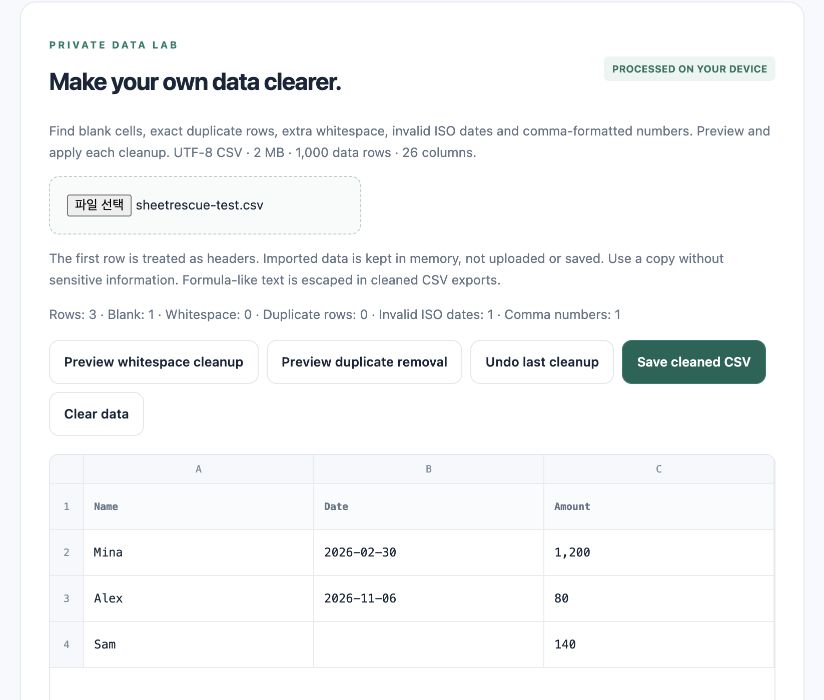
The final scan showed three data rows, zero whitespace warnings and zero duplicate rows. Blank, invalid-date and comma-number counts remained at one each. The downloaded CSV contained Mina without the outer spaces, one Alex record and Sam. It still contained the invalid date and the “1,200” field. We inspected those file contents directly; we did not open the export in a desktop spreadsheet application.
This distinction matters before an import: a file can be cleaner while remaining unsuitable for a report. Confirm the intended date from a trusted record. Decide whether a comma denotes a thousands separator or something else in your locale. Never invent a missing date merely to clear a warning. Our four-row test establishes this small workflow; it is not a stress test at the published size limits.
Turn the CSV findings into a review decision
Consider the synthetic file as a handoff between two people: one exports records, another builds the report. The cleanup operator should not simply hand over a smaller file and say it is fixed. Record which operations were applied, how the row count changed and which findings still require an owner. In our example, removing one exact duplicate explains the change from four data rows to three. Trimming Mina explains a changed field without changing the row count.
An empty date and an impossible date require different follow-up questions. For Sam, ask whether the date was never recorded, omitted during export or deliberately left blank. For Mina, ask what the original record says; replacing an impossible February date with the nearest calendar day would invent evidence. The lab can identify these suspicious values, but neither finding establishes the correct replacement. Keep those rows visible in your review notes until a responsible person resolves them.
The amount “1,200” also needs a context decision. Its quoted CSV field was preserved in our exported file. Before a real import, establish the number convention expected by the destination application and the source’s meaning. Compare the imported numeric result with a known total. Changing punctuation first and checking meaning later can turn a tidy-looking file into a misleading calculation.
| Observed finding | What our test established | Decision still needed |
|---|---|---|
| Outer spaces around Mina | Previewed trimming removed the whitespace warning | Whether spaces are meaningful in another dataset |
| Two identical Alex records | One row was removed after preview and approval | Whether two similar real events are actually duplicates |
| 2026-02-30 | Invalid-date warning remained after cleanup | The date supported by the source record |
| Sam’s empty date | The blank cell remained | Missing, intentionally blank or lost during export? |
| Quoted 1,200 | The comma-containing field survived export | Expected numeric meaning and import convention |
For a learning session, turn the same reasoning into a small evidence note: “I changed this field because this source supports the change; I checked this result; these questions remain.” That note is useful even when a mission is already marked complete. It separates confidence in one demonstrated repair from confidence in an entire spreadsheet. Do not transfer a training score into a claim that your real report is ready for approval.
For a recurring weekly file, decide when to stop using a small manual inspection tool. Repeated imports benefit from a repeatable transformation record and a stable definition of a duplicate. If reviewers keep disagreeing about which rows should disappear, the problem is a business rule that needs agreement. A new button or a higher practice score will not resolve that disagreement. Use this lab to make the questions concrete, then document the approved rule in the workflow that handles the real records.
Keep the handoff small but complete: identify the input copy, list the approved cleanup operations, state the starting and ending row counts, preserve unresolved findings and name the next review step. These are editorial recommendations drawn from the observed cleanup behavior, not extra automation features we found in SheetRescue Studio.
Advanced tips and common mistakes
- Preserve the source. Name your working copy clearly and keep the original until the output has been reviewed. Exact duplicate rows can be genuine repeated events, so do not remove them merely because the button exists.
- Keep identifiers as identifiers. Product codes and order numbers need exact matching. Do not reinterpret a code as an approximate numeric band.
- Use the supported syntax: English function names, commas and straight double quotes. A formula that works in a regional desktop installation may use separators this training engine does not accept.
- Separate diagnosis from correction. A blank cell is a finding; only the real business record can tell you whether it should stay blank or receive a value.
- Revisit one task without hints and explain the change aloud. Completion counts are useful for practice planning, not a credential or evidence that an unrelated work file is correct.
Limits, privacy and mobile use
The source lists SUM, AVERAGE, IF, COUNTIF, SUMIF, SUMIFS, exact-match VLOOKUP, TRIM, UPPER, LOWER and ROUND, plus cell/range references, absolute-reference notation, arithmetic and comparisons. We tested the VLOOKUP path, not every advertised function. Do not assume that arbitrary Excel functions, macros, formatting, multi-sheet workbooks or XLSX import are available.
The CSV lab specifies UTF-8 CSV, 2 MB, 1,000 data rows and 26 columns. Convert a copy using your spreadsheet application if your source is another format, then inspect headers and column boundaries. CSV does not preserve workbook formatting or multiple worksheets. Larger recurring cleanup work belongs in a workflow that can retain explicit transformation steps.
The site states that imported CSV stays in memory without upload or saving, while practice progress stays on this device. We read that disclosure and used synthetic records; we did not conduct a complete network, storage or security audit. Ads were visible during testing, including an interstitial. Local CSV processing does not mean the whole visit is free of third-party requests. Remove sensitive information before importing a copy.
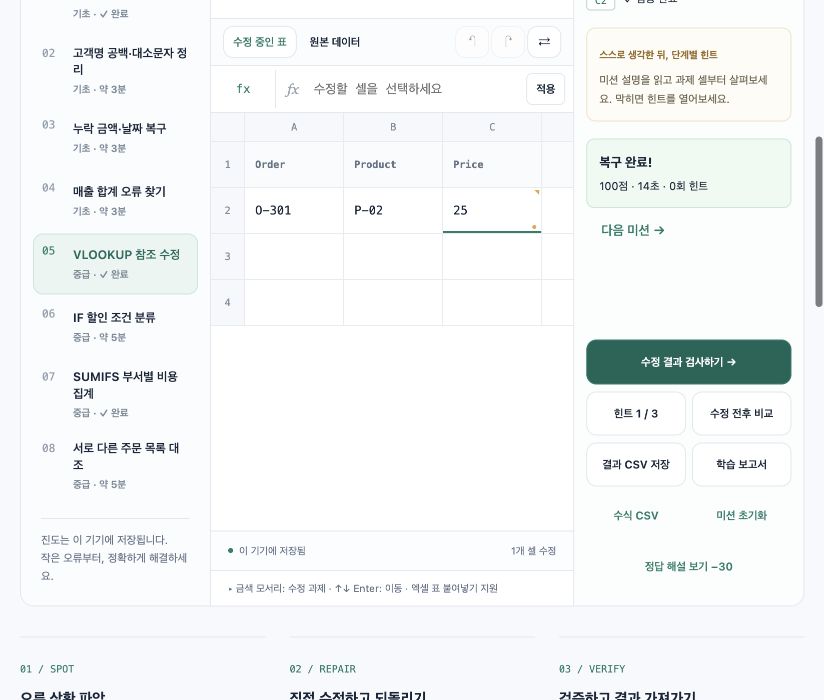
At an actual 390px emulated viewport, the Korean interface used a mobile Hint/diagnosis panel and a separate verification button. We opened that path and received 1/1 verification for the stored lookup repair; the document width remained 390px. A wide grid still needs horizontal inspection to see later columns. Phone-sized review works for one small task; a larger screen is more comfortable when comparing references. This was browser emulation, not a physical-device test.
In a separate Chrome session at 390px, we also selected C2, entered the same VLOOKUP through the Korean formula bar, applied it and used the mobile check button. It returned 25 with 1/1 verified and session feedback of 100 points, 11 seconds and zero hints. This was an additional direct-input test, distinct from the earlier stored-repair check and the English 97-point attempt.
Related tools and alternatives
For a different learning approach, read our Afterwork Excel formula practice guide. Its short formula tasks include changed-data feedback. Choose it when you want to challenge a rule against new values; choose SheetRescue Studio when you want the repair brief, editable grid and before/after workflow. Both are practice environments, so carry the idea into a separate real spreadsheet only after checking the actual data structure.
For one-off review, a spreadsheet application lets you inspect the original CSV beside a cleaned copy. For repeated imports, a documented transformation workflow is easier to review than manually repeating clicks. These are workflow alternatives, not claims that we benchmarked competing software. The linked KIOPTRIX tools are part of the same creator’s project.
Frequently asked questions
Is spreadsheet repair practice free?
The site labels all twelve missions free, and no sign-up or installation was required for the tested exercise and CSV path. We did not investigate future pricing changes.
Can this repair a damaged Excel workbook?
The observed tool teaches repairs inside fictional tables and inspects CSV text data. We did not find or test binary workbook recovery. Do not expect it to recover a corrupted XLSX file.
Why does a number look right but still need checking?
The task may require a formula method, a particular cell or an exact lookup. Inspect the brief and the formula bar, then verify. A correct-looking value alone does not explain the underlying rule.
Will every CSV warning be fixed automatically?
No. In our test, whitespace and duplicate cleanup worked, while the empty date, invalid date and comma-containing number remained for review. A diagnostic count is not evidence that a value can safely be inferred.
Does completion transfer to another device?
The interface says progress stays on this device. We did not test cross-device synchronization or clearing browser storage. Keep any needed learning notes separately.
Verification notes
Checked November 6, 2026. Evidence includes direct English VLOOKUP entry through the formula bar, the 25 result and Verified feedback; a four-row synthetic CSV scan, preview/application of two cleanup operations and inspection of its three-row export; English/Korean navigation; and a Korean 390px emulated mobile verification. Existing completed missions were present on arrival and are not counted as tests performed for this review.
Tool-specific facts come from SheetRescue Studio and the operations described above. We have not validated all twelve missions, every formula, boundary-size imports, tracking behavior or desktop execution of exported formulas. Those limits keep the examples reproducible without overstating the review.
Try one repair: open SheetRescue Studio for spreadsheet repair practice →, select mission 05 and explain why the final FALSE argument belongs in your lookup.
A RELEVANT NEXT STEP
Tools with a useful connection

퇴근엑셀 | Afterwork Excel
Excel Formula Practice: 7 Smart Afterwork Excel Checks
Practice Excel formulas with Afterwork Excel’s short fictional work missions. See tested SUMIF, exact lookup and TRIM examples, changed-data feedback and CSV limits.
LaunchCheck Studio
HTML Checker: 7 Smart LaunchCheck Studio Checks
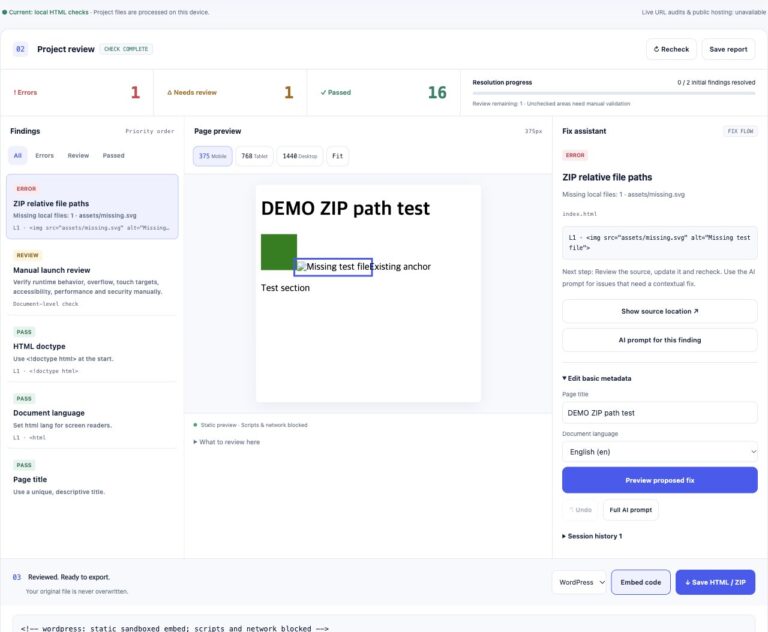
Inspect HTML and ZIP projects with LaunchCheck Studio. Actual sample, synthetic-code and missing-file tests explain findings, reversible metadata fixes, static previews and AI prompt privacy.
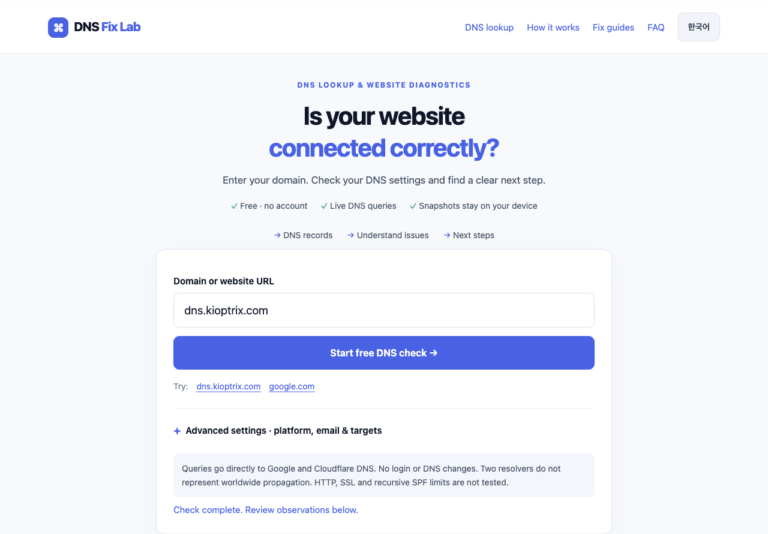
DNS Fix Lab
DNS Fix Lab: DNS Lookup in 7 Essential Checks
Read public DNS with Google and Cloudflare, compare a local baseline and inspect expected targets. Our real tests show what DNS Fix Lab can establish—and what requires a separate check.