Wedding Seat Studio is a browser-based wedding seating planner for organising guests, table capacities and last-minute attendance changes. It is useful when a list of names has become a practical question: who can sit together, which tables are available, and what still needs a human seating decision?
Hands-on verification: 12 November 2026. We used fictional TEST guests only. The interface offers English and Korean on the same address; choose English ↗ if it opens in Korean. Some helper text remained Korean during the English test.
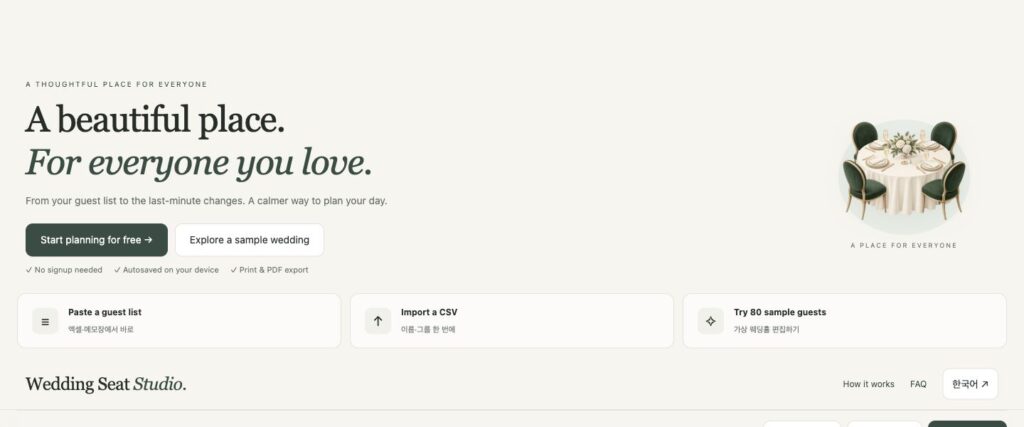
Plan wedding seating with attendance states, table capacities, separation rules and Plan A. Includes fictional guest tests and a practical handoff checklist.
- Brand
- Wedding Seat Studio
- Tool languages
- en, ko
- Verified date
- 2026-11-12
In this guide
Key takeaways
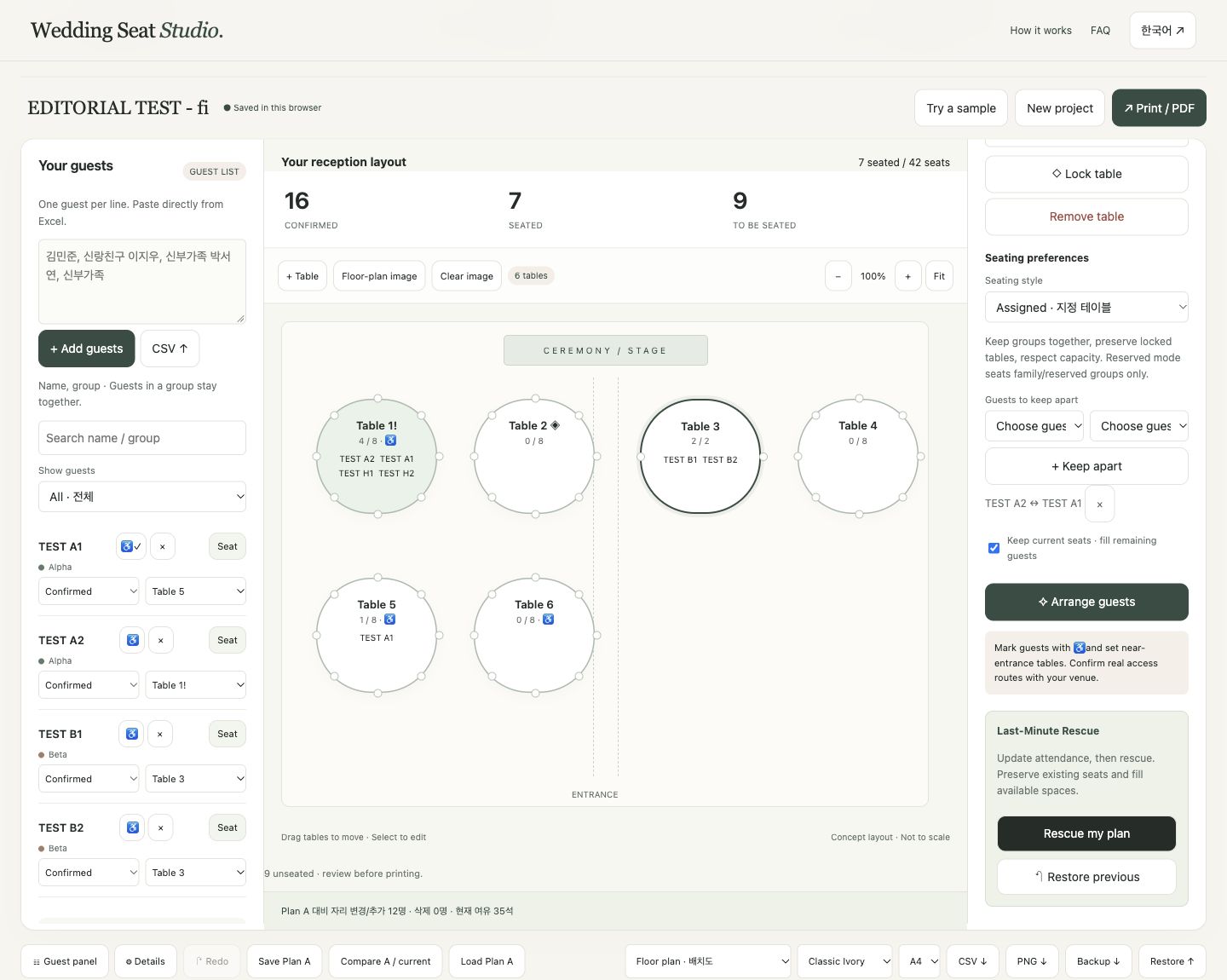
Count confirmed, seated and unseated guests separately. Our final roster contained 18 records, but only 16 were confirmed; seven had seats and nine did not. A Pending guest and a Cancelled guest remained in the roster without entering that confirmed total.
Check the largest usable table, not only the sum of empty seats. A nine-person group remained unseated despite 35 empty seats because no individual table could hold the whole group. Locked tables and separation rules further restrict the options.
Treat Plan A as a saved editor state with a wider effect than moving chairs. Loading our earlier Plan A also changed a newly confirmed guest back to Pending. Review attendance after loading a saved plan.
What Wedding Seat Studio does
The planner combines a guest directory, a conceptual floorplan and a rule-based assignment workflow. Guests have names, groups, attendance states and table assignments. Tables have editable capacities, names, a near-entrance preference and a lock control. The interface also exposes round and rectangular shapes, table additions and removal, reserved-group settings and a floorplan image background.
We directly exercised roster entry, attendance changes, capacity editing, a table rename, an empty locked table, an accessibility preference, a separation pair, automatic assignment, manual assignment, Rescue, Plan A, undo and redo. Shape changes, table dragging, table addition or deletion and reserved-mode behaviour were not operationally tested. Their presence should not be mistaken for a verified result.
This solves a coordination problem that a plain spreadsheet leaves to you: connecting a particular guest to a table while checking the current seating rules. A spreadsheet remains useful for collecting and normalising names; a measured venue drawing remains necessary for checking the physical room. The seating canvas is not a substitute for either.
Prepare a roster that can survive changes
Start with a working copy of the guest list. Give people distinguishable labels before importing them, agree on group names and decide what Confirmed means for your event. A couple appearing as one entry may not mean two seats: enter individual guest records when you need an individual seat count. We tested one record per fictional person, not household-size parsing.
Ask the venue for the table capacities and the layout information you actually need. Entering eight seats because the default says eight does not establish that eight guests fit comfortably at your real table. Keep a separate checklist for entrances, circulation, service access and the venue’s own requirements; none of those dimensions were measured by this review.
For an initial seating exercise, use a small representative roster: a group that fits, an oversized group, one attendance change and a known separation pair. That exposes the important decisions earlier than importing the whole event and assuming a green count means the room is ready.
7 steps to a reviewable seating plan
1. Enter names and normalise groups
Paste one guest per line using name,group, or use the CSV import control. Keep group spelling consistent. Our UTF-8 CSV used the header name,group and imported two new guests. The publisher also describes Korean headers and tab-separated entry, but our direct CSV test covered the English header and simple comma-separated fields only.
2. Set attendance before interpreting totals
Choose Confirmed, Pending or Cancelled for each record. In our first seven-record roster, marking one guest Pending and another Cancelled left five confirmed guests. Verify these numbers before assigning seats so an unresolved invitation does not silently become a chair commitment.
3. Configure usable tables
Rename tables to match the language used by the venue team. Set each capacity and mark relevant entrance preferences. We changed an empty table from eight to two seats, reducing total capacity from 48 to 42. We also locked an empty eight-seat table; it stayed empty through our assignment tests.
4. Add relationship rules and check the guard
Use a separation rule only when you have a practical reason to keep two entries apart. When our two Alpha guests already shared a table, adding their rule was rejected with an instruction to unseat one guest first. After unseating one, the rule could be created. Do this deliberately, then inspect both records rather than assuming a rejected action saved a rule.
5. Choose a full run or preserve current seats
A full automatic run can rearrange the roster. The “Keep current seats · fill remaining guests” option is the appropriate control to inspect when you want to preserve manual decisions and fill gaps. We verified that the preserve workflow retained five existing assignments while a new nine-person group remained unseated. Do not expect it to solve an impossible group fit.
6. Reconcile changes with Rescue and Plan A
Save a baseline before making an attendance change. We confirmed a previously Pending guest, ran Rescue and reached six seated guests. Comparing with Plan A reported one changed or new record. Loading the saved baseline then restored five seated guests and the earlier Pending status. Check the roster as well as the diagram after a restore.
7. Review an actual handoff artifact
Choose the intended output, inspect the received file or print preview and reconcile it with the latest seating roster. The interface offers CSV, PNG, a JSON backup and four print formats. Our automation did not receive the download files, and we did not inspect a rendered print preview. Those outputs therefore still require your own end-to-end check before an event handoff.
What our fictional guest tests showed
| Test | Observed result | Practical meaning |
|---|---|---|
| Attendance count | 18 records: 16 Confirmed, one Pending, one Cancelled | Roster size is not the required seat count. |
| Final seating | Seven seated, nine unseated, 42 seats | 35 empty seats did not solve a nine-person group fit. |
| Internal group conflict | Two Alpha guests left unseated after a full automatic seating run | Whole-group placement and separation can conflict. |
| Manual split | Alpha guests seated at different tables; conflicting move rejected | A human split can resolve a decision the group heuristic leaves open. |
| Locked destination | Move into empty Table 2 rejected | Empty does not mean available. |
| Plan A load | Newly confirmed guest returned to Pending | Restoration can affect attendance, not only seating. |
| Undo / redo | One table move reversed, reapplied and reversed again | Useful for a recent seating edit; fresh-load history was disabled. |
These were small, controlled tests rather than a full wedding rehearsal. We did not simulate a real venue, verify every possible rule combination or establish a maximum supported guest count. The test results support the specific workflow described here, not a promise that every event will be automatically solved.
Why empty seats do not guarantee a solution
Our final seating state is a useful example of a misleading aggregate number. Six tables offered capacities of eight, eight, two, eight, eight and eight: 42 seats total. Seven guests occupied seats, leaving 35 empty. Nevertheless BULK9, a group of nine, remained unseated. The largest individual table could hold only eight.
The publisher describes automatic placement as a heuristic that tries to keep groups together, rather than a global optimiser. For a group that cannot fit at any one table, extra seats scattered across several tables do not resolve that preference. Adding one more isolated chair elsewhere would not address the specific obstacle in this example.
Diagnose an unseated group in this order: confirm attendance, compare group size with each usable table’s remaining capacity, check locks, then check separation rules. If splitting is acceptable to the people planning the event, make that choice explicitly and assign individuals. Otherwise reconsider the table arrangement with the venue. The tool cannot decide the social trade-off for you.
A completed seating count is also not evidence of a good physical layout. It can tell you that records have table assignments; it does not show that chairs, doors and service routes have been measured and approved. Keep those two reviews separate during the final meeting.
Locks, separation and manual seating
We created a separation pair between TEST A2 and TEST A1 in the same Alpha group. A full automatic run left that two-person group unseated, while the other three confirmed guests were assigned. Manually putting A2 at Table 1 and A1 at Table 5 brought the count back to five seated without removing their separation rule.
A subsequent attempt to put both of those Alpha entries at Table 1 was rejected. A move to the two-seat table already occupied by the Beta pair was also rejected. This is stronger evidence than merely seeing a rule listed: the manual controls enforced the tested constraints when we tried an invalid destination.
Table locks have a different role. Our empty locked Table 2 rejected a later move with “Unlock source and destination tables first.” Check both ends of a move if a seemingly available destination refuses a guest. Do not remove a separation rule just to make the count look complete; first identify which restriction actually blocked the action.
Plan A, Rescue and undo have different jobs
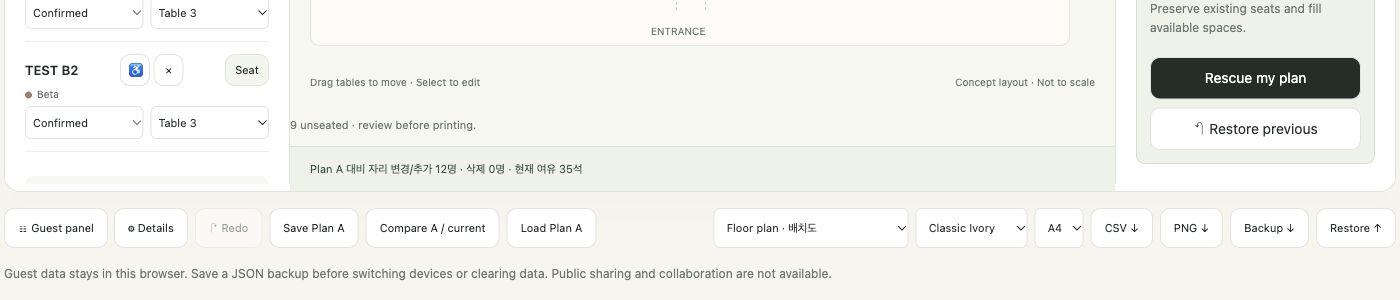
Plan A provides a baseline for comparison and loading. Rescue responds to a changed situation while the preserve option protects existing placements in the workflow we tested. Undo and redo handle recent seating edits. They should not be treated as interchangeable recovery methods.
The comparison count needs interpretation. Our later comparison showed 12 changed or new records, but eleven of those records had been added after the baseline. Only one existing guest had moved. A planner telling a colleague “twelve people moved” would therefore overstate what happened. Read the baseline date and additions alongside the count.
Local reload recovery is another separate mechanism. A fresh tab in the same browser reopened our fictional project and its 18 records. Undo and redo were disabled in that fresh view. That demonstrates retained project state in our browser, not persistent edit history, cross-device synchronisation or a successful external backup restore.
For a real event, record which baseline you are comparing, when attendance was reconciled and which version was handed to the venue. After loading Plan A, recheck attendance immediately. This small discipline prevents a restored diagram from quietly reviving an outdated invitation status.
CSV imports and same-name guests
Our duplicate test added TEST A1 in a different group while excluding the already existing TEST A1,Alpha pair. The interface reported one addition and one excluded duplicate. The same visible name could therefore refer to two distinct records when their groups differed.
Use unique, readable roster labels where names collide. A discreet identifier agreed by the organisers is more useful than guessing which identical dropdown option belongs to which person. Group names should describe actual planning units; changing a group spelling to bypass a duplicate warning can create a second record and a second apparent seat requirement.
Our CSV contained an existing TEST A1,Alpha row plus TEST H1,CSV Pair and TEST H2,CSV Pair. The two new guests appeared, while the number of A1 records remained unchanged. We did not test quoted commas inside names, complex spreadsheet encodings, malformed rows or every header variation. Try a small clean file before relying on a large import.
Privacy, exports and print checks
The publisher says guest records, relationship rules and the background image are processed in the browser and saved locally. Our same-browser reload test was consistent with local persistence. We did not conduct a network audit, inspect storage eviction behaviour or verify a transfer between devices. Advertising, cookies and the hosting platform are separate from the planner’s project data claims.
A local editor is still a place where personal information can accumulate. Use only details needed for seating. Treat a JSON editor backup as a private project file because the publisher says it contains editor records. A guest-facing handout and a recoverable private seating project serve different purposes; decide who needs each before sharing anything.
| Output or control | What we checked | What remains to check |
|---|---|---|
| CSV / PNG / Backup JSON | Activated the controls; download waits returned no file | Received file, content, encoding, dimensions and restore round trip |
| Print formats | Floorplan, guest directory, table lists and name cards visible | Rendered pagination, legibility and actual print/PDF result |
| Print styling | Selected guest directory, Botanical Sage and A3 | Physical output; fresh mobile view returned default choices |
| Floorplan background | Imported a JPEG fixture and cleared it successfully | A real venue image, scale and accurate alignment |
The publisher says printed output omits separation and accessibility flags. We did not verify that claim in a rendered artifact. Inspect an actual output before relying on it to withhold private planning notes. No part of this review establishes that an exported image or backup removes metadata or personal information automatically.
Mobile use and venue limitations
At a 390-pixel viewport, the source page stayed within the document width. Its mobile navigation offered guest list, floorplan, auto seating and settings. Filtering the guest list to Unseated showed nine entries; switching to the floorplan and pressing zoom-in displayed 54%. These checks covered responsive browser emulation, not a physical-phone performance benchmark.
A smaller screen is useful for checking one guest or a remaining problem. Use a larger view for reviewing several tables together. The canvas is a conceptual arrangement; the near-entrance flag and accessibility preference do not certify a usable route, adequate clearance or a venue’s accessibility arrangements.
English and Korean use a toggle on the same root URL. Some English helper text and status messages remained Korean during our test. No live collaboration or public project-sharing workflow was verified. If another organiser needs the plan, check the actual handoff method instead of assuming that sending the homepage URL shares your saved project.
Related tools for the next task
PixelFit Studio can help prepare a venue reference image for an upload workflow. Keep entrance labels and legends readable. Resizing an image does not calibrate the seating canvas to physical dimensions, and no automatic integration was tested.
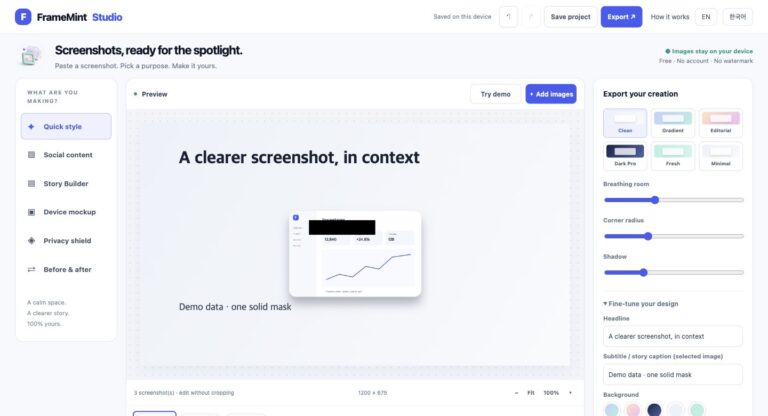
FrameMint Studio is relevant when making an annotated review copy of a screenshot. Check any masking and the actual output before sharing guest names; an annotation workflow is not proof of irreversible redaction or metadata removal.
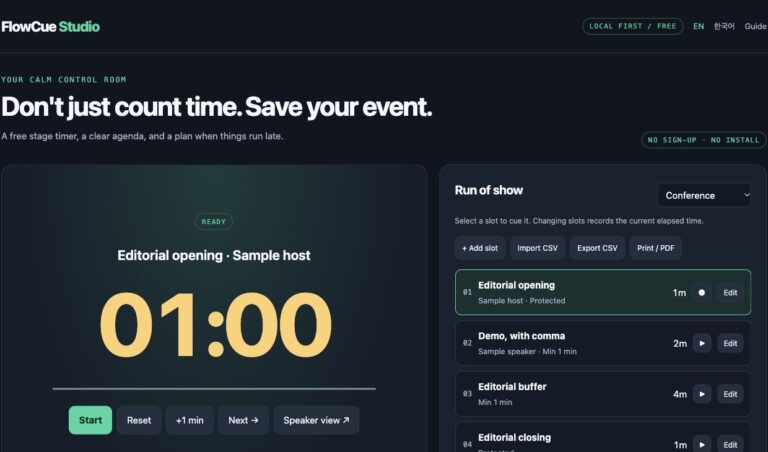
FlowCue Studio addresses the next coordination task: event timing and a run of show. Keep seating assignments and timing decisions in their respective workflows. We did not verify any automatic data exchange between these tools.
Frequently asked questions
Is automatic seating guaranteed to find the best arrangement?
No. The publisher describes rule-based heuristic placement. Our nine-person group and internally conflicting Alpha group demonstrate why an unseated count needs diagnosis and sometimes a manual decision.
Why did loading Plan A change an RSVP?
In our test it restored an earlier saved state in which the guest was Pending. Treat loading as a broader restoration and check attendance afterwards; do not assume it only changes table positions.
Can I use the diagram as the final venue floorplan?
Use it as an assignment reference. This review did not verify scale, clearances, door positions or physical access. Confirm the real layout with the venue before handing over a final seating arrangement.
Were the downloadable files and printouts verified?
No received files or rendered printouts were available for inspection. The controls were present and activated or selected as described. File correctness, backup restoration and private-field omission remain unverified.
Does it work in Korean and on mobile?
Both language controls worked on the same address. We also verified mobile navigation, an unseated filter and floorplan zoom at 390 pixels. Some helper text remained Korean in the English view.
Build and check your own plan
Begin with a small roster, establish table capacities and add the rules you actually need. Inspect every unseated group, save a clear baseline and reconcile attendance again before handing off an output. Wedding Seat Studio is most useful when its counts support a reviewable decision, rather than replacing that decision.
Reviewed 12 November 2026 using fictional records. This guide distinguishes direct observations from publisher descriptions and unverified output behaviour.
A RELEVANT NEXT STEP
Tools with a useful connection
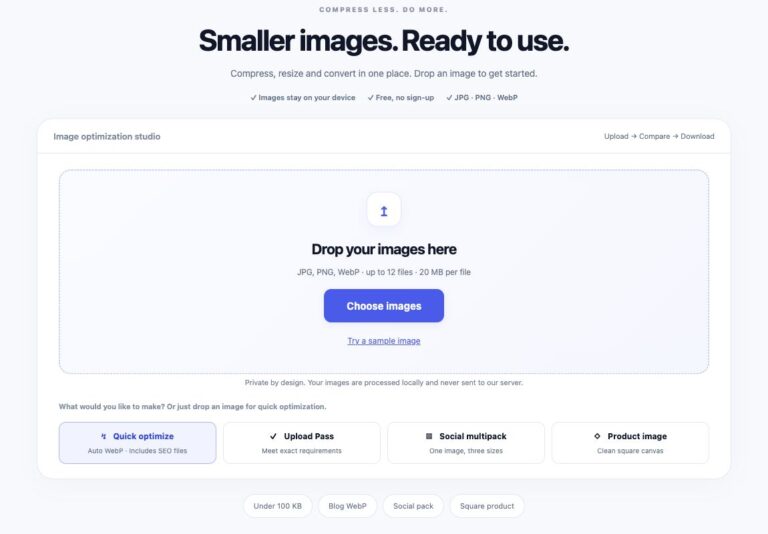
PixelFit Studio
Image Upload Optimizer: 7 Essential PixelFit Checks
Prepare exact upload dimensions and file-size conditions with PixelFit Studio. Actual sample and JPEG tests explain PASS/CHECK, crop versus contain, social totals, copied HTML and the limits of unverified file receipt.
FrameMint Studio
Screenshot Editor: 7 Smart FrameMint Studio Checks
Frame screenshots, add manual masks and build captioned stories in FrameMint Studio. Real import, order, recovery and size tests explain what to check before sharing.
FlowCue Studio
Stage Timer: 7 Smart Steps for Better Event Timing
Use FlowCue Studio to run a stage timer, plan protected agenda slots and preview delay recovery. Actual countdown, CSV and bilingual script tests explain the operator handoff and advertising limits.