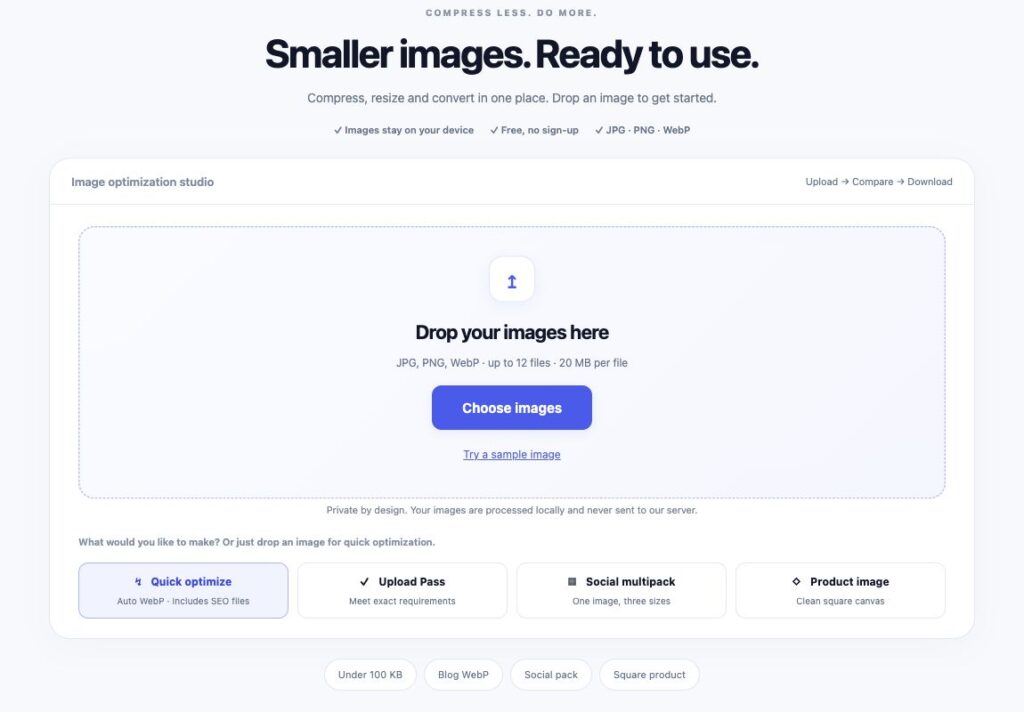
PixelFit Studio is an image upload optimizer for resizing, compressing and converting JPG, PNG and WebP images. Choose a target, compare quality options and check the displayed dimensions, format and size status. It is especially useful when a destination requires both an exact frame and a maximum file size.
Key takeaways: a smaller file can still have the wrong crop; a green pass checks your entered conditions; exact dimensions can make a tight size target impossible; generated HTML needs real published URLs. Browser-tested November 11, 2026 with the built-in illustration and a non-sensitive JPEG screenshot. Completed download receipt and ZIP contents were not verified.
In this guide
Prepare exact upload dimensions and file-size conditions with PixelFit Studio. Actual sample and JPEG tests explain PASS/CHECK, crop versus contain, social totals, copied HTML and the limits of unverified file receipt.
- Brand
- PixelFit Studio
- Tool languages
- en, ko
- Verified date
- 2026-11-11
What this image upload optimizer does
An upload can fail even after an image has been compressed. The receiving form might require a particular format, a square frame or an exact number of pixels. A small file with the wrong dimensions is still wrong for that destination. PixelFit Studio puts these constraints next to image composition and quality, so you can check them together rather than optimize only the largest percentage saving.
The page offers four task modes: Quick optimize, Upload Pass, Social multipack and Product image. The visible input limits are up to 12 files and 20 MB per file, with JPG, PNG and WebP listed. We tested the built-in PNG and a JPEG selected through the file chooser. We did not stress-test the maximum batch, maximum size or every supported input variant.
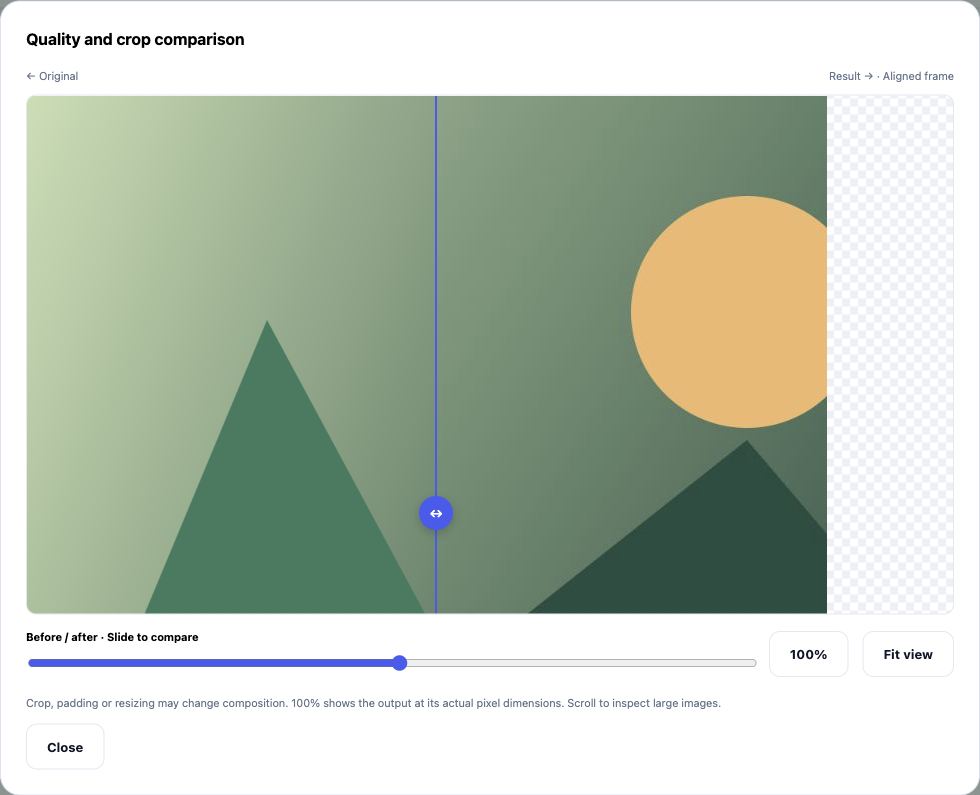
Results appear as Quality first, Balanced and Smallest options, each with displayed file size, dimensions, format and a pass/check status. A comparison dialog offers a before/after slider,100% view and fit view. The page also provides individual download links, a ZIP control and generated HTML. Our completed tests establish interface behaviour and displayed outputs; they do not independently verify every exported file.
The useful distinction is between preparation and acceptance. Upload Pass checks the conditions you entered. It does not know undisclosed rules at an external site, confirm that a particular portal accepts the image or guarantee a search-ranking improvement. Keep the destination instructions beside the studio and test the final file there after saving it.
Collect the destination requirements first
Write down pixels, bytes, format and composition
Before choosing a preset, collect the required width and height, whether they are exact or maximum values, the accepted format and the size ceiling. Also decide whether the entire image must remain visible. A document screenshot, product label or image containing text may be unsuitable for a crop that removes its edges, even when its pixel dimensions and file size pass.
The tool defines 1 KB as 1,024 bytes. That makes a 100 KB target 102,400 bytes. If a destination explicitly caps a file at 100,000 bytes, those two values differ. A 97 KB target corresponds to 99,328 bytes in the tool’s convention, providing a small numerical margin; inspect the actual saved file before treating that margin as sufficient. This is a unit-conversion example, not a tested 97 KB export result.
Keep an untouched original
Use a copy and retain the source separately. Resizing and lossy conversion can discard detail, while a crop can remove content. The site says canvas re-encoding does not copy source EXIF, but we did not audit a completed file’s metadata, color profile or orientation handling. Do not treat a successful on-screen conversion as a comprehensive privacy scrub or an archival substitute.
For an initial exploration, use Try a sample image. The built-in landscape is an illustration with 1600×1000 pixels, displayed as 955.7 KB. Its clean shapes compress differently from a detailed photograph or a screenshot full of small text. The sample is useful for learning the controls, but its savings are not a promise for your files.
7 steps from an original to a checked result
1. Choose the task before editing the numbers
Use Quick optimize for a general web-image starting point, or Upload Pass when you have explicit pixel, format and size conditions. Mode selection changes the setup. During our test, existing output cards could still show the previous run until settings were applied. Quick preset buttons can run processing immediately when an image is present. In either case, wait for the ready state and inspect the result itself.
2. Select an image and confirm the input
Use Choose images or the built-in sample. Check the original filename, dimensions and displayed size after selection. We also selected a public-interface screenshot saved as a JPEG:1040×340 pixels and 37.7 KB. It generated WebP result cards. That confirms the tested file-picker path, without claiming that a screenshot is a representative photo-compression benchmark.
3. Set size, format and advanced dimensions
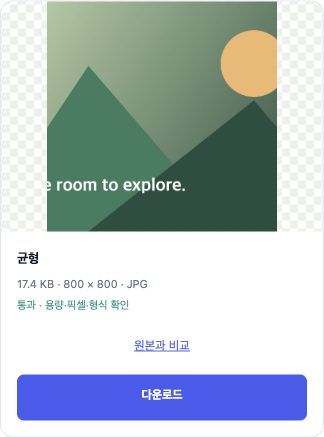
For an exact-frame task, open Advanced and enter width and height, choose a resize method and enable Keep exact dimensions. In our Upload Pass test we used 800×800, JPG and 100 KB with crop. The displayed options were 32.2 KB,17.4 KB and 12.8 KB, all 800×800JPG with PASS. These are the interface’s displayed values, rather than independently measured downloaded files.
4. Check composition before choosing a quality
Use Compare and inspect a meaningful region, such as small lettering or an important edge. We opened the Balanced comparison, used 100% and changed the slider from 50 to 51 through its control. The dialog warns that crop, padding and resizing can change composition. A comparison tool is a way to inspect that change, not evidence that the smaller version preserves every detail.
5. Read PASS and CHECK literally
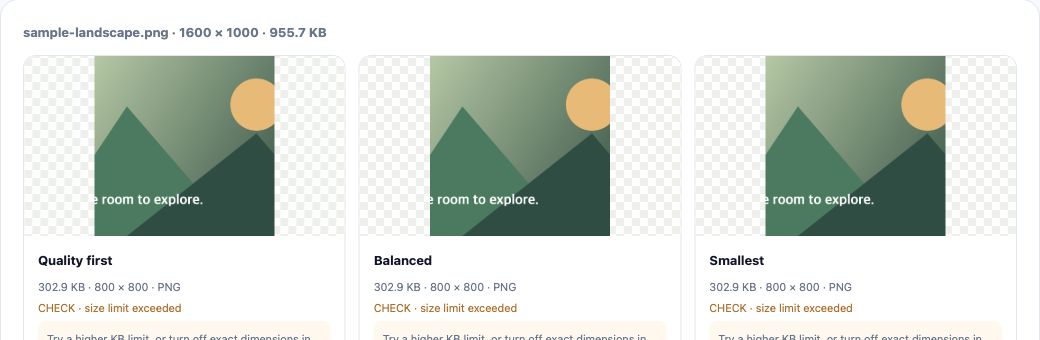
A green pass means the generated result meets the entered checks. In our exact 800×800PNG test with a 1 KB ceiling, all three options displayed 302.9 KB and CHECK for exceeding the size limit. The studio suggested a larger limit, smaller dimensions when exactness is disabled, or another format. Do not download a failed option and assume the receiving site will somehow ignore the failed condition.
6. Describe and name the image yourself
Use File name/topic and Image description to supply a meaningful label and ALT. We entered a test prefix and a description of the sample, then copied HTML and verified that both appeared in it. The description is manually supplied text; the tool did not infer the image’s meaning for us. Write for the actual image and its use, rather than stuffing the field with unrelated search terms.
7. Save, inspect and test at the destination
The interface provides individual links and Download all ZIP. In this session, blob-file acquisition was unsupported by our download helper and the normal browser-click path did not yield a verifiable completed file. We therefore cannot claim successful file receipt or inspected ZIP members. After using the tool yourself, open the saved image, check its properties and try the actual destination before deleting any originals.
Actual browser tests and displayed results
All figures below were displayed by PixelFit Studio during direct browser use on November 11, 2026. They are rounded interface readings. The inputs were the built-in landscape illustration and our own non-sensitive JPEG screenshot; no private customer image was used. File contents, byte-exact export sizes and archive members were not independently inspected.
| Input and settings | Displayed result |
|---|---|
| Sample PNG 1600×1000, Quick WebP | 31.0 /16.3 /12.6 KB; same 1600×1000 pixels. |
| Sample, exact 800×800JPG, crop,100 KB | 32.2 /17.4 /12.8 KB; all PASS. |
| Sample, exact 800×800PNG,1 KB | 302.9 KB for all three; CHECK. |
| Social pack with 200 KB restored | JPG 1200×630,1080×1080,1080×1920; Balanced 23.0 /25.3 /30.0 KB. |
| Social summary | 78.3 KB total of the three Balanced variants. |
| Korean contain 800×800JPG,100 KB | Balanced 19.9 KB; PASS with the contain setting. |
| Uploaded JPEG screenshot 1040×340, Quick WebP | 37.5 /22.2 /16.1 KB; same displayed dimensions. |
| Manual prefix and ALT, Copy HTML | Copied text contained the supplied filename prefix, dimensions and ALT. |
The default sample WebP run displayed 98.3% savings for Balanced. The JPEG screenshot run displayed 41.1%. These different inputs demonstrate why a single headline saving is a poor basis for forecasting your own result. The screenshot’s Quality first WebP was close to its original displayed size, while its lower-quality options were smaller. Choose based on readable detail and destination requirements, not the sample’s best percentage.
We also found a settings carryover worth checking. After the 1 KB test, selecting Social pack left that strict ceiling in place and produced nine CHECK results. Resetting the limit to 200 KB and applying again produced passing variants. Do not assume that changing task mode resets every field. Read the current size target before interpreting an unexpectedly poor-quality or failed result.
Crop, fit and contain solve different problems
Crop fills the target frame
Crop is appropriate when the frame must be filled and you can afford to remove peripheral content. The focal-point preview lets you choose what should be retained. We tested crop at its default 50%,50% point, but did not independently validate every focal position. On the sample, square cropping changed the visible text and composition; inspect the whole result if the words or edges matter.
Contain keeps the composition inside a canvas
Contain preserves the complete image within the target and uses white padding according to the source. In the Korean test it produced a passing 800×800JPG option with a 19.9 KB Balanced reading, distinct from the 17.4 KB crop result. Identical outer dimensions do not imply identical content. Check whether a destination allows padding before using contain for an exact-frame submission.
Fit avoids cropping, with a different size question
Fit inside is the no-crop method. It is useful when keeping the whole image matters more than filling a frame, but re-read the resulting dimensions rather than assuming the two entered bounds will both be matched. The source identifies transparency support for PNG/WebP with Fit or Crop, and white backgrounds for JPG and Contain. We did not test transparency, animation or a color-critical image.
Prepare HTML and a usable image package
Treat social variants as three separate compositions
The tested social preset produced landscape 1200×630, square 1080×1080 and portrait 1080×1920 JPG variants, each with three quality options. These are built-in preset sizes, not a guarantee of any platform’s current official specifications. Check the receiving service’s requirements separately and examine the framing of each version. One acceptable landscape crop does not establish that the portrait crop retains the same subject or text.
Understand the package total
In the successful social run, Balanced 23.0+25.3+30.0 KB equalled the displayed 78.3 KB summary. That summary refers to three variants, rather than a single file. An individual-file upload limit must be checked against the chosen individual result. Conversely, planning a multi-image page may require considering the combined transfer size, not only the smallest card.
Replace local-looking HTML paths
The copied HTML uses generated filenames, not automatically published URLs. Upload the required image assets to your own site, replace paths with their real public addresses and test the HTML there. Our initial Quick run showed responsive 480 w and 960 w paths alongside the main 1600 w path; our exact 800-square run showed one 800 w entry. We inspected the generated code, not received archive members, so verify that every referenced variant actually exists.
Keep the width and height truthful after any later edit. Check each srcset URL, whether the declared width matches the file and whether the sizes value fits your layout. Generated code is a starting point that must be integrated into a real page. A valid-looking tag with an unavailable file is still a broken image, and an ALT field alone is not a complete SEO or accessibility review.
Limits, privacy and mobile use
Size limits: exact pixels, a lossless format and an extremely small byte budget can conflict. The 1 KB PNG test is a concrete example, not proof that every PNG or every resolution will fail. The tool suggests changing constraints; the receiving website decides which constraints you are actually allowed to change. Keep any mandatory format or exact dimensions intact unless the destination permits otherwise.
Input scope: the FAQ says GIF, animated WebP, SVG, HEIC and AVIF inputs are not supported, and animated WebP may be flattened to a first frame. It also cautions users to keep originals for color-critical work. These are source-stated boundaries, not formats independently tested in this review. We did not test maximum batches, maximum file size or unusually large decoded images.
Privacy: the site says selected images are processed on the device and not uploaded to its server. It separately acknowledges Blogger page-request data and advertising cookies. We observed third-party ads and interstitials, and did not conduct a network audit or forensic metadata inspection. Do not read the local-processing statement as a guarantee that the entire page makes no external requests or that every sensitive attribute is removed.
Session and downloads: clearing and reloading removed the working selection in our tests. Keep the original files and complete your own preservation check. Individual file receipt and ZIP contents remain unverified here. The available controls and displayed output cards establish a useful preparation workflow, but our review does not certify the final filesystem or archive result.
Mobile: we freshly loaded the Korean page at 390 pixels, selected the sample and ran the 100 KB preset. The page width was 390 pixels without document-level overflow, and the Balanced card showed 800×800JPG 17.4 KB and PASS. Cards stack vertically. Confirm the card’s dimensions and quality label before tapping its download link, since the same action appears on multiple options.
Advertising sometimes obscured the workspace. Use the ad’s own dismissal control, then inspect the real studio again rather than assuming an obscured click proves a failed conversion. We did not treat advertisement links as tool features or follow them as part of the image workflow.
Choose a workflow rather than a percentage
| Your priority | Useful starting point |
|---|---|
| A strict upload form | Upload Pass with the destination’s actual conditions. |
| A normal web image | Quick optimize, followed by readability and final-size inspection. |
| Several aspect ratios | Social multipack, with a separate crop review for every size. |
| A full composition in a square | An exact canvas with contain, if white padding is allowed. |
| Complex retouching or layers | A dedicated editor before this preparation step. |
A workflow can involve more than one tool. Create the composition first, prepare the output second and validate the destination last. Keep an original copy so that you can rerun the final step without repeatedly recompressing an already compressed result. This sequence makes it easier to distinguish a design problem, a size problem and an upload-rule problem.
Related tools before and after optimization
If you need text-led promotional layouts before compression, the published PostPack Studio guide covers creating a different kind of image pack from shared copy and optional imagery. Its template task is separate from PixelFit’s pixel and byte checks. Prepare the composition there, then verify whatever output you use before bringing it into an optimizer.
For an alternative conversion workflow, the WebP Studio guide focuses on quality, original dimensions and batch comparisons in an English interface. The WebP 공방 guide explains its Korean interface and cases where outputs can grow. Neither route removes the need to check PixelFit’s exact-upload conditions or the final receiving site.
Frequently asked questions
Does PASS guarantee that my application site accepts the image?
No. It checks the entered size, dimensions and format conditions. A destination may have additional disclosed or undisclosed rules. Save the result, inspect it and test the actual upload; our review did not submit images to an external portal.
Why were all three PNG sizes identical?
In our exact 800×800PNG test, all options displayed 302.9 KB and failed the 1 KB ceiling. The source explains that PNG is lossless and that a size limit may require fewer pixels or a different format. This observed case does not establish every possible PNG result.
Why did a social preset still fail?
The earlier 1 KB ceiling remained in our test. After we restored 200 KB and processed again, the three sets of variants passed. Check current fields and wait for a fresh ready state whenever changing presets or conditions.
Is the ALT automatically generated from the photo?
No. We supplied the text and verified it in copied HTML. Write an accurate description for the image’s purpose and review it in the page context. The tool’s output is not proof that a description is useful or that it improves rankings.
Can I preserve transparent or animated files?
The source describes PNG/WebP transparency for Fit and Crop, white backgrounds for JPG and Contain, and no supported animation workflow. We did not test these cases or inspect downloaded metadata. Keep the original and choose a different workflow where animation or precise color handling is essential.
Start with a copy and one clear target
Start with a copy, choose one destination and write down its conditions. Generate, compare the composition, inspect the displayed checks and verify your saved file at the receiving site. An image upload optimizer is most useful when a smaller file is also the right file for the job.
A RELEVANT NEXT STEP
Tools with a useful connection
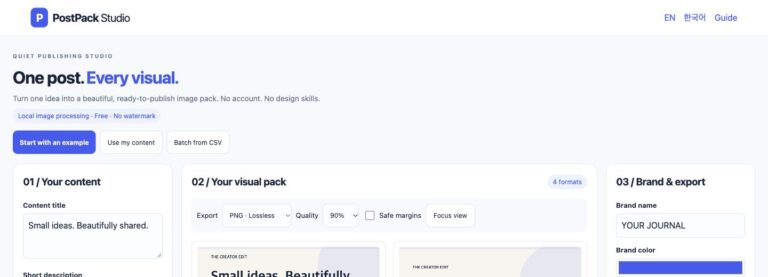
PostPack Studio
Image Pack Maker: 7 Smart Checks in PostPack Studio
Create four template-based blog and social layouts from shared text and an optional image. Our guide checks platform copy, CSV generation, brand persistence and metadata while separating editor results from unverified downloaded files.
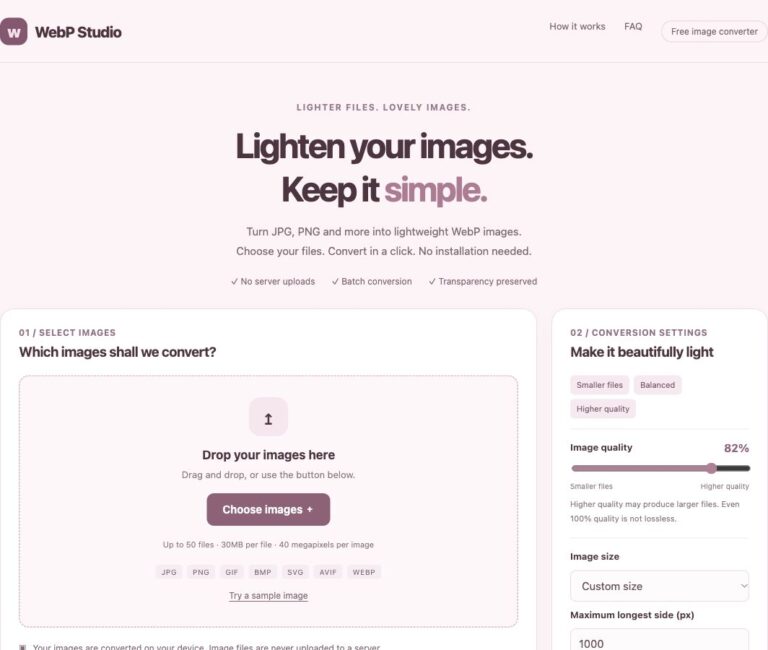
WebP Studio
WebP Studio: 7 Essential Checks for Better Batch Images
Use WebP Studio’s English interface to compare image quality, keep dimensions or resize a batch. Actual tests reveal smaller JPGs, larger outputs and a rounded zero-saving total.
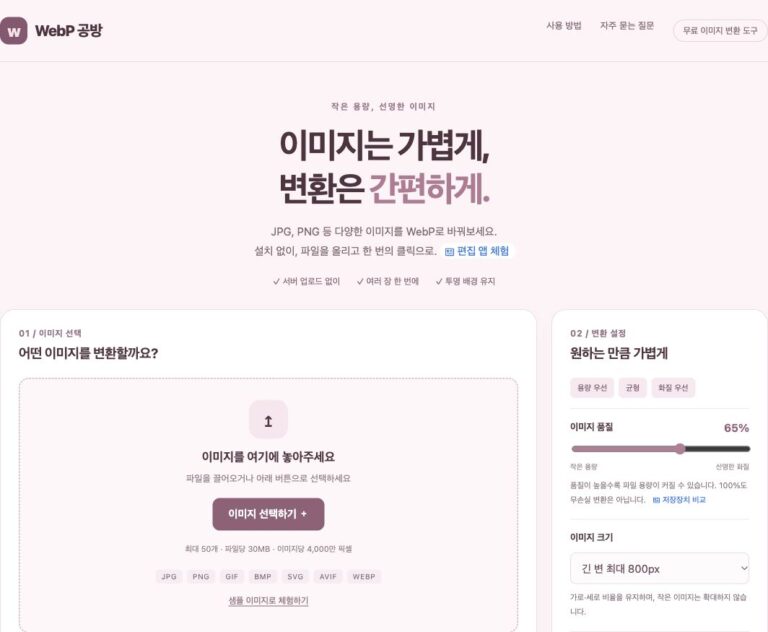
WebP 공방
WebP Converter: 7 Essential Checks for Better Images
Convert and resize images in WebP 공방’s Korean interface. Actual PNG,JPEG and SVG tests explain quality choices, file growth, batch results and download limits.