CanvasFlow Studio turns photos and shared text into a social image pack with several aspect ratios. Choose a layout, tailor individual formats and inspect resolution or text warnings before export. It is useful when one campaign needs a blog card, feed image and story.
Hands-on check: 11 November 2026. We tested the English and Korean interfaces in Chrome, including a fresh 390 px layout. Inputs were the built-in illustration and two non-personal screenshots of public tools. They were software-test fixtures, not client photographs. Downloaded image bytes and ZIP contents were not independently inspected. This library and the original tool share a creator.
Reflow photos and shared copy with CanvasFlow Studio. Tested format presets, Story overrides, text warnings and brand recovery explain how to review a social image pack and its export limits.
- Brand
- CanvasFlow Studio
- Tool languages
- en, ko
- Verified date
- 2026-11-11
On this page
Key takeaways
Reflow needs review. Wide and tall outputs rearrange the photo and message. The rules do not recognize a face or product with AI. Safe guides are conservative design margins, not official platform interface masks or a guarantee of acceptance.
Check editing scope before changing copy. A format selection and Customize this output only are separate controls. In shared mode, the field showed shared text even when a Story override still existed. Returning to local mode revealed that saved Story headline again.
Count sources as well as formats. Two selected images and five formats produced a displayed total of ten images. The main preview showed the first source. We reached the pack-ready message, but did not verify the downloaded archive or all second-source outputs.
What CanvasFlow Studio does
The official name is CanvasFlow Studio. Its page offers a photo-and-copy workspace, six preset output sizes, a small collection of layout rules and a delivery panel. The original URL is photo.imporinfo.com; the English interface is at the root and a dedicated Korean page translates the controls. No account or payment was requested for our tested functions.
The ingredients are a headline, supporting text, brand or watermark label, CTA label, optional logo, accent colour and background colour. Layout choices are Editorial split, Full photo + gradient and Product spotlight (contain). Modern, Editorial and Mono typeface choices and a type-scale slider adjust the treatment of text. This is template-based image composition, not a layered Photoshop editor.
It addresses repetitive publishing preparation: a wide article card, a vertical story and a square feed image need different compositions even when the message is shared. A team can start with common copy and inspect each result, rather than assume a single crop works everywhere. The tool prepares image assets; it does not publish a campaign, host a landing page or test every destination’s current requirements.
Prepare the message and source images
Start with photos you have permission to edit and a short message. Keep the original files outside the browser workspace. The interface lists JPG, PNG and WebP input, up to ten images, with a stated limit of 20 MB and 40 million pixels per file. We selected two files; we did not test the ten-file, size or pixel-count boundaries.
Our two input screenshots were 1256 ×744 and 1256 ×679. Those dimensions helped make the warning discussion concrete, but they were not representative portrait or product photographs. We did not assess face detection, subject protection or photographic colour fidelity. For a real job, inspect the actual subject rather than extrapolate from a successful screenshot import.
Make a delivery list before ticking formats. Record destination, target dimensions, wording, file format and who reviews the crop. Distinguish a visual CTA from a working web button: the CTA label is part of the designed image. A destination link still belongs in the publishing system that displays that image.
Keep preview magnification separate from output dimensions. Fit and Zoom help inspect the editor. We observed a reduced preview canvas buffer while the selected output was labelled 1200 ×630. A screenshot of that preview is not independent evidence that an exported file has the target dimensions. Check the actual file when it becomes available.
Seven checks for a useful social image pack
1. Choose the correct input route
Use Try the sample for a low-effort first look, or Choose images for your own JPG, PNG or WebP files. Our two selected screenshots appeared by name and the status explained that the first image was shown while the ZIP would include all. That is an important review limitation: viewing the first source does not establish that every photograph will work with the same crop.
Open Studio edit to reach the ingredient panel on desktop. Enter the shared headline, description, brand and CTA first. We used Field Notes and KIOPTRIX TEST as clearly labelled test copy. A tidy baseline makes it easier to tell whether a later difference came from the message, a layout choice or a format-specific override.
2. Select formats deliberately
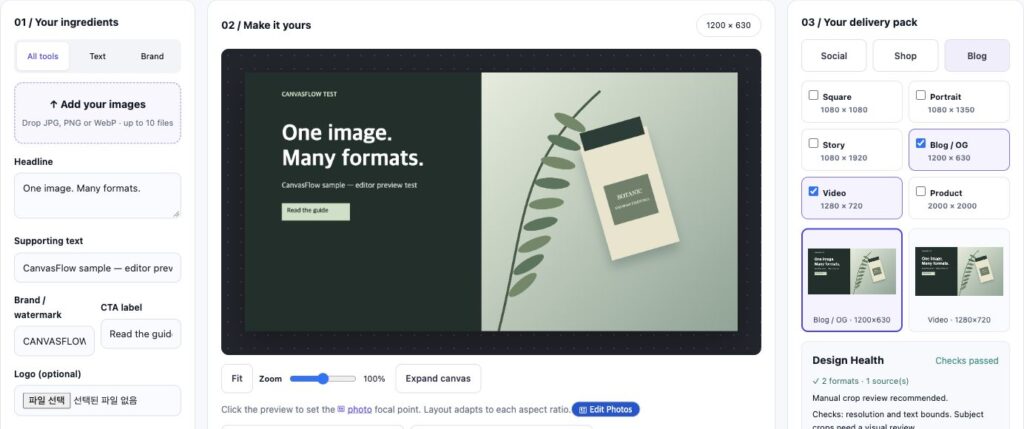
Social selected Square, Portrait, Story and Video in our test. It did not select Blog / OG or Product. Blog selected Blog / OG and Video. The Video option is a still-image thumbnail target, not an exported video clip. Review the actual checked boxes instead of treating a preset button’s name as a complete delivery specification.
After Social, we added Blog / OG manually. Five selected formats with two sources yielded the displayed total 10 images in ZIP. The preview buttons followed the selected formats: an unchecked format was not available as a preview choice until we checked it. Decide both what to deliver and what to inspect.
3. Inspect wide and tall reflow
Switch between a wide output and Story. In the sample, the wide editorial layout placed message and image side by side, while the story stacked them. The preview changed composition rather than simply stretching the same rectangle. Still, the program cannot decide whether a product label, face or vital detail is acceptably framed for your use.
Use the position controls or the preview’s focal-point interaction when you need to refine placement. Those controls are present, but our main recorded tests focused on layout, copy, selection and scope rather than a measured focal-point accuracy study. Product spotlight uses containment with padding. Preserving the whole photo can be useful without resolving every text-placement problem.
4. Tailor copy in the right editing mode
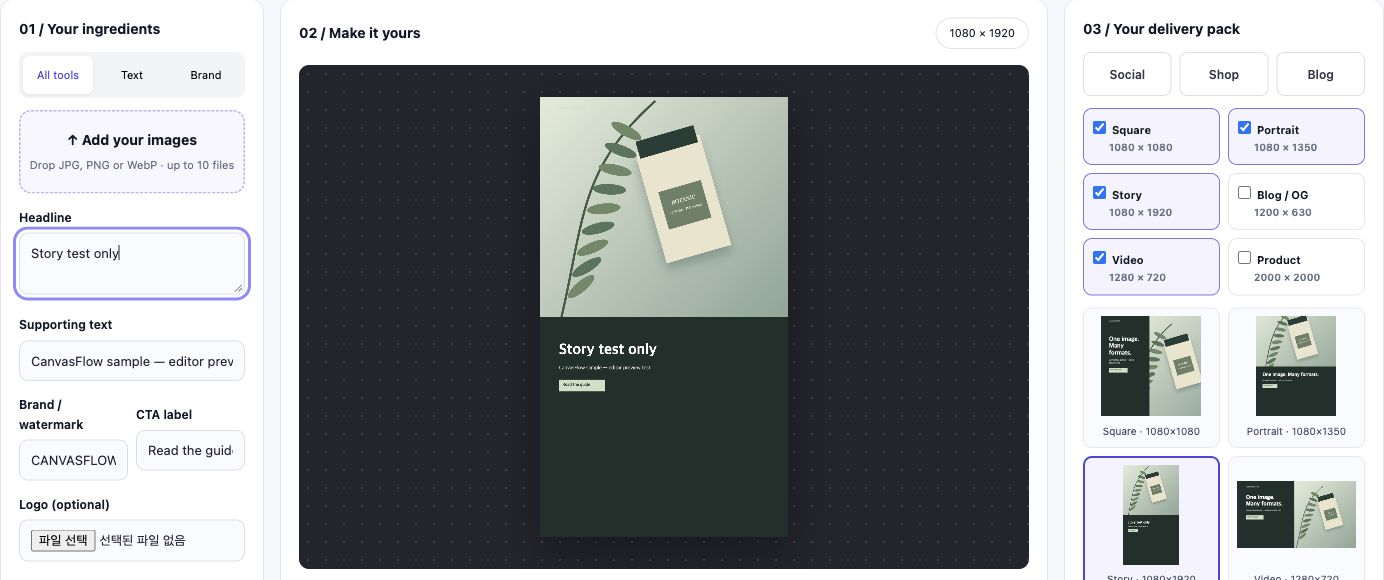
Choose Story and enable Customize this output only, then enter a short Story headline. We used Story test only. Switching to Square showed the shared Field Notes headline while the local-edit checkbox stayed enabled. The checkbox is an editing-scope choice that can remain on across format switches; it is not simply a badge announcing that the current format already contains an override.
We later changed the shared headline with local editing disabled. In shared mode, Story’s text field displayed the updated shared copy. Re-enabling local editing on Story revealed Story test only again. The override had survived; the field’s meaning depended on the editing mode. Check format, scope and rendered result together before deciding that local work has disappeared.
5. Read warnings and make a specific correction
A deliberately excessive headline triggered text-overflow warnings for square and wide or video layouts during our sequence. Reduce title size changed the type-scale control from 100 to 90. That is a useful adjustment, not proof that the whole pack now passes. Shorten the message and inspect other text, layout and dimensions before repeating the export.
Our two screenshot inputs also triggered upscaling warnings in several selected outputs. Use whole photo (contain) changed the layout selector to Product spotlight (contain). It did not remove every later text warning. Containment addresses image framing; a text-bounds warning can still need a different correction. Do not treat all warnings as one problem with one fix.
6. Save brand preferences, not a photo project
Save brand and Load brand restored KIOPTRIX TEST after we temporarily changed that field. Opening the Korean page in the same browser restored the test text and styling and asked us to add photos again. The selected output set there was back to six formats. A useful settings restore is narrower than restoration of sources, logos, selection and the whole job.
The page says photos and logos are not saved by the brand feature. Keep source files and a written delivery list. Before reloading a live job, make sure you can reselect the original assets. We did not test an editable project-file export or import; no such successful backup is claimed in this guide.
7. Export, then verify the actual handoff
Choose PNG, JPG or browser-supported WebP and inspect quality settings where applicable. The interface provides both Download current image and Download ZIP pack. Our five-format, two-source ZIP attempt reached Your content pack is ready. We did not capture a completed download event within an eight-second window or inspect archive contents. That is not evidence that every user’s download fails, but it prevents us from certifying the final files.
When your file arrives, check the number of images, dimensions, filenames, format and readable copy. Open representative tall and wide results and every source that the main preview did not show. The source describes per-format folders and a delivery note; those archive details were not verified here. Do not equate a readiness notification with a complete delivery audit.
Actual browser tests and results
| Test | Observed result | Practical implication |
|---|---|---|
| Two local test screenshots | Two named sources; first source shown | Review additional sources separately |
| Social preset | Square, Portrait, Story, Video checked | Four targets, not all six |
| Blog preset | Blog / OG and Video checked | Two wide still-image targets |
| Two sources × five selected formats | 10 images in ZIP displayed | Count jobs as sources multiplied by targets |
| Story local headline | Retained when local mode was re-enabled after shared edits | Field contents depend on scope |
| Stress headline / title reduction | Overflow warnings; scale 100→90 | A correction still needs visual review |
| Brand save/load and Korean page | Text/style restored; photos needed again | Preferences are not a full job backup |
| ZIP attempt | Pack-ready message; file receipt not captured | Archive and output bytes unverified |
Six output targets and their review jobs
| Target label | Listed pixel size | Review before delivery |
|---|---|---|
| Square | 1080 ×1080 | Subject crop and short message |
| Portrait | 1080 ×1350 | Stacking, spacing and supporting text |
| Story | 1080 ×1920 | Tall crop, hierarchy and local wording |
| Blog / OG | 1200 ×630 | Wide composition and small-screen legibility |
| Video | 1280 ×720 | Still thumbnail composition, not video motion |
| Product | 2000 ×2000 | Whole-image framing and source resolution |
These are the tool’s listed output targets, not a statement that every platform currently requires those exact sizes. Platform requirements can change. The safe-guide FAQ explicitly separates its margins from official interface masks. Use the receiving destination’s current instructions when making a real delivery decision.
Shared copy, local overrides and saved brands
The most consequential control is the scope checkbox. Think of shared copy as the common message and a local override as an exception attached to a selected format. The editor can show one or the other according to the current mode. A format change does not automatically turn local editing off, and a shared field can be visible while a stored local exception still exists.
A reliable order is to write common copy, choose formats, inspect compositions, tailor exceptions and then revisit each output. We confirmed the Story headline survived a later shared change when local mode was re-enabled. We did not characterize every override field, brand-load interaction or reset operation, so do not assume that observation guarantees preservation across all possible actions.
For a small team, keep a short exception list: for example, Story has a shorter headline while the article card uses the full title. That note is easier to review than trying to infer editing history from a single field. Reload the page only after planning how the source images will be re-added.
Read Design Health without overtrusting it
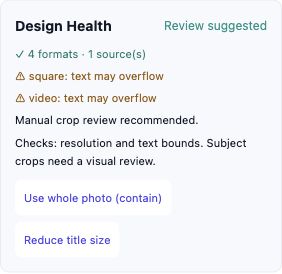
Checks passed means the program’s listed checks passed for that state. In our clean built-in-sample Blog test, two formats and one source passed, yet Manual crop review recommended remained on screen. The check does not know whether the composition communicates the intended message or whether the output satisfies every destination rule.
Our stress test used deliberately repeated copy to make overflow visible. That is a diagnostic fixture, not recommended campaign text. After switching to containment and reloading saved preferences, wide and video warnings remained even with a short headline in one state. We did not establish the internal cause; inspect the entire message and layout rather than assume headline length alone explains every warning.
Upscaling is a separate concern. A requested frame can be larger than the useful source area after cropping. A larger exported pixel count would not by itself create new photographed detail. We did not compare downloaded sharpness or determine a universally acceptable amount of enlargement. Preserve the original and judge the specific output at its intended viewing size.
Export, reload and handoff limits
The English and Korean FAQs state JPG/PNG/WebP input and PNG/JPG output, with WebP output depending on browser support. They also list no PSD editing and no background removal. We did not test a logo upload, all input formats, EXIF orientation, transparency preservation or the maximum batch limits. These omissions are validation boundaries, not invented features.
At 390px, the Korean layout uses bottom controls for canvas, images, text, results and export. We opened Results to choose SNS and Story, then Text to edit a short Korean headline, and returned to Results to select WebP. The document width remained 390px. This was responsive browser testing, not a physical-phone performance or touch-accuracy study. Advertising overlays were visible and could obscure part of the view.
The publisher says images are processed in the browser and are not uploaded to a server by the tool. The observed settings restore and request to re-add photos are consistent with that described workflow, but we did not perform an independent network, storage or security audit. The privacy note identifies Blogger/Google hosting and possible Google advertising cookies. Local image processing does not make the whole page free of third-party services.
Brand preferences are local to this browser. We confirmed same-browser continuity across language pages, not account-based synchronization or another device. Keep a copy of the copywriting and colours somewhere you control, and keep source photographs separately. This guide cannot certify a complete project backup or a successful ZIP extraction.
Related tools and workflow alternatives
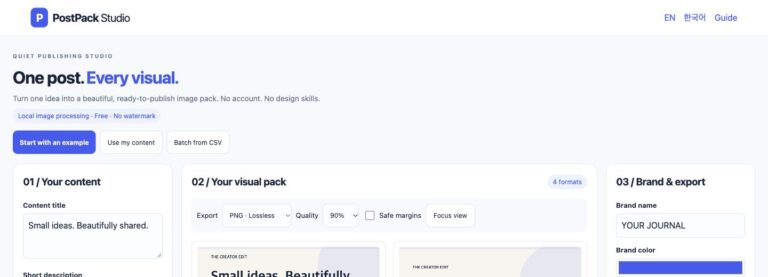
For a different message-led workflow, read PostPack Studio’s image pack maker guide. It offers four template layouts and CSV-oriented production rather than CanvasFlow’s six-target photo reflow. The published review found that a shared-title change cleared a platform override there; our CanvasFlow scope test behaved differently. Do not transfer one tool’s override assumptions to another.
If the receiving form requires exact dimensions and a file-size limit, continue with PixelFit Studio’s image upload optimizer after you have an actual exported image to inspect. For batch WebP conversion and longest-side resizing, see WebP Studio’s practical checks. These are separate file workflows; no automatic integration or successful transfer of our uninspected ZIP is claimed.
A full design editor is more appropriate when you need layer-level composition or functions this tool does not offer. CanvasFlow is useful when its preset layouts are close to the job and the repetitive task is adapting shared copy. Choose according to the editing problem, not just the number of output buttons.
Frequently asked questions
Is this AI image generation or automatic subject protection?
The tool describes rules-based reflow, not AI subject recognition. It rearranges content and asks you to review crops. It does not guarantee that faces, labels or products stay acceptably framed, or that a platform will approve the image.
Why did my Story headline seem to disappear?
Check the selected format and the scope checkbox. In our test the shared field appeared in shared mode, while re-enabling local mode revealed the saved Story headline. We confirmed that case; we did not test every override field or reset combination.
Does the video option create a video?
The listed 1280 ×720 target is a still image. We observed image-format selectors and thumbnail layouts, not a video-rendering workflow. Add it to a video platform as artwork only when the destination’s requirements are met.
Will Save brand keep my photographs?
The source says it does not save photos or logos. Our Korean-page check restored text and styling but asked for the images again. Keep the original files and do not treat brand preferences as the entire editable job.
Did you verify all exported files?
No. We observed the readiness message and displayed batch count, but not completed file receipt, archive contents or final image bytes. Open and inspect your own files before publishing. The preview and a warning-free state are not substitutes for that check.
Start with two reviewed formats
Start with a short shared message and two formats you actually need. Inspect the crop, switch editing scope deliberately and write down any local wording. Once those decisions are sound, expand the social image pack and verify the real delivery files.
A RELEVANT NEXT STEP
Tools with a useful connection
PostPack Studio
Image Pack Maker: 7 Smart Checks in PostPack Studio
Create four template-based blog and social layouts from shared text and an optional image. Our guide checks platform copy, CSV generation, brand persistence and metadata while separating editor results from unverified downloaded files.
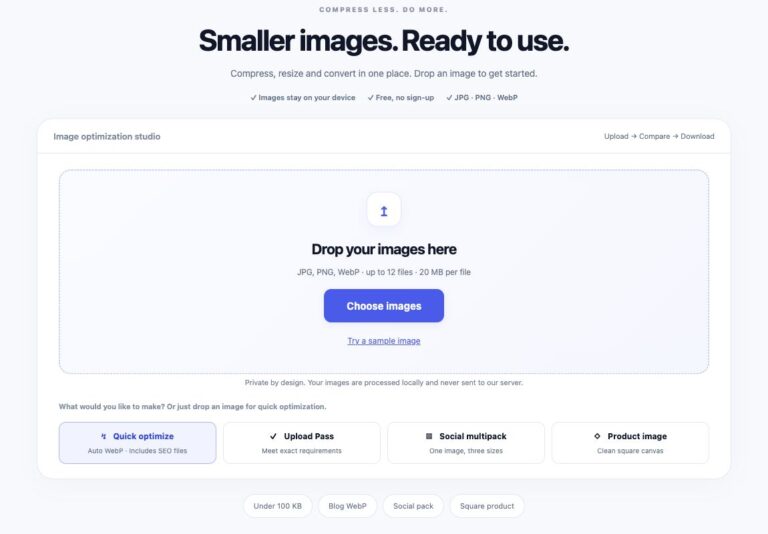
PixelFit Studio
Image Upload Optimizer: 7 Essential PixelFit Checks
Prepare exact upload dimensions and file-size conditions with PixelFit Studio. Actual sample and JPEG tests explain PASS/CHECK, crop versus contain, social totals, copied HTML and the limits of unverified file receipt.
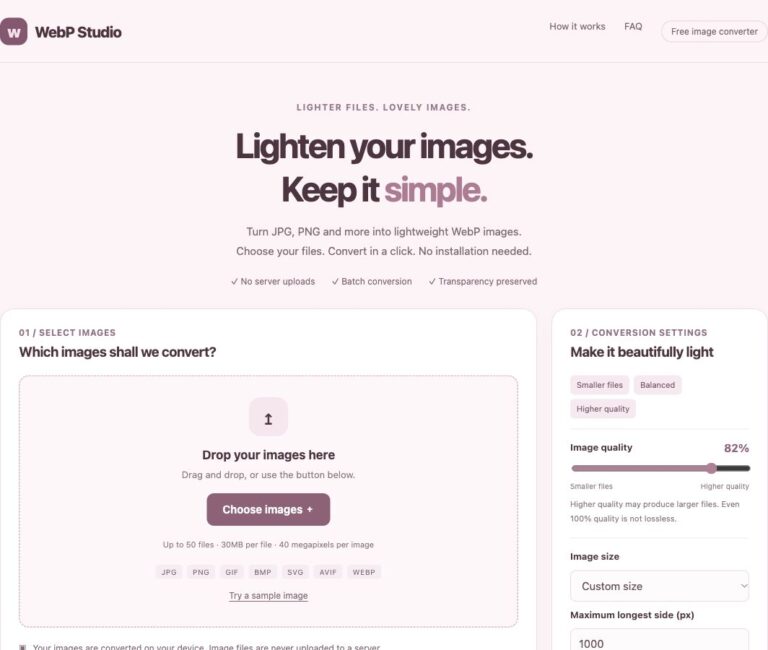
WebP Studio
WebP Studio: 7 Essential Checks for Better Batch Images
Use WebP Studio’s English interface to compare image quality, keep dimensions or resize a batch. Actual tests reveal smaller JPGs, larger outputs and a rounded zero-saving total.