Leaf Vein Detective is a manual leaf vein observation workspace. Draw paths over its illustrated specimen or a chosen image, label your interpretation with three line styles and keep strokes and notes in a local casebook. It helps you look more carefully and explain what you traced; it does not detect veins or identify a plant for you.
Key takeaways: the counter measures drawn strokes, contrast is an image adjustment, and a saved case is not an archive of the original photograph. We tested the English and Korean pages in Chrome on November 11, 2026. Tests used the supplied illustration, short keyboard strokes and an owned JPEG screen capture, not a collected leaf or measured specimen. This library and the original tool share a creator.
In this guide
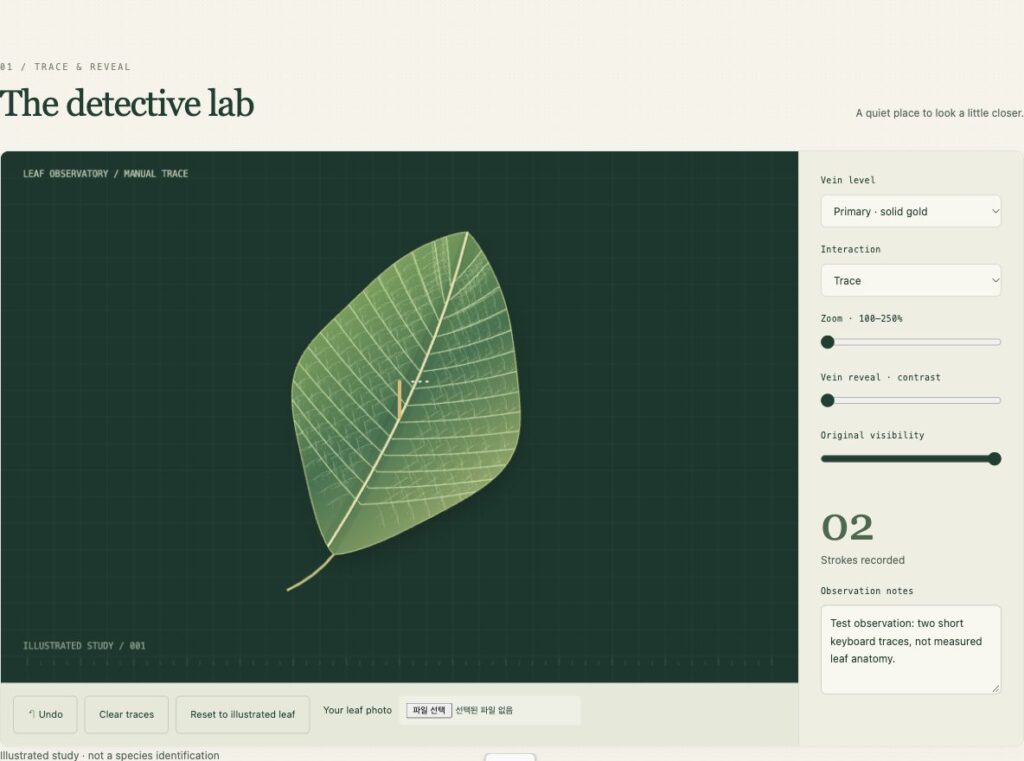
Trace leaf vein paths by hand in Leaf Vein Detective. Actual keyboard, image-input, saved-case and Korean mobile tests explain stroke counts, local storage, card styles and export limits.
- Brand
- Leaf Vein Detective
- Tool languages
- en,ko
- Verified date
- 2026-11-11
What Leaf Vein Detective does
A leaf photograph often contains more information than a quick glance reveals. A main route may be obvious while a small connection disappears into glare or shadow. Leaf Vein Detective gives you a drawing surface, an observation atlas and a note beside the image so you can separate a visible path from a guess. It is useful for a nature journal, a classroom observation exercise or a botanical drawing study that needs a clear account of its source.
The lab offers Primary, Secondary and Tertiary tracing styles, Trace and Move image modes, zoom, contrast and original-image visibility. The illustrated default is labelled as a study rather than a species reference. A separate fingerprint preview turns the paths into a stylized card, and the casebook stores manually saved observations. Four atlas diagrams introduce pinnate, palmate, parallel and dichotomous arrangements. A daily question uses the device date according to the page; we checked only the prompt shown on our test date.
We used the workspace without an account or payment, consistent with its free-exploration label. English and Korean interfaces are linked from the page. Neither the quiet design nor its Detective name implies an identification engine. The user chooses which path to draw, which level to assign and which uncertainty to record.
Prepare an image and an observation question
Begin with one question that can be answered visually: where does this broad route branch, or can I see a connection between these two side routes? A useful first session need not cover the whole blade. Leave a doubtful connection untraced and describe why it is uncertain. That note is more informative than a complete-looking network made partly from assumptions.
For your own image, keep an untouched original outside the tool. The visible file input lists PNG, JPEG and WebP. Our import check used a JPEG capture of this tool’s own preview, expressly as a file-input test. It displayed on the canvas and reset the current stroke count to zero. That establishes one accepted JPEG path; it is not a natural-leaf photo trial, a maximum-size test or verification of every supported format.
The source suggests a pale background, gentle backlighting and keeping the camera parallel to the leaf. Treat those as preparation advice, not an experiment performed for this review. Avoid glare and check whether the fine lines are visible in the original before increasing contrast. A processed image can make boundaries easier to notice without proving that every apparent boundary is a vein.
| Keep before tracing | Why it matters |
|---|---|
| Original image and a meaningful filename | The casebook explicitly does not retain the original photo. |
| A short observation question | It gives the session a scope smaller than “identify this plant.” |
| A note on illustration versus real specimen | A supplied drawing is not independent field evidence. |
| A repeatable tracing convention | Different ways of lifting the pointer create different stroke counts. |
7 steps to a traceable leaf vein record
1. Start with the illustrated study
Open the lab and read the specimen label. Practise drawing and undoing before selecting an important photograph. In our test the default image remained a teaching illustration throughout the two-stroke observation. If you later use your own photograph, retain its source identity in the note. The drawing cannot supply the location, date, plant identity or image conditions you did not record.
2. Choose the vein level as your interpretation
Primary uses a solid gold line, Secondary a dashed sage line and Tertiary a dotted white line. Start with the broadest route and move to finer connections only when you can see them. These are user-selected drawing categories, not classifications inferred from image pixels. Our short test used a primary stroke, a secondary stroke, Undo and a tertiary replacement; the final two strokes do not constitute an anatomical vein count.
3. Trace a short path and check Undo
The page supports pointer or finger drawing and documents keyboard input. We focused the canvas, used Space to begin, arrows to move and Space to finish. Two strokes appeared. Pressing U removed the last one; drawing its replacement brought the total back to two. This verifies that keyboard route and last-stroke undo. We did not measure tracing accuracy against known leaf coordinates or perform a full accessibility audit.
4. Adjust the image without confusing enhancement with discovery
Use the zoom slider to examine a region and Move image when you want to pan. We selected that mode and confirmed slider endpoints of 250 for zoom and contrast and 0 for original visibility, then restored the starting values. We did not quantify pan geometry or contrast accuracy. Contrast does not reveal hidden tissue, and hiding the original does not remove uncertainty from a line you drew.
5. Write what you saw and what you could not establish
Add a concise note before saving. For a real observation, describe a branch point, the image conditions and the uncertain area. Our test note deliberately identified the two paths as keyboard test strokes, not measured anatomy. Separating that label from the picture prevents a reader from mistaking a control test for a botanical result. A teaching illustration should be labelled as an illustration even when the tracing looks convincing.
6. Review the card style and save a case
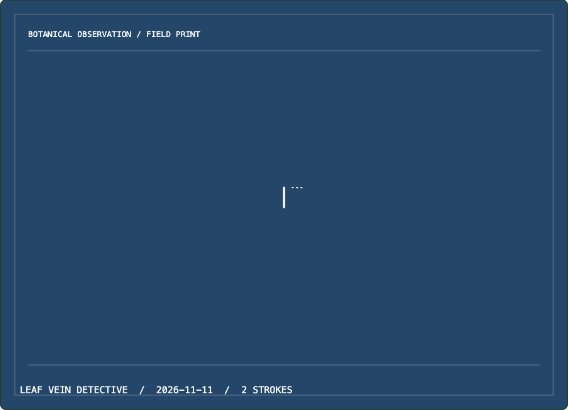
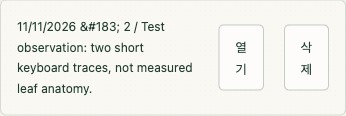
The print menu offers Forest Gold, Herbarium Print and Cyanotype. We changed the preview to Cyanotype and saw the blue card with two paths and a two-stroke footer. Press Save to casebook to create a local observation. Our saved entry showed its date, two strokes and the English test note, with Open and Delete controls. This was an on-screen preview and saved-record test, not inspection of a downloaded card.
7. Reload and reopen before trusting the record
After reload, the current workbench showed zero strokes and an empty note, while the saved entry remained. Open restored the two paths and note. The Korean page in the same browser also displayed that entry. At a fresh 390-pixel width, opening it restored two strokes; a further keyboard stroke changed the current count to three. We did not save that extra stroke. Current work and the previously saved two-stroke case were distinct.
Actual browser tests and their limits
| Test | Observed result |
|---|---|
| Keyboard tracing and U | Two strokes, then one after Undo, then two after a replacement. |
| Save, reload and Open | Saved two-stroke note remained; current work reset to zero; Open restored the saved case. |
| Korean narrow page | Same browser case visible; Open restored two; an unsaved extra stroke made the current total three. |
| Image controls and style | Zoom/contrast reached 250, original visibility reached zero; Cyanotype changed the card appearance. |
| Owned JPEG interface capture | Image displayed and current traces cleared to zero. Reset returned to the illustration; Open restored the saved two-stroke case. |
| PNG download attempt | Completion wait timed out. Received PNG, SVG contents and print dimensions remain unverified. |
These are interface observations from one session. We did not collect a leaf, compare a traced network with microscopy, identify a species or test all input formats. We also did not confirm that an exported file preserved every path or that a saved case could move between browsers. The screenshots are genuine captures of the described test, including deliberately short paths.
Read the atlas without turning a sketch into an identification
The atlas is a vocabulary for looking, not a key that names a species. A pinnate arrangement has a prominent central route with side branches; palmate describes major routes spreading from near the base. Parallel and dichotomous describe other visible arrangements. The source’s illustrations help you choose an observation question, but a similar drawing alone cannot establish which plant produced a photograph.
For additional terminology, the University of Illinois leaf venation tutorial presents these categories alongside other leaf-vein characteristics and explains that characteristics can coexist. We visited it for this review. Avoid forcing every image into one exclusive label or assuming that the four cards in the tool cover every useful botanical distinction.
The daily question on our test date asked about a pinnate arrangement and a finer network on the same leaf. A useful response is to record the scale at which each feature is visible. Do not change a label simply to make two descriptions agree. If an image does not resolve the smaller connections, record that limit instead of completing them from the diagram. We did not advance the device date to validate a rotation of daily questions.
Keep the image, interpretation and saved record distinct
A stroke begins and ends with your gesture. One long path and several short segments can represent similar visible structure while producing different counts. Therefore a rise from two to three is evidence of another drawing action, not automatically a new vein, greater branching density or a more complete specimen. Use the counter to manage your annotation process, not to compare biological complexity.
Line level is likewise an interpretation. A gold line can mark a primary route only because you chose that category. The tool does not adjudicate the vein order, merge duplicate paths or report species confidence. For a classroom comparison, agree on where to start, when to lift the pointer and how to label uncertain connections before comparing records. Differences then become questions about observation rather than a competition for the highest count.
Keep image evidence, traced interpretation and written explanation together in your own project folder. A useful filename can link the original to a note that records the view and the question. Leaf Vein Detective does not create that external folder structure for you. This is an editorial workflow suggestion, especially important because the source says original photos are omitted from the casebook.
Casebook, card styles and export checks
Saving to the casebook and downloading artwork solve different problems. A local case lets you reopen paths and notes in that browser. A PNG or SVG control offers a drawing-output route, but a visible button is not proof of a received, readable file. Our PNG completion wait timed out, so we cannot certify its contents, resolution or suitability for print. We did not complete an SVG download or an export/import project round trip.
Before relying on artwork for sharing, confirm the file exists, opens and shows all intended paths and labels. Preserve a readable original rather than repeatedly reducing the only copy. Before clearing site data, separately preserve important notes and source images. The visible casebook has Open and Delete controls; we did not use Delete, and we did not test recovery of removed observations.
Privacy, language and mobile limits
The source says the chosen image is processed in the browser without a photo-upload endpoint, and casebook data is stored locally when Save is pressed. It warns that other people using that browser may see entries and that clearing site data removes them. We verified one same-browser persistence path, not the underlying network or every storage condition. Local storage is not a cloud backup or cross-device account.
Blogger and Google advertising services are separately disclosed, and we saw advertisements. Do not turn the local-image processing statement into a promise that the entire page makes no external requests or processes no technical data. Use non-sensitive images and avoid including private background details in a study photo. We did not inspect EXIF handling, maximum image size, all camera formats or network traffic.
The Korean workspace loaded at 390 × 844 with document width 390 and no horizontal overflow. We used Open and keyboard tracing in its stacked layout. A casebook date separator appeared as a literal character reference, and the two-character Open/Delete labels wrapped vertically in our narrow capture. Those are visible presentation limitations. We did not test a physical phone, prolonged touch drawing, all keyboard routes or assistive-technology compatibility.
Related tools for a nature observation workflow
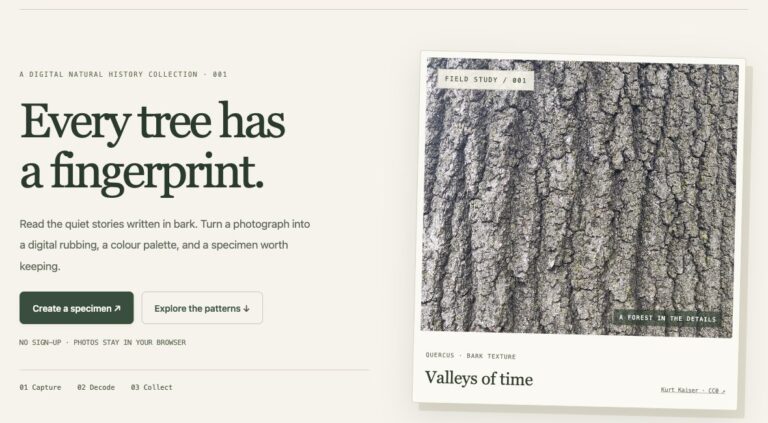
If you also document bark surfaces, the published Bark Fingerprint Lab guide explains digital texture renderings and local specimen notes. It offers a different observation task; neither tool turns appearance into a verified tree identity.
For a separate study of visible colors and patterns, the Spore Print Atlas guide distinguishes image sampling from biological conclusions. Use it only for that separate subject, not as a destination for importing this leaf project.
If you receive an artwork image and need a particular upload size, the PixelFit Studio image preparation guide covers pixel, crop and file-size checks. No direct project integration or combined export workflow was tested between these tools. Pencil and paper remain a straightforward alternative when you need a sketch beside the original specimen; the browser tool adds line styles, a card preview and local reopening.
Frequently asked questions
Does Leaf Vein Detective recognize a plant?
No. The page describes manual observation. You choose the paths and levels; the atlas is a guide to arrangements, not a species identification key.
What does the stroke number measure?
It counts drawing strokes. Our two-stroke record was an input test. The number does not measure vein count, tracing accuracy, plant health or biological complexity.
Why did my current drawing disappear after reload?
In our test unsaved current work reset, while the saved case remained. Use Save to casebook, confirm the entry and try Open before depending on it. Keep original photos separately because the source says the casebook does not retain them.
Is the Cyanotype card a physical photographic process?
The control changes the on-screen print style. We verified a blue preview; we did not make a physical cyanotype or validate a printed color match.
Can I switch English and Korean without translating notes?
The saved English note appeared unchanged on the Korean page in the same browser. Interface localization does not translate your observation text, and it does not establish device synchronization.
Follow one visible path and record one uncertainty
Start with a visible route, make a short trace and write one uncertainty. Check the difference between current work and a saved case before leaving. Leaf vein observation becomes more useful when the original image, your interpretation and the limits of the evidence remain clear.
A RELEVANT NEXT STEP
Tools with a useful connection
Bark Pattern Archive / Bark Fingerprint Lab
Bark Texture: 7 Essential Checks for a Beautiful Archive
Turn bark texture photos into digital rubbings and local observation specimens. Actual sample tests explain manual tags, palette changes, comparison, browser storage and the limits of identification and unverified exports.
Spore Print Atlas
Spore Print Atlas: 7 Essential Color Observation Checks
Observe photo colors and visible patterns, then keep notes in a local atlas. Real image tests distinguish viewer sampling, original-image palettes and saved colors while documenting backup and identification limits.
PixelFit Studio
Image Upload Optimizer: 7 Essential PixelFit Checks
Prepare exact upload dimensions and file-size conditions with PixelFit Studio. Actual sample and JPEG tests explain PASS/CHECK, crop versus contain, social totals, copied HTML and the limits of unverified file receipt.