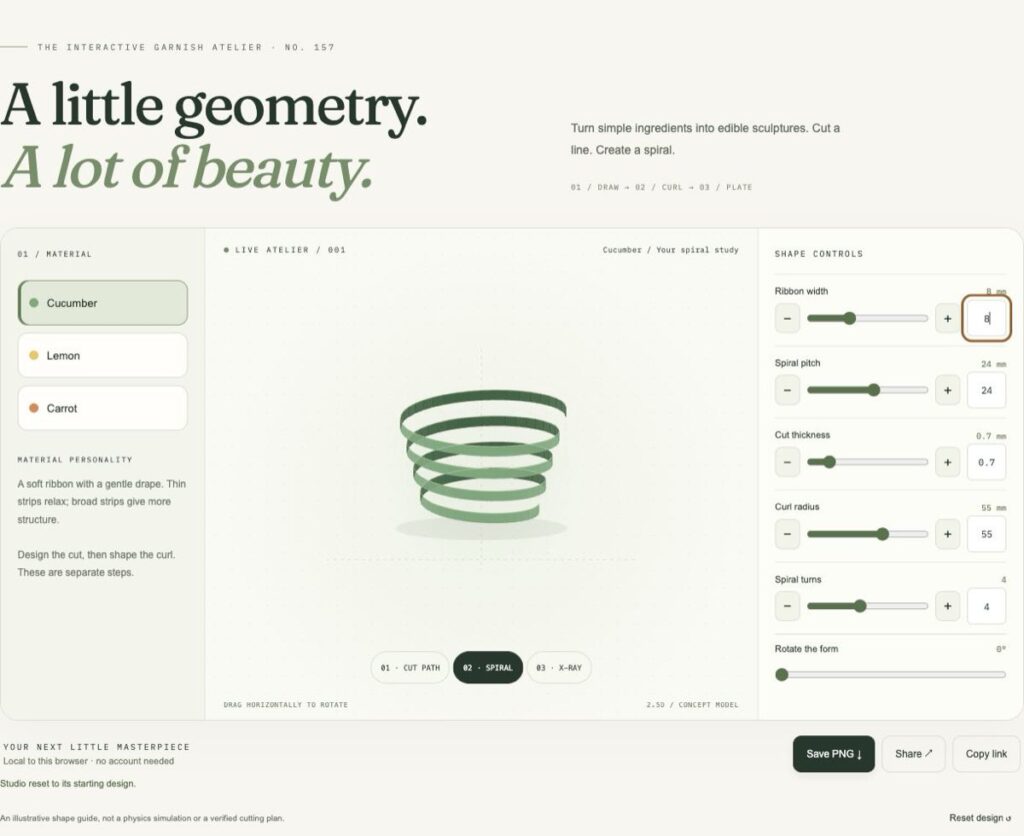
Compare cucumber, lemon and carrot ribbon concepts, X-Ray cut paths and plating in Garnish Spiral Studio. Seven tested checks explain links, working state and manual saves.
- Brand
- Garnish Spiral Studio
- Tool languages
- en,ko
- Verified date
- 2026-11-14
Garnish designer Garnish Spiral Studio turns cucumber, lemon and carrot ribbon settings into a 2.5D concept preview. Compare a flat cut path with a curled form, try a plate or glass, and keep a design link. It is useful for explaining a visual idea before working with real produce; it does not predict whether that produce will hold the shape.
Hands-on verification: 14 November 2026, KST. We tested presets, numeric controls, preview modes, rotation, plating, warnings, link reopening and browser storage, including the Korean page at 390×844. Screenshots show the actual interface. We did not cut food. PNG and SVG controls displayed completion messages, but completed files were not received through the documented browser download flow for independent inspection.
On this page
Key takeaways before you design
Keep cutting, curling and plating separate. Ribbon width is not spiral pitch; cut thickness is not curl radius. A millimetre label is a design input, not proof that a real strip has been measured or that a cutting tool can reproduce it. Start from one preset, change one condition and compare both preview modes before making a physical sample.
Keep three records separate too. The active working state survived a reload in our browser. Restore saved returned a different, explicitly saved design. A copied link reopened the complete tested geometry, viewing and plating settings in a new tab. The short blueprint code contained only material and five shape values, so that code alone did not describe the full presentation.
What this garnish designer does
The official interface brand is Garnish Spiral Studio. The English root has a separate Korean page. You choose cucumber, lemon or carrot, then edit ribbon width, spiral pitch, cut thickness, curl radius and turns. A rotation slider and a horizontally draggable preview are offered. Our direct input tests used numeric fields, plus/minus and keyboard slider controls; physical-phone gestures were not tested.
The page supplies six named specimens: Cucumber Cascade, Citrus Comet, Carrot Rosette, Citrus Halo, Spiral Nest and Ribbon Crown. They load editable studies rather than locked recipes. A side-by-side ingredient comparison illustrates different material drapes using the same settings. Those appearances follow simple material rules, not a measured dataset of cucumber flesh, peel or carrot fibers.
Outputs include Cut Path, Spiral and X-Ray views, a plating illustration, rule-based cautions and a blueprint code. Save PNG, Save SVG, Print blueprint, device saving and link sharing are available. It is a visual design workbench, not a photograph analyzer, ingredient-weight calculator or blade-control system. No image upload or real-food measurement was part of the tested workflow.
Prepare a useful visual brief
Write a short visual brief: ingredient, intended serving surface and the shape you want to discuss. A broad cascade beside a salad asks a different question from a narrow citrus twist beside a glass. The tool can help compare those appearances, but it does not select an edible material or utensil on your behalf. Keep the real preparation decision separate from the illustration.
Before experimenting, check whether an existing saved design matters. Our first Restore saved action reported that no saved design existed. The manual specimen later used for recovery was created during this review. If you already have a useful design, copy its full link and inspect the values before replacing the single manual save. Do not assume the save button creates a library of versions.
Record a baseline in the order W, P, H, R and T: width, pitch, thickness, radius and turns. Add rotation, preview mode, vessel, display scale and horizontal position on another line. This makes it possible to distinguish a shape edit from a presentation edit. Screenshots alone can make different settings look deceptively similar when scale or viewing angle changes.
Garnish designer: 7 essential checks
1. Load one specimen
Open the garnish designer and choose a specimen. Citrus Comet loaded lemon with width 5 mm, pitch 18 mm, thickness 1.2 mm, radius 32 mm and five turns in our test. Read every value after loading rather than interpreting an Easy or Medium label as a guarantee of physical difficulty.
2. Change a single shape value
Use the numeric field, slider or plus/minus control. The displayed input ranges were width 2–20 mm, pitch 4–40 mm, thickness 0.3–3 mm, radius 20–75 mm and one to eight turns. We changed width 20 to 19 with the decrease button. These are interface limits, not validated limits for produce or utensils.
3. Compare Cut Path and Spiral
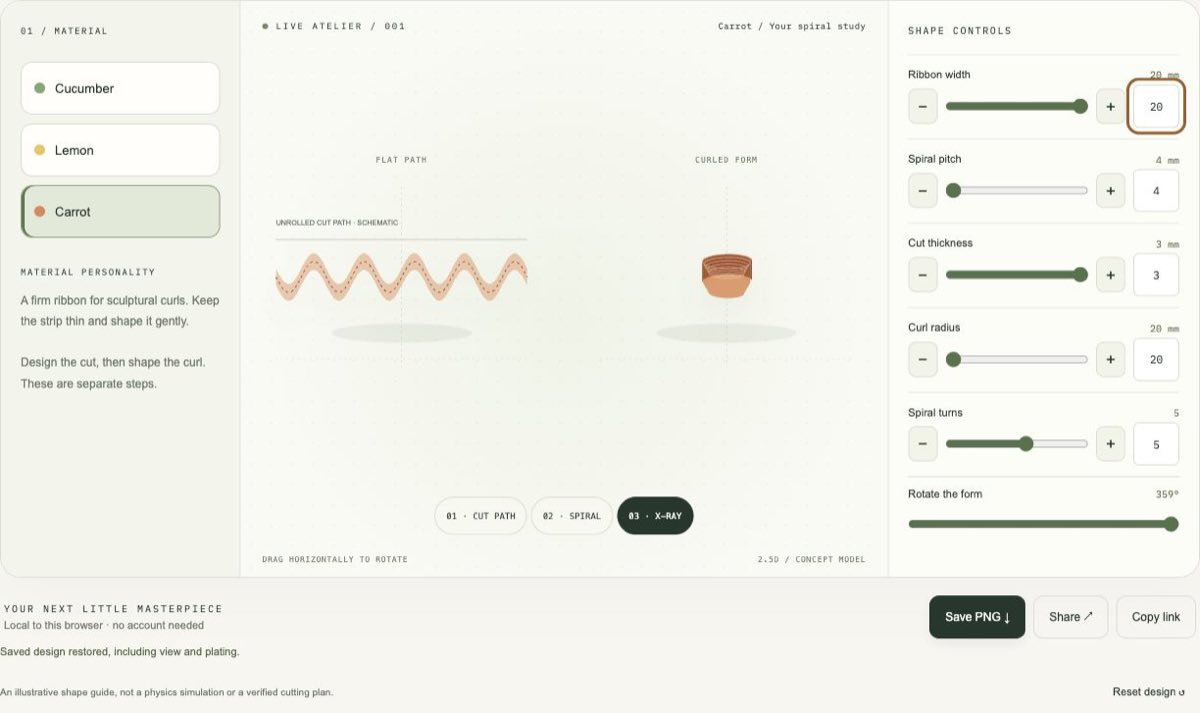
Cut Path shows a schematic unrolled ribbon; Spiral shows the curled illustration. X-Ray places flat path and curled form side by side. Use the comparison to explain that a cut and a shaped curl are separate operations. Do not trace the screen as a verified full-size cutting template.
4. Inspect the warning panel
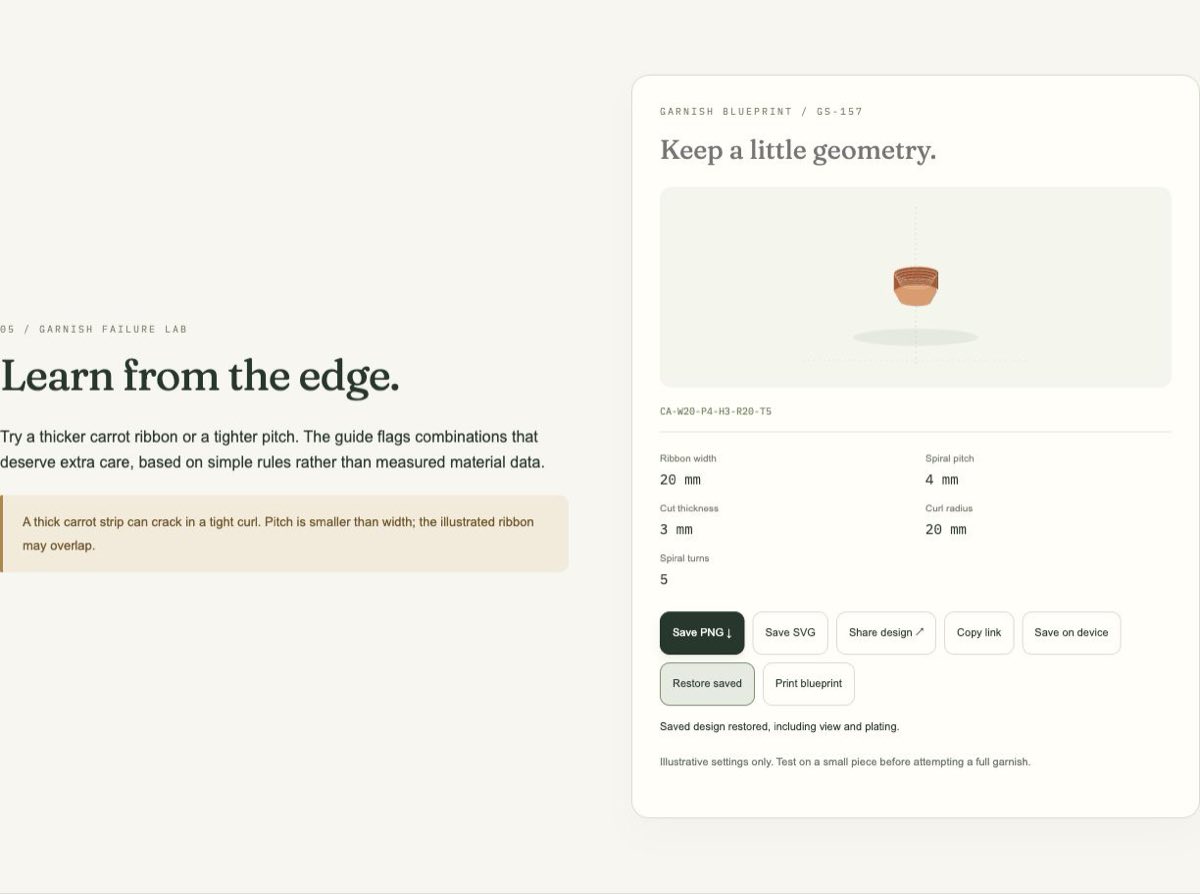
Try the controlled stress case below and read the actual text. Carrot at width 20 mm, pitch 4 mm, thickness 3 mm, radius 20 mm and five turns produced thick-carrot/tight-curl and overlap cautions. They identify conditions worth testing, not a measured chance of cracking or a complete collision analysis.
5. Place the same study on a surface
Choose White ceramic plate, Cocktail glass, Black slate plate or Salad bowl. Adjust Garnish size and Horizontal position. Our glass test reached scale 120 and position 100, while the blueprint still held the same shape values. Judge the composition, then keep actual serving dimensions in a separate note.
6. Save and verify a full link
Press Copy link and open that link in a new tab. Our test reproduced material, five shape values, rotation 359°, X-Ray, glass, scale 120 and position 100. Review the new page rather than treating a copied message as proof that every parameter survived. A link shares the settings, not an image file.
7. Check local recovery and output separately
Save on device keeps a manual snapshot. Reset design followed by Restore saved returned our snapshot, including viewing and plating. A reload also retained a later working edit, which differed from that snapshot. PNG and SVG need their own file inspection; a recovered design or on-screen download message does not verify exported bytes.
What we actually tested
| Test | Observed result |
|---|---|
| Initial design | Cucumber: W8 / P24 / H0.7 / R55 / T4, rotation 0°, Spiral, white plate, scale 75, position 0. |
| Citrus Comet | Lemon: W5 / P18 / H1.2 / R32 / T5. Pattern-loaded message and editable values. |
| Controlled carrot case | W20 / P4 / H3 / R20 / T5. X-Ray showed flat and curled diagrams; two caution conditions appeared. |
| Rotation and plating | Keyboard slider input reached 359°; glass, scale 120 and horizontal position 100 were selectable. |
| Copy link/new tab | All tested geometry, rotation, view and plating values reopened correctly. |
| Manual save/reset/restore | CA-W20-P4-H3-R20-T5 and the saved presentation settings returned. |
| Working edit/reload | Width 20→19 persisted after reload; Restore saved then returned width 20. |
| Korean page | Shared state opened in Korean. Reset/restore recovered the manual design; fresh 390×844 document width 390. |
| PNG and SVG | Source displayed downloaded messages; documented file waits did not provide completed files for inspection. |
Discover today’s spiral also loaded a Cucumber Cascade study during this session, with W8, P26, H0.7, R45 and T4. We did not verify its day-to-day selection schedule. The 30-second challenge generated target pitch/turn values and Finish stopped the active task, but we did not obtain an explicit pass or score result. We therefore do not present the exercise as a validated skill assessment.
Read width, pitch and curl radius separately
Pitch describes the advance of a helix in one turn. Width describes the strip across its ribbon; thickness describes the cross-section. Radius describes the curl after shaping. Confusing these quantities leads to different edits: narrowing the strip does not directly mean reducing its thickness, and widening the curl does not mean increasing the cut-path pitch. Name the parameter before comparing screenshots.
The overlap test makes a useful discussion example. Our width 20/pitch 4 case has pitch smaller than width, and the page warned of visual overlap. That is a geometric cue within this representation. It does not establish blade clearance, self-contact forces or the exact overlap of a real ribbon after it bends. Read X-Ray as two related sketches, not a complete mechanical construction drawing.
The millimetre fields and plating-size slider also belong to different contexts. The latter ran from 40 to 120 and changes the presentation, while horizontal position ran from−100 to 100. Do not silently convert these display controls into millimetres. The page did not supply a calibrated plate diameter or glass-rim measurement in our workflow, so matching a displayed proportion is not checking real fit.
Treat warnings as questions to investigate
A warning should produce a question for a small physical sample: is the strip too thick for the intended bend, or is the appearance too crowded? It should not produce a percentage prediction of failure. Conversely, a balanced-starting-point message is not a guarantee that an ingredient will behave well. Freshness, fibers, moisture, temperature, tools and hand shaping remain outside the measured evidence here.
Change one condition and keep the rest fixed if you want an interpretable comparison. Preserve the original link, alter thickness or pitch, then note which warning changed. Do not claim that removing a message proves physical feasibility. This comparison method helps isolate what the interface responds to; it is a proposed workflow, not another food experiment performed for this article.
Compare a silhouette in its serving context
For a menu-planning discussion, use the same geometry on two serving surfaces before changing the ribbon. Compare the visual balance beside a glass and on a plate. Then record actual dish size and available space outside the app. The tool is strongest at communicating a silhouette; it cannot confirm contact, stability, edible portion size or whether a real garnish will stand unaided.
For a teaching example, ask a learner to distinguish a flat strip, a shaped curl and a plated arrangement. Keep the same W/P/H/R/T while changing the viewing angle or surface, then ask what changed and what stayed constant. This reveals why a blueprint code, a rendering and a photograph of a finished dish are different kinds of evidence. Label a digital study clearly when sharing it.
Working state, saved design and shared link
Our storage test found two distinct behaviors. After explicitly saving width 20, we changed the working width to 19 without pressing Save on device again. Reload retained 19. Restore saved returned 20. The working state and manual snapshot therefore did not behave like the same record. This is an observation in one browser; it does not guarantee unlimited history, another device’s recovery or permanent retention.
The blueprint code CA-W20-P4-H3-R20-T5 is a compact shape summary. It leaves out rotation, view, vessel, display size and horizontal position, all of which appeared in the full copied URL. Keep the link if another person needs the same presentation. Keep the code if you need a readable shape label. Neither one demonstrates that a physical garnish was prepared or tested.
The Korean language link carried the settings across to its page, and Reset/Restore there returned the saved carrot study in the same browser. Language switching is not a cloud synchronization test. Before clearing browser data or moving to another device, verify a separate record you intend to keep. Prefer a full reopened link plus a descriptive note over relying on an unlabeled image alone.
PNG, SVG and print: what is verified
PNG is offered for a raster blueprint, SVG for a vector drawing and Print blueprint for a paper-oriented workflow. We activated PNG and SVG and saw their completion messages, but no completed file reached the documented download receipt. Dimensions, embedded content, editability and reopening were not independently checked. Printing and the device Share sheet were not tested; Copy link supplied the verified sharing route.
If an export matters, open the actual file before calling it a deliverable. Check that the shape, code and units are readable and that the view matches your intended study. A vector image is not automatically an editable application project, and an illustration is not automatically a scale-accurate cutting plan. Preserve the full settings link alongside an inspected export so the design can be revisited.
Privacy, mobile behavior and model limits
The source says design settings are processed in the browser and are not uploaded by the design tool. We verified local recovery, but did not audit network traffic. Shared settings are visible in the URL to anyone receiving it. Blogger and Google advertising services have separate privacy policies, and ads were present. Local design processing should not be expanded into a whole-site offline or no-third-party-data claim.
The Korean interface at 390×844 had document width 390 with the same restored values and accessible named numeric/slider controls. This was responsive viewport testing, not physical-phone touch testing or a complete screen-reader audit. On a small screen, reach the controls below the preview and confirm which value you are editing. Treat any advertisement as separate from the studio’s own output controls.
The handbook provides preparation context, but our review was entirely digital. Follow your utensil manufacturer’s instructions and use an appropriate physical preparation method; the app’s illustration does not authorize a blade technique. Do not interpret a rosette preset as a petal-by-petal model or an Easy badge as proof that a particular tool, person or ingredient can reproduce it.
Related tools for geometry and presentation
For another example of separating appearance from model assumptions, see our Pizza Stretch Geometry Lab guide. It explores area and relative dough thickness rather than garnish shaping. The connection is conceptual: a visually attractive outline does not establish the interior properties or real-world behavior of a material.
To explain a study, use FrameMint Studio for a captioned screenshot and PixelFit for upload dimensions. Keep units and the concept-model label readable. Those tools help communicate a design; they do not validate the ingredient model or reconstruct a lost working state from a flattened image.
Frequently asked questions
Is this garnish designer a physical simulator?
No. The source describes a lightweight 2.5D illustration using geometry and simple material rules. It is not a verified cutting plan or a measured prediction of real produce.
Does the short blueprint code reproduce my plate?
No. Our code summarized material and five geometry values. Rotation, preview mode and plating settings were present in the full link, so reopen that link for the presentation.
Why did a reload differ from Restore saved?
In our test, the working width 19 survived reload while the manual snapshot restored width 20. Verify which record you are using before overwriting a save or sharing a result.
Does X-Ray analyze an ingredient photograph?
No. It showed the schematic flat path beside the curled illustration. No real ingredient image was analyzed during the workflow.
Were PNG and SVG downloads fully verified?
Only activation and source completion messages were verified. Completed file bytes, dimensions, vector editability and reopening were not inspected.
Can I use the Korean interface with the same design?
The language link carried the tested settings to Korean, and local Restore recovered the manual snapshot in the same browser. Cross-device synchronization was not established.
Start a small design study
Open the garnish designer, choose one specimen and compare one change at a time. Preserve a full design link, identify the saved record you need and inspect any exported file independently. Use the screen to make a clearer visual brief, then evaluate real ingredients and preparation separately.
A RELEVANT NEXT STEP
Tools with a useful connection
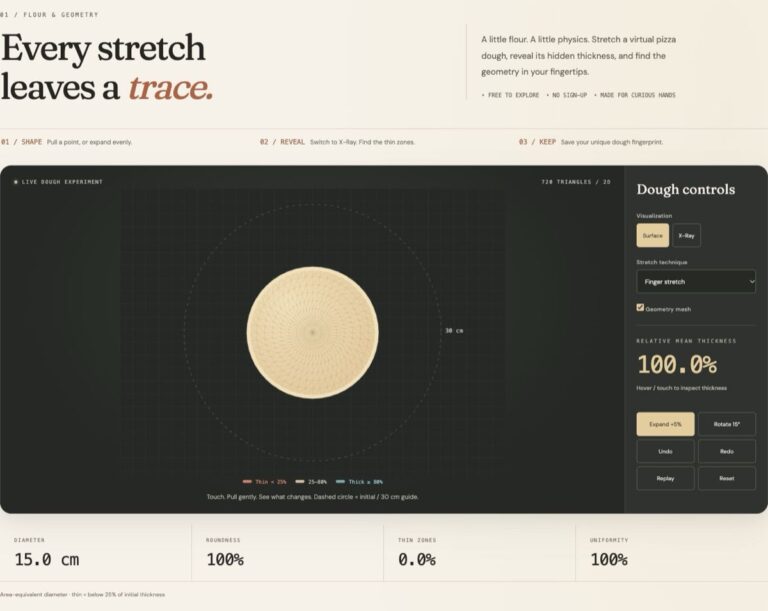
Pizza Stretch Geometry Lab
Pizza Dough Simulator: 7 Essential Geometry Lab Checks
Explore virtual pizza dough geometry, compare X-Ray thickness maps, and calculate raw dough mass with seven tested checks.
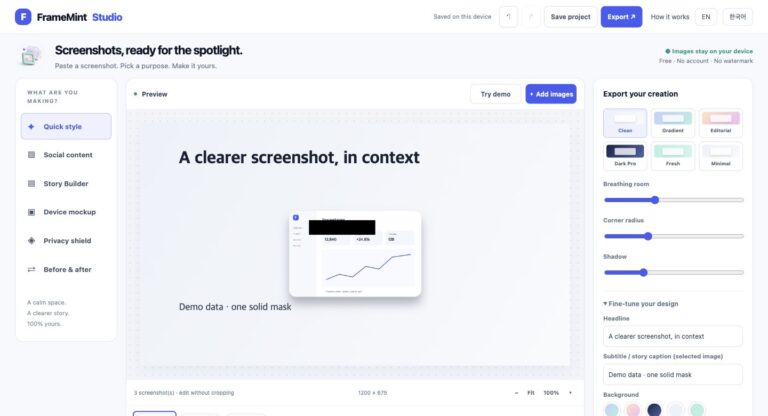
FrameMint Studio
Screenshot Editor: 7 Smart FrameMint Studio Checks
Frame screenshots, add manual masks and build captioned stories in FrameMint Studio. Real import, order, recovery and size tests explain what to check before sharing.
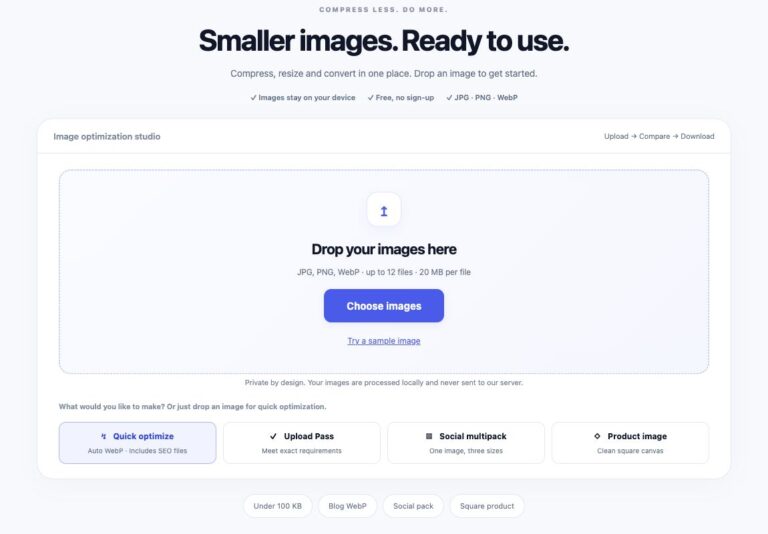
PixelFit Studio
Image Upload Optimizer: 7 Essential PixelFit Checks
Prepare exact upload dimensions and file-size conditions with PixelFit Studio. Actual sample and JPEG tests explain PASS/CHECK, crop versus contain, social totals, copied HTML and the limits of unverified file receipt.