Estimate retained flower length, trim and finished height, compare vases and assign whole stems to arrangement slots. Includes real geometry and batch-priority tests.
- Brand
- StemCut Studio
- Tool languages
- English, 한국어
- Verified date
- 2026-11-15
Flower stem calculator StemCut Studio estimates how much of a cut flower to keep for a chosen vase and arrangement proportion. It also assigns whole stems to vase slots. Use it before shortening a supermarket bouquet, planning several table arrangements or deciding whether a taller vase would preserve more length.
Verified 15 November 2026, KST. We changed the real calculator inputs, tested an infeasible length, compared vases and three batch priorities, reopened a shared plan and checked local recovery. Images below are actual interface captures, cropped for clarity. These are browser calculations; no real flowers were cut. English and Korean source interfaces are available.
On this page
Key takeaways
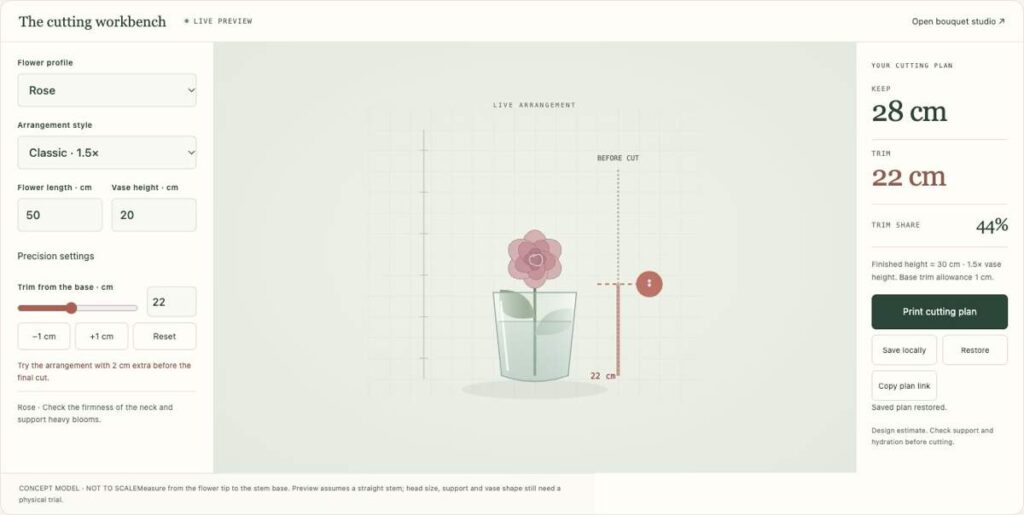
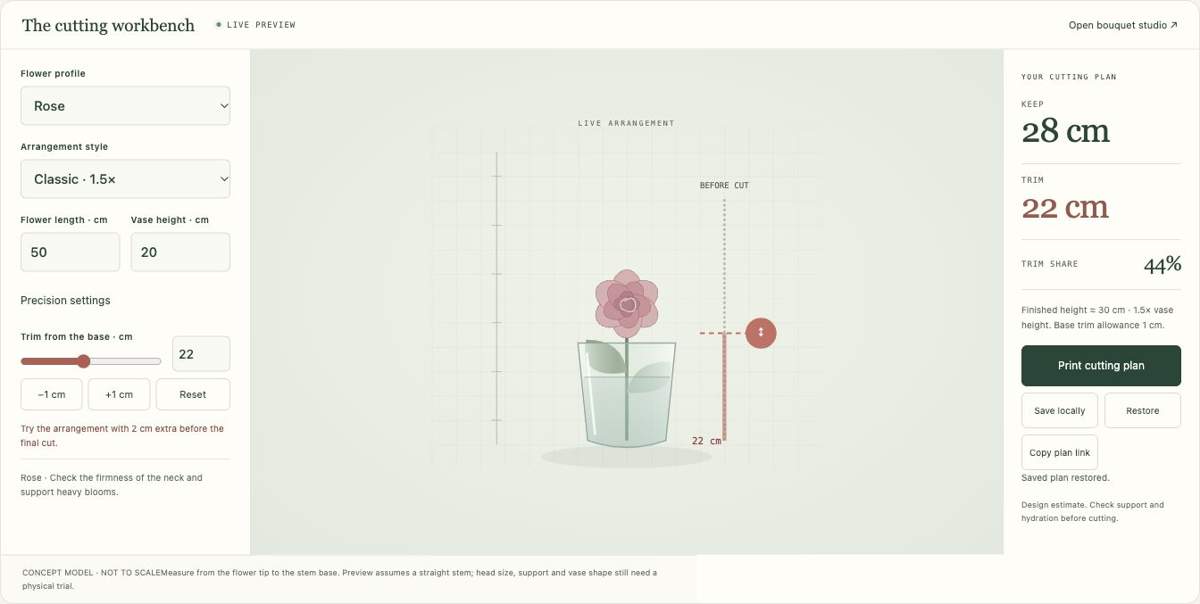
At the default 50 cm flower length, 20 cm vase height, 18 cm internal depth and Classic 1.5× style, the result was keep 28 cm, trim 22 cm, finished height about 30 cm. The 28 cm measurement runs along the flower; 30 cm measures the arrangement from the vase base to the tip. Mixing those measurements would produce the wrong cut.
A manual cut can override the selected style’s achieved proportion. Batch totals also need context: Minimum waste trimmed 24 cm from two assigned stems in our small example, while Layered balance trimmed 27 cm from three. The latter used a short stem that the former left unassigned. Read assigned stems and unused inventory alongside total trim.
What this flower stem calculator does
The brand is StemCut Studio, with StemCut Optimizer also used on the source. Its English heading is Flower Stem Cutting Calculator & Vase Optimizer. The main workbench combines a flower profile, style, dimensions, optional precision settings, a cut slider and an exact numeric cut field. Results update beside a conceptual flower-and-vase drawing.
Profiles include Rose, Tulip, Gerbera, Hydrangea, Lily and Eucalyptus. Styles are Compact 1.3×, Classic 1.5× and Sculptural 1.8×. Precision settings expose internal depth, minimum base trim and tilt from vertical. A separate bouquet section accepts flower groups and vase rows, then returns assignments, kept length, trimmed length, unused inventory and empty slots. A completed-job ledger records recent totals on the device.
This is useful when a rough “one-and-a-half times the vase” rule leaves an unanswered question: how much should actually remain on the flower? A spreadsheet can perform the same geometry, but needs its own validation and assignment logic. StemCut brings the drawing and batch comparison together. Physical arranging still decides whether the stems stand securely and look balanced.
Measure before opening the calculator
Prepare a ruler, the actual vase and a list of available flowers. Measure from flower tip to stem base, following the source’s convention. Enter the full starting length, rather than only the bare stem below the bloom. Separate groups with different lengths: five stems at 42 cm should not be entered as five stems at their longest member’s length.
Measure external vase height and usable internal depth separately. A thick base can make them different. The default 20 cm vase has 18 cm depth, leaving a modeled 2 cm bottom offset. For the batch planner, depth defaults to height minus 2 cm and stems are upright. It does not offer a separate depth or tilt column for every vase. An irregular container therefore deserves a manual workbench check.
Flower stem calculator: 7 essential checks
1. Select the flower profile and target style
Choose a profile for its illustration and handling note, then select Compact, Classic or Sculptural. Switching our default Rose to Tulip still returned keep 28 cm and trim 22 cm. The profile change did not create a species-specific cutting formula. The arrangement ratio describes a design target, not a botanical requirement.
2. Enter the full flower length and vase height
Use centimetres throughout. The main flower field accepts 5–200 cm and vase height 3–100 cm. Start with one representative stem and verify the displayed values before preparing a whole group. A mistaken unit conversion is especially consequential because shortening a real stem cannot be undone.
3. Expand Precision settings
Enter measured internal depth, a minimum base trim allowance and any tilt from vertical. The angle is measured from upright, not from the table. The source allows 0–60 degrees. Our 60-degree example needed a longer retained stem than the upright plan to reach the same vertical tip height.
4. Read keep, trim and finished height together
For the default case, keep 28 plus trim 22 equals the starting 50 cm. Finished height is about 30 cm, and trim share is 44%. Check this simple length balance before cutting. If the source says the target is infeasible, the displayed result is a fallback under the minimum trim constraint.
5. Treat the exact cut as a deliberate override
Set Exact trim length cm or use the slider and one-centimetre buttons. We entered a 10 cm cut: keep became 40 cm and finished height about 42 cm, or 2.1× the vase. Classic 1.5× remained selected. Read the achieved ratio beside the result instead of assuming the style label still describes it.
6. Compare vases and try an arrangement first
Compare the suggested 15, 20 and 30 cm vases before committing. The recommendation prioritizes less trim among feasible options. Try the physical arrangement with a little extra length where available, then make the final adjustment. The source suggests 2 cm extra for this trial; that allowance cannot be created when stock is already too short.
7. Save or share only after checking the result
Save locally and Restore provide a browser-local plan workflow. Copy plan link produces a URL containing dimensions and the manual cut. Open it in a fresh tab to confirm the intended result before sending it to someone. The URL should be accompanied by the measurement convention and any physical support concerns.
Why retained length differs from finished height
The source’s target retained length is D + (H × r − H) / cos(θ), where D is internal depth, H is external vase height, r is the selected finished-height ratio and θ is tilt from vertical. This assumes the flower follows a straight line and sits to the modeled depth. It does not solve bending or the contact point against a narrow rim.
For the upright default, 18 + (20 × 1.5 − 20) = 28 cm. The exposed part contributes 10 cm vertically above the 20 cm rim, so the tip reaches 30 cm above the base. At 60 degrees, cos(60°) is 0.5: the target becomes 18 + 10/0.5 = 38 cm. Our live result changed to keep 38 and trim 12 while finished height stayed about 30 cm.
A hand calculation is a good check for one straight stem. It becomes less convenient when many stock lengths compete for several vase slots. Conversely, the app’s attractive picture does not resolve an uncertain measurement. If the physical stem rests above the bottom, remeasure the usable depth rather than treating the illustration as evidence of fit.
Actual single-stem test results
| Input or action | Observed output |
|---|---|
| Default: 50 / 20 / 18 cm, base trim 1 cm, tilt 0°, Classic | Keep 28; trim 22; finished height ≈30 cm; trim share 44%. |
| Same geometry, tilt 60° | Keep 38; trim 12; finished height ≈30 cm; trim share 24%. |
| Flower shortened to 20 cm | Infeasible proportion warning; keep 19, trim 1; finished ≈21 cm. |
| Manual cut 10 cm at default dimensions | Keep 40; finished ≈42 cm / 2.1×; Classic 1.5× still selected. |
| Switch Rose to Tulip at default dimensions | Same 28/22 cm result; illustration and care note changed. |
| Shared manual Tulip plan opened fresh | Recovered keep 40, trim 10 and finished ≈42 cm. |
The short-flower test is particularly useful before working with an uneven bunch. A visible number does not mean the desired proportion was achieved. We received an explicit warning, while the 1 cm minimum base trim still left 19 cm. Choose a lower target ratio or shorter vase, or reserve that flower for a different arrangement.
Plan a bouquet from an inventory
In Your flower inventory, add a row for each group: flower label, length in centimetres and quantity. In Your vase collection, add a label, height, number of slots and target ratio. A slot means a requested stem position, not a measured opening diameter or a guarantee of capacity. Both panels also expose comma-separated text editing for faster preparation.
Our reproducible stock was Long,40,2 and Short,25,1; the vase row was Desk,20,3,1.5. Put each stock group on its own line. Choose a planning priority and press Optimize arrangement. Read the result table before saving the job. It lists each stem’s original, retained and cut length, so a total can be checked against individual instructions.
The source allows at most 100 stems and 100 slots. We entered a quantity of 101 and pressed Optimize: an input-limit error appeared and the prior output cleared. The error also specifies integer counts, flower lengths 5–200 cm, vase heights 3–100 cm and ratios 1.1–3. A blank result after invalid input is not a completed plan. Correct the input and optimize again.
Compare three priorities fairly
| Priority: same 105 cm stock | Observed assignments and lengths |
|---|---|
| Minimum waste | 2/3 assigned; keep 56 cm; trim 24 cm; unused inventory 25 cm; one empty slot. |
| Fast work | 2/3 assigned; keep 50 cm; trim 30 cm; unused inventory 25 cm; one empty slot. |
| Layered balance | 3/3 assigned; keep 78 cm; trim 27 cm; unused inventory 0; no empty slot. |
Minimum waste kept both 40 cm stems at 28 cm, cutting 12 cm from each. Fast work rounded retained lengths down to 5 cm steps: each became 25 cm with a 15 cm cut. This can simplify repeated measuring, but it increased total cut by 6 cm in this example. It is a workflow preference rather than an automatic reduction in material loss.

Layered balance returned retained lengths 28, 26 and 24 cm. The 25 cm short stem could meet the final 24 cm level with a 1 cm cut. Its 27 cm total trim exceeds the minimum-waste total by 3 cm, while assigning one additional flower. Calling that “worse waste” would ignore the 25 cm unassigned stock in the other plan. Decide whether filling every slot or keeping an even height matters more.

The default larger example assigned 16 of 17 stems: six Rose stems to A, one Rose plus five Lisianthus to B, and four Eucalyptus to C. It kept 520 cm, cut 260 cm and left one 50 cm Rose unused. C needed a retained length of 52 cm, so that rose could not fill its remaining slot. Moving a leftover stem into any visible gap would contradict the specified geometry.
Choose a vase before committing to a cut
With the default single-flower settings, vase comparison returned: 15 cm vase, keep 20.5 and trim 29.5; 20 cm vase, keep 28 and trim 22; 30 cm vase, keep 43 and trim 7. The 30 cm option was labeled recommended for least trim. Applying it changed the workbench to a 30 cm vase, 28 cm depth and about 45 cm finished height.
Comparison recalculated the preferred proportion even when our current exact cut was manually set to 10 cm. It did not simply preserve that manual cut across containers. Check the applied workbench again. A tall, low-trim design may be unsuitable for conversation across a dining table or for a top-heavy bloom; those are decisions beyond this numeric recommendation.
Local saves, shared links and completed jobs
We saved a Tulip plan with a 10 cm manual cut. Restore recovered it after a vase change. A full page reload brought the live controls back to defaults; pressing Restore then recovered the saved plan. Saving locally therefore differs from automatic restoration on every visit. Keep a written note or a tested plan URL if the design must survive browser storage being cleared.
The copied URL included length, vase, depth, base-trim allowance, angle, ratio, flower profile and cut. A fresh tab reopened our 40 cm retained / 10 cm cut result. This verified the single-plan sharing path. It did not demonstrate transfer of the batch inventory or job history. Anyone with the link can read its parameters; avoid embedding private event details in a message simply because the calculation is local.
Save completed job recorded both our 16-stem default job and three-stem layered job. Reload preserved their totals in the ledger. The source describes a recent history of up to eight jobs. Those saved totals are records of calculations, not proof that flowers were physically cut or that money was saved. Print cutting plan and CSV controls are present; completed printed/PDF and CSV files were not inspected in this review.
Limits, flower care and privacy
Treat the output as a design estimate. A straight-line preview cannot account for heavy heads, bent stems, vase-neck friction, water depth or physical stability. Flower profiles provide illustration and care context, but our profile test did not change the geometry. Nor is this a propagation cutting calculator: it concerns display length for cut flowers, not rooting a cutting or pruning a living plant.
For handling context, the RHS cut-flower conditioning guide recommends clean cutting tools, removing foliage below water and using clean vases. We read that reference; it supports general flower care, not validation of StemCut’s numerical optimizer. Check species-specific handling and actual support before committing to the final cut.
The source states calculations happen in the browser and offers optional device-local saving. We verified recovery behavior, not network isolation. The Blogger page also displayed third-party advertising. Local calculations do not establish that the entire site makes no external requests or uses no cookies. We did not perform a network or privacy audit and do not claim offline availability.
At a responsive Chrome size of 390×844, the Korean source document measured 390 px wide. Entering a 10 cm exact cut returned keep 40 and finished height about 42 cm; vase comparison also responded. This was responsive browser testing, not a physical-phone trial. Ads appeared above and below content and can increase scrolling. Numeric inputs offer a practical alternative to precise slider dragging.
Related tools for documenting the plan
To explain a planned arrangement to another person, capture the inputs and result together. FrameMint Studio screenshot editor can help annotate the retained and cut lengths. Keep the selected style and achieved ratio visible when documenting a manual override. A screenshot records the visible result; it does not replace the editable plan link.
Use PixelFit Studio image upload optimizer when preparing that image for an event brief or blog. Preserve legible measurements after resizing. These related tools help communicate an existing plan; they do not measure flowers or verify the vase’s capacity.
Frequently asked questions
Why does a 30 cm arrangement keep only 28 cm of flower?
The default vase is 20 cm high but 18 cm deep. That 2 cm bottom offset makes a 28 cm upright flower reach about 30 cm from the vase base. Retained length and finished height use different reference points.
Does choosing Tulip change the length formula?
Our default Rose and Tulip trials both returned keep 28 / trim 22 cm. The profile changed the drawing and care note. Do not treat it as a validated species-specific growth or vase-life model.
Why is the selected Classic ratio different from the result?
A manual cut can change the achieved ratio. With a 10 cm cut, our 50 cm flower stood about 42 cm high in the default vase: 2.1× while Classic 1.5× remained selected. Read the actual result.
Is Minimum waste always the lowest visible trim total?
Compare equivalent assignments. In our example it cut 24 cm from two stems and left one unused; Layered cut 27 cm from three. The planner first tries to fit compatible stems, then reduces cutting within that objective.
Can a trimmed offcut become another assigned flower?
The batch description treats one whole stem as one whole flower and does not assign a stem twice. This is not a stock-cutting optimizer that creates several usable pieces from one flower stem.
Will a shared link include all completed jobs?
The verified URL reopened the single workbench plan. Batch inventory and ledger transfer were not demonstrated. Our completed jobs persisted locally after reload; that is a different storage path.
Start with one measured flower
Measure one flower and the vase’s usable depth, choose a target proportion, then compare the retained length with the finished height. Try a physical arrangement before the final cut. For several vases, inspect assignments and unused stock together before saving the batch. A checked plan is most useful when its measurement assumptions remain attached to the result.
A RELEVANT NEXT STEP
Tools with a useful connection

FrameMint Studio
Screenshot Editor: 7 Smart FrameMint Studio Checks
Frame screenshots, add manual masks and build captioned stories in FrameMint Studio. Real import, order, recovery and size tests explain what to check before sharing.
PixelFit Studio
Image Upload Optimizer: 7 Essential PixelFit Checks
Prepare exact upload dimensions and file-size conditions with PixelFit Studio. Actual sample and JPEG tests explain PASS/CHECK, crop versus contain, social totals, copied HTML and the limits of unverified file receipt.
CACTUS FIT
Cactus Pot Size: 7 Essential CACTUS FIT Checks
Measure cactus roots and tapered pot interiors before choosing a container. Our tests explain clearance,293mL soil geometry, warning states, three-pot studies and local setup sharing.