NEGAPROOF is a contact sheet maker for a digital film proof from positive scans. Arrange a roll, compare candidates and keep selection reasons beside a negative-sleeve reference. Our hands-on review explains missing frames, preview-only filters, local recovery and print-export limits before you trust a finished sheet.
Verified 10 November 2026 in Chrome, including a fresh 390 ×844 Korean viewport. Screenshots show the actual interface with built-in illustrations, not scanned negatives or a physical print. File exports, project import and printer output were not independently validated.
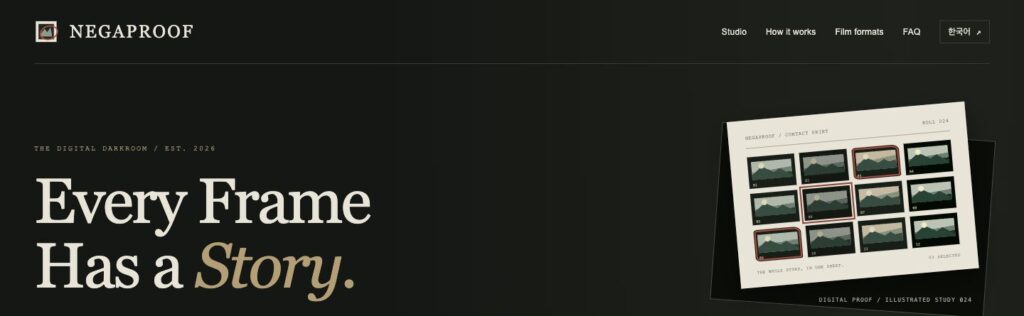
Create a film contact sheet and keep selection reasons linked to sleeve references. Our NEGAPROOF tests explain missing frames, preview filters, local recovery and export limits.
- Brand
- NEGAPROOF
- Tool languages
- en, ko
- Verified date
- 2026-11-10
Table of Contents
Key takeaways
- Use the roll overview for sequence and repetition, then inspect individual photographs for a shortlist. The two views support different editing decisions.
- Keep, Final and Pass record different outcomes. Selected includes shortlisted and final photographs; it does not mean every selected frame is final.
- The frame filter changes the preview. The interface explicitly says exports include the full roll. A final-only screen is not a promise of a final-only PDF.
- A missing placeholder changes later displayed positions. Keep the original filename and a physical film reference rather than relying on generated sheet numbers.
What this contact sheet maker solves
NEGAPROOF, operated by ImporInfo according to its About panel, combines a digital proof layout with a selection record. It offers six film-cell formats, two to eight columns, three paper sizes, three proof styles and two paper tones. An inspection desk holds the current status, editor’s note and sleeve location. Other controls include a loupe, two-frame comparison, a virtual brightness strip, reordering, missing entries and selection-pass history.
The concrete problem is more than putting photographs in a grid. A scan folder can contain several similar scenes, an omitted image and no explanation of why an earlier edit preferred one frame. A sheet makes the roll visible; a note makes the decision recoverable. This is useful for a student discussing a sequence, a photographer returning to an old roll, or a print session needing a shortlist tied to retrievable negatives.
The contact sheet maker starts with positive digital images. It is not a negative-inversion application, a film-edge reader or a calibrated darkroom proof. Decorative numbers and perforations provide a visual convention. They cannot reconstruct information absent from a scan, and an attractive layout is not evidence about negative density or photographic-paper response.
Prepare scans and a stable roll reference
Keep original scans separately and prepare positive JPG, PNG or WebP copies. The source states 12 MB per file,60 frames per project and 2400 pixels on the longest edge for working copies. RAW, TIFF and HEIC are listed as unsupported. We did not perform boundary tests or upload a representative set of scanner formats, so these remain source-stated specifications rather than a compatibility certification.
Choose one roll identifier that also appears on your negative sleeve and scan folder. Record the camera or film description separately. A useful manual convention combines the roll code and original scan filename; reserve binder and sleeve fields for a physical location. This is organizational advice, not automatic naming or synchronization. Check the reference against the film before committing it to an archive.
Before arranging private photographs, explore the sample. It contains 12 landscape illustrations and explicitly labels them as illustrations rather than film scans. It lets you learn the difference between an active frame, a shortlisted frame and a final frame without exposing private images. It also prevents an interface practice session from being confused with a photographic quality test.
7 checks for a useful film proof
1. Start with the whole roll
Open the studio, choose scans through the upload control or explore the sample roll. Confirm the identifier and entry count before judging photographs. If returning to a session, use the offered Restore project control and check what it contains. A restored local project is an editing convenience; it does not prove that a separate portable backup exists or that another device holds the same project.
2. Match the cells and paper purpose
Choose 35 mm, half frame or a 120 format, then set columns, paper size and style. The source says images fit inside cells without stretching or automatic cropping. Our workbench screenshot uses 35 mm cells, five columns, A 4 and Annotated Proof. We checked the selected settings and resulting layout, not every combination or the physical scale of a printed sheet.
3. Inspect and state the decision
Click a frame and choose Keep for a candidate, Final for the current final edit or Pass for rejection. Leave undecided photographs unreviewed. Give the note a specific reason, such as a foreground relationship to compare, instead of only “good image.” We typed a test note and sleeve reference, switched to another frame and back, and saw both retained in that editing session.
4. Compare close alternatives
Open Compare and select the second photograph in Frame duel. Ask the same compositional question about both, then return to the roll before choosing a winner. The dialog provides fitted views and recommends the loupe for individual inspection. Avoid deciding solely because one scan looks brighter: scanner rendering and the digital brightness simulation are separate from a physical printing test.
5. Preserve an omitted scan explicitly
Use Insert missing frame when an expected scan is absent. In our sample, inserting after position 02 created a missing entry at 03 and moved later sheet positions forward. Check neighboring filenames afterward. A blank entry preserves a gap in the working sequence. It cannot tell you whether the negative was never exposed, damaged, unscanned or simply excluded from the upload.
6. Save a pass before another edit
Save selection pass before reconsidering a shortlist. Our two pass cards showed timestamps and 4/12 selected when created. A later missing entry made the current project 13 entries long. The old 12-entry count describes the earlier edit, not necessarily a counter defect. We observed those cards, but pass restoration was not successfully verified in our browser test.
7. Review the whole output and retain a backup
Return to All frames for the final visual check. Review marks, roll text, frame order, blanks and paper choice. Project JSON, selection CSV, PNG and PDF serve different jobs. Open each downloaded file before relying on it and test reopening JSON separately. We did not complete file-content validation for this review, so readers should include it in their own acceptance check.
What we actually tested
- Sample:12 illustrations loaded with three selected photographs supplied by the sample. Marking illustration 02 Final increased selected to four.
- Missing entry: inserting after 02 produced 13 entries and one missing frame. Illustration 06 subsequently appeared at sheet position 07.
- Final-only preview: two final photographs were visible in the desktop test state, while total remained 13 and selected remained four. An explicit warning said exports include the full roll.
- Comparison: Frame duel opened for illustrations 02 and 06. The virtual strip displayed 60%,80%,100%,120% and 140% brightness with a no-calibrated-exposure warning.
- Local recovery: new English and Korean tabs offered and restored the 13-entry project and saved pass cards. This is one browser-recovery check, not a long-term durability test.
- Mobile: a fresh 390 ×844 Korean page had 390 px document width. A final frame was changed to rejected; Undo restored the final status. Physical-phone gestures were not tested.
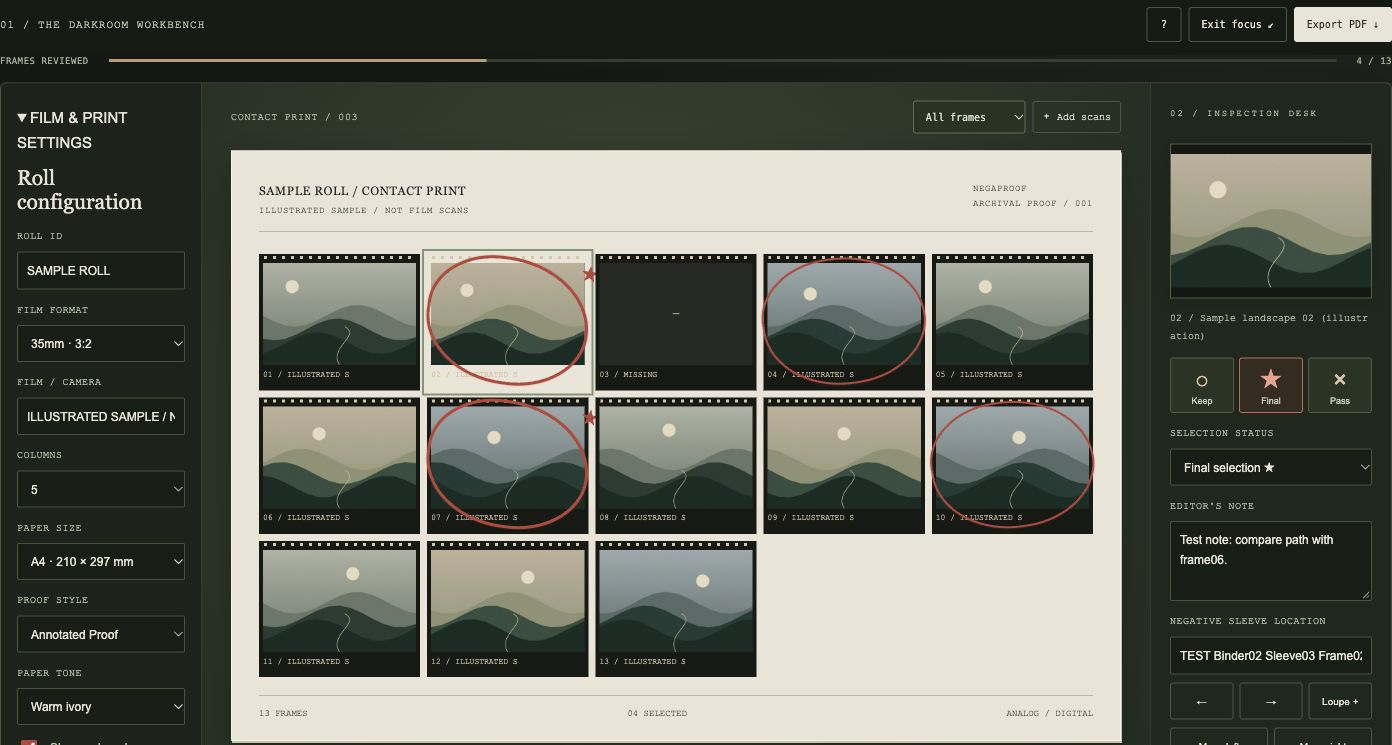
We attempted PNG export, but the session did not yield a captured file for inspection. We make no claim about actual exported dimensions, file contents, PDF page boxes or successful project reimport. A restore-pass confirmation interrupted control of the original research tab; subsequent project recovery used new tabs. This neither establishes a general application defect nor demonstrates a successful pass restore.
Compare two frames without losing the roll
Use the roll view to ask whether a scene repeats too often or a transition is missing. Use comparison for a narrower question: which foreground leads toward the subject, or which photograph has the clearer relationship between two forms? These are suggested editing questions. NEGAPROOF does not automatically judge artistic strength, and our illustrations cannot validate its behavior on detailed real-world scans.
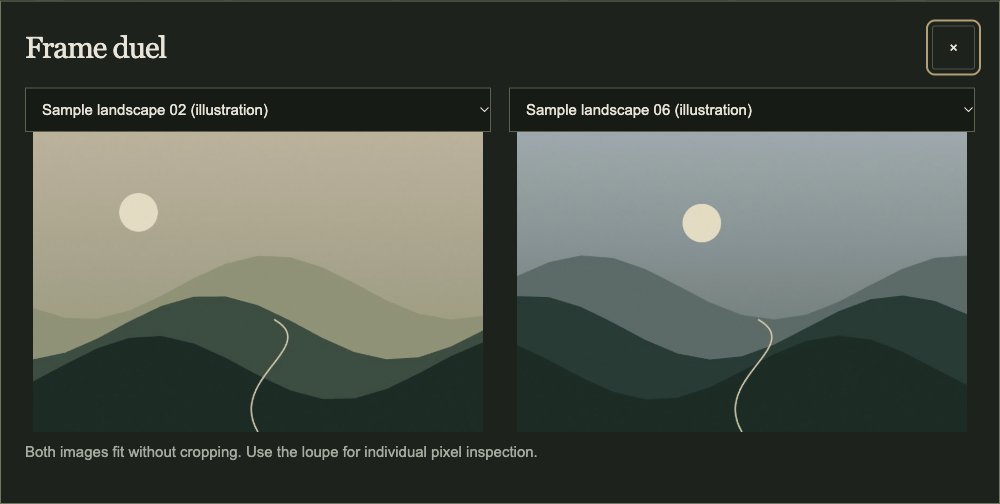
Record the comparison question in the chosen frame’s note. A later editor can distinguish an intentional preference from an accidental click. If candidates have different scan corrections, document that before interpreting brightness or contrast. The virtual strip shows digital brightness alternatives, but supplies no calibrated seconds, filter grades or chemistry settings for the final print.
Frame positions are not permanent film identifiers
The missing-frame test exposes an archival trap. Sample landscape 06 originally occupied sheet position 06; after insertion it occupied 07. The generated number describes a position in this sheet, while the sample name identifies the image loaded. Neither should silently replace the actual edge identifier of a physical negative. The tool is helpful precisely when these different references remain understandable.
Keep a cross-reference containing roll ID, scan filename, physical frame reference and sleeve location. Check uncertain information against the film and label uncertainty in the note instead of inventing a number. If you later reorder the sheet for presentation, that reference still helps even though positions change. This simple practice also makes an externally saved CSV easier to interpret months later.
The source describes stable internal frame IDs for selection history. We did not inspect JSON structure or prove ID stability through import, replacement and deletion. Treat that as the documented history model, not proof that arbitrary archival renames or merged projects are handled automatically. A visible manual cross-reference remains useful regardless of internal implementation.
Understand preview filters and export files
All frames, Selected only, Final only and Unreviewed are review filters. In the desktop test, Final only reduced the grid to two photographs while the project retained 13 entries. The warning says exports include the full roll. When sharing only an approved subset matters, verify the actual file; do not infer its contents from a filtered preview or assume a hidden multipage selection feature.
- Project JSON: source-described working images and editable data. Test its portability; resized working images do not replace original scans.
- Selection CSV: decisions and related text, not a print-ready sheet or image archive. Review names, notes and physical locations before sharing.
- PNG: a rendered sheet associated with the paper dimensions and 300 PPI specification. Check actual pixel dimensions and appearance after download.
- PDF: source-described physical page size. Check the file and use Actual size when physical sizing matters; the printer’s margins still constrain output.
Paper size, pixels and the one-sheet limit
The stated grids are 2400 ×3000 pixels for 8 ×10 inches,2480 ×3508 forA 4 and 2550 ×3300 forLetter. These describe the sheet, not every photograph. Dividing an 8-inch width into four columns gives an upper bound of 2 inches per cell before margins and gaps. At 300 pixels per inch that is 600 pixels before deductions. This is an independent planning estimate, not a measured NEGAPROOF cell size.
More photographs on a fixed page leave less room per image. The source says each export is one sheet, so do not expect automatic multipage output from a 60-frame project. If detail becomes unreadable, try fewer photographs per project and compare the preview. Columns change arrangement; they create neither additional paper nor detail missing from a low-resolution input. A small proof cannot replace full-resolution inspection.
A digital proof answers a different question from a traditional contact print. ILFORD’s official contact-sheet guide explains reviewing a roll of negatives and using a test print to determine exposure. NEGAPROOF starts from rendered scans, so its brightness strip cannot replace that paper-based test. No physical printing was performed for this article.
Keep decisions and recover the project
Browser restoration resumes a locally saved project. A selection pass records an earlier set of decisions within a project. The source says restoring a pass applies decisions to matching frames without removing newer photographs. Since a confirmation interrupted our automated test, try that behavior on a disposable project before depending on it. The presence of a Restore button is not evidence that we completed the operation.
Keep separate checkpoints for a working project, a rendered sheet and original scans. Give exports a revision or date that matches the roll identifier. Before a major edit, verify that a JSON copy can actually reopen. Two pass cards inside one local project are not two independently stored backups. Check restored notes and image count as well as the headline selected count; each answers a different recovery question.
Local processing, privacy and mobile use
English is at the root and Korean at /p/korean.html. The fresh narrow-screen test fit the document to 390 pixels, exposed the filter and allowed a status change followed by Undo. Settings were grouped in an expandable panel. This confirms a limited responsive Chrome workflow, not every touch gesture, operating system or mobile download and printing path.
The privacy panel states that images are processed in the browser and autosave uses IndexedDB. We saw a local-project prompt and recovery, and ads appeared during research. Blogger and AdSense may make separate requests and process cookies. We did not audit traffic or prove offline operation. Local image processing should not be expanded into a claim that the entire site sends no data.
JSON and CSV can reveal images, filenames, selection reasons and archive locations. Review them before sharing. Use appropriate non-sensitive copies for practice, and keep originals outside this project. No account was requested in the tested workflow. The operator calls the tool free in its About panel; that is its current description, not a guarantee about future terms or service availability.
Limits and troubleshooting
- Missing photographs? Check the filter before assuming deletion. Selected combines shortlist and final; reviewed can include rejected frames.
- A number changed? Look for an inserted blank or reordered entry and consult the scan filename plus physical reference.
- Unsupported scan? Prepare a copy in a stated supported positive format. Keep the original; upload boundaries and conversion quality were not tested here.
- A session vanished? Private browsing, cleared site data, quotas and storage failures can affect local recovery. Another browser or device may not contain this project.
- Soft or scaled output? Inspect source detail, sheet dimensions, page size and printer settings.300 PPI cannot create detail or guarantee a calibrated physical print.
Related tools and the next printing step
Our published NEGATLAS negative archive guide addresses finding stored film. A practical manual route is to locate the frame, record its sleeve reference in NEGAPROOF, select the photograph and keep the reference with the sheet. No automatic transfer or shared project format was tested between these applications.
After selecting a photograph, the published PRINTSCORE dodging and burning guide covers recording local exposure proposals for an actual test print. NEGAPROOF organizes selection; PRINTSCORE organizes a proposed printing sequence. Neither digital view proves the final paper result. Keeping the negative reference in both records links the stages manually without assuming integration.
Frequently asked questions
Does this contact sheet maker invert negatives?
No. It specifies positive JPG, PNG and WebP inputs and excludes negative inversion. Prepare positive scan copies first. Decorative borders do not recover film-edge metadata.
Does Final only export just the final images?
Do not assume so. The interface says the filter affects preview and exports include the full roll. We observed this warning; exported file contents were not inspected.
Does a blank prove that a photograph was lost?
No. It is an editor-inserted placeholder. Record the gap’s reason and inspect the original roll or scan folder independently.
Were backup and printing fully tested?
We verified local recovery, saved-pass cards and limited controls. Downloaded PNG/PDF/JSON/CSV contents, pass restoration, imported projects and physical printing remain unverified.
Build a proof you can return to
Start with one identified roll or the sample. Review the sequence, make a reasoned shortlist and check the physical reference before exporting. A useful proof keeps enough context to explain the choice and find the negative again.
A RELEVANT NEXT STEP
Tools with a useful connection
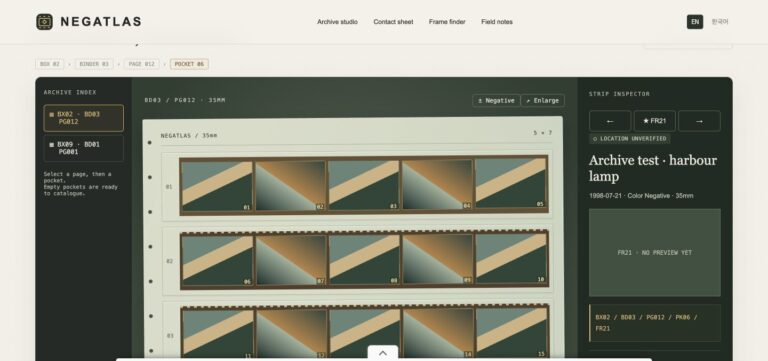
NEGATLAS
NEGATLAS: 7 Essential Negative Archive Checks
Connect film scans to physical negative locations with sleeve maps, frame records and move history. Read real retrieval tests, gap-report interpretation and backup limits.
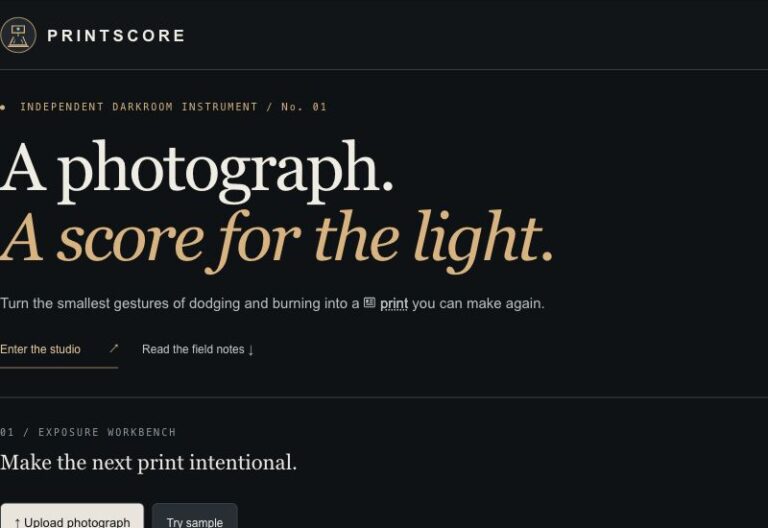
PRINTSCORE
Dodging and Burning: 7 Essential PRINTSCORE Checks
Plan dodging and burning with tested stop-to-second calculations, drawn zones and a repeatable sequence. Read our 20-second example, browser-draft test and export limits.
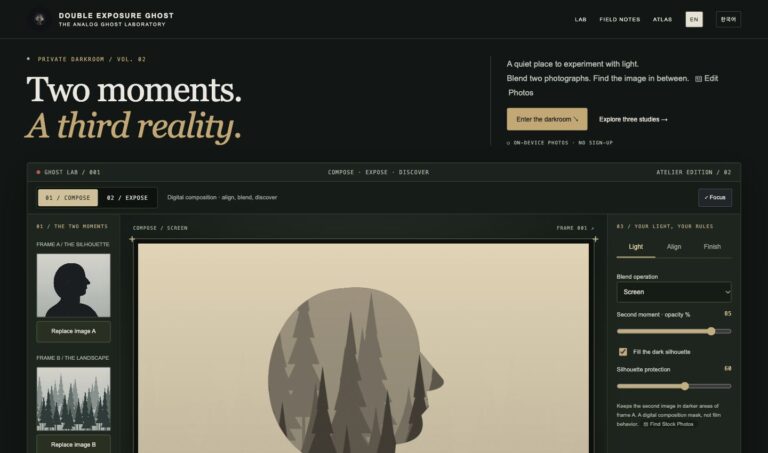
DOUBLE EXPOSURE GHOST
Double Exposure: 7 Smart Checks for Better Ghost Proofs
Build a double exposure with local images,alignment and temporary proofs. Checked EV totals,keyboard controls and restoration explain the model,privacy and export limits.