Brim Peel Challenge is a brim removal game inspired by 3D printing: follow a mint contour, protect a virtual part and inspect the result. This hands-on guide separates manual play, assisted scores and game settings from real printer decisions.
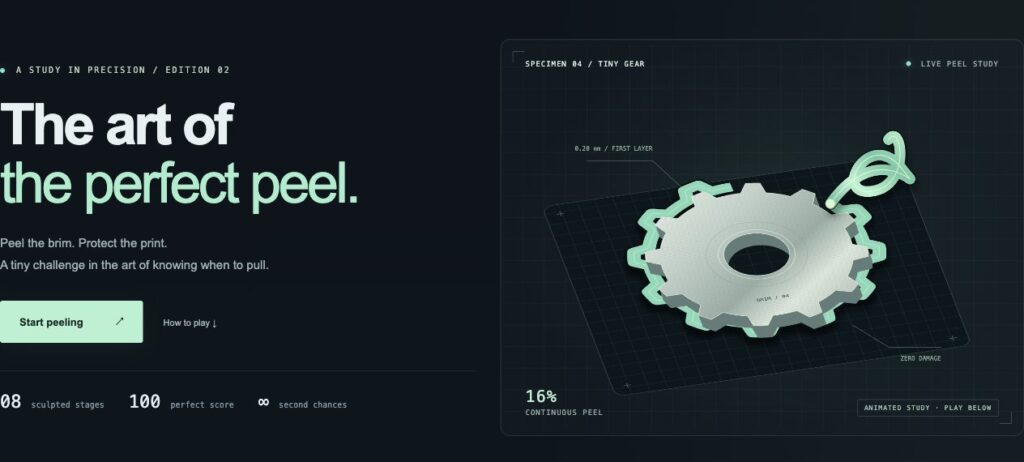
Follow a virtual brim contour in Brim Peel Challenge. Tested manual and assisted controls, 100-point results, lab resets, local bests and export limits.
- Brand
- Brim Peel Challenge
- Tool languages
- en, ko
- Verified date
- 2026-11-10
In this guide
Brim removal game: key takeaways
- The official name is Brim Peel Challenge; the page branding is BRIM.PEEL. English and Korean source pages are available.
- Drag the grip clockwise, or focus the game canvas and hold Space for assisted play. Releasing the key stops the assisted action.
- Eight built-in shapes, a UTC daily specimen and a game-only Slicer Lab provide replay options. No model upload or real slicing workflow was observed.
- Our assisted Easy Square completion scored 100/100 and explicitly displayed Assisted. A separate short mouse drag reduced integrity to 88%; it was not a complete manual run.
- Copy result produced text we verified. Save result card was attempted, but a received image file was not verified. Do not rely on that export without checking it yourself.
- Checked 10 November 2026 in Chrome. Game tension, material resistance and the integrity percentage are illustrative values, not manufacturing measurements.
What Brim Peel Challenge is useful for
The useful challenge is controlling a small motion while watching its consequences. The game borrows the visual idea of peeling a first-layer brim from a printed part, then turns it into a contour-following arcade task. A live panel shows print integrity, removed percentage, tension, ribbon breaks and the saved best. A magnified seam view helps you see where separation is happening.
It fits a short maker-themed break, a classroom discussion about the difference between a model and a measurement, or practice in designing a fair comparison. You can notice how a rushed input affects the game, use a steady assisted run to inspect the completion screen, and replay a shape with a different virtual gap. None of those uses requires a printer, filament, photograph or STL file.
The upper gear animation is a showcase, not your active attempt. Its animated percentage can keep changing before you touch the workbench. Read Brim removed in the workbench for your run. Likewise, a crown in a result card describes a game achievement. It does not certify that someone can remove a physical brim safely or that a real part will survive the same motion.
What the available features actually do
- Precision workbench: a connected outline, a movable grip, live metrics and a seam microscope.
- Manual and assisted input: mouse/finger dragging is described by the source; we directly tested a short mouse drag and focused-canvas Space input.
- Replay controls: Restart, Pause/Resume, stage arrows and an eight-shape collection. All stages were shown as unlocked.
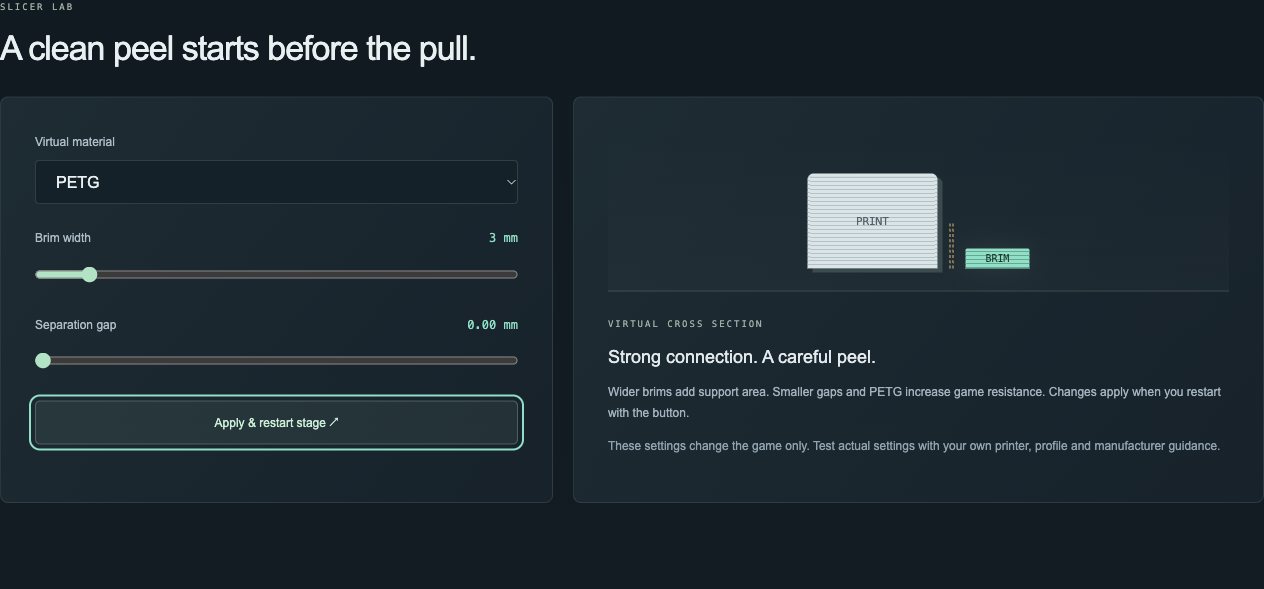
- Slicer Lab: virtual PLA/PETG, brim width and separation gap controls, a cross-section illustration and Apply & restart stage.
- Results: a 100-point certificate with component values, assistance status and crown when its game conditions are met.
- Records and daily specimen: browser-local bests according to the FAQ, plus a common stage selected by UTC date.
Prepare a repeatable game session
Choose the source language first. The root page opened in English; its 한국어 link led to a Korean game page with translated controls, stage names and guidance. Have a mouse or keyboard ready and decide which input you intend to compare. A keyboard-assisted completion and a mouse-followed contour are different conditions, even if they finish on the same shape.
For a baseline, write down the stage, virtual material, width, gap and whether assistance was used. The first English load showed The Easy Square, PLA, 5 mm width and 0.15 mm gap. These are observed game defaults, not suggested printer settings. The lab sliders exposed a 2–12 mm width range and a displayed 0.00–0.35 mm gap range during inspection.
Keep the game canvas focused when using Space. In our setup, leaving focus on the assist button did not advance the run with the held key; focusing the canvas did. If nothing moves, check focus and Pause/Resume before assuming the game is broken. A Space key directed elsewhere on a page may have a different browser or button action.
Advertisements were visible, including an interstitial encountered while navigating and an anchor overlay. We used the visible close control and did not click advertising content. Make sure the control you intend to use belongs to the game. The presence of an advertisement is also a reason not to describe the entire site as an offline, no-network experience.
Play and inspect in seven essential steps
1. Select one shape and read the active run
Use the specimen collection or the stage arrows, then confirm the workbench heading. The eight labels range from The Easy Square and Round & Round to Tiny Gear, PETG Trouble, Maze of Brims and The Impossible Peel. We opened the final stage to verify selection, but did not complete all eight. Begin with the square if you want a simple contour rather than a complex shape to inspect.
Do not use the animated gear at the top as a progress display. On a new or restarted workbench run, the removed counter begins at zero even while that decorative study is moving. The current heading and live metrics are the reliable context for the attempt you are about to make.
2. Start at the mint grip and follow the outline clockwise
The source instructs you to grab the glowing grip, follow the contour clockwise and re-grab after letting go if necessary. We dragged along the first square’s upper edge in one short mouse movement. The workbench reported 28% removed and 88% integrity afterward. That is evidence that manual input changes the game and can damage the virtual part, not a recommended speed or a calibrated force test.
For your own practice, move in small sections and inspect the counters before trying to finish a whole outline. If integrity drops, restarting gives a clearer baseline than mixing a partially damaged manual run with an assisted finish and calling the result a manual score. We did not establish an ideal movement rate or complete a no-assistance crown run.
3. Use focused-canvas Space to inspect a steady assisted run
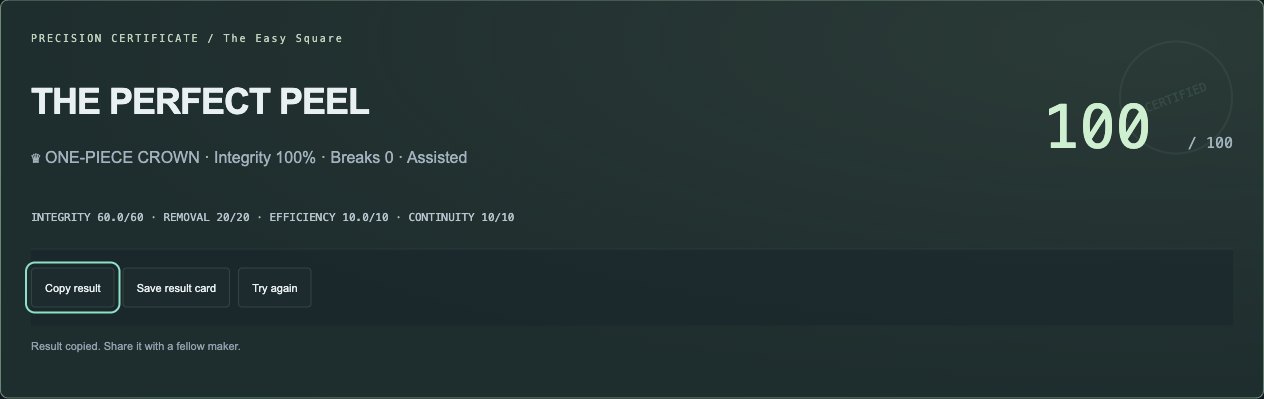
Focus the game canvas and hold Space. In our default Easy Square run, one held segment reached 94% removed. A further held segment completed the contour. The final card showed 100/100, 100% integrity, zero breaks, One-Piece Crown and Assisted. The assistance label must travel with any description of that result.
The on-screen hold-to-peel button is another source-described option, but our sustained-input test used the keyboard. Do not report the result as a manual dexterity achievement. An assisted run is particularly useful for seeing the entire output path and checking which values the game reports at completion.
4. Pause, release and restart with a clear purpose
After starting again, we selected Pause and held Space for about three seconds. Removed stayed at 0%. After Resume, a similar short held input reached 13%; Restart returned the run to zero. Those percentages were observations in one session, not a timing benchmark. They show that the pause state matters before diagnosing an apparently unresponsive control.
Use Pause for a break and Restart for a new comparison. The current attempt and Best are different: restarting the square reset the live run while the previously earned best of 100 remained. A visible best is not proof that the current settings or current input have already achieved that score.
5. Change virtual settings, then apply them deliberately
In Slicer Lab, choose PLA or PETG, adjust Brim width and Separation gap, and read the cross-section message. We selected PETG, 3 mm width and 0.00 mm gap. The panel described a strong connection. Apply & restart stage then reset the live workbench to 0% removed and 100% integrity.
This was a multi-control input check, not a one-variable materials experiment. We did not complete an otherwise identical PETG run and calculate a material effect. To make a cleaner comparison yourself, keep the stage and input method fixed, change only one virtual control, apply it and record the new attempt separately. The button also restarts the stage, so preserve any current observations first.
6. Read the certificate components and assistance label
The source assigns up to 60 points to integrity, 20 to removal, 10 to motion efficiency and 10 to ribbon continuity. Our assisted perfect card displayed 60.0/60, 20/20, 10.0/10 and 10/10. A completed outline alone is therefore not the whole score. The source says rough motion affects efficiency and breaks affect continuity.
One-Piece Crown requires a full contour with no ribbon breaks and no part damage, according to the FAQ. Our assisted card met those game conditions. The wording does not require a real-world brim to come away in one continuous strip, and the result is not a printer-quality certificate. Keep the stage, assistance status and component values together when comparing attempts.
7. Copy the result and verify any file before depending on it
Copy result produced clipboard text naming Brim Peel Challenge, 100/100, The Easy Square, 100% integrity, zero breaks and Assisted, followed by the original site URL. We checked that text and sent no messages. It is useful because the assistance status stays visible in the copied summary.
Save result card was present and was attempted twice, including keyboard activation. We did not confirm receipt of a downloaded file or inspect an exported image. The article’s certificate image is an actual screen capture, not an exported card. If you need a durable record, verify the file in your own browser or retain a clearly labelled screenshot; do not assume the save control succeeded merely because it was pressed.
Our actual results and their limits
The tests on 10 November 2026 checked input, feedback and record persistence in Chrome. They did not measure real forces, print adhesion, physical safety or transfer of hand skills. The different trials below should not be ranked as a controlled manual-versus-assist experiment.
- Default assisted square: completed at 100/100 with integrity 100%, removal 100%, breaks 0, One-Piece Crown and Assisted.
- Short manual drag: upper-edge movement produced removal 28% and integrity 88%. The manual attempt was not completed.
- Pause/resume: paused held input left removal at 0%; resumed held input reached 13%, and Restart returned it to 0%.
- Lab application: PETG/3 mm/0.00 mm updated the descriptive panel; Apply restarted the active run. No full performance comparison was made.
- Daily and stage selection: the 2026-11-10 UTC daily button selected The Easy Square; stage 08 opened The Impossible Peel. We did not test a date rollover.
- Reload and language: the English reload returned to stage 01/default controls with Best 100 retained. The Korean page in the same browser also displayed Best 100.
- Narrow Korean screen: fresh 390×844 loading stayed 390 pixels wide with a 352×219 pixel game canvas. A roughly five-second focused Space hold reached 20% removed and 100% integrity.
The narrow-screen test used desktop browser emulation and a keyboard. It does not establish finger-drag behaviour on a physical phone. The source describes touch input and disabled touch scrolling within the play area, but we did not independently validate every gesture. The result-card file, all eight complete runs, sound and expansion controls were outside the verified outcomes.
Use the Slicer Lab without inventing a printer profile
The lab is most useful as a controlled-question exercise: what happens inside this game if only the virtual gap changes? A comparison loses meaning if you change the shape, material, input method and gap together, then attribute a different score to one of them. Start by writing the baseline down and making sure the Apply button has actually restarted the intended stage.
A simple worksheet can use five fields: shape, input method, material, width and gap. Then add the result components, not just the headline score. For an assisted baseline, explicitly write Assisted. For an unfinished manual run, write the progress percentage and integrity at the stopping point rather than inventing a final score. This makes the record useful without pretending it is a manufacturing test.
Keep Best out of the live comparison. It can represent an earlier attempt, and our same-browser Korean page saw the English run’s best. Switching languages did not create a clean personal-best baseline. Reloading also reset current controls in our test, so record settings before leaving rather than expecting the whole active experiment to resume.
Where the game ends and real printing begins
The real terms are helpful context, but a game slider is not a slicer profile. Prusa’s Skirt and Brim documentation describes a brim as increasing first-layer surface area and a separation gap as an offset that can ease removal; in that documented workflow the offset is applied after elephant-foot compensation. Those details belong to the real slicer and profile context. They do not validate this game’s resistance or score.
Brim Peel Challenge does not take your STL, calculate a real toolpath or return a printer-specific removal force in the workflow we observed. Labels such as PLA, PETG and millimetres make the toy model recognisable, but matching a label does not make two processes equivalent. The drawn virtual plate and seam microscope are visual aids, not hardware measurements.
If your actual issue is a difficult brim, identify the real model, material, machine, profile and finishing conditions and use the appropriate manufacturer/slicer guidance. A game crown does not replace that information. In particular, copying our 3 mm/0.00 mm lab input into a production profile would mistake a UI test for a recommendation. Use the game to ask a clearer question, then investigate that question in the real workflow.
Daily stages, local bests and result sharing
The daily challenge uses UTC, while an English/Korean language choice changes the interface. On our check date the daily workbench heading was DAILY / The Easy Square. The source says the specimen changes at midnight UTC. We checked that the daily button selected a stage, not the rollover or a cloud ranking service.
The FAQ says best results use this browser’s local storage when available, with no account, cloud sync or global leaderboard. Our best of 100 persisted after reloading and appeared in the same-browser Korean page. We did not clear storage, test recovery after deletion, change devices or audit the storage implementation. Treat it as a convenient local best, not a guaranteed permanent archive.
Copied result text and an image export are separate outputs. The copied summary was verified; file receipt was not. The root URL in the copied text takes a reader to the tool, not an independently verified replay of your exact pointer path or current lab settings. Add your own stage and settings notes if another person needs to repeat the conditions.
Language, mobile and privacy limitations
- Bilingual source: English and Korean controls and guidance were observed. Some decorative labels and stage/control accessibility labels remained English on the Korean page.
- Mobile scope: responsive layout and keyboard assistance worked at 390 px. Physical-phone touch, all assistive technologies and full accessibility compliance were not certified.
- Advertising: interstitial and anchor ads were visible and could obscure part of the viewport. We used a genuine close control. Do not mistake an advertisement’s download button for Save result card.
- Privacy scope: local-best behaviour was checked, but network traffic and third-party processing were not audited. Local storage does not imply that the whole page runs without external services.
- Game-only outputs: no calibrated material model, engineering approval or production slicing result was verified. A perfect result can be assisted, so include that label.
- Export scope: result-card download was attempted without a confirmed received file. A screen capture in this guide must not be mistaken for proof of an exported PNG.
Related tools along the printing workflow
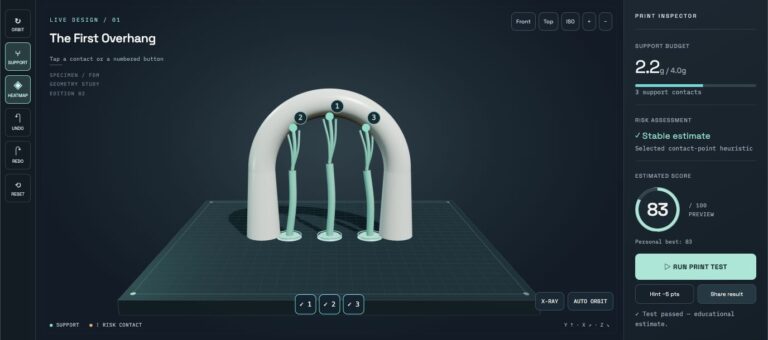
Before thinking about removal, a different toy model can help frame a support question. Gravity Architect explores orientation and selected support contacts with game budgets. Its guide distinguishes the educational score from real print success. Use it for a separate orientation-versus-support discussion, not to transfer a 100-point peel result into a validated support layout.
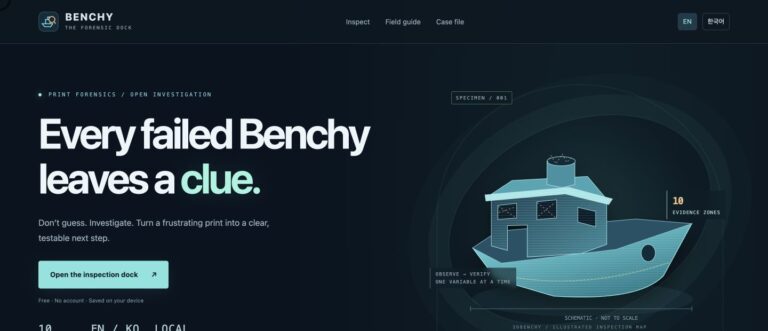
After a real test print, Benchy Failure Detective helps organise visible FDM symptoms into rule-based hypotheses and a follow-up question. It is the more relevant path when you have evidence from an actual Benchy. It does not automatically diagnose a photo or convert game damage into a real defect cause.
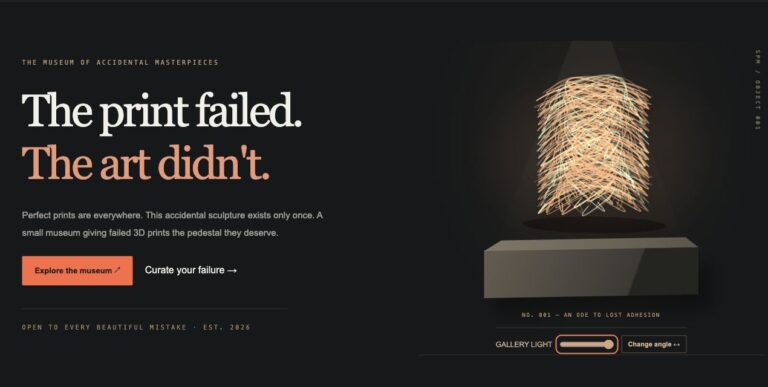
If the goal is a creative record of a failed print, Spaghetti Print Museum provides an exhibition-card preview workflow from an image and title. Keep that art record separate from technical inspection notes. Its published guide also marks exported-file receipt as unverified, so review the limitations before planning a batch of downloadable cards.
Frequently asked questions
Is this brim removal game a real physics simulator?
No. The source calls its tension and material responses illustrative game values. We tested the interface and result logic, not a calibrated relationship to force, adhesion or printer settings.
Can I earn 100 points with assistance?
Our Easy Square run did. The certificate and copied result both showed Assisted, 100/100, integrity 100% and zero breaks. Include that status whenever you describe the result; it was not a full manual completion.
Why does Space do nothing?
Focus the game canvas and check that the run is not paused. Those steps mattered in our test. The source also offers a hold-to-peel button. We did not verify every browser’s focus or assist-button behaviour.
Will changing gap preserve my current attempt?
Apply & restart stage reset the live run in our test. Record current values first. We verified the control response, not a measured physical effect of the selected gap.
Does Best 100 mean my current run is perfect?
No. Best remained 100 after Restart and reload while the live removed value returned to 0%. It can belong to an earlier assisted attempt and was visible across the source language pages in the same browser.
Can I download a result image?
The Save result card button exists and was attempted, but we did not verify a received file. Copy result text was verified. Check an actual saved image before relying on image export.
Try a single careful contour
Choose a shape, make the canvas active and decide whether to follow the grip manually or inspect an assisted run. Watch the live integrity and removal values, then keep the final assistance label and settings with the result. Brim Peel Challenge is most useful when the playful contour remains clearly separate from the physical printing question it inspires.
Verified 10 November 2026 in Chrome. Evidence: English/Korean source controls, FAQ, manual and assisted UI trials, local-best reload and narrow-screen checks. Images are actual captures. Result-card file receipt, complete manual play, all eight completions, physical printing and a network audit were not verified.
A RELEVANT NEXT STEP
Tools with a useful connection
Gravity Architect
3D Printing Supports: 7 Essential Steps for Better Choices
Explore orientation and selected support contacts in Gravity Architect. Actual 83-point and 100-point game tests explain budgets, hints, local bests and the limits of this educational WebGL model.
Benchy Failure Detective
Benchy Troubleshooting: 7 Essential Checks for Failed Prints
Use Benchy Failure Detective to turn visible FDM print symptoms into rule-based hypotheses and one-variable test plans. See our actual interface tests, language differences and local-save limits.
Spaghetti Print Museum
Failed Print Art: 7 Smart Spaghetti Print Museum Checks
Explore illustrated failed-print studies and build an exhibition-card preview from an image and title. Real filter, title, image and reload tests explain the creative workflow while clearly marking PNG file receipt as unverified.