WebP Studio is an English-interface image converter at webp1.kioptrix.com. It combines batch WebP conversion, quality presets and longest-side resizing. Our tests found useful reductions, a JPG that grew at higher quality and a total rounded to zero savings.
Verified 10 November 2026 in Chrome, including a fresh 390 × 844 viewport. Images are actual screen captures. Test results are the tool’s on-screen reports; downloaded WebP bytes, alpha transparency and ZIP contents were not independently inspected.
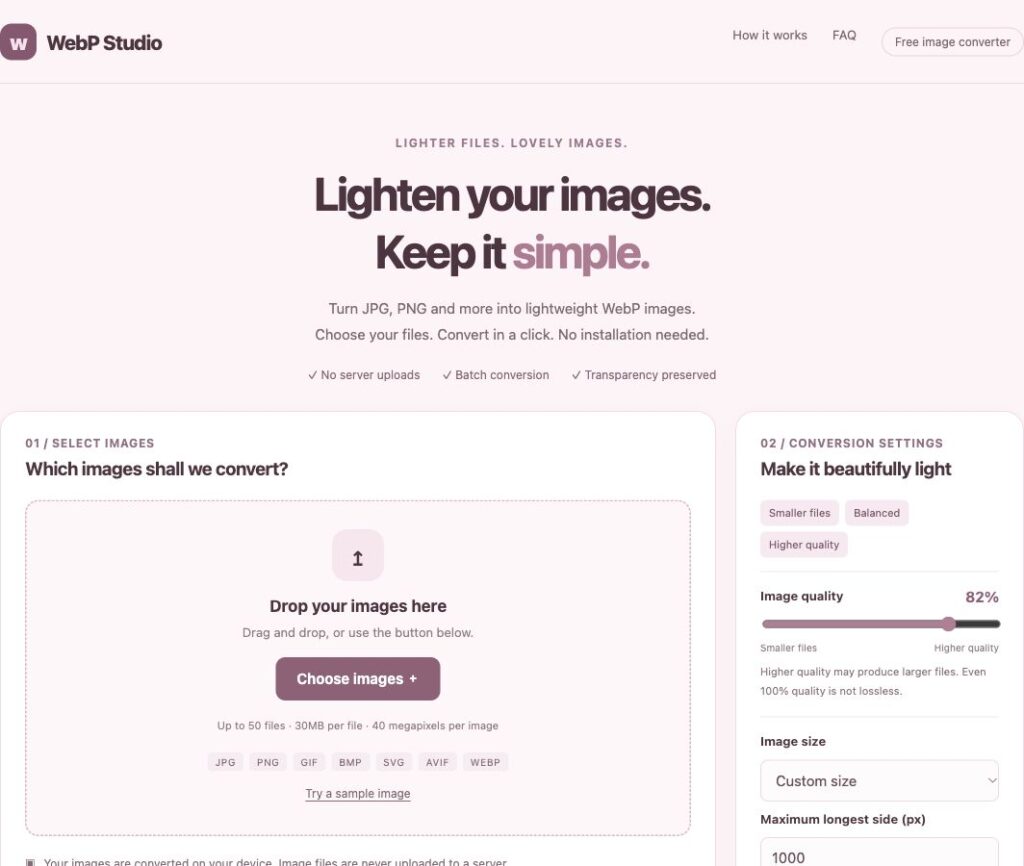
Use WebP Studio’s English interface to compare image quality, keep dimensions or resize a batch. Actual tests reveal smaller JPGs, larger outputs and a rounded zero-saving total.
- Brand
- WebP Studio
- Tool languages
- en
- Verified date
- 2026-11-10
Table of Contents
Key takeaways
- The observed WebP Studio interface is English. No Korean mode was found; the Korean companion article explains the English controls.
- At quality 82 with original dimensions, our PNG/JPG batch went from 119.4 KB to 70.1 KB on screen. At quality 95, the same JPG became slightly larger than its source.
- The custom 1000-pixel cap reduced the JPG to 1000 × 625 while a smaller PNG stayed 640 × 400. Resizing and quality are separate decisions.
- A conversion-complete message is not a visual-quality review. Download, open and inspect the files that you intend to publish.
What WebP Studio actually does
WebP Studio accepts a visible queue of images and creates WebP results with individual save links and a ZIP control. Each result reports source bytes, output bytes, dimensions and percentage change. You can keep original dimensions, apply a fixed longest-side cap or enter a custom maximum. The interface says smaller images are not enlarged, which our PNG test supported.
The useful problem is preparing a small set of website images without installing an editor or writing an encoding command. Imagine a documentation page containing a screen capture, a simple transparent graphic and an SVG illustration. Those assets have different needs: readable text, clean transparent edges and efficient vector representation. Converting the whole folder with one preset is possible, but reviewing each result is the part that protects the finished page.
This is a conversion workspace rather than a CMS or a permanent asset library. It did not publish images to WordPress, choose accessible alternative text or replace existing site media during our tests. Keep those steps in your own workflow. No account was required for the operations tested, and the visible page describes the tool as free to use.
Prepare a useful test batch
Choose representative files before processing a large folder. Keep untouched originals and decide the final display requirements first. A screenshot needed for reading small menu labels may require more pixels than a decorative picture. A tiny vector may already be more efficient than a raster export. A useful test batch reflects the content you will actually publish, not just whichever file is easiest to find.
We selected a synthetic 640 × 400 RGBA PNG of 2,422 bytes and a 1440 × 900 JPEG editor screenshot displayed as 117.0 KB. The PNG contains transparent and translucent areas; it is diagnostic artwork, not a fabricated application screenshot. The JPEG depicts a public editor and is not a photographic scene or an inspected export from that editor. These are narrow tests, not a general benchmark for every photograph.
The built-in sample provides another useful check without selecting a personal file. It is sample-landscape.svg, displayed as 499 B. At the default quality 82 and original size, WebP Studio reported 11.3 KB at 1200 × 800: a 2221.8% increase. A successful conversion can therefore be a poor size-saving choice. Record increases as carefully as reductions.
7 checks from selection to publishing
- 1. Preserve the original. Work from a copy and note its dimensions and intended use. Do not replace your only master with the first converted result.
- 2. Select and check the queue. Use Choose images or the drop area. Confirm names and count before conversion. The remove button clears an individual item; we removed the sample before comparing our two selected files.
- 3. Choose the dimensions. Keep original size for a size comparison that does not resize. Otherwise choose a longest-side cap of 1920, 1280 or 800 pixels, or select Custom size.
- 4. Choose quality. Balanced was 82, Higher quality was 95 and Smaller files was 65 in our observations. The slider offers a finer choice. Even 100% is explicitly described as not lossless.
- 5. Convert and read each row. Press Convert to WebP and wait for completion. Look at dimensions, size and the words smaller or larger. Do not rely only on the total at the bottom.
- 6. Download a proof. Use Save for an individual result or Download all WebP images as ZIP for the successful batch. Open the actual files and inspect text, edges and transparency; that file-level inspection was not completed in this review.
- 7. Publish the reviewed version. Upload your selected result to the destination, write useful alternative text and check it at the intended display size. Keep the source and your settings for later revisions.
Changing the size setting returned our rows to Ready to convert while the previous completion or ZIP-start message could still remain above them. Run conversion again after a settings change and read the current rows. An earlier success message does not establish that new settings have been applied. This distinction matters when comparing several candidates in one session.
Actual WebP Studio test results
| Input / setting | Reported result | What it establishes |
|---|---|---|
| Built-in SVG 499 B; 82; original | 11.3 KB; 1200 × 800; 2221.8% larger | Tiny vector became a much larger raster |
| PNG 2.4 KB; 82; original | 1.4 KB; 640 × 400; 39.4% smaller | Accepted the diagnostic PNG without resizing |
| JPG 117.0 KB; 82; original | 68.6 KB; 1440 × 900; 41.4% smaller | Reduction without changing reported dimensions |
| Same JPG; 95; original | 117.8 KB; 1440 × 900; 0.7% larger | Higher quality did not guarantee savings |
| Same JPG; 82; custom 1000 | 39.2 KB; 1000 × 625; 66.5% smaller | Custom longest-side resizing worked |
| Same PNG; 82; custom 1000 | 1.4 KB; 640 × 400 | The smaller image was not enlarged |
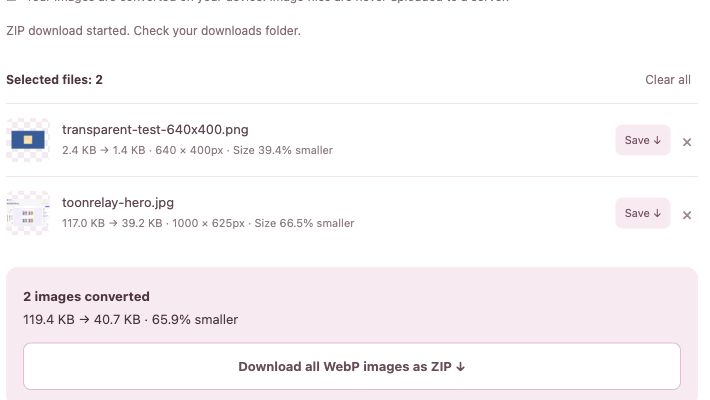
The two-file totals were 119.4 KB → 70.1 KB at quality 82 and original dimensions, 119.4 KB → 119.4 KB at quality 95 and original dimensions, and 119.4 KB → 40.7 KB at quality 82 with the 1000-pixel cap. These are reported, rounded totals. They describe these inputs and settings; they do not promise a compression percentage for another batch.
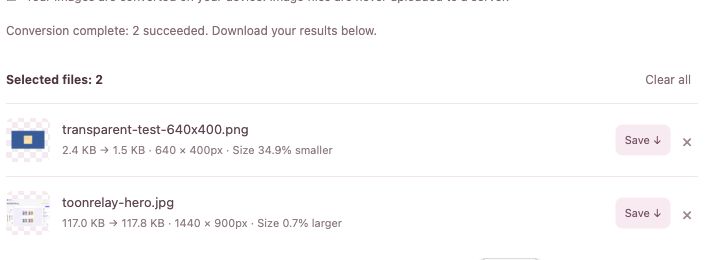
We confirmed input acceptance, completion states, reported dimensions and individual result links. We did not reopen the output PNG conversion to inspect alpha values, evaluate visual artifacts in the JPG or examine image metadata. The visible thumbnail and a successful status do not substitute for inspecting the output file. Transparency preservation is a source claim, not a pixel-level conclusion from our test.
Read zero savings and larger files correctly
The rounded zero-saving batch is a useful editorial example. At quality 95, WebP Studio showed a PNG reduction but a 0.7% JPG increase. The total displayed 119.4 KB before and after, with 0.0% smaller. Read that as no meaningful displayed saving for this batch, not proof that every output contains exactly the same number of bytes as its source. The display rounds units and percentages.
A batch can contain both good and poor candidates. If you only look at its aggregate reduction, one large saving can hide several increases. Compare each row with its intended use. Keep an efficient original if it already meets the destination’s requirements, and use a conversion when its actual benefit justifies the change. An extension alone does not make an image an improvement.
The SVG sample illustrates a different issue: its source is a compact vector description, while the result is a raster. That comparison changes representation as well as encoding. Our mobile sample at quality 65 and an 800-pixel cap still became 5.8 KB, larger than its 499-byte SVG source. Lowering quality and dimensions reduced the WebP compared with the default sample result, but did not make it smaller than the vector.
Separate resizing from compression
For a fair quality-setting comparison, keep dimensions fixed. Our JPG stayed 1440 × 900 at both 82 and 95, with reported outputs of 68.6 KB and 117.8 KB. That isolates the chosen quality setting more closely than a comparison that also resizes. It is a size comparison, not a perceptual study: we did not inspect downloaded images to decide whether either version looks acceptable.
For a resizing comparison, keep quality fixed. At 82, changing the JPG from original dimensions to a 1000-pixel longest side changed the result from 1440 × 900 and 68.6 KB to 1000 × 625 and 39.2 KB. The aspect ratio remained consistent. A lower file size partly reflects fewer pixels, which can also remove detail needed by the reader. Choose the required dimensions before celebrating the reduction.
A longest-side cap is not a width field
The custom input is labeled Maximum longest side (px). In a landscape image that is usually the width, but for a portrait it can be the height. Our custom test used a landscape screenshot; we did not run a separate portrait experiment. Check both output dimensions rather than assuming an entered number becomes the width. The tool exposes a proportional size cap, not a verified cropping or composition editor.
The smaller PNG retained 640 × 400 when the cap was 1000. Increasing a maximum does not create additional image detail. If a source lacks readable text or enough pixels for the intended destination, obtain a better source or change the design. Conversion can prepare an asset, but it is not evidence that missing visual information has been reconstructed.
Build a repeatable publishing workflow
Organize a small publishing batch by review purpose. Group text-heavy screenshots separately from decorative images, and keep transparent graphics available for a background check. Record source filename, output filename, dimensions, quality and proof status. This is a recommended manual practice; WebP Studio was not verified as a project-history or team-approval service. A downloaded file and an approved asset are different states.
Review the details that carry meaning
Inspect small letters, thin rules and important icons in screenshots. Check transparent edges against light and dark surfaces. Review a photograph’s important detail at its real display size. A slightly larger output may be the useful choice if it preserves required information. A tiny file that makes the instructions unreadable does not solve the publishing problem. These are suggested checks, not visual scores from this test.
Pressing the ZIP control produced “ZIP download started. Check your downloads folder.” The FAQ says ZIP includes only successful conversions. We did not inspect the archive or test a mixed-success batch, so do not infer that every selected input necessarily appears in a download. Count the extracted results and compare them with the successful rows in your own session.
Reloading the page cleared our list and restored the default quality 82 during mobile testing, matching the FAQ’s stated behavior. Save needed outputs before leaving and retain originals for reproduction. If a settings comparison becomes confusing, start a fresh small batch after recording what you need. The page should not be treated as durable storage for unfinished work.
Format, animation and device limits
Visible format badges include JPG, PNG, GIF, BMP, SVG, AVIF and WebP. The FAQ lists JPG/JPEG, PNG, GIF, BMP, SVG and WebP, plus browser-supported AVIF or ICO. It excludes HEIC, RAW, PSD, TIFF and PDF and suggests exporting JPG or PNG first. An SVG referencing external resources may not convert. We directly tested SVG, PNG and JPG; other formats remain stated support rather than test results.
Animated GIF, APNG and other animated inputs are described as becoming a still first frame. We did not test an animation. If motion explains a sequence or carries meaning, use a workflow that preserves it and verify the result. Quality 100 is not a lossless switch according to the interface. Do not generalize these tool-specific boundaries into claims that the entire WebP format cannot support other encoding modes.
The stated limits are 50 files per batch, 30 MB per file and 40 megapixels per image. We did not test those boundaries. File bytes and decoded pixels are different constraints, and the FAQ warns that device memory may be insufficient for large images. Try a smaller batch when the device struggles. The review does not establish maximum capacity, encoding speed across devices or compatibility with every browser.
Privacy and mobile observations
WebP Studio states that selected image files are read and converted in the browser without server upload or storage. We used the tool without sign-in, but did not audit network traffic, establish offline operation or verify metadata removal. Advertisements and an interstitial appeared during research; only close controls were used. Its image-processing statement should not be expanded into a claim that the page has no advertising or visit-related processing.
A fresh 390 × 844 Chrome viewport had a 390-pixel document width. We selected the built-in sample, chose Smaller files at 65 and an 800-pixel longest side, and obtained a completion report of 5.8 KB at 800 × 533. The controls worked in this narrow-screen test. This was browser emulation, not a physical-phone download test or a cross-browser study. The FAQ directs mobile users to their Files app or downloads folder.
Related tools and practical alternatives
For a Korean interface, see our published WebP 공방 review. It covers a separate domain and brand with a closely comparable conversion workflow. Choose based on the language you prefer and confirm the current behavior; no shared backend, shared queue or automatic transfer between the sites was established. The WebP Studio article focuses on original-dimension comparisons and the rounded zero-saving batch.
A full image editor is useful when you must crop, annotate or redesign before encoding. A repeatable encoding workflow may suit a production process that needs specific lossless settings or tightly controlled parameters. WebP Studio is convenient for a small visible queue and quick result comparisons. Decide according to the output requirements, and review actual files regardless of the route you choose.
Frequently asked questions
Does WebP Studio always make files smaller?
No. Our quality-95 JPG grew from 117.0 KB to 117.8 KB, and the default SVG sample grew much more. Read each result and keep the original when it better serves the destination.
Can I switch WebP Studio to Korean?
No Korean control was observed on this domain. The companion Korean guide translates the important English labels. WebP 공방 is a separate Korean-interface alternative, not a language switch within this session.
Is 100% quality lossless?
The interface explicitly says it is not. The quality slider is not a verified lossless toggle, and its number is not a measured percentage of visual detail retained.
Did the review verify downloaded files?
We observed individual save links and the ZIP-start confirmation, but did not inspect output bytes, transparency or archive contents. Open the actual downloaded results before using them in production.
Why did my files disappear after reloading?
The FAQ says reloading or closing clears the list, and our fresh mobile reload did so. Download first and keep your originals. No permanent queue recovery was verified.
Start with one reviewed batch
Open WebP Studio with a representative small batch. First compare quality at original dimensions, then resize only if your destination allows it. Read increases as well as savings, download a proof and publish the version that meets the reader’s needs.
A RELEVANT NEXT STEP
Tools with a useful connection
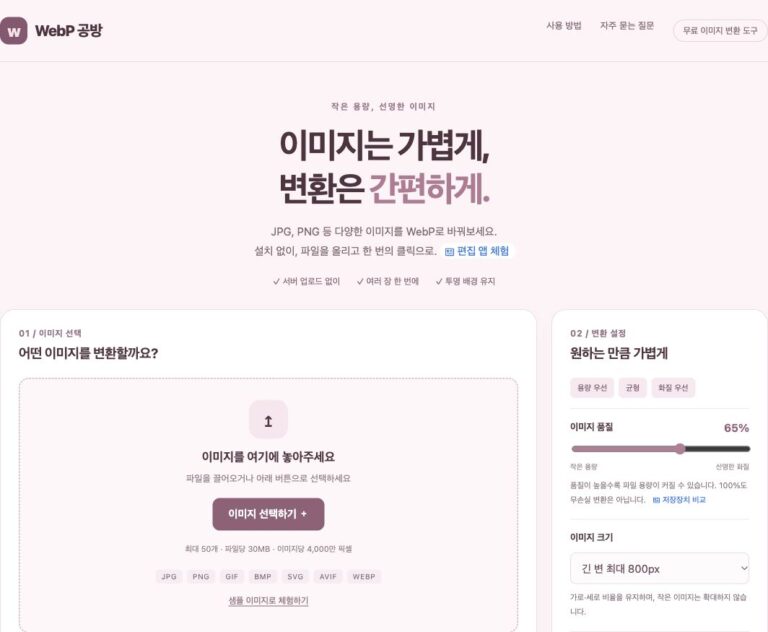
WebP 공방
WebP Converter: 7 Essential Checks for Better Images
Convert and resize images in WebP 공방’s Korean interface. Actual PNG,JPEG and SVG tests explain quality choices, file growth, batch results and download limits.
PrintFix Studio
PrintFix Studio: 7 Smart HTML Printing Checks
Prepare basic HTML for printing with overflow checks, repairs, page breaks and CSV document batches. Our hands-on tests show why 100 readiness does not catch a missing field and what remains to verify in the actual print output.
PixelFit Studio
Image Upload Optimizer: 7 Essential PixelFit Checks
Prepare exact upload dimensions and file-size conditions with PixelFit Studio. Actual sample and JPEG tests explain PASS/CHECK, crop versus contain, social totals, copied HTML and the limits of unverified file receipt.