Design miniature moss-on-stone artwork with patterns and brushwork. Follow real tests of sharing, local restoration and imagined conditions, with clear botanical limits.
- Brand
- Moss Carpet Planner
- Tool languages
- en, ko
- Verified date
- 2026-11-07
Moss Carpet Planner lets you compose a miniature moss landscape on a drawn stone, then preserve both the picture and its editable recipe. Use these seven checks to choose a pattern, paint deliberately and compare imagined conditions without mistaking the result for a cultivation forecast.
Table of Contents
Key takeaways
- Design a composition. Three stone forms, four brush styles and eight starting patterns provide a compact visual vocabulary.
- Keep the recipe as well as the image. A copied garden link includes settings and brushwork. A PNG is a visual output; browser storage is a local working copy.
- Read the timeline as an artistic variation. Today, one month, one season and one year are creative stages, not measured growth rates.
- Tested on 7 November 2026. We checked drawing, erasing, Undo/Redo, link restoration, local restoration and a fresh 390px Korean layout.
1. Decide what this moss planner should solve
The useful starting point is a visual question: would an open stone with a small green island feel calmer than a dense spiral? Moss Carpet Planner answers that question quickly. It creates an illustrated mini garden in your browser, with editable materials, pattern coverage and painted accents. You can explore spacing before committing to a sketch, or prepare a reference for a small landscape illustration.
It is particularly useful when a blank drawing canvas feels too open-ended. Instead of choosing a brush, a background and a stone silhouette from scratch, you begin with a coherent scene. The supplied patterns establish rhythm; your strokes add a focal point or interrupt a too-regular arrangement. A saved recipe makes it possible to revisit an earlier direction.
The name includes “Planner,” but the tool does not ask for physical dimensions, plant quantities, species, drainage or a measured light level. It is a creative garden design studio, not a planting specification. A depicted patch cannot tell you how much living material to buy or whether a real stone will support it.
| Your task | Useful output | What remains outside this tool |
|---|---|---|
| Illustrate a tiny stone garden | A controlled arrangement of green patches | Photorealism or a real plant photograph |
| Discuss a composition | An image plus a reproducible garden link | Scale drawings and material quantities |
| Explore dry versus lush color | An artistic climate/time variation | Survival probabilities or watering advice |
| Keep a design exercise | A local copy and shared recipe | An account-based project library |
2. Read the moss controls before painting
The English interface is at the main URL. Its KO link opens a dedicated Korean page with the same groups of controls. No account was required in our tests. Prepare a browser, a short design brief and somewhere to keep a copied link. You do not need to upload a photograph or provide a real garden location.
Materials and pattern settings
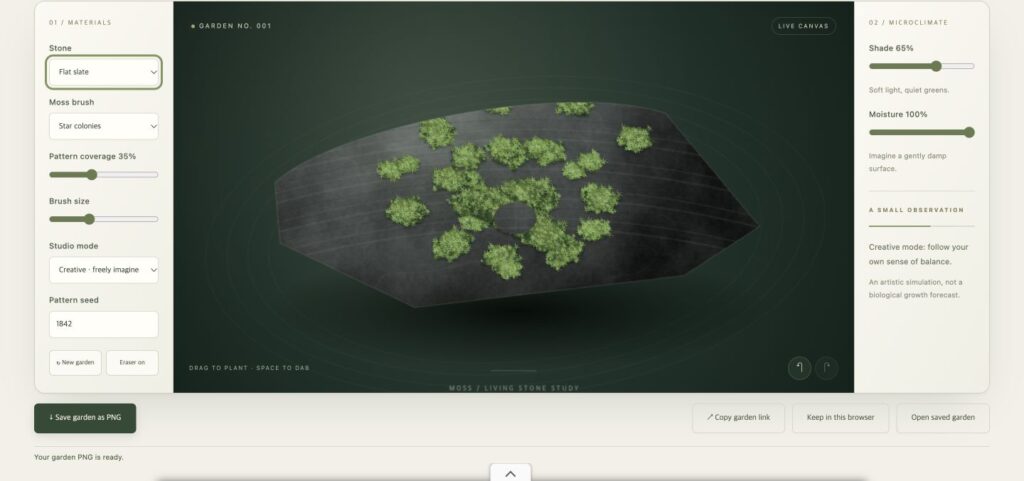
Stone offers River pebble, Volcanic rock and Flat slate. The moss brush choices are Carpet moss, Cushion moss, Star colonies and Wild scatter. Treat these as drawing styles. They are not identified species, and selecting a brush does not select a care regime. Choose the silhouette first, then judge how the brush texture reads against it.
Pattern coverage ranges from 5 to 85 percent in the tested interface. Brush size ranges from 8 to 65. These are drawing controls; the size value is not a millimetre measurement. Coverage governs the starting pattern, while brush size governs a mark you add yourself. Do not assume that raising coverage means you have painted over the same proportion of a real stone.
The initial seed was 1842, coverage 35 and brush size 28. The seed belongs to the procedural design recipe. Record it alongside the stone, brush and pattern when comparing alternatives. A seed alone is not a complete saved garden because other settings and manual strokes also affect the result. The New garden button offers another starting direction; preserve a useful version before exploring further.
Eight patterns as compositional choices
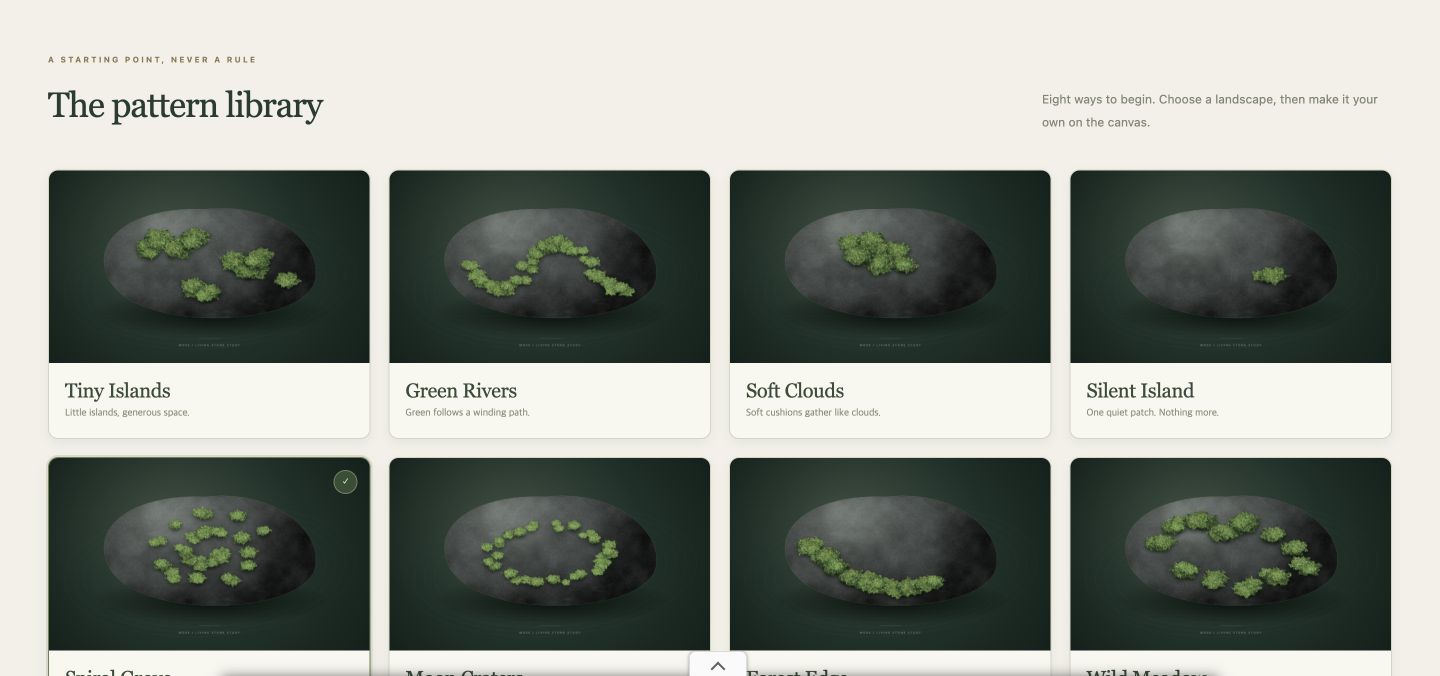
Tiny Islands distributes separate patches. Green Rivers suggests a winding line; Soft Clouds gathers rounded groups. Silent Island concentrates attention on a small patch. Spiral Grove gives the composition a central movement. Moon Craters uses ring-like spacing, Forest Edge emphasizes a boundary, and Wild Meadow creates irregular coverage. These descriptions are ways to choose a starting layout, not claims about habitats.
For a first attempt, compare one dispersed pattern with one concentrated pattern while keeping the stone and coverage fixed. This reveals whether the composition needs more negative space before you spend time painting details. Selecting a pattern is more predictable than changing several sliders at once.
3. Build a moss garden in seven steps
- Write a one-sentence brief. For example: a flat stone, a loose spiral and enough bare surface to keep the center readable. This gives you a reason to accept or reject a variation.
- Choose the stone and brush. Our repeatable baseline used Flat slate and Star colonies. Keep Creative mode while arranging the composition.
- Select Spiral Grove and note the seed. Start with seed 1842, coverage 35 and brush size 28 if you want to follow our settings. Matching these controls does not recreate our hand-painted marks; use a full shared link for that.
- Add a few marks. Drag over the stone or focus the canvas, move with the arrow keys and press Space to dab. Inspect the result after a short stroke instead of filling every open area.
- Refine with Eraser and Undo. Switch Eraser on for removal, and switch it off before planting again. Undo and Redo let you compare an edit while it remains in the current session.
- Explore conditions separately. After preserving the composition, select Nature mode, change moisture or shade, then move the imagined-time slider. Return to Today when you want to inspect the starting stage.
- Preserve a usable version. Keep a browser copy for local work, copy the full garden link for restoration and use Save garden as PNG when you need an image. Check the output before depending on it.
On a keyboard, keep focus on the canvas when using Space. Otherwise the browser may scroll the page or activate another control. In our test, ArrowRight moved the reported brush position from x450 to x465 while y stayed 310. Space then created a second dab. This is a usable precision option when a pointer stroke is difficult to place.
Save the chosen version before a major change of pattern or material. We verified Undo and Redo for brushwork, not a complete undo history across every configuration control. Do not use an enabled Undo button as your only backup of a preferred composition.
4. What our hands-on moss tests verified
We tested the live English tool and its Korean page on 7 November 2026. The table separates visible results from features merely described by the site. The copied link was inspected as the tool’s user-facing output; we did not access hidden application storage or source code.
| Test | Observed result | Practical meaning |
|---|---|---|
| Brushwork and keyboard | A click and a keyboard dab produced two recorded strokes; the reported position moved to 465,310 | Both pointer and keyboard input reached the design |
| Undo and Redo | The copied recipe contained one stroke after Undo and two after Redo | The two-dab brushwork was restored |
| Native drag and Eraser | A short drag added nine stroke entries; the next erasing mark was flagged as an eraser stroke | Painting and removal were represented in the recipe |
| Nature and imagined time | Moisture 0 and time stage 3 retained the original two stroke entries | The visual stage did not replace the original brush positions |
| Fresh shared-link tab | “Shared garden opened” appeared with Flat slate, Star colonies, Nature, seed 1842, moisture 0 and One year | The copied design settings opened in another tab |
| Local working copy | The initially empty slot accepted a garden; after changing the stone, Open saved garden restored Flat slate and saved conditions | Explicit local save and restore worked in this browser |
| 390px Korean layout | Fresh load had document width390 and canvas width352; selecting Spiral Grove worked | The narrow layout and preset interaction were usable in emulation |
The native drawing canvas reported 1800 × 1240 internal pixels. That is a canvas property, not a verified downloaded-file specification. We activated the PNG save control, but did not independently inspect the downloaded file’s bytes, transparency, dimensions or color profile. The screenshots in this article are actual browser captures rather than an exported garden file.
A useful boundary appeared in the new shared tab: Undo and Redo were disabled even though the shared garden opened. A shared recipe restores a design; it should not be treated as a transported editing history. If you want to compare two finished alternatives, retain two links rather than expecting the second tab to undo edits made in the first.
5. Compare imagined conditions without inventing growth results
Shade and moisture each range from 0 to 100. Creative mode invites free composition; Nature mode adds condition-oriented observations. The timeline has four positions: Today, One month, One season and One year. The source explicitly calls these creative stages. There is no measured growth calibration in the interface.
For a clean comparison, preserve a baseline and change only one condition at a time. First compare moisture while keeping the time stage fixed. Then hold moisture steady and move the timeline. This keeps you from attributing a color or size change to the wrong control. Use the observations as prompts to look more closely at the illustration, not as instructions to treat a living plant.
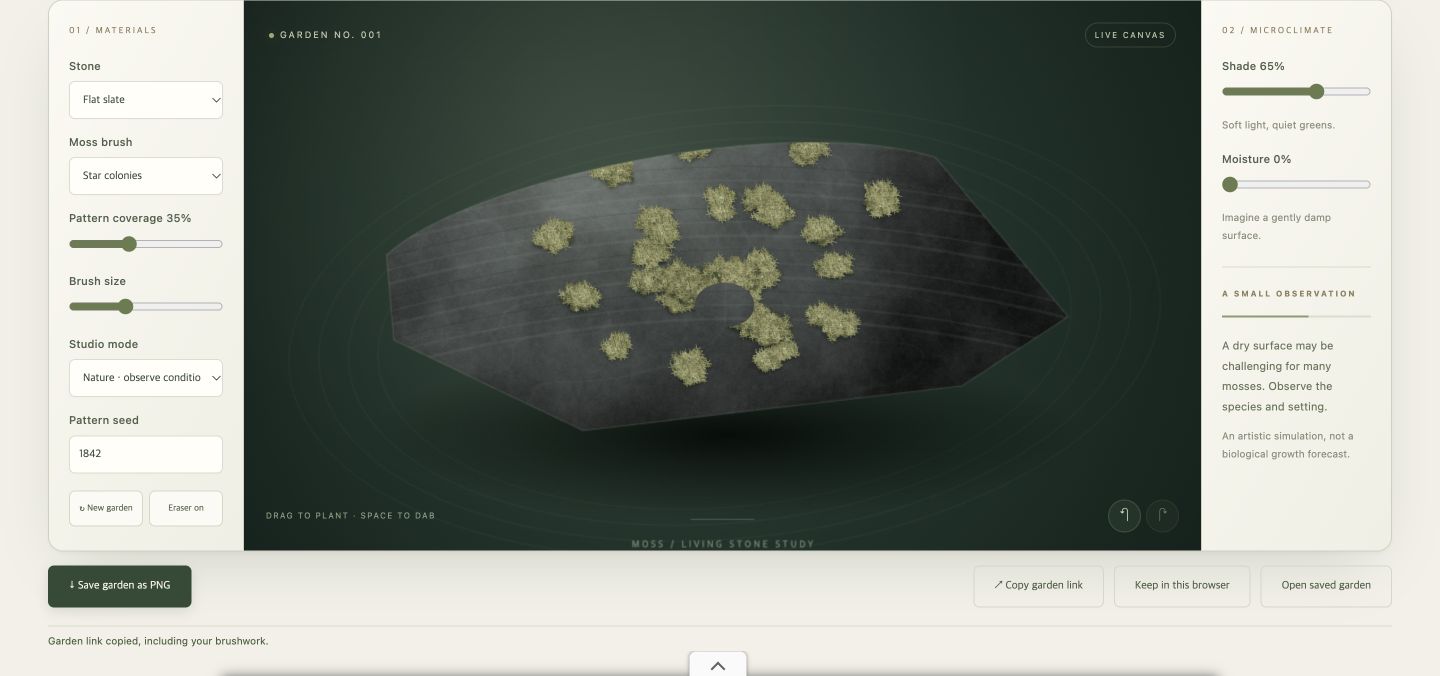
The screenshot shows a drier-looking palette and an erased gap after our editing sequence. It is not a controlled before-and-after plant experiment: brushwork, erasing and mode changes occurred during the session. Our narrower controlled check compared the copied recipes before and after a condition/time change and confirmed that the original two stroke entries remained unchanged.
If you are preparing a classroom slide or a mood board, label the later stage “imagined year” in the caption. Do not label it “one year of growth.” For an actual garden, consult species-specific information and observe the real environment. The source’s field guide links to the Royal Horticultural Society’s moss guidance; that is a separate reading route, not evidence validating this simulation.
6. Choose a moss saving method for the next task
| Method | Best use | Limit to remember |
|---|---|---|
| Save garden as PNG | A picture for a document or reference board | Check the actual file; it is not the editable recipe |
| Copy garden link | Reopen or send the settings and brushwork | Anyone with the full link can reproduce the included design |
| Keep in this browser | A convenient local working copy | It belongs to this browser/device context, not a cloud account |
| Two named links in your own notes | Compare alternatives after closing a session | You must label and retain them yourself |
A practical handoff consists of a picture, a recipe link and a short note describing the intended use. Name the versions by a decision—“open center” and “denser edge”—rather than “final” and “final2.” A collaborator can judge the picture immediately and open the recipe only when editing is necessary. Keep the full fragment beginning #garden=; truncating that portion removes the design payload.
Browser storage should be treated as a convenience rather than your only archive. The tested interface offers Keep in this browser and Open saved garden, without a visible account library or collection manager. Clearing site data, changing browsers or moving to another device can make a local copy unavailable. Copy a link outside the page before depending on long-term access.
The publisher states that garden editing runs in the browser, explicit saving uses local storage and the tool does not submit garden data to a garden server. The same notice identifies Blogger and Google AdSense and says advertising partners may use cookies according to policy and consent. We verified visible behavior and read that notice; we did not conduct a network or storage audit. “Browser-based” should not be read as a guarantee that the entire page makes no external requests.
7. Improve the composition and connect related tools
Leave a deliberate bare area. If every part of the stone has equal detail, a thumbnail can become visually noisy. Start with one focal patch, then decide whether surrounding marks support it. A short, well-placed accent is easier to judge than a long continuous stroke. Reduce brush size for a narrow edge, then zoom out mentally by checking the whole composition.
Compare layouts with a stable recipe. Hold stone, brush, coverage and seed constant while exploring patterns. Then hold the pattern constant while exploring the brush style. This creates a small matrix of choices instead of an untraceable sequence of random changes. Retain only versions that answer the original brief; the generator does not need to become an endless collection exercise.
A general drawing app gives more control over layers, typography and arbitrary geometry, while this studio gives a ready-made stone-and-patch scene. A paper sketch is better when you need dimensions, annotations or construction details. A real horticultural plan needs information this tool never requests. Choose the next method according to the question left unanswered by the picture.
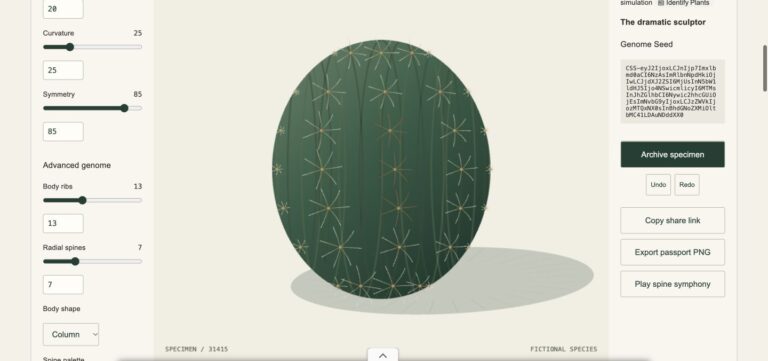
For another plant-inspired illustration exercise, read our published Cactus Spine Studio guide. Its spine, body and painting controls explore fictional plant forms, while Moss Carpet Planner explores surface coverage and spacing on a stone. You can compare visual density across two separate studies; there is no tested data transfer between the tools. Browse Plants, Nature & Ecology for other published introductions.
Frequently asked questions
Is this a real moss growth simulator?
It is an artistic simulation. The tool explicitly says its timeline is not a biological growth forecast. Neither Nature mode nor a percentage slider establishes survival, growth speed or a watering schedule.
Can I reproduce a design using only seed 1842?
Not a complete edited design. The copied garden link includes stone, brush, coverage, size, mode, pattern, climate, time and stroke data. Keep the whole link when you need the brushwork as well as the procedural starting point.
Why does painting remove green instead of adding it?
Check whether Eraser is on. Our test showed a pressed “Eraser on” button and an erasing entry in the recipe. Switch it off before adding new marks, or use Undo immediately if the last change was unintended.
Can I use a phone?
The Korean page worked at a fresh 390px viewport, including preset selection, and the canvas resized to 352px. The source documents finger dragging. We did not test a physical touchscreen, so finger accuracy and device-specific download behavior remain unverified. Advertising overlays can also require dismissal.
Does sharing make my garden private?
No access restriction was offered on the copied link. The publisher states that anyone with it can reproduce the design. Share only a garden you intend the recipient to open, and do not treat the URL as a private account document.
Start with one clear moss composition
Choose one stone, one pattern and a small number of marks. Compare the picture against your brief, keep the full recipe link and use the timeline only as an artistic variation. That is enough to turn a quick experiment into a design you can explain and revisit.
Verified 7 November 2026 (UTC). Evidence: direct English/Korean browser interaction, copied design outputs and actual screenshots. PNG file contents, physical touchscreen behavior and a complete network/privacy audit were not independently verified.
A RELEVANT NEXT STEP
Tools with a useful connection
Cactus Spine Studio
Cactus Generator: 7 Creative Steps for Beautiful Forms
Create fictional cactus artwork with spine, body and painting controls. Compare descendants and restore a shareable recipe, with real tests and clear botanical limits.
CACTUS FIT
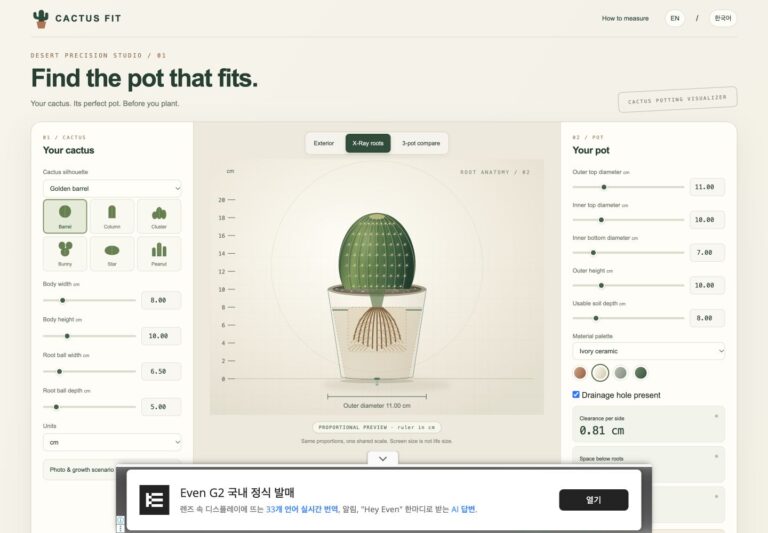
Cactus Pot Size: 7 Essential CACTUS FIT Checks
Measure cactus roots and tapered pot interiors before choosing a container. Our tests explain clearance,293mL soil geometry, warning states, three-pot studies and local setup sharing.
Seed Pod Pop
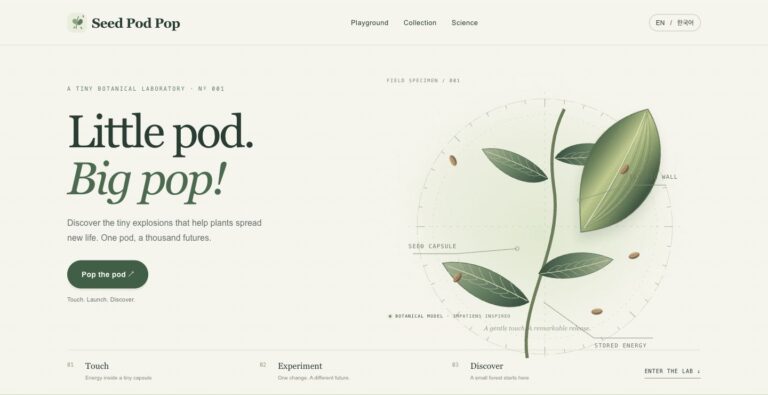
Seed Dispersal: 7 Smart Seed Pod Pop Experiment Checks
Explore seed dispersal with Seed Pod Pop. Repeated launches, wind comparisons, replay, a grass target and pine humidity tests show how to read this educational model without treating it as a field forecast.