Cable inspection journal FRAYTRACE organizes visible observations, photographs and retirement history for individual cables. Choose one of five regions and record what you see. It does not test electrical performance or certify that a cable is safe.
Verified 11 November 2026 (KST). We tested a clearly fictional cable passport and uploaded a screenshot of the tool’s schematic twice. No physical cable, electrical fault or real wear progression was inspected. All screenshots here are actual interface captures; the pictured cable is a diagram.
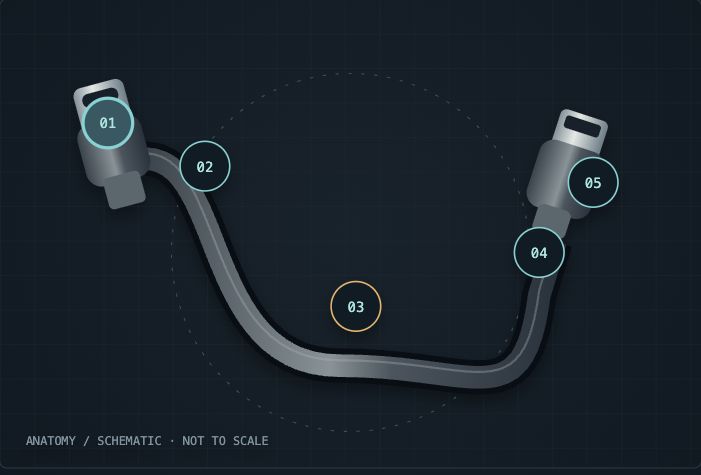
Keep region-labelled cable notes, dated photographs and retirement history in FRAYTRACE. Actual fictional-record tests explain local persistence, same-region comparison and the limits of safety and backup claims.
- Brand
- FRAYTRACE
- Tool languages
- en, ko
- Verified date
- 2026-11-11
On this page
Key takeaways
- Five regions give observations a consistent location: connector A, strain relief A, jacket, strain relief B and connector B.
- The demonstration specimen is not your inventory. Its Save control was disabled until we registered a cable.
- Our fictional passport held three observations and two uploaded images after reload. The earlier/later comparison required photos from the same selected region.
- Retirement preserved the history and disabled new observations. Moving the passport to deleted items and restoring it brought back the retired record.
- The source describes local IndexedDB storage, compressed photographs and no account sync. This is not a full network or storage-security audit.
- Export, import and print controls exist. We activated a single-cable export, but did not confirm file receipt, inspect backup contents or test restoration from a backup.
What this cable inspection journal does
The official name is FRAYTRACE. Its browser title describes a “Cable Wear Inspection & Retirement Journal.” The desktop interface combines a cable library, an interactive five-region schematic, an evidence panel, a passport report, dated photographs, a replacement desk and a retirement archive. English and Korean interfaces are available through visible language links. No account registration was required in our test.
The problem it solves is record continuity. A loose image named IMG_1234 does not tell a future reader which cable, which end or which observation it belongs to. A passport groups a cable name, location, connector pair, length and power/data requirements with dated notes and images. The region selector adds a location within that cable. This makes an observation easier to revisit without turning it into an inferred diagnosis.
A useful scenario is a shared drawer of visually similar USB cables. You can give each physical item a stable name in your own organization and distinguish observations about one jacket from those about another connector. That is a suggested workflow, not a real workplace deployment we tested. The software does not attach a physical label to an object, read a serial number or verify the specifications you type.
Keep the safety boundary explicit. The source says to disconnect both ends before observing and never reconnect or bend a damaged cable to reproduce a fault. It gives no electrical safety certificate. Apple’s safety information also warns about using damaged cables and chargers. Follow the relevant manufacturer’s instructions for your equipment; a quiet-looking photograph is not clearance for use.
Prepare an identifiable record
Prepare a cable identifier, its location and a way to distinguish end A from end B. “Desk cable” may be enough for one item, but not for ten similar items. A more useful local naming convention might combine a place with a short unique code. Do not reuse the same name for a replacement cable: the history should continue to describe the original item, including its retirement.
The registration dialog offers USB-C ↔ USB-C, USB-A ↔ USB-C, USB-A ↔ Lightning and USB-C ↔ Lightning. It includes a length in meters and a free-text Required power / data field. These are user entries, not measurements. If you cannot verify a rating from the product or manufacturer, record that uncertainty rather than converting a device requirement into a claim about the cable’s capability. The visible connector shape alone does not establish its capabilities.
For images, prepare a clear view of the relevant area and retain the original separately if it matters to your record. Our only upload fixture was a 701 × 475 JPEG screenshot of the source schematic. The input preview reported 20 KB. We did not verify every accepted format, large-image limits, camera capture, compression accuracy or a maximum inventory size. A prepared image should not be described as a successful real-cable inspection merely because the upload accepts it.
7 essential checks for useful records
1. Separate the demo from your own passport
Open the inspection desk. The initial USB-C / DEMO SPECIMEN is explicitly marked as a demonstration, with zero real passports and observations. Use Register cable, fill the identity fields and create a passport. Our clearly labelled EDITORIAL TEST — fictional cable made the Save observation control available. Registering the record changed the interface; it did not establish that any physical item existed.
2. Select the region before writing
Choose the named button below the diagram or a numbered anatomy region. Confirm the evidence-panel heading before entering the note. We selected Cable jacket and saved the first text-only observation there. The jacket’s count increased, while the other regions stayed at zero. Connector A and connector B are separate locations, so keep your own orientation convention consistent when photographing either end.
3. Choose an observation label deliberately
The choices are No visible issue observed, Surface wear, Cracked jacket, Exposed metal, Burning / melting, and Heat / smell / intermittent fault. These are manual categories. We selected Surface wear for a fictional text note; no damage was detected or measured by the tool. No visible issue observed is limited to what was seen. Do not replace an unknown internal condition with a safety claim.
4. Add context and, if useful, an image
Write what the note refers to and what remains unknown. Choose a file can attach an image; Take a photo is also offered, but we did not test camera permissions or capture. Our preview showed the schematic screenshot’s dimensions and size before saving. The two photo notes explicitly said that they were schematic-input tests, so readers could not mistake them for cable photographs or a before-and-after repair.
5. Save and verify the new entry
Activate Save observation and wait for confirmation before leaving the page. The report includes an observation identifier, timestamp, region, label and note. After the first text record and two photo records, our counts were one passport, three observations and two pieces of photo evidence. Saving reset the entry controls to their default region and label in our test. Recheck them before the next note rather than assuming the previous selection remains active.
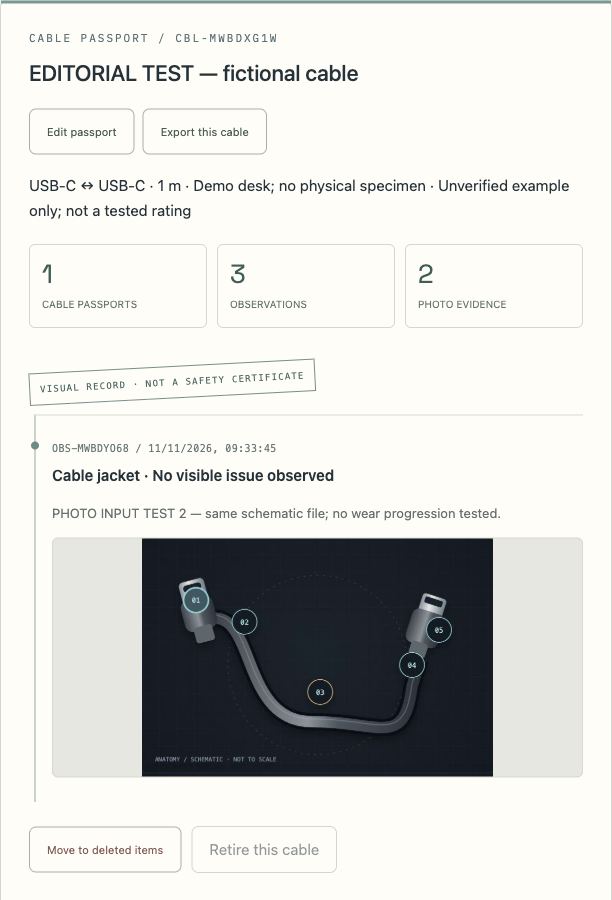
6. Compare two dates within one region
Select Cable jacket in Compare the same region. After two jacket images were saved, selecting that region offered earlier and later timestamps. The screen displayed the two chosen images side by side. A separate Timeline region filter narrows the observations list. Choose the correct region in both controls when you want the comparison and list to answer the same question.
7. Preserve history before leaving or replacing
Use the report, export and archive controls for their distinct purposes. Retirement preserves the observation history as read-only; it is not a backup copy. A browser reload retained our retired record, but the source warns that clearing browser data can erase local records. For a backup, obtain the actual exported file and verify it. We could not confirm that file step, so a complete backup-and-import round trip remains outside our verified results.
Our actual FRAYTRACE tests
| Action | Observed result | What it establishes |
|---|---|---|
| Open demo | Save disabled; zero real records | Demo is separated from user inventory |
| Create fictional passport | One passport; Save enabled | Registration path works without an account |
| Save text + two schematic uploads | Three observations; two photos | Notes and attached images persisted in the interface |
| Select jacket comparison | Two dated image choices and side-by-side view | Same-region comparison path works |
| Retire, then reload | One passport, three observations, two photos; Save disabled | Local persistence and retired read-only history |
| Move to deleted items, then restore | Record returned with retired status | Recoverable removal differs from retirement |
| Reload Korean at 390px | Same records; comparison and timeline selectors worked | Local records were shared by those paths in this browser |
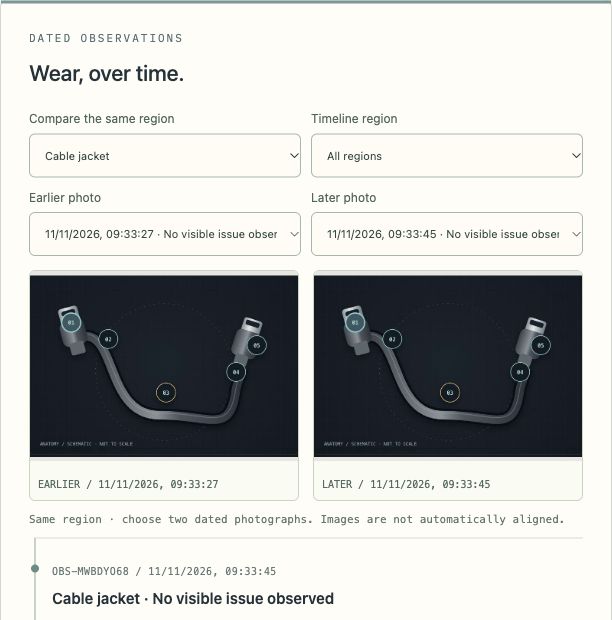
The timestamps shown for our two images were 09:33:27 and 09:33:45 on 11 November 2026 in the English interface, with localized Korean formatting on the other page. They describe closely spaced software tests, not a maintenance interval. We intentionally used the same file twice. The source says images are not automatically aligned, and we did not validate an image registration or automated damage-analysis algorithm.
We also activated Export this cable. A completed file could not be retrieved through the browser tool, so we have not inspected its contents, portability or privacy properties. We did not execute Import backup, validate a printed report or use the camera. These limits matter because a visible export button and a successfully reopened backup are different levels of evidence.
Make dated photographs comparable
For useful dated photographs, keep the cable identity, region and orientation consistent. Include enough context to distinguish an end from the opposite end, then use a comparable view for later records. Changes in distance, lighting, focus or rotation can make the same surface appear different. The side-by-side display helps a person look; it does not correct those capture differences or prove why an appearance changed.
Separate the observation from its interpretation. A useful note structure is “item / region / visible detail / capture condition / action taken / unknowns.” If you record a concern, say what was actually observed rather than inventing an internal mechanism. In our test, the correct note was “same schematic file, no wear progression tested.” For a physical record, the corresponding principle is to preserve the limits of the observation just as clearly.
A numeric label can be especially misleading in this context. The five diagram numbers identify regions, not a severity score. The passport and observation counters count records; they do not grade electrical safety. The word “forensic” in the branding does not turn the journal into certified inspection equipment. A photographed jacket and a tested conductor are different kinds of evidence, and FRAYTRACE supplies the former record structure rather than an electrical test.
| Method | Useful for | Limit |
|---|---|---|
| Loose phone photos | Quick visual capture | Identity, region and date context may be scattered |
| Spreadsheet + photo folder | Custom fields and your own inventory process | You maintain links, naming and archive rules |
| FRAYTRACE | Region-labelled notes, dates, side-by-side photos, retirement history | Manual entries, local storage and no safety certification |
Retirement, deletion and backup are different
Retire means preserve a history while removing the cable from active service in the journal. Our test showed a retirement archive entry with three observations, a replacement-desk card and a disabled Save observation control. Do not interpret this software state as proof that a real object has been physically removed from circulation. That real-world step belongs to your own process; the journal can only record it.
Move to deleted items is a separate, recoverable action. Its confirmation said the passport could be restored below. After confirming, the real-record counts returned to zero and the demo reappeared. Recover deleted passports offered our fictional record; Restore brought back the retired passport. The deletion-recovery flow was tested only with this one record. We did not test bulk inventories or conflict handling.
Export this cable, Export all records and Import backup are available. The source FAQ describes JSON backups and says deleted passports are included in full backups. Treat that as source documentation, not independently inspected file contents. Before relying on a backup, check that the file exists, opens appropriately and can restore the intended records. Store any photo-containing backup with the care appropriate to what those images show.
Print report is useful in concept for a readable handover, while JSON is described as a backup format. Neither should be confused with a screenshot or an editable record inside the browser. We have not verified print layout or import behavior. A file receipt without a restoration check would still leave uncertainty about recovery, so do not clear browser data merely because an export control was activated.
Privacy and mobile limits
The source FAQ says compressed photographs and records are stored in IndexedDB in this browser, with no account sync. Its privacy explanation says the inspection tool does not upload records to a server, while Blogger and advertising services have their own policies. We saw advertising during the visit. These statements do not justify saying the whole page makes no external requests. We did not audit all network traffic, browser storage protection or extensions.
Reload persistence worked for the fictional record, and the Korean path on the same site showed the same one passport, three observations and two photos. This demonstrates shared records across those paths in the tested browser context. It does not demonstrate synchronization to another browser, profile, computer or phone. The source explicitly says there is no account sync. Private browsing and browser-data removal need particular care because the record is local, not a cloud account archive.
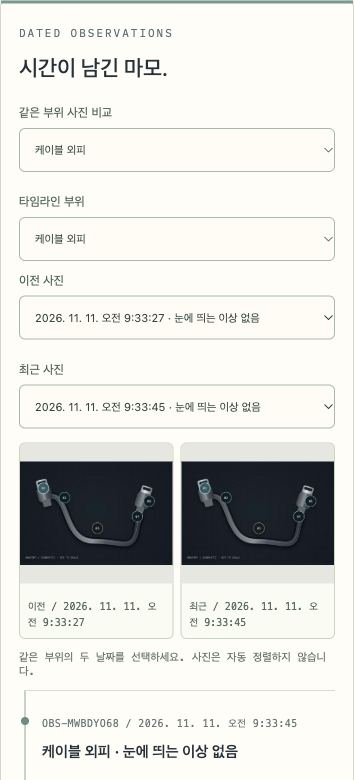
At a freshly loaded 390 × 844 viewport, the Korean interface displayed the report and both same-region photograph selectors without horizontal page overflow. We selected the jacket and used the timeline filter. Report cards fitted the narrow layout, with the two comparison images shown side by side. This is a responsive browser check, not a test on a physical touch device or a complete accessibility audit. Long notes and large inventories may have different practical demands.
Choose the right companion workflow
Use FRAYTRACE to keep the structured observation, then prepare a separate communication copy if someone needs a concise explanation. FrameMint Studio’s screenshot editor guide explains manual annotations, captions and masks. It can help label a captured report, but the edited image should remain separate from the original observation and any backup. Open the final shared file and check that any intended masking is actually present.
For image preparation, WebP Converter and WebP Studio provide alternative size-and-quality workflows. Our published guides document output-size tradeoffs. Compression is a preparation choice, not evidence improvement: keep originals when detail matters and note when a comparison uses resized copies. We did not establish a FRAYTRACE file-size problem that every reader must solve first.
Frequently asked questions
Can this cable inspection journal say a cable is safe?
No. FRAYTRACE calls itself a visual journal, not an electrical safety test. No visible issue observed is a manual observation label. It does not verify internal condition, power capability or permission to keep using a cable. Read the equipment manufacturer’s guidance for the actual item.
Why can I not save on the demo?
The demonstration is not a real passport. Register a cable first. Our Save control became available after registration; it was disabled again after retirement. Check both the selected record and its status before assuming a storage failure.
Why are earlier and later photo controls unavailable?
Select the intended comparison region and save at least two photographs for that same region. Text-only notes do not supply a second photo. Our two jacket images enabled the selectors; selecting a different region with no photos left them unavailable.
Does switching language copy or upload the inventory?
In this browser, the Korean page displayed the same local records after reload. That observation does not prove any cross-device service. The source describes local IndexedDB storage and no account sync; language display and cloud backup are separate concepts.
Will retirement erase the observations?
Our retired passport retained all three records and two photos after reload. New observation saving was disabled and the retirement archive displayed the record. Moving to deleted items used another action and offered recovery. Neither is a verified external backup.
What was not verified in this review?
We did not inspect a physical cable, perform electrical tests, capture a camera image, inspect exported files, import a backup, verify print output or run a full security/accessibility audit. The direct results establish registration, note/photo display, local persistence, region comparison and retirement/recovery behavior for the fictional fixture.
Start with a clearly identified cable
Start by defining a stable cable identity and an orientation convention. Record visible facts in the correct region, verify the saved entry and preserve the original context. Use retirement to retain a history and verify a real backup before depending on recovery outside this browser. A useful cable record is specific about both what was observed and what remains unknown.
A RELEVANT NEXT STEP
Tools with a useful connection
WebP 공방
WebP Converter: 7 Essential Checks for Better Images
Convert and resize images in WebP 공방’s Korean interface. Actual PNG,JPEG and SVG tests explain quality choices, file growth, batch results and download limits.
WebP Studio
WebP Studio: 7 Essential Checks for Better Batch Images
Use WebP Studio’s English interface to compare image quality, keep dimensions or resize a batch. Actual tests reveal smaller JPGs, larger outputs and a rounded zero-saving total.
FrameMint Studio
Screenshot Editor: 7 Smart FrameMint Studio Checks
Frame screenshots, add manual masks and build captioned stories in FrameMint Studio. Real import, order, recovery and size tests explain what to check before sharing.