This aquascape planner helps you compare where plant groups might overlap and how much open space a small tank layout retains. NANO TANK Plant Spacing Lab combines coordinate editing, front and top views, an illustrative growth timeline and a carpet-spacing estimate. Use it to compare design assumptions before arranging a tank.
Hands-on verification: 9 November 2026, desktop Chrome and a fresh 390-pixel mobile viewport. Screenshots show the actual tool. All day labels and growth results below belong to its geometric model; they are not observations of living plants over time.
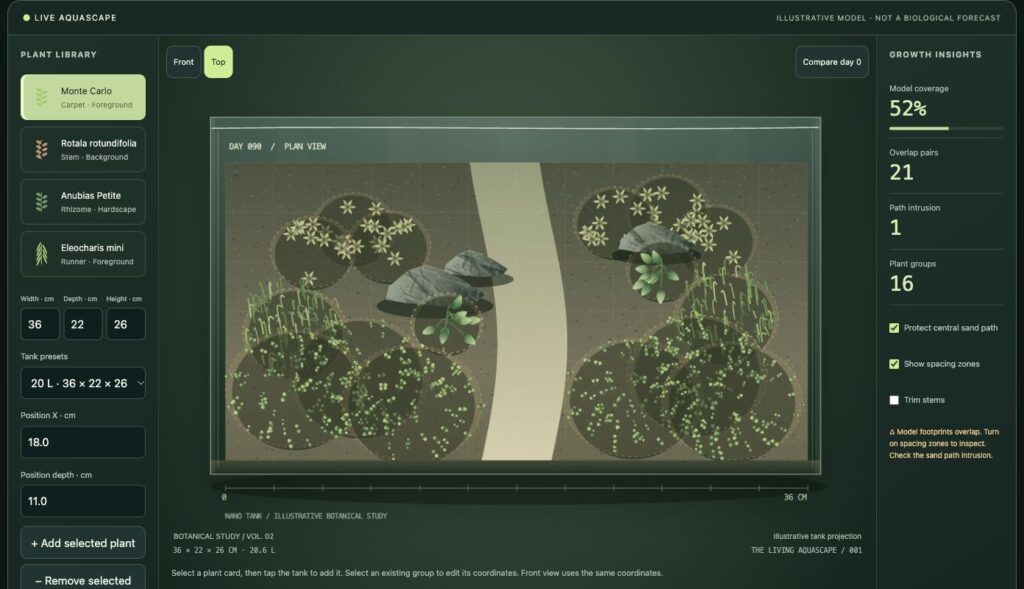
Compare plant spacing, model coverage and a central sand path in NANO TANK. Actual tests explain geometric growth, grid estimates, local saves and mobile editing.
- Brand
- NANO TANK Plant Spacing Lab
- Tool languages
- en, ko
- Verified date
- 2026-11-09
Table of Contents
Key takeaways
- NANO TANK is a design sandbox, not a biological forecast. Light, nutrients and CO₂ effects are not simulated.
- The balanced 36 × 22 × 26 cm layout had 16 plant groups. Baseline DAY 0 showed 7% model coverage, zero overlapping pairs and zero path intrusions; DAY 180 showed 79%,35 pairs and 3 intrusions.
- The central-path checkbox did not prevent our coordinate-based addition inside the path. It highlighted an intrusion, so treat protection as a design check rather than an automatic placement barrier.
- The reverse planner estimates one carpet species on a uniform grid. Its area-based group count does not include overlap, boundary or rock effects and does not automatically plant that grid.
- Coordinate nudges, undo/redo and explicit local save/load worked in the tested sequence. We did not validate downloaded PNG or JSON files.
What this aquascape planner does
The official name is NANO TANK Plant Spacing Lab. The English starting page offers four landscapes: Balanced garden, Iwagumi meadow, Forest edge and Blank canvas. The studio lets you choose among Monte Carlo, Rotala rotundifolia, Anubias Petite and Eleocharis mini, change tank dimensions, add a group at a coordinate and inspect its relationship to neighboring groups.
The main output is an illustrated layout with four summaries: model coverage, overlap pairs, path intrusion and plant groups. Front view is useful for composition and height; Top view makes horizontal spacing easier to inspect. Both refer to the same layout coordinates. A 0–180-day timeline and Slow, Baseline and Fast scenarios change the assumed plant footprints. They show how a design behaves under different assumptions, without establishing when real plants will reach that shape.
The page also contains a reverse growth planner. Instead of asking what a given layout looks like later, it asks what uniform starting spacing corresponds to a target area coverage for one carpet species. This is a separate approximation. A result such as about ten groups should prompt a layout trial, not become a guaranteed shopping quantity.
Plan the empty space before planting
A newly planted foreground can look spacious even when an expanded set of plant footprints will crowd the intended sand path. Conversely, a dense drawing can look convincing while hiding how many circles overlap. The useful design question is not simply how many plants fit today. It is which spaces you intend to keep readable when your chosen growth assumption expands the footprints.
Before opening the studio, decide what the layout should preserve: a central path, a foreground opening, a view of a rock or a less crowded background. Write that goal in one sentence. Then use the model to compare two placements while keeping the tank size, day and scenario fixed. That is more informative than changing several settings and attributing every improvement to the last plant you moved.
Prepare the dimensions of the proposed tank in centimeters. The default 36 × 22 × 26 cm dimensions display 20.6 L, consistent with their rectangular geometric volume. This is not a measured water-fill volume after substrate, rocks, freeboard or equipment. The tool does not establish livestock capacity, water quality, filtration needs or a safe care plan. Keep those decisions outside this layout comparison.
Read the model and its controls
| Control or result | Useful interpretation | Common mistake |
|---|---|---|
| Tank dimensions and presets | Set the geometry before judging spacing | Treating the displayed liters as measured usable water |
| Plant library | Choose a model type for a new group | Assuming the four illustrative species cover every planting option |
| Coordinate fields and group selector | Edit a known group numerically | Moving an existing group when you intended to add another |
| Nearest spacing | Compare center distance with model edge clearance | Treating a negative clearance as a recommended planting gap |
| Coverage | A sampled union of plant footprints, with rock areas excluded | Adding individual circle areas and expecting the same percentage |
| Overlap pairs | Count intersecting group pairs | Reading 35 pairs as 35 plants |
| Path intrusion | Inspect footprints that conflict with the central opening | Assuming the checkbox blocks every placement automatically |
The page explains that coverage is sampled on a 100 × 60 grid. Overlap is a count of intersecting footprint pairs. These are different measurements: a small displacement can change the pair count while leaving the rounded coverage percentage unchanged. The same distinction appeared when we changed DAY 180 from Baseline to Fast: both displayed 79% coverage, while overlap rose from 35 to 36 and intrusion rose from 3 to 4.
Turn on Show spacing zones when judging the top view. The circles are useful precisely because the plant illustrations are decorative. They expose the underlying footprint assumptions that drive the summaries. A plant can look visually separated above the substrate while its modeled circular area intersects another group. Use the circles and the drawing together.
Use the aquascape planner in 7 steps
1. Set the tank dimensions first
Open the original tool and choose an English or Korean page. Select a tank preset or enter width, depth and height. For a reproducible first comparison, keep the default 20 L preset with 36 ×22 ×26 cm. Changing the tank geometry midway through a comparison changes the meaning of coordinates and coverage, so record the dimensions alongside each result.
2. Choose a starting landscape
Balanced garden supplies a mixed 16-group layout in the tested default. Blank canvas removes the plant groups for a simpler experiment; it does not mean every piece of hardscape disappears. We could still see rocks and the path in the blank-layout scene. Use a starting landscape as a baseline rather than claiming to have designed every existing group yourself.
3. Add or select a plant group
Choose a plant card, enter Position X and Position depth in centimeters and press Add selected plant. You can also select a group through the group dropdown, which is particularly useful when drawn plants overlap. The studio explains that tapping the tank adds a selected plant and that existing groups can be selected for editing. We verified the numerical route so the test does not depend on a guessed pixel location.
4. Make a controlled coordinate change
After selecting a group, use the 0.5 cm movement buttons or edit its coordinates. In our mobile test, a Monte Carlo group at X 6.0,depth 7.0 moved to X 6.5,depth 7.0. Undo restored 6.0 and Redo restored 6.5. Check the selected group and the displayed coordinate before interpreting a changed gap; the fields also serve the add workflow.
5. Inspect front and top views
Use Front to examine the composition and Top with spacing zones to inspect the footprint layout. Look at the nearest-center and edge-clearance message for a selected group. In one desktop check, a Rotala group’s nearest center distance changed from 3.1 to 2.7 cm after a rightward nudge, while edge clearance changed from−2.2 to−2.6 cm. The negative number indicates intersecting modeled edges, not spare room.
6. Compare days with one scenario fixed
Read DAY 0,DAY 90 and DAY 180 under Baseline before trying Fast or Slow. Keep the group arrangement unchanged while doing this. Our balanced layout progressed from 7% to 52% to 79% model coverage. That sequence describes the model’s expansion settings. It does not demonstrate that a real aquarium will reach those percentages on those calendar dates.
7. Save a comparison you can recognize
Use Save locally to keep a layout in this browser, then test Load saved with a small reversible change. We saved a one-group scene, removed its selected group and loaded the saved version; one group and its 3% model coverage returned. Keep a written note of the dimensions, selected day and scenario as context. The presence of PNG and JSON controls is not proof of a successfully restorable external backup.
Actual tests and results
The following tests used the original tool on 9 November 2026. Model output was read from the visible studio. English and Korean DAY 180 Fast results matched in our checks. We did not perform a real planting experiment or measure biological growth. Each number belongs to the particular layout and settings shown here.
| Test condition | Coverage / overlap / intrusion | What we learned |
|---|---|---|
| Balanced 16 groups, DAY 0 Baseline | 7% /0 /0 | The starting footprint is much smaller than the later model |
| Same arrangement, DAY 90 Baseline | 52% /21 /1 | The default future view already contains overlap and a path conflict |
| Same arrangement, DAY 180 Baseline | 79% /35 /3 | Crowding increases without adding groups |
| Same arrangement, DAY 180 Fast | 79% /36 /4 | Rounded coverage alone misses additional conflicts |
| Blank layout + Rotala at 18,11; path protection on | 3% /0 /1; one group | No overlap does not mean no path intrusion |
| Save, remove, Load saved | One group→zero→one;3% restored | Explicit browser save/load worked for this sequence |
The central-path experiment is a useful troubleshooting example. We used the default 36 cm width and 22 cm depth, chose a blank plant layout and added Rotala at X 18,depth 11. The protection checkbox was checked. The group was added, overlap stayed zero and intrusion became one. The status combined a no-overlap message with a request to inspect the sand path. These messages are compatible because they describe two independent conditions.
A second comparison separated editing from growth. Selecting the first Rotala in the balanced layout displayed X 5.4,depth 15.4. A rightward nudge moved it to 5.9,15.4 and reduced the reported nearest clearance. For the explicit undo/redo coordinate test we used the simpler mobile Monte Carlo scene described above. The article does not infer undo behavior only from an unchanged rounded coverage value.
Interpret the reverse spacing result
With Monte Carlo selected, a 70% target at DAY 90 Baseline returned illustrative grid spacing 9.2 cm, an area-based count of about 10 groups and radius 4.34 cm. At DAY 180 Fast it returned 13.8 cm, about 5 groups and radius 6.50 cm. The larger future footprint requires fewer groups in the area approximation, so the suggested grid spacing becomes wider. That is a model relationship, not evidence that buying fewer plants will reliably produce the same living carpet.
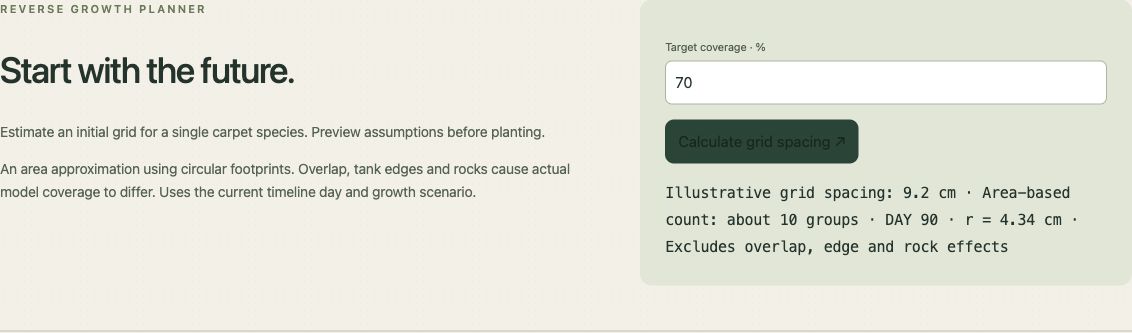
The reverse planner sums an idealized circular-area contribution; the studio measures a sampled union of placed footprints while accounting for rock footprints. Summing areas can count space twice where circles overlap, while a union counts an occupied location once. Edge clipping and hardscape change the actual arrangement further. Therefore a 70% target is not a promise that manually placing the returned number will show 70% in the studio.
Use the suggested spacing as a starting hypothesis. Build the proposed groups, look at the top view and examine the actual modeled coverage and conflicts. Then adjust the layout to protect your intended opening. The calculator did not populate a grid automatically in our test. Its count is a number of model groups, not a verified number of retail pots, tissue-culture cups or individual stems.
Recalculate after changing the timeline or scenario, and read the day and radius printed in the result. A previously displayed calculation is not necessarily a fresh result for every control change. The useful check is whether the output line names the same assumptions you intend to compare. This also prevents copying a DAY 180 Fast spacing into notes labeled DAY 90 Baseline.
A practical layout comparison workflow
For a first design study, use the balanced layout at DAY 90 Baseline and write down 52% coverage,21 overlap pairs and 1 path intrusion. Select one group nearest the opening and move it by a known increment. Inspect both the image and the summaries. If overlap falls but the path conflict remains, the change addressed crowding without solving the opening. Continue one coordinate change at a time.
For a second study, keep the improved positions and change only the day. If the opening disappears under a later or faster assumption, you have found a layout sensitivity worth considering. You have not proved that a particular species will invade that space in real life. The design response might be reserving more space or planning a separate maintenance discussion, rather than treating the Fast scenario as an unavoidable forecast.
A manual paper plan is sufficient for a static arrangement, and it lets you sketch species outside the four-item library. NANO TANK adds repeatable coordinates, quick footprint changes and numerical conflict counts. A real tank photograph documents what actually happened, while this studio only draws an assumption. Use the sandbox for comparing proposals and observations for judging a planted tank’s actual development.
Limits of the growth model
The disclosed model starts with a species-specific illustrative radius and adds capped linear expansion over a maximum 180-day timeline, modified by scenario. The page states that stem trimming caps height rather than carpet spread. We toggled trimming and the coverage, overlap and intrusion figures remained 52%,21 and 1 in the tested balanced DAY 90 scene. That is consistent with the distinction, but we did not measure a real pruning response.
No light, nutrient or CO₂ physics is simulated. The tool does not validate substrate choice, circulation, algae risk or species compatibility. Its linked care references are for plant information; the page explicitly says they do not validate its growth coefficients. Do not attach biological authority to a decorative plant illustration or a percentage with a precise-looking label.
Coverage is a sampled model percentage, not a photograph-derived plant measurement. Pair counts are not a total number of crowded plants, because one group can intersect several others. A low overlap count does not establish a clear path or good maintenance access. The selected-group clearance, path count and visual composition answer different questions and should be read together.
Mobile editing, saving and privacy
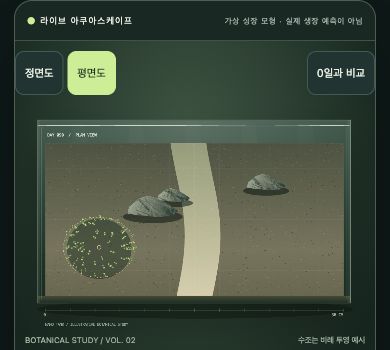
At 390 pixels wide, the Korean page stayed within the viewport and the illustrated canvas measured 360 ×227 pixels. Numerical add, half-centimeter nudge, undo and redo worked. The layout is long on a narrow screen, so selecting controls may require scrolling away from the preview. Coordinate editing gives an alternative to precisely touching a small illustrated plant. We tested an emulated viewport, not physical-phone battery use or every browser.
The site says it uses browser local storage when Save locally is selected and requires no account. Our save/remove/load sequence verified restoration in the same browser. We did not verify transfer between English and Korean pages, device synchronization, deletion recovery or a JSON import workflow. Loading a saved design is different from automatically preserving every unsaved edit.
Save tank PNG and Export JSON controls were present. We invoked JSON export but obtained no inspectable downloaded file in this test environment; its contents and integrity remain unverified. PNG output was not validated. Do not rely on this review as proof that an external file can restore the entire design. Keep the browser save and your comparison notes until you have checked any exported artifact yourself.
Blogger and Google advertising may process cookies and technical data according to the tool’s privacy notice. We also encountered advertising overlays that could cover controls until dismissed. No personal upload was required for the tested layout work, but we did not audit all traffic. Claims such as fully offline, no tracking or nothing ever leaves the device would exceed the evidence.
Related tools and care references
For another model-based aquatic experiment, see our published Pond Jar Universe guide. It explores a virtual ecosystem rather than arranging plant footprints. Use NANO TANK for spatial comparison and that tool for a separate one-variable simulation exercise. There is no verified shared save, import pipeline or biological validation between the two.
For actual species information, the original tool links to the Tropica plant catalogue. Consult species-specific references separately from the layout model. Those references are not evidence that NANO TANK’s day labels predict your tank’s growth.
Frequently asked questions
Does this predict my tank after 90 days?
No. DAY 90 is a point on an illustrative geometric timeline. Light, nutrients and CO₂ effects are not simulated. Use matching day and scenario settings to compare two proposed layouts, then evaluate real growth through observations.
Does about 10 groups mean 10 pots to buy?
No. The reverse result is an area-based estimate for model groups of one carpet species. It excludes overlap, boundaries and rocks. Retail pot contents and actual planting divisions were not modeled or verified.
Why can a plant enter the protected path?
Our coordinate test added a group at 18,11 while path protection was checked. The tool reported one intrusion. Treat the checkbox and warning as an inspection aid; do not assume they automatically reject every placement.
Why does Fast show the same coverage but more overlap?
Coverage and pair count describe different geometry, and the displayed percentage is rounded. DAY 180 changed from 79%/35 pairs/3 intrusions to 79%/36/4 in our test. Read all three figures rather than judging by coverage alone.
Does NANO TANK support Korean?
Yes. We inspected the English page and the Korean page and reproduced the DAY 180 Fast summaries in both. We also used the Korean coordinate controls at 390 pixels wide. Cross-language save sharing was not verified.
Are my edits automatically saved?
The page describes local storage on explicit save. We verified Save locally followed by Load saved after removing a group. We did not establish automatic saving of all edits or cloud backup. Check the saved-state message before leaving.
Start with one layout question
Start with one question: will this arrangement keep the opening I care about under the same chosen growth assumption? Set the dimensions, compare the same layout at a few days and move one group at a time. Use the resulting drawing and conflict counts as design feedback, then make real planting and care decisions with actual tank conditions in view.
A RELEVANT NEXT STEP
Tools with a useful connection
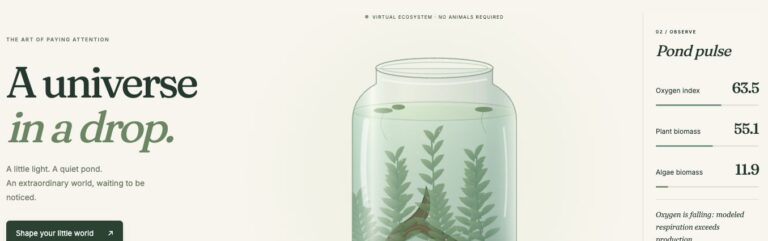
Pond Jar Universe
Pond Jar Universe: 7 Essential Experiment Checks
Explore a virtual pond with one-variable comparisons. Our actual tests explain daily indices, DAY11 results, history locks, local saves and the limits of this educational ecosystem model.
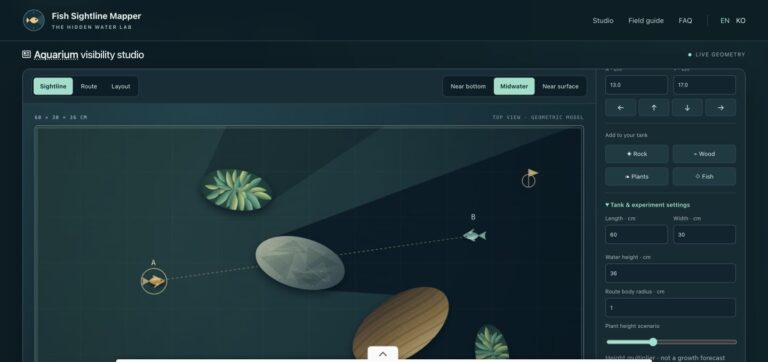
Fish Sightline Mapper
Fish Sightline Mapper: 7 Essential Aquarium Layout Checks
Compare aquarium sightlines with Fish Sightline Mapper. Our measured-input tests cover a 26.9% to 38.8% one-move experiment, depth and body-clearance changes, shared layouts and the model’s animal-care limits.
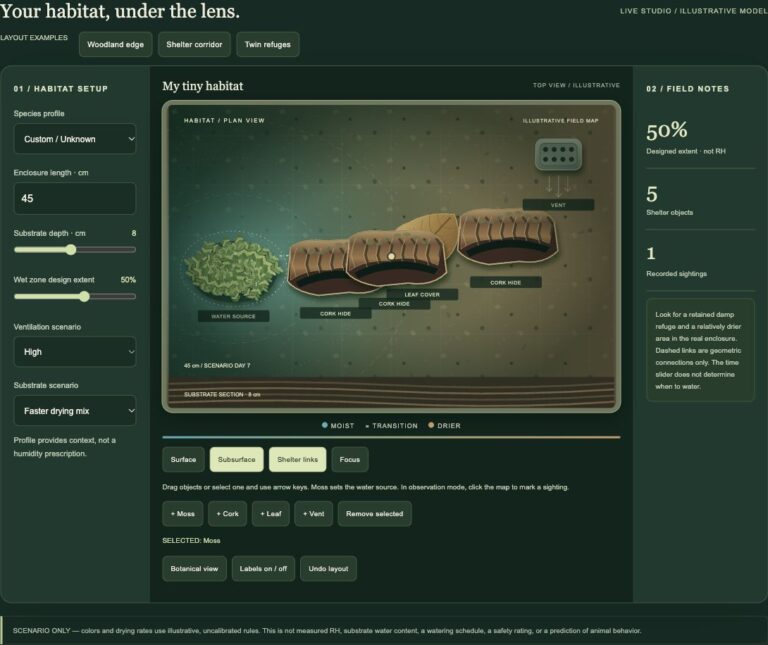
Microclimate Atlas — Isopod Moisture Gradient Planner
Isopod Layout Planner: 7 Essential Checks for Better Notes
Plan a virtual isopod habitat, compare illustrative drying scenarios and keep observation notes. Our tests separate design percentages from measured humidity and verify local reload behavior.